

Get started with accessibility features on Mac
Customize your Mac in ways that work best for you with accessibility features for vision, hearing, mobility, speech, and cognition—whether you need them temporarily or on an ongoing basis.
You can turn on accessibility features when you set up your Mac for the first time, or at any time in Accessibility settings. On your Mac, choose Apple menu > System Settings, then click Accessibility 👁 Image
in the sidebar. (You may need to scroll down.)
Open Accessibility settings for me
Note: Not all features are available in all countries, regions, or languages.
Vision
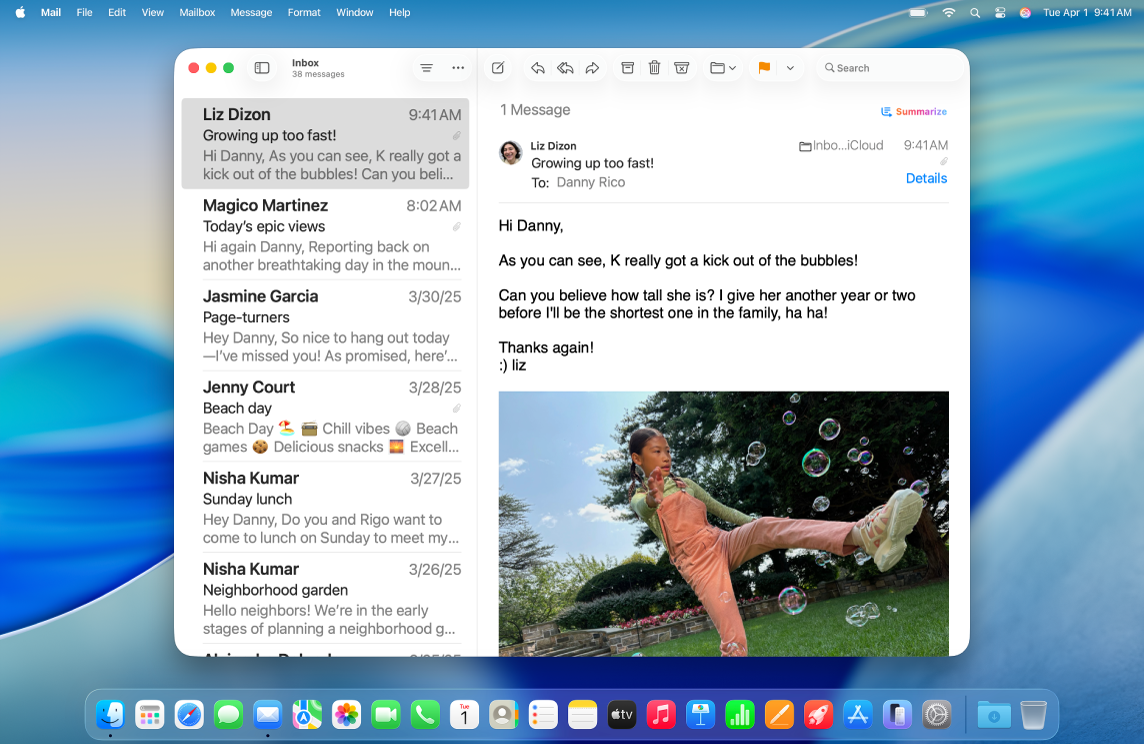
Use the built-in screen reader to hear what’s on the screen and navigate your Mac with keyboard commands, trackpad gestures, or a connected braille display.
You can also make text bigger, zoom in on the screen, adjust display colors, and more.
Hearing
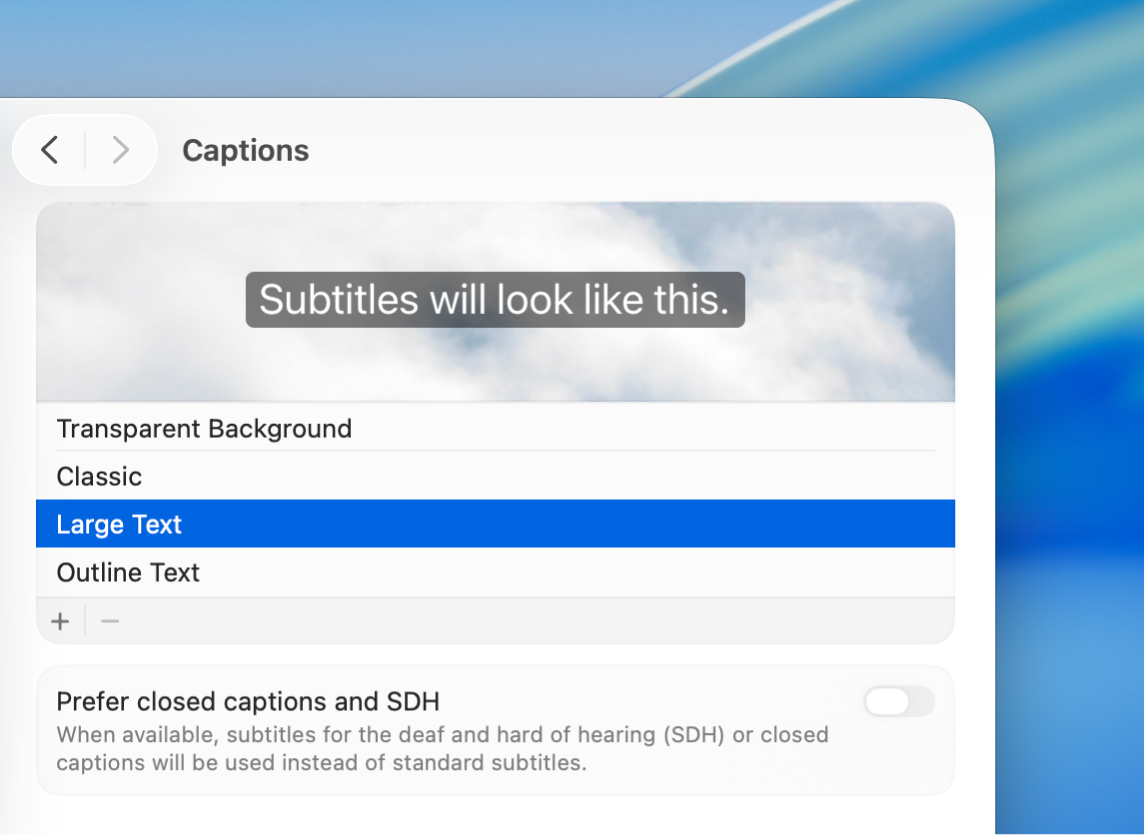
Get real-time captioning of spoken audio from an app or live conversation, pair Made for iPhone (MFi) hearing devices with your Mac, customize audio to suit your hearing, and more.
Mobility
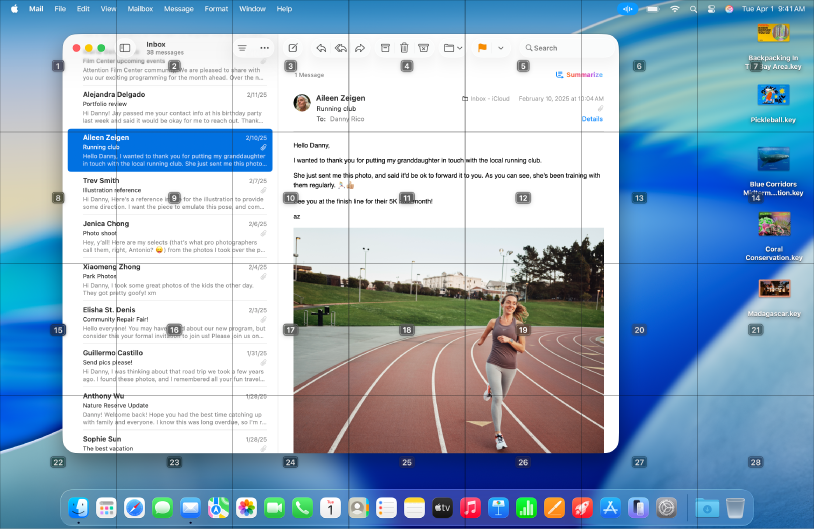
Navigate and perform actions on your Mac using spoken commands, assistive devices, an onscreen or physical keyboard, and more.
Or set options that make it easier to use the keyboard, mouse, and trackpad.
Speech
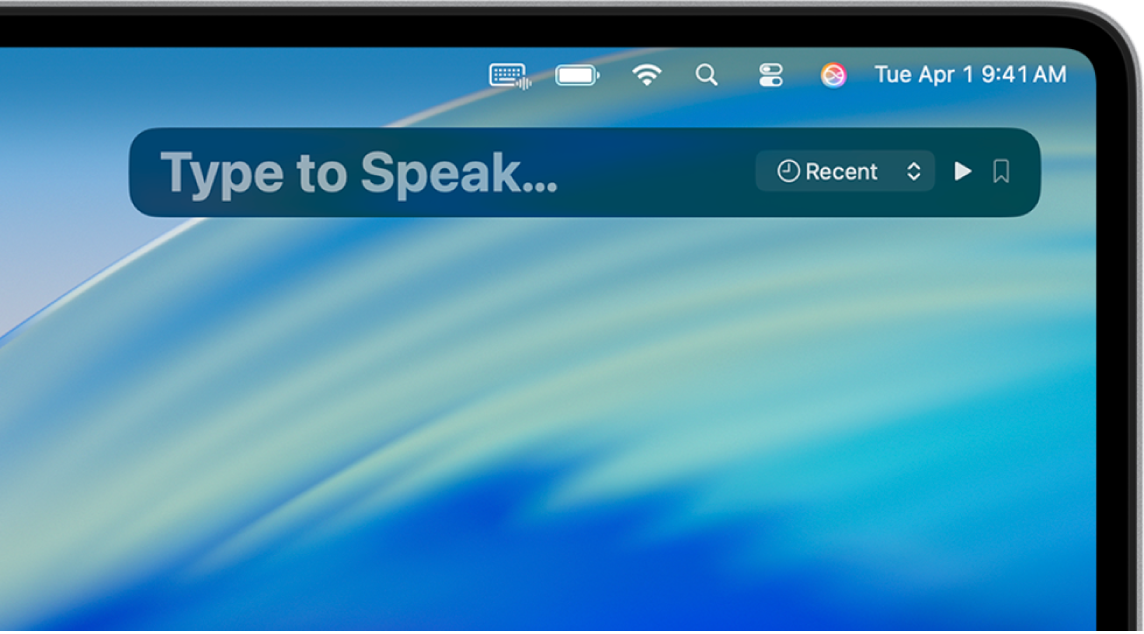
Create a custom voice that sounds like you, or choose one of dozens of system voices, then use it to have what you type spoken out loud.
You can also teach your Mac to perform an action when you speak a word or another sound of your choosing, have Siri listen for atypical speech patterns, and more.
Your Mac comes with additional tools that can help you follow along with what you’re reading or listening to, streamline tasks, reduce distractions, and more. For example, if you want to reduce sensory stimulus from the screen, you can set an option to automatically dim the display of content that depicts flashing or strobing lights. For more resources, visit the Apple Accessibility website.
Tip: Control your frequently used accessibility features and settings with Siri, Accessibility Shortcuts, keyboard shortcuts, or from the menu bar. See Quickly turn accessibility features on or off.