

How to use Siri on Mac
Siri is an intelligent assistant that’s built into your Mac to help you get things done. After you turn on Siri, you can use it to complete everyday tasks with your voice, or by typing requests to Siri. The more you use Siri, the better it knows what you need.
Below are some examples of what you can use Siri to do. Additional examples appear throughout the guide. Want even more examples? Ask Siri something like, “What can you do?” Ask Siri that question while you’re in any app—for example, Messages, Calendar, or Maps—to learn more about how Siri can help.
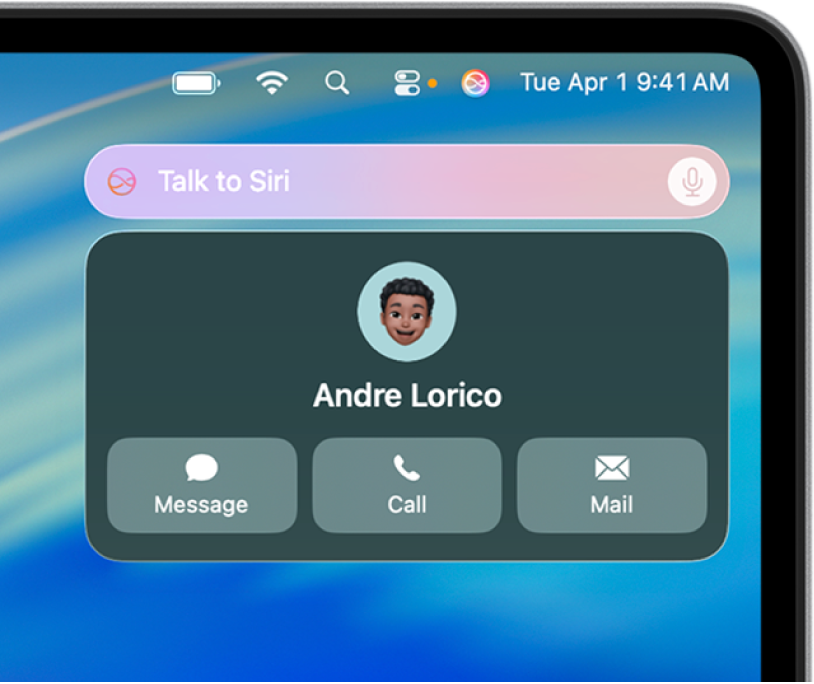
Get information
Ask Siri to spell or translate a word, perform calculations, get information from the web, and more.
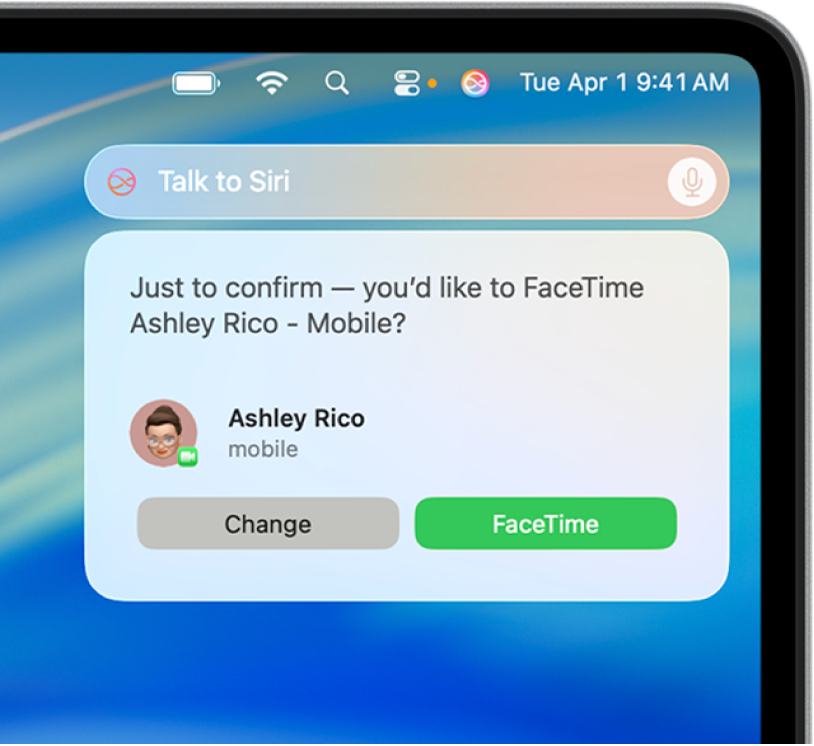
Call, text, and email
Use Siri with the Phone, FaceTime, Messages, and Mail apps to stay connected with friends and family, near and far.
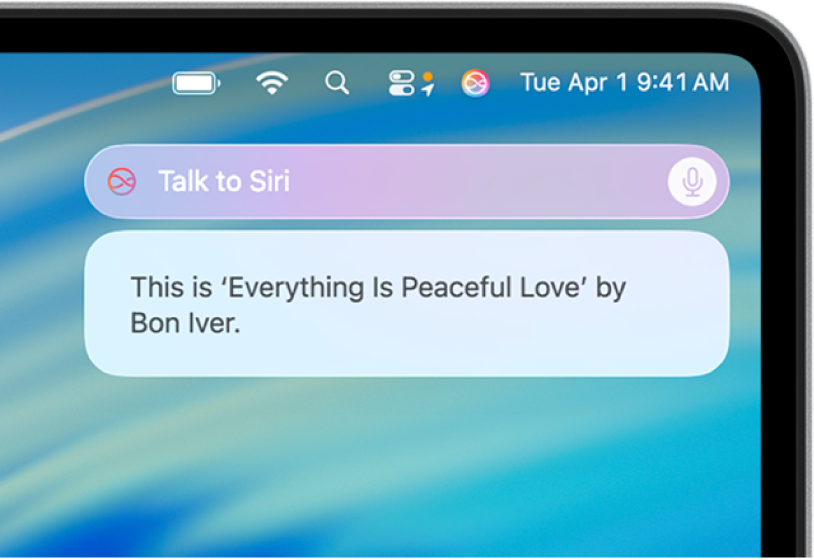
Play music and podcasts
Ask Siri to play your favorite music and podcasts and control audio playback. For example, ask Siri to play, pause, or skip songs.
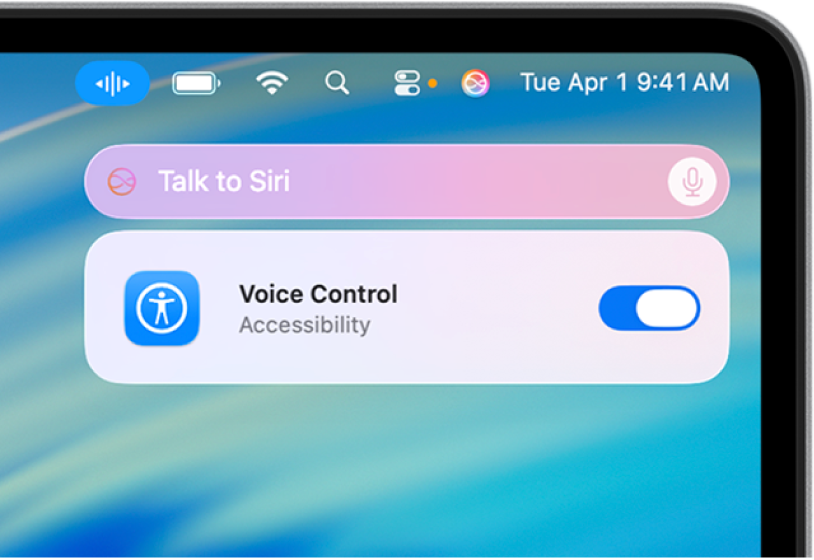
Control Apple devices and smart home accessories
Control your Mac and other Apple devices with just your voice. You can also control smart home accessories that you set up in the Home app.
Ask Siri to control your Apple devices and smart home accessories
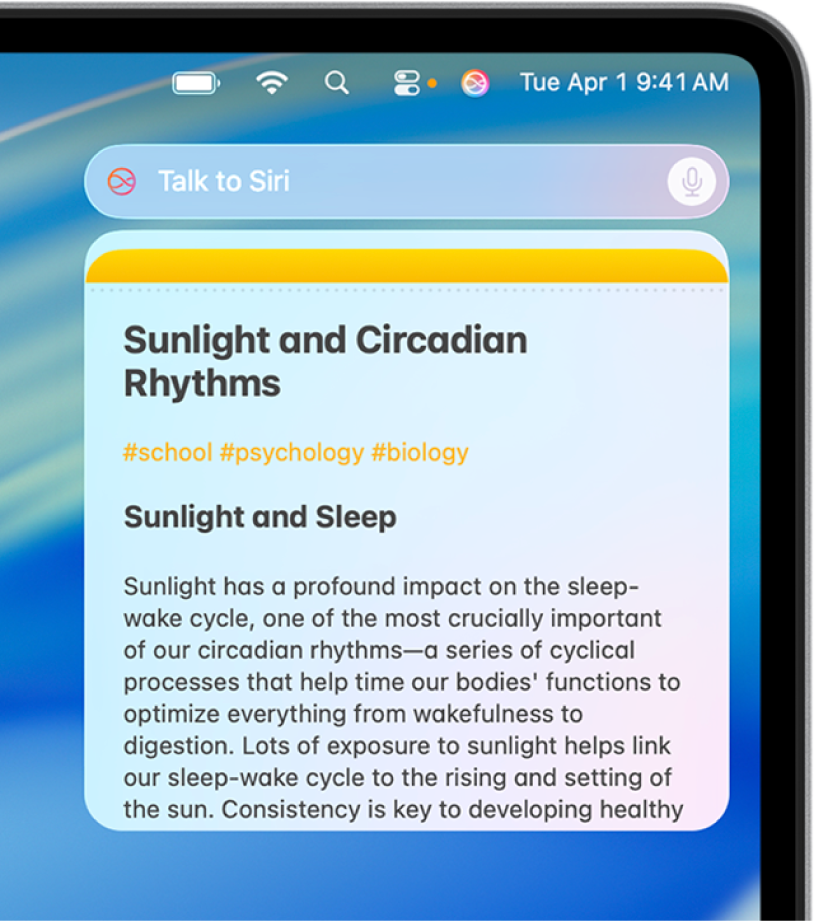
Use Siri with apps
Ask Siri to complete actions in apps to help you complete everyday tasks. For example, while you have your hands full prepping dinner, ask Siri to add items to your grocery list.
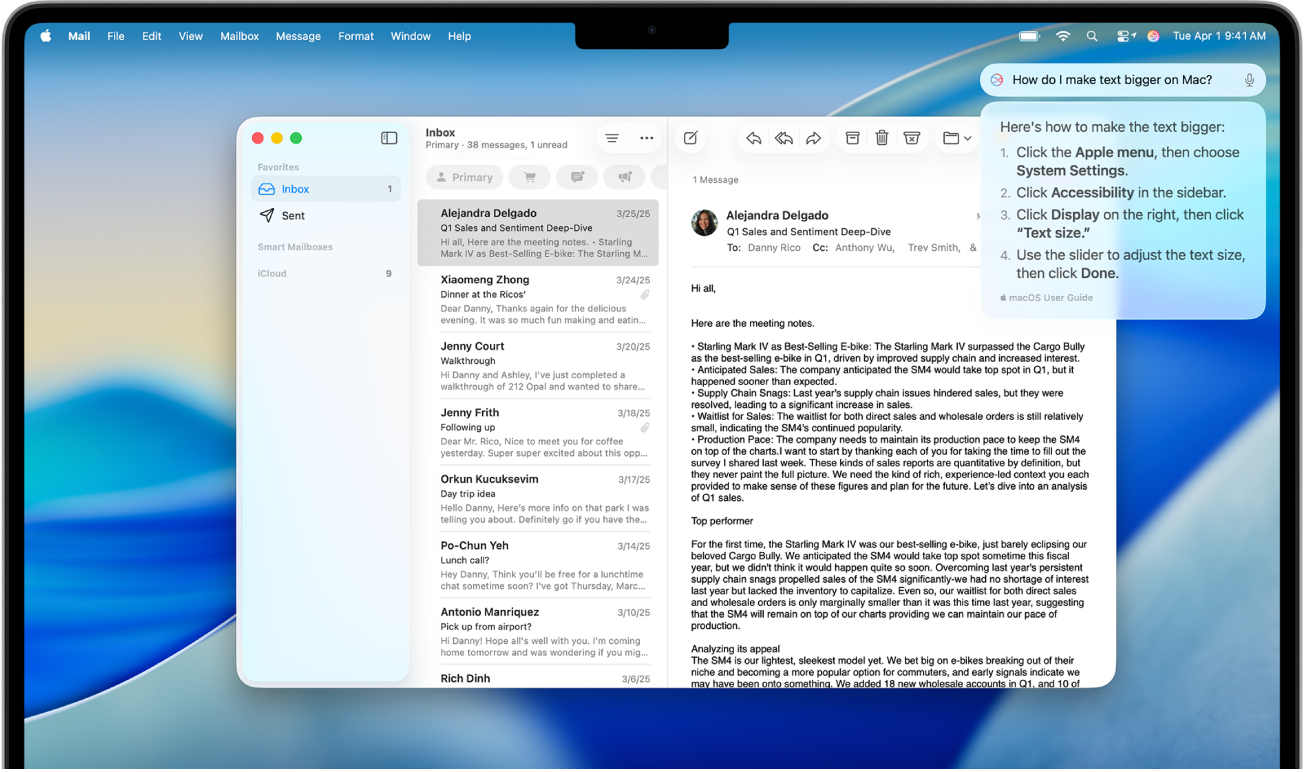
Do more with Apple Intelligence
With Apple Intelligence, you can type requests to Siri, get answers to questions about your Apple products, tap into ChatGPT’s expertise, and more.