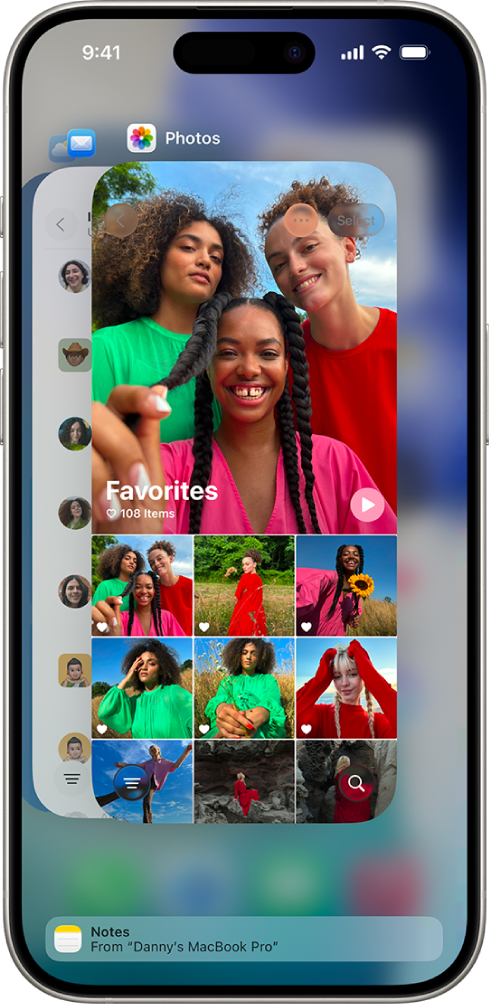
With Handoff, you can start a task on one device and complete it on another. For example, you can start reading a webpage in Safari on your Mac, but then hand it off to your iPhone to finish it on the go.
You can use Handoff with many Apple apps—for example, Safari, Mail, FaceTime, and Maps. Some third-party apps also work with Handoff.
Turn on Handoff on both your Mac and your other Apple device.
On your Mac: Choose Apple menu > System Settings, click General 👁 Image in the sidebar, click AirDrop & Continuity, then turn on “Allow Handoff between this Mac and your iCloud devices.” (You may need to scroll down.)
On your iPhone or iPad: Go to Settings 👁 Image > General > AirPlay & Continuity, then turn on Handoff.
Hand off a task between your Mac and other devices
When your devices are near each other, an icon appears whenever a task can be handed off. Just click or tap the Handoff icon to continue working on your other device.
The Handoff icon appears in the following locations:
On a Mac: Toward the right end of the Dock, if the Dock is at the bottom of the screen. If you set up the Dock to appear on the left or right side of your screen, the Handoff icon appears at the bottom of the Dock.
Make sure that both devices have Wi-Fi and Bluetooth turned on, and you’re signed in to the same Apple Account.
Your devices must be within 30 feet (10 meters) of one another.
Check that your app supports Handoff. Calendar, Contacts, FaceTime, Keynote, Mail, Maps, Pages, Numbers, Reminders, and Safari, as well as many third-party apps, allow Handoff.