|
VOOZH | about |
|
VOOZH | about |
In this article, We are going to create an ec2 instance, install a MySQL database using MariaDB on the ec2 instance, and create an API of Login using the flask python framework. Flask is a micro web framework written in Python. MariaDB is one of the most popular open-source relational database management systems and could be used as a great replacement for MySQL. AWS ec2 instance allows users to rent virtual computers on which to run their computer applications, installing and Running MYSQL on EC2 Server(Linux)
Sign in to your Management Console. Go to EC2.
Click on the "Instances" section in the left sidebar. Click the "Launch Instance" button to start the instance creation process.
Then enter the appropriate Name of instance, for example MyInstance and select instance type as Amazon Linux 2 AMI(HVM) -Kernel 5.10, SSD volume Type in Application and OS Images. Select t2.micro as instance type.
Choose an existing key pair if you have one, or create a new one. If you create a new key pair, make sure to download the private key file (.pem) and store it securely.
Create a new security group or choose an existing one. Open ports for SSH (22), HTTP (80), Custom TCP(8080) to Run Flask API, MySQL/Aurora(3306). Review your settings and launch the Instance by clicking the Launch Instance Button
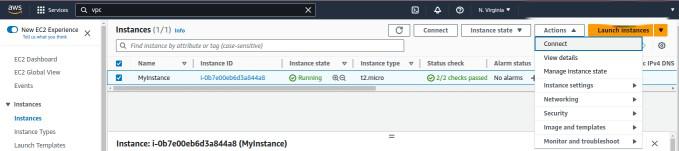
We can see our Instance (MyInstance) in EC2 instance Dashboard. Select the check box of our Instance and go to Action and click on Connect to Connect the Instance.
Enter the following command in the console to check the Python Version.
python3 --versionif Python is not installed then enter following command.
sudo apt-get install python3Run the following command for installing mariadb-server
sudo yum install -y mariadb-server
This command will install the MariaDB server.
After install MariaDB server start using
sudo systemctl start mariadbUse this command for start MariaDB service automatically
sudo systemctl enable mariadb
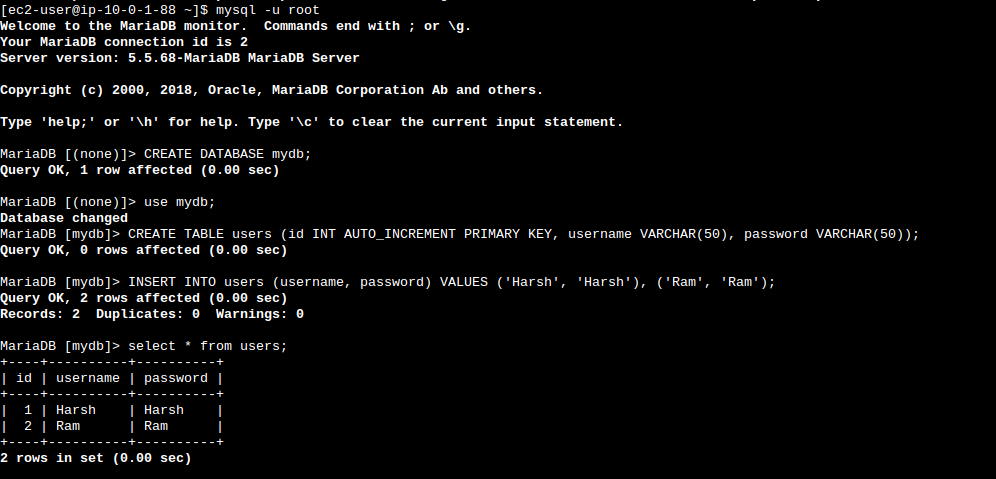
Access the MariaDB shell
mysql -u rootcreate a new database for your Flask app using SQL commands
CREATE DATABASE mydbUse the new created Database and create a Table using SQL command
CREATE TABLE users (id INT PRIMARY KEY, username VARCHAR(20), password VARCHAR(20))To Insert Data in Table using SQL command
INSERT INTO users (username, password) VALUES ('Harsh', 'Harsh'), ('Ram', 'Ram')
After exiting from MySQL and Create a Directory to save your Flask app code and its related file.
mkdir Webcd WebSetup Flask environment, For creating virtual environment
python3 -m venv exflaskActivate the virtual environment
source exflask/bin/activateInstall the Flask package using pip
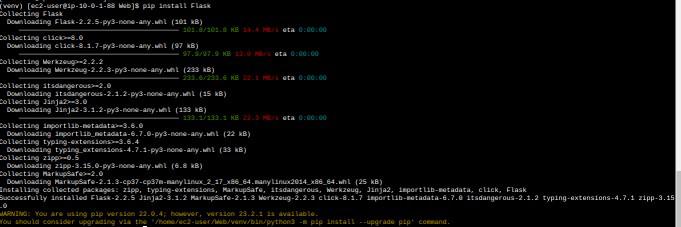
pip3 install Flask
This command install the Flask package, which help us to create an web application in python.Access the mysql in your flask app to install flask-mysqllab package.
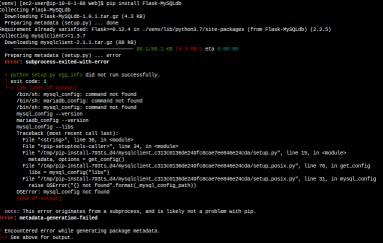
pip3 install Flask-MySQLdb.If you get an error like this.
We have to Install some dependencies to avoid the error.
“pip install mysqlclient>=1.3.7These commands install necessary dependencies allow to the “mysqlclient” package to Flask app.
Leat's create Flask app.
touch app.pyThis command creates an empty file which contains your Flask application code.
To write your application code in app.py file ,Using
nano app.pyThis command opens the app.py file in the nano editor, you write and edit your code hear.
Inside the 'app.py' file, you'll write your Flask application code.
Inside your main project directory create a subdirectory named "templates"
mkdir templates && cd templatesWithin the "templates" directory, create a new HTML file named login.html
touch login.htmlThis command creates an empty login.html file, which you'll write your login page code.
nano login.htmlInside the 'login.html' file, paste the following HTML code to define the structure of your login page template
Navigate to Your main Project Directory ‘Web’ and Run Your Flask App
python3 app.pyThis command starts the Flask development server
👁 Flask Development Initializtion
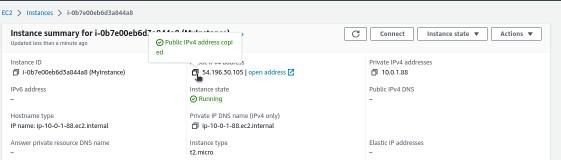
Open your browser and open AWS console navigate EC2 and select your instance public IP copy it and past it in URL and at last add ":8080" to access our flask app (ec2-public-ip:8080).
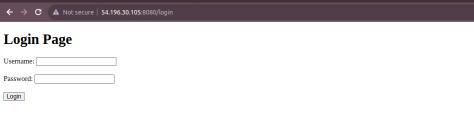
For going Login page write
“(ec2-public-ip:8080/login”
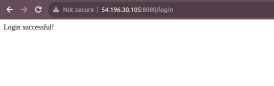
Enter a username and password to test the login functionality.