VOOZH about

URL: https://www.geeksforgeeks.org/cloud-computing/how-to-use-azure-cognitive-services-for-image-recognition/

⇱ How To Use Azure Cognitive Services For Image Recognition ? - GeeksforGeeks


  • Courses
  • Tutorials
  • Interview Prep

How To Use Azure Cognitive Services For Image Recognition ?

Last Updated : 23 Jul, 2025

Image recognition is one of the techniques which is widely used in today's modern world. The rise of various technologies made this process much simpler. In this article, let us understand and demonstrate the image recognition process using Azure Cognitive Services and Azure Machine Learning. Before that, let us understand the following terms.

What Are Azure Cognitive Services?

  • Azure Cognitive services are Azure services that make AI accessible to all developers, without the need for machine learning skills.
  • To embed the capacity to see, hear, speak, search, understand, and expedite decision-making into your apps, all we need is an API call.
  • Enable developers of all levels of knowledge to easily add AI to apps.

What Is Azure Machine Learning Workspace?

  • The Azure Machine Learning workspace allows you to work centrally with all the artifacts you created by using Azure Machine.
  • The workspace maintains a history of all training courses, including logs, measurements, output, and an overview of your scripts.
  • we can build, train, and track machine and depth learners models in an Azure Machine Learning workspace, whether we prefer to write Python or R code with the SDK or to work with np-code/low-code options.

Environment Setup

Creating Azure Machine Learning Workspace

Step 1: Log in to your Azure portal with an active subscription.

👁 Azure Console

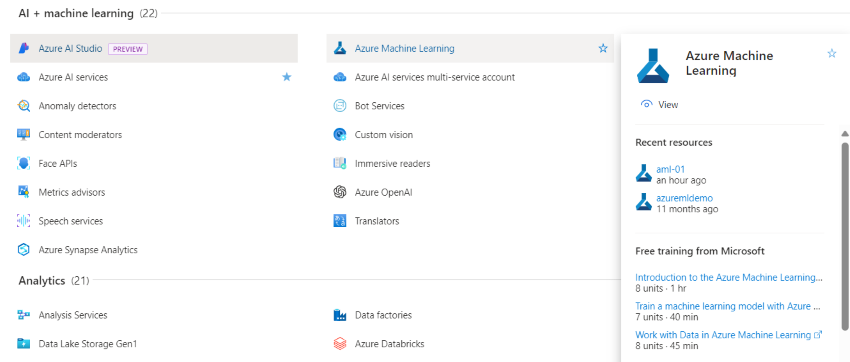
Step 2: Create Navigate to the services and click Azure Machine Learning.

👁 Azure AI Studio

Now, click Create to create your Machine learning instance. Follow the below instructions to create your instance.

Resource details:

  • Mention the subscription type and resource name. Either you can create a new resource group or use the existing resource group for your instance.

Workspace details:

  • specify the name of your workspace and leave the rest of the options as default or customize according to your requirements.

👁 Azure Machine Learing Resources

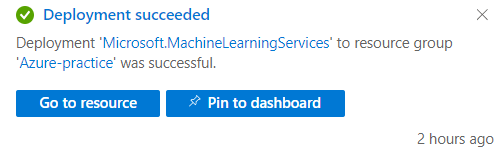
Now click Review + Create to deploy your resource.

👁 Deployed Succeeded

Once your resource is deployed. Navigate to the Go to resource button.

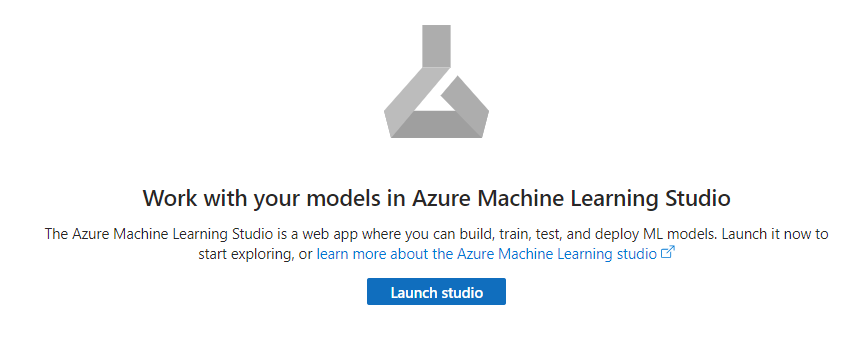
👁 Launch Studio

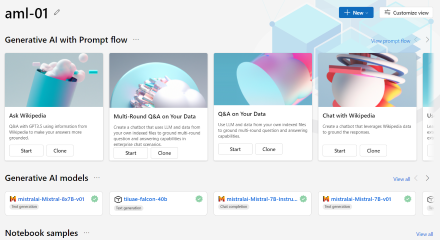
Click Launch Studio. We will be redirected to our workspace after some Authentication process.

👁 aml-01

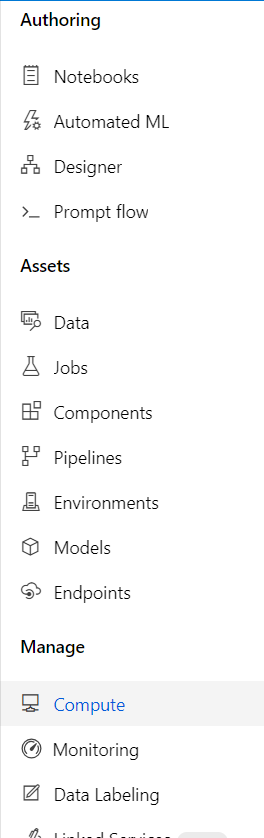
Navigate to the compute option under the category of Manage.

👁 Choose Compute

Now create a new compute instance by clicking New.

👁 Azure Machine Learing

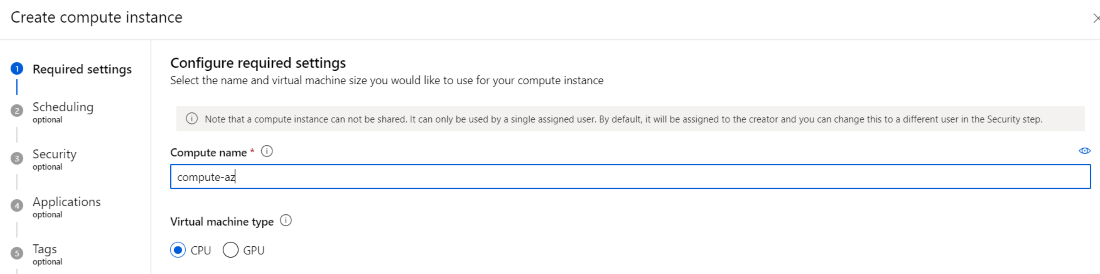
Configure the properties of your computing instance. Mention the name and Virtual machine type.

👁 Configure the Setting

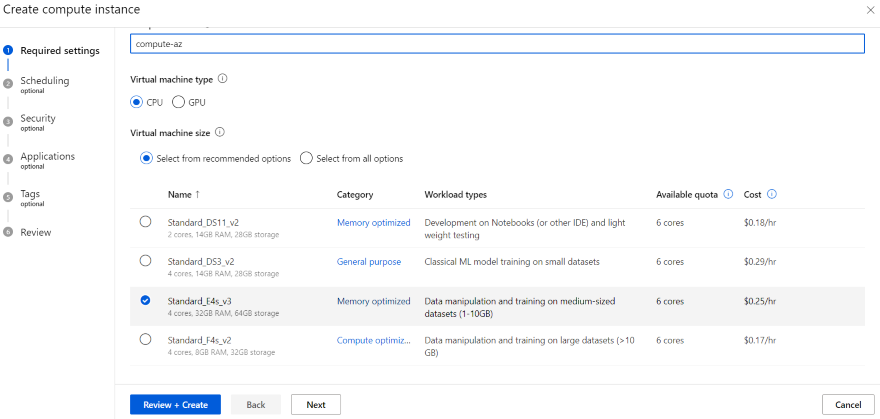
Also, choose the size of your Virtual machine and click Review + Create.

👁 Create Compute Instance

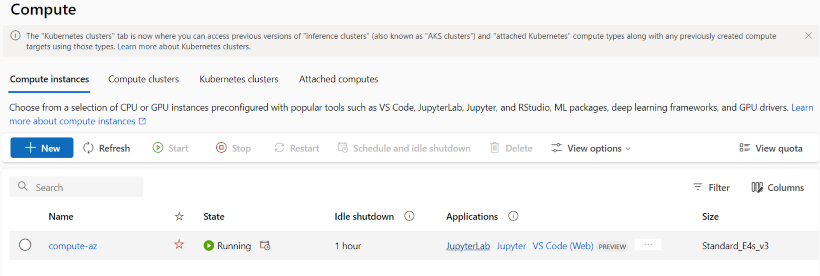
Once your instance is created and starts running, open the JupyterLab.

👁 Compute Instance

Creating Azure Cognitive Service

Step 1: Navigate to the Home page and click resources. Under the category of AI + Machine Learning, click Computer Vision.

👁 Select the Computer Vision

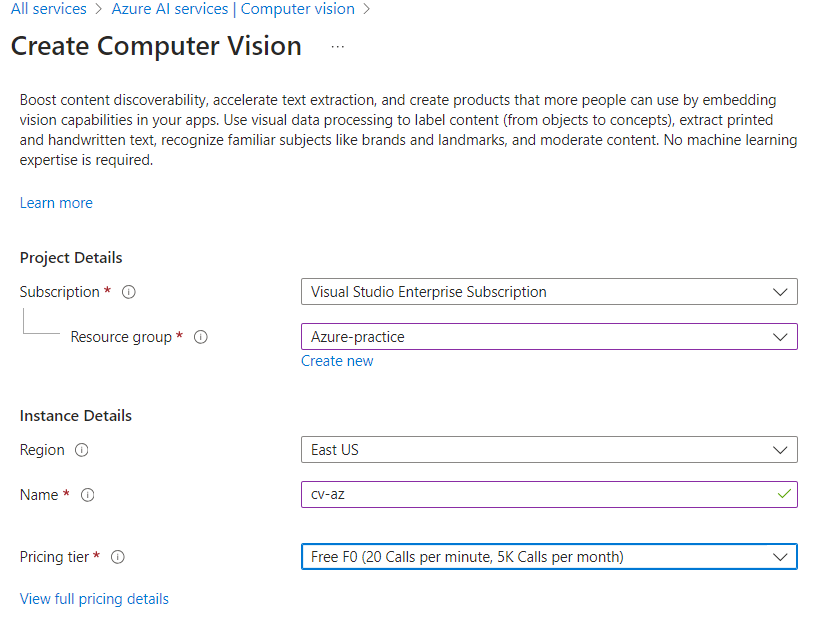
Click Create and follow the below instructions to create your resource.under the project details, choose your subscription type and resource group.

Specify the instance details, Name, and pricing tier. There are three types of tiers and one is the Free tier. Choose according to your project requirements.

👁 Create Computer Vision

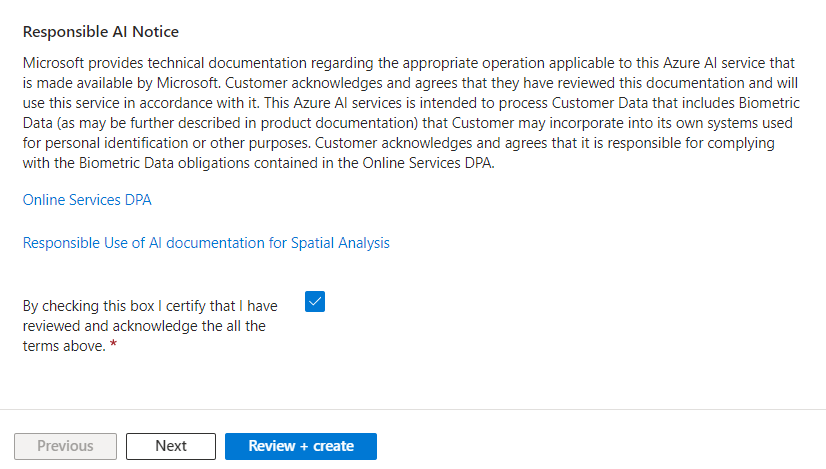
Also, make sure you acknowledge the terms of AI.

👁 Review And Create

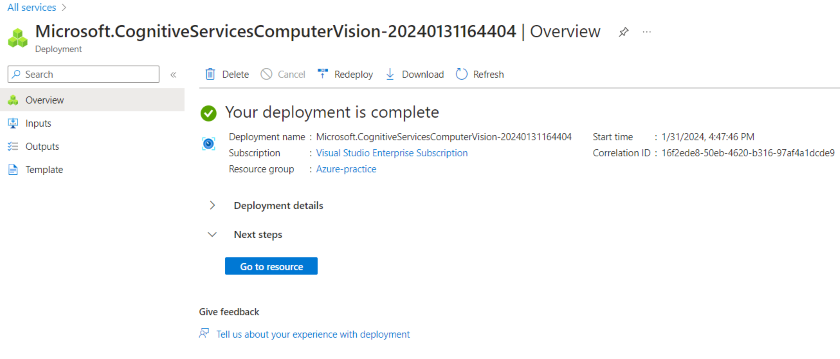
click Review + Create. Now to resource will start deploying.

👁 Service Was Deployed

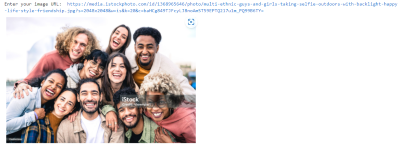
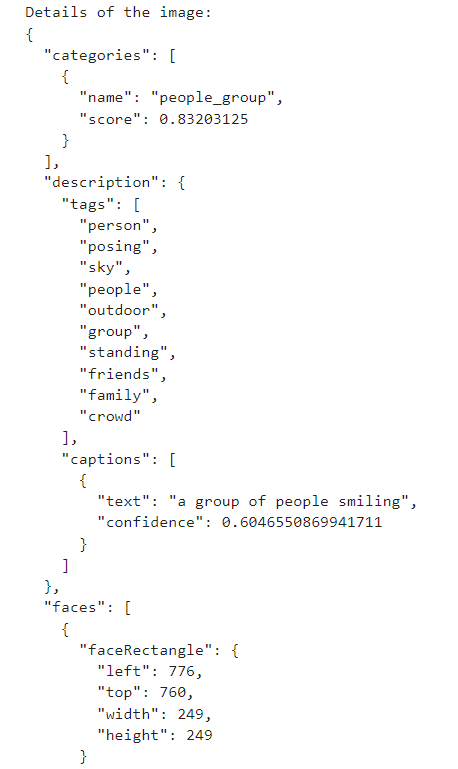
Image Recognition:

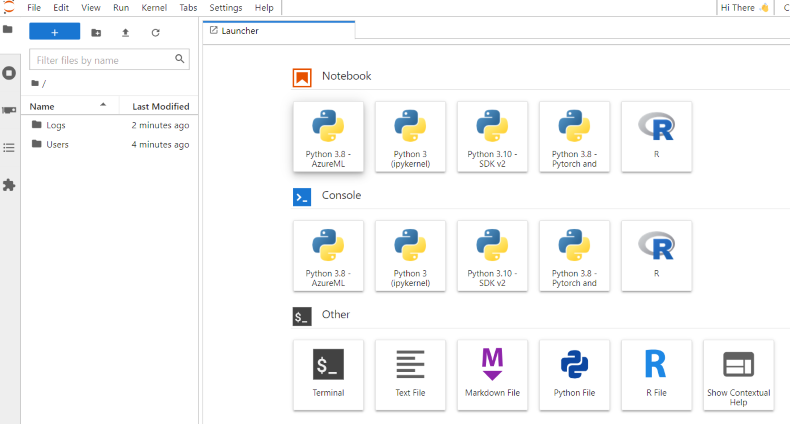
Navigate to your JupyterLab workspace. Choose the Python version and start coding.

👁 Select the launcher

code for image recognition in Python:

Output: Let's see the output of each print statement.

👁 Output

👁 Details Of the Image

👁 Details of the people

👁 Image to be recognize

Comment

Explore