|
VOOZH | about |
|
VOOZH | about |
Podman is a daemonless, open source, native Linux tool that makes it simple to discover, launch, create, share, and deploy applications, using Open Containers Initiative (OCI) Containers and Container Images, Anyone who has used the Docker Container Engine before is familiar with the command line interface (CLI) that Podman offers.
Table of Content
The Podman logs command obtains all of the logs associated with a pod's containers in batches. If necessary, use the flags -c or --container to filter pod logs by container name or ID. If a new container is dynamically added to the pod, the long-running podman pod log command with the -f or --follow option must be restarted otherwise, logs for newly added containers are inaccessible in the log stream.
Here is the step-by-step implementation to access and analyze logs in Podman:
To get started, Determine which container's logs you wish to access. You may use the following to see a list of all containers that are now running.
podman psOutput:
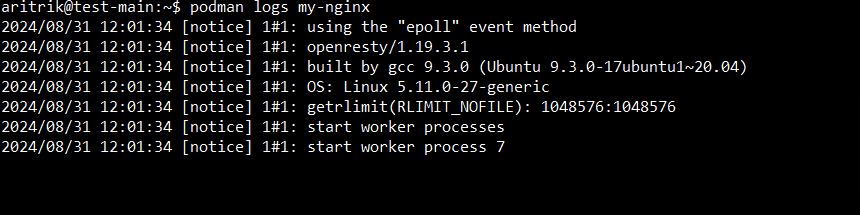
Use the podman logs command with the container ID or name to view the logs of a particular container.
podman logs my-nginxOutput:
Step 3: Track the Logs Instantaneously
Use the -f (follow) option to watch the logs in real-time.
podman logs -f my-nginxOutput:
Step 4: Filter Logs by Time
The --since and --until options allow you to restrict the logs to only those from a given period.
podman logs --since 1h my-nginxOutput:
Step 5: Limit the Number of Lines
Use the --tail option to restrict the amount of lines displayed from the logs.
podman logs --tail 2 my-nginxOutput:
Step 6: Combine Options for Advanced Filtering
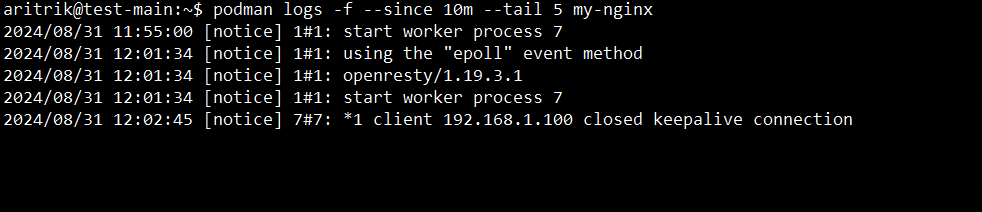
To more successfully filter and follow logs, you can combine the following options.
podman logs -f --since 10m --tail 5 my-nginxOutput:
Step 7: Use podman unshare for Rootless Containers
Lastly, To access particular logs or files while using rootless containers, you may need to use podman unshare.
podman unshare podman logs my-nginxOutput:
In this article, we have learned about how to access and analyze logs in Podman. Accessing and analyzing logs in Podman is critical for efficient container administration, allowing you to monitor, debug, and maintain your applications.