|
VOOZH | about |
|
VOOZH | about |
Amazon RDS (Relational Database Service) is a powerful cloud-based database solution provided by AWS. On using this RDS database users may focus more on their applications because of its less complexity with its database setup. AWS manages the administration setup complexities and provides simple handiness to the users. In this article, we will go through how to modify your current database instances.
Table of Content
Amazon RDS ( Relational Database Service ) is an AWS Cloud-based Database solution that makes relational database setup and maintenance easier. It facilitates the users to freely concentrate more on their applications' code building. AWS itself manages features like automated backups, software patching, and high availability of Amazon RDS DB Instance. Amazon RDS offers with providing a reliable and scalable environment. It offers flexibility with supporting various database engines for different needs of applications.
Modifying an Amazon RDS DB instance provides you the needed flexibility to fulfill the changing requirements, optimize the performance, and make adjustments to the workloads. It makes it easier to modify the resources effortlessly optimize instance types and adjust configurations guaranteeing an effective economical database administration on AWS.
AWS provides the liberty to modify a pre-existing DB Instance at any point by the user as per their requirements and then back to normal after the motive is fulfilled. This article will cover all the steps in modifying an existing Amazon RDS DB instance. Before that to know about creating an Amazon RDS DB Instance, Read this - Article
The following is the step-by-step guide to modifying an existing Amazon RDS DB Instance.
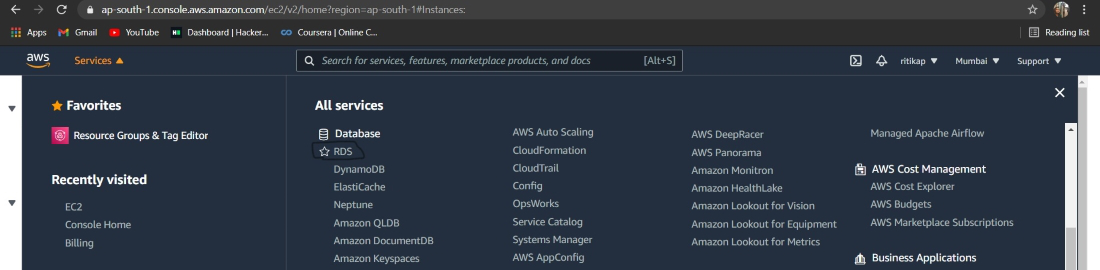
First of all, login into your AWS account, and then from the leftmost, click on the services tab, then from the drop-down list click on RDS service. The following image helps in much better understanding.
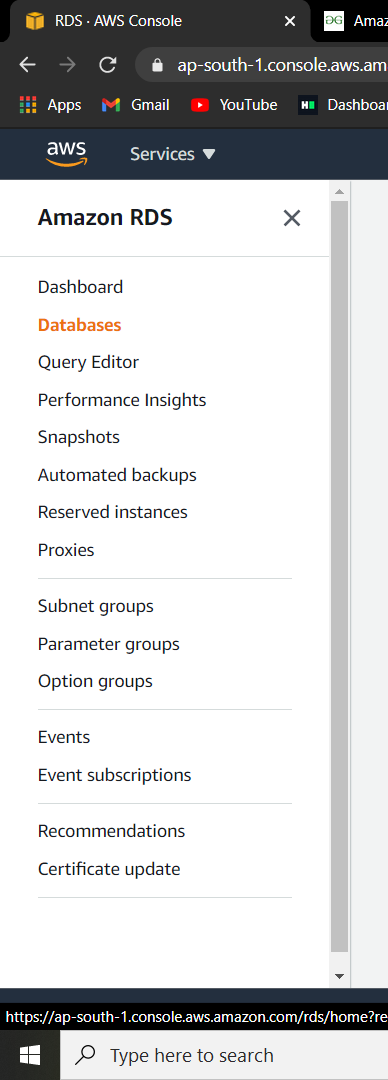
Wait for the next screen to load, once it is done. From the navigation pane select the option "Database" as refering to the below attached Screenshot.
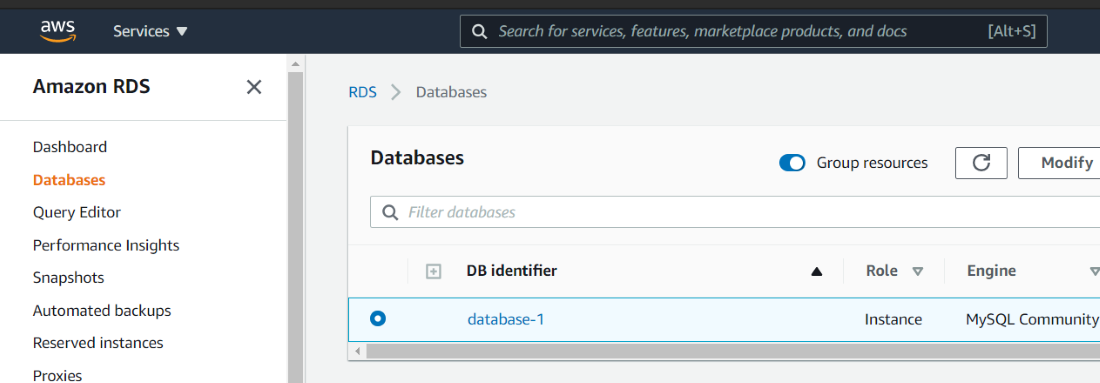
In a while, the database console will load on the screen. Now, from the given list of pre-existing instances. Choose the instance you are willing to modify, try on refer the below attached screenshot.
👁 Choosing the pre-existing DB Instance
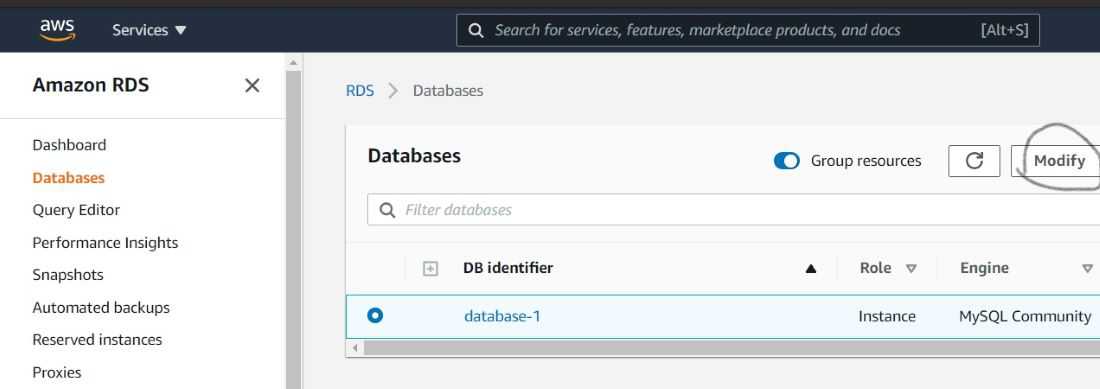
Now, click on the "modify" tab present on the top right to do the modification on the selected DB Instance. Perform this step refering to the below attached screenshot.
👁 Modifying in the selected DB Instance
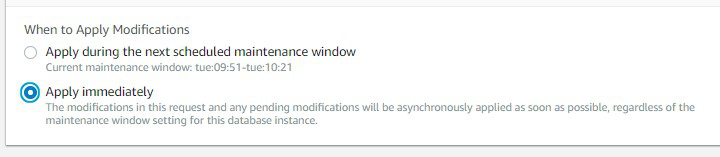
After the modification screen is loaded, alter everything you wanted to change as per your requirement. Once it is all according to you, then click on "Apply Immediately". As allowing this will apply all the changes made you immediate.
👁 Apply the changes of DB Instance
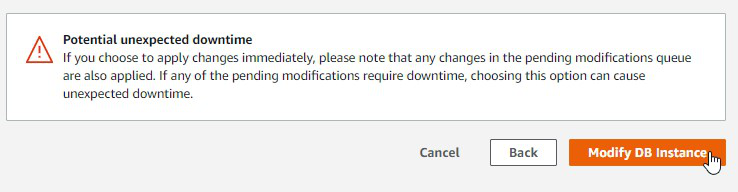
Once it's all the reqired modification to the DB Instance done and you are sure about everything. Then click on "Modify DB Instance" on refering to the attached screenshot.
👁 Making the Final Confirmation of DB Instance modifications
In this way, we can simply modify a pre-existing DB Instance using the console. Once the usage of DB instances is done then delete all the instances you have created to ensure that you don't receive a billing Issues. If you just want to reboot your current Amazon RDS DB Instance read this - Article.
In conclusion, Amazon RDS is a flexible choice for management of relational database management on the AWS cloud. Its ability helps to easily alter your RDS Database instance quickly providing a layer of freedom in setuping your database. Understanding the context of AWS RDS modifications helps in exploring the wide range of cloud base configurations.