|
VOOZH | about |
|
VOOZH | about |
Podman is a lightweight program to run and manage Open Container Initiative-compliant containers. Depending on whether the container is rootless or rootful, Podman uses two different networking stacks. Running as rootfull, Podman uses the heavy project container networking plugins.
Podman container networking is managed in several ways Podman controls communication and network connectivity for containers and it's under control with the network command. Netavark and CNI are the two network backends that Podman supports. Podman's new version introduced Netavark as the default network backend. In favor of Netavark, CNI is deprecated and will be eliminated in the upcoming major Podman version 5.0. Use the network_backend key under Network in containers. conf(5) to set the network backend. By default, new systems use network run podman info --format {{.Host.NetworkBackend}} to see which backend is being used.
Here is the step-by-step implementation of configuring container networking with Podman:
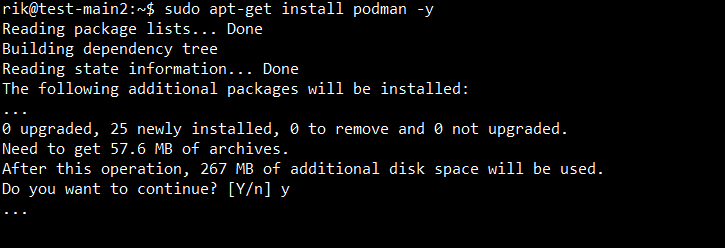
First, you need to make sure your system has Podman installed. It is installable via a package manager on a Linux system.
sudo apt-get install podman -yOutput:
Next, you can create a unique bridge network to isolate container settings.
podman network create mynetworkOutput:
Podman operates containers in bridge mode by default so it must have the Default Network Mode.
podman run -d --name mycontainer httpdOutput:
Then, This program launches a container that runs the nginx web server and exposes ports from the container to the host using Podman. Port 80 within the container is mapped to port 8080 on the host by using the -p parameter.
podman run -d -p 8080:80 nginxOutput:
Podman employs user-mode networking via slirp4netns by default when operating in rootless mode.
podman run -d --name rootlesscontainer nginxOutput:
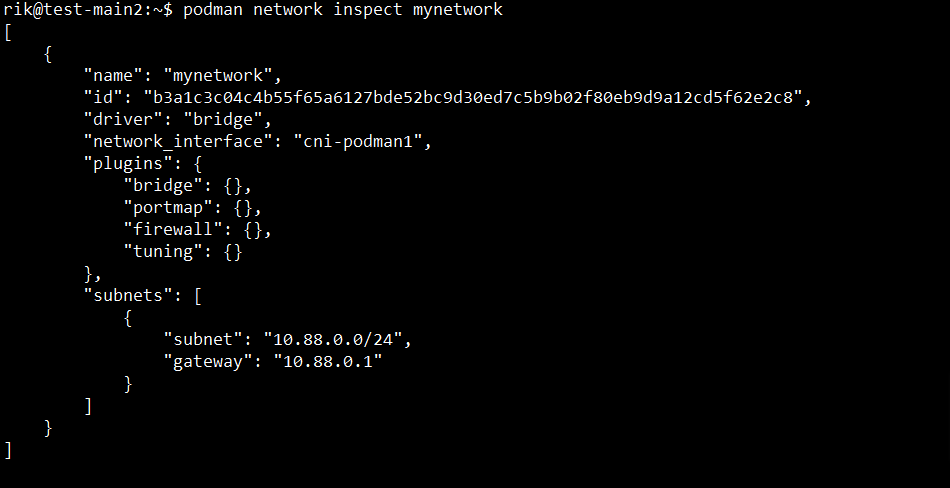
In the next step, To see information on a certain network follow the below command.
podman network inspect mynetworkOutput:
Lastly, Within the same network, podman enables DNS name resolution for containers. As an example, you can use its name to ping another container.
podman exec -it mycontainer ping mycustomcontainerOutput:
In this article, we have learned about configuring container networking with Podman. Configuring container networking with Podman creates a flexible and secure environment for controlling containerized workloads. Using Podman's rootless mode, custom networks, and complex network configurations, you can keep your containers isolated, safe, and efficient.