|
VOOZH | about |
|
VOOZH | about |
You can install and configure Kubernetes in different ways on your personal laptops, physical servers, Virtual machines, and as a cloud service. Before moving ahead with this article, we need to have a basic understanding of Kubernetes and its architecture and containers. In this article, we will get a high-level overview of ways you can install Kubernetes.
Kubernetes is an open-source platform designed to automate deploying, scaling, and managing containerized applications. It groups containers that make up an application into logical units for easy management and discovery. Originating from Google, Kubernetes provides robust tools for orchestration, scaling, and maintenance of application clusters. Its core features include automatic bin packing, self-healing, and horizontal scaling.
There are several methods to install Kubernetes based on your needs and resources. Play-with-K8s offers a ready-made online Kubernetes cluster for quick learning or testing without any installation.Minikube is ideal for limited system resources, packaging all Kubernetes components into a single setup that acts as both master and worker nodes. Kubeadm is perfect for real-time setups, enabling the creation of multi-node Kubernetes clusters. It is a popular choice for configuring master and node components, with cloud-based VMs recommended for systems with limited resources.
This method is ideal for someone who does not want to install anything on their system. This is a ready-made Kubernetes cluster available online for people who want to learn or test Kubernetes.
It is ideal for someone who wants to install Kubernetes on their system but has a limited system resource. So the key takeaway point with minikube is that it doesn't have a separate Kubernetes master and Kubernetes worker node architecture. Here we get all Kubernetes components packaged together as an all-in-one setup. The single system acts as both master and worker nodes.
It is a way to go if you need an actual real-time setup. It can be done using the Kubeadm tool. It can be used to set up multi-node Kubernetes clusters. It is one of the most popular installation methods for Kubernetes. Depending upon the system resource you have you can create multiple VMs. Then you can configure Kubernetes master and node components. In case your system resources are limited, it is recommended to use cloud-based VMs.
Once your Kubernetes cluster is up and running, you'll have a robust environment for orchestrating containers at scale.
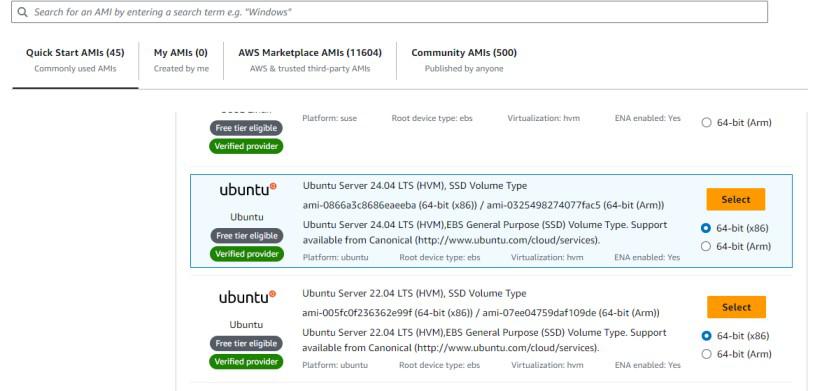
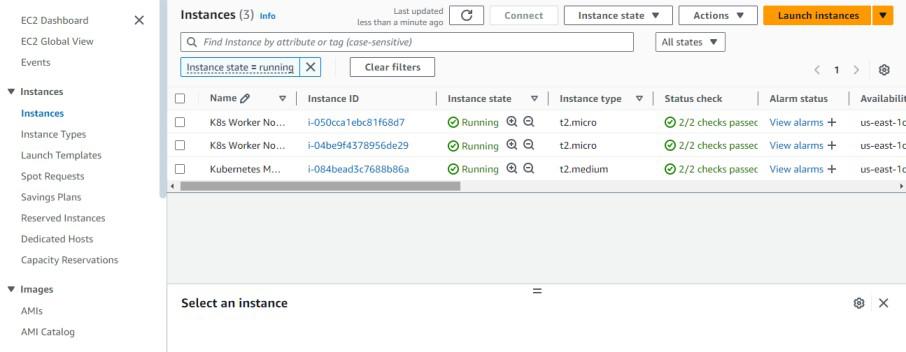
The following are the steps that guide you in installation of kubernetes cluster, In this Article, we will show the kubernetes setup on AWS Cloud using Docker. Here, we taking 3 ubuntu instances, 1 Master Node and 2 Worker Nodes.
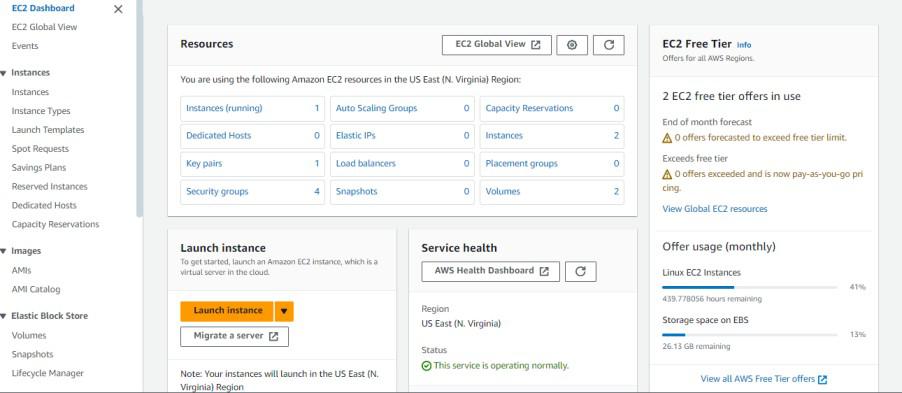
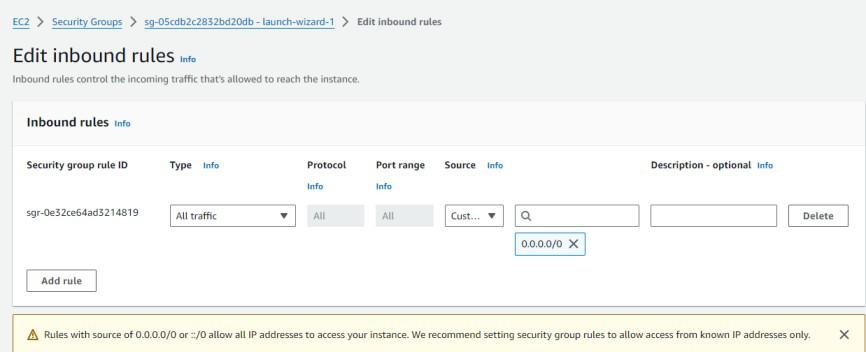
Step 1: Launch EC2 Instances
Step 2: Set Hostname for Node
You can follow the same command and assign name to worker-node1 and worker-node2.
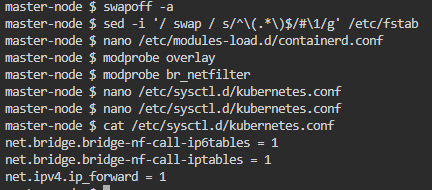
Step 3: Disable swap
swapoff -a
sed -i '/ swap / s/^\(.*\)$/#\1/g' /etc/fstab
Step 4: Install Containerd
nano /etc/modules-load.d/containerd.conf
overlay
br_netfilter
modprobe overlay
modprobe br_netfilter
nano /etc/sysctl.d/kubernetes.confnet.bridge.bridge-nf-call-ip6tables = 1
net.bridge.bridge-nf-call-iptables = 1
net.ipv4.ip_forward = 1
Step 5: Install Kubernetes Components
apt-get update
curl -fsSL https://prod-cdn.packages.k8s.io/repositories/isv:/kubernetes:/core:/stable:/v1.30/deb/Release.key | gpg --dearmor -o /etc/apt/keyrings/kubernetes-apt-keyring.gpg
echo 'deb [signed-by=/etc/apt/keyrings/kubernetes-apt-keyring.gpg] https://prod-cdn.packages.k8s.io/repositories/isv:/kubernetes:/core:/stable:/v1.30/deb/ /' | tee /etc/apt/sources.list.d/kubernetes.list
apt update
apt-get update
apt-get install -y kubelet kubeadm kubectl
apt-mark hold kubelet kubeadm kubectl
Step 6: Set Containerd as Default
mkdir -p /etc/containerd
containerd config default | tee /etc/containerd/config.toml > /dev/null
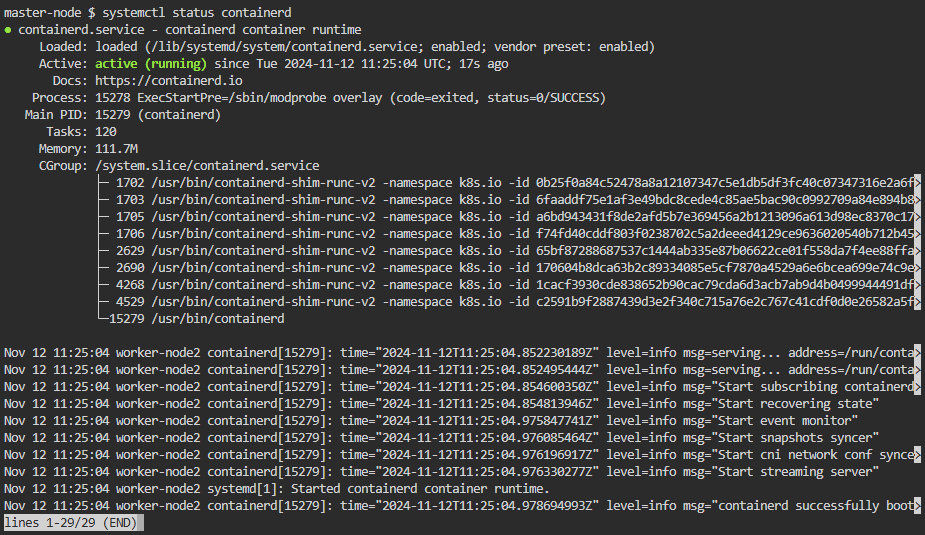
systemctl restart containerd
Step 7: Configure Worker Nodes
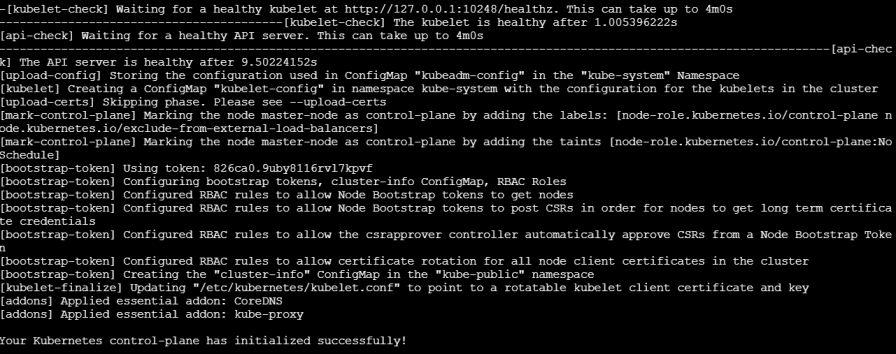
Step 8: Intializing kubernetes Master Node
kubeadm init --pod-network-cidr=10.244.0.0/16Step 9: Setuping kubeconfig for the master node
mkdir -p $HOME/.kube
cp -i /etc/kubernetes/admin.conf $HOME/.kube/config
chown $(id -u):$(id -g) $HOME/.kube/config
Step 10: Join Worker Nodes
kubeadm join <master-ip>:6443 --token <token> --discovery-token-ca-cert-hash sha256:<hash>Step 11: Verify the Kubernetes Cluster
kubectl get nodesStep 12: Check the K8s Resources
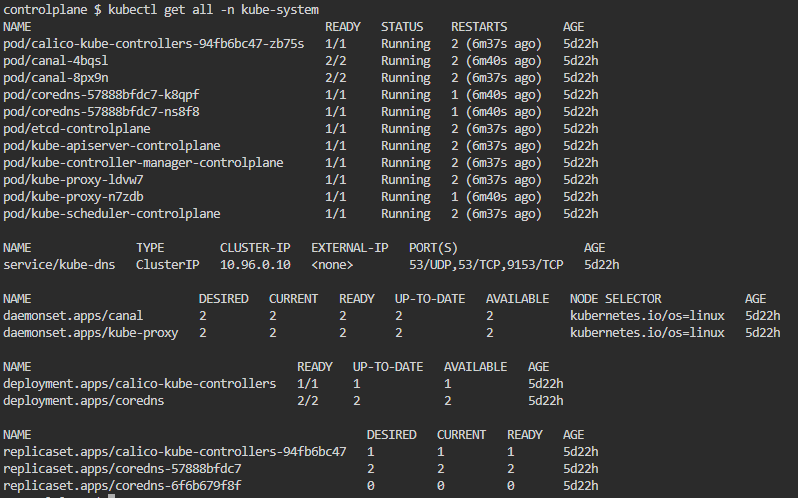
kubectl get all -n kube-systemStep 13: Create Pod Application
kubectl run mypod1 --image=bnvschaitanya/maven-web-application --port=80kubectl expose pod mypod1 --type=NodePort --port=80 --target-port=8080Step 14: Access Application