|
VOOZH | about |
|
VOOZH | about |
Rootless Podman is SUSE Linux Enterprise's default container management and orchestration tool. In addition to being a drop-in replacement for Docker Open Source Engine, Podman has other advantages, including the ability to execute containers in rootless mode. This enables regular users to launch containers without requiring elevated access. In other words, rootless mode allows you to deploy a container without becoming root or running sudo.
Rootless Podman can be created, executed, and maintained by users without administrative privileges. Rootless Podman adds a layer of protection; even if the container engine, runtime, or orchestrator are compromised, the attacker cannot acquire root access to the host. They enable several unprivileged users to run containers on the same computer particularly useful in high-performance computing scenarios. They enable isolation inside nested containers.
By default, Podman runs containers under the current regular user. By default, all newly created users in SLE have rootless container support enabled, therefore no additional procedures are required.
Rootless Podman is a version of the container management tool, Podman, does not require root access on the system for users to run and manage containers. On the other hand, conventional container management solutions, such as Docker, usually need root access.
For networking, Rootless Podman makes use of a user-space network stack. Installing Podman does not require root access to begin using it.
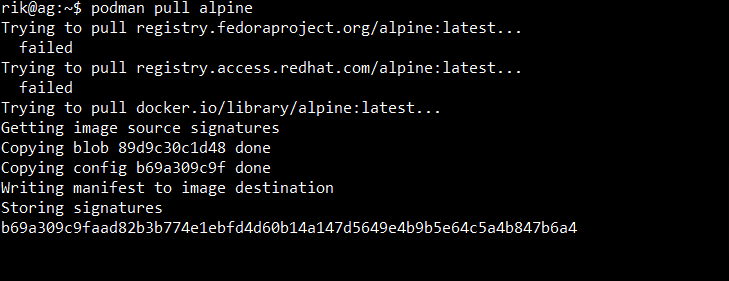
podman pull alpineOutput:
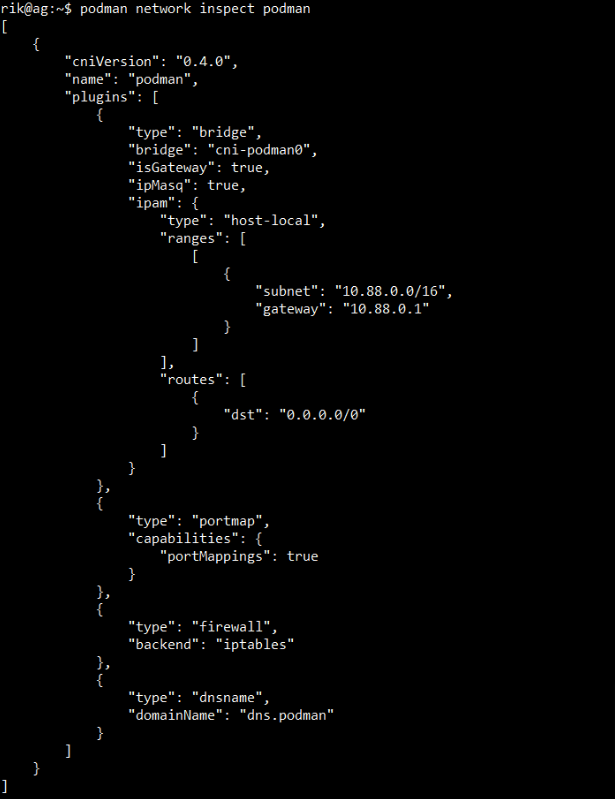
Use the Podman network inspect command to examine the network setup. This command offers comprehensive details about Podman's network configuration, including IP addresses, routing rules, and bridge network.
podman network inspect podmanOutput:
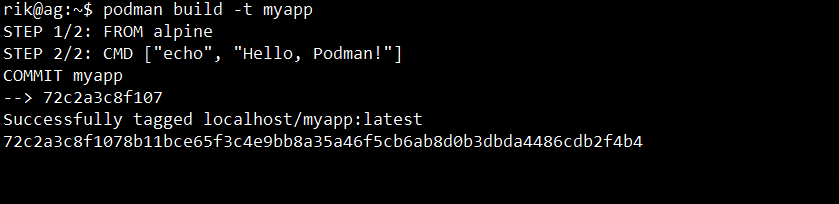
Lastly, Creating a custom image from a set of instructions specified in a Dockerfile is the process of building a container image. The image acts as a template for launching containers and compiling the libraries, runtime, and application code.
podman build -t myapp Output:
First, you have to install Podman for Rootless Containers in your system.
sudo dnf -y install podmanOutput:
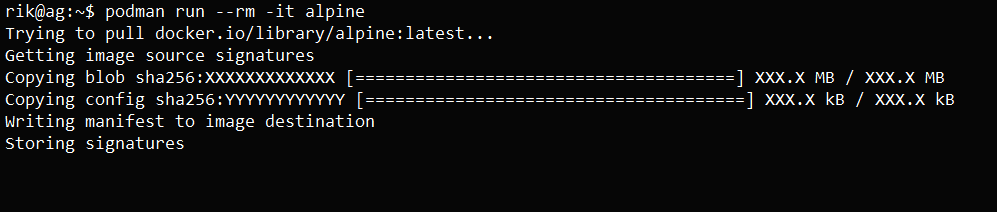
Just execute Podman instructions like any other user. By using user namespaces, the container will operate independently of the host's root user.
podman run --rm -it alpineOutput:
Slirp4netns, a user-mode networking stack, is used by rootless containers for networking. Though it functions as intended, you can use the following if you need to expose ports.
podman run -p 8080:80 --rm -it nginxOutput:
By default, Rootless Podman stores its data using fuse-overlays, which are fully operating in user space. Make sure it is set up:
podman info | grep 'graphRoot'Output:
Here is the step-by-step process to implement the Rootless Podman:
First, you need to install Podman on your system, to install you have to type the below command.
$ sudo apt install podmanOutput:
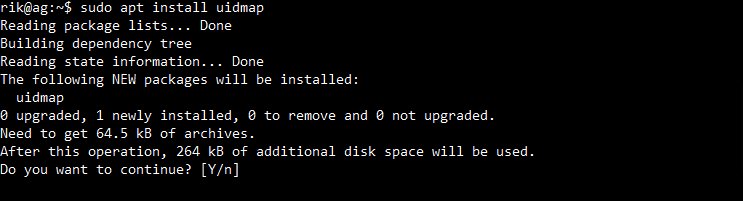
Rootless mode is supported by Podman by default; however, you must make sure that your user environment is configured correctly.
$ sudo apt install uidmapOutput:
Verify whether Podman's installation and working properly or not by using the following command.
$ podman --versionOutput:
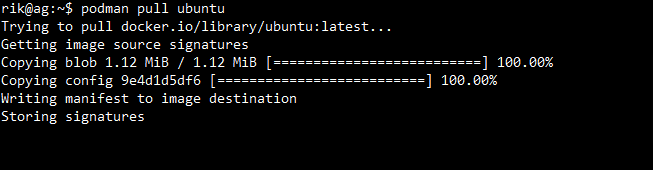
Next, This pulls the Ubuntu image from the registry of containers.
$ podman pull ubuntuOutput:
Next, list every container that is in use right now.
$ podman psOutput:
The below command will remove the designated container.
$ podman rm <container_id>Output:
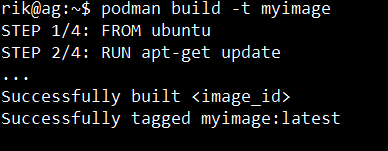
Using the Dockerfile that is now in the current directory, this command creates the image myimage.
$ podman build -t myimage Output:
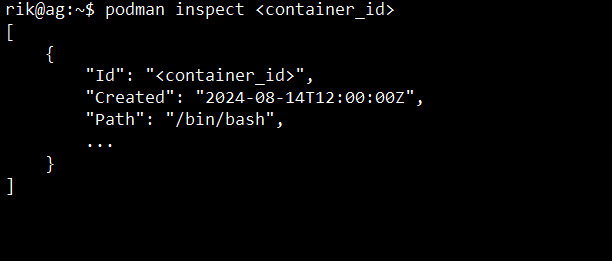
This command offers comprehensive details regarding the designated container.
$ podman inspect <container_id>Output:
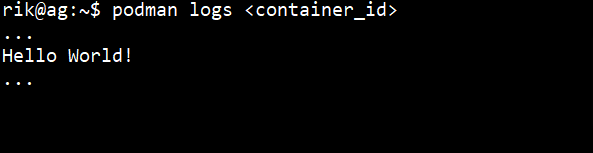
Lastly, The following command will display the container's logs.
$ podman logs <container_id>Output:
In this article we have learned about rootless Podman and why use it. Rootless Docker enables the Docker Engine, and hence the containers, to execute without root rights on a Linux host. This enables non-root users to install and utilize Docker natively on Linux.