|
VOOZH | about |
|
VOOZH | about |
For ones new to the term, Bootstrap 4 is a free front-end framework for faster and easier web development. Bootstrap includes HTML and CSS based design templates for typography, forms, buttons, tables, navigation, modals, image carousels, and many others, as well as optional JavaScriptplugins. Bootstrap also gives you the ability to easily create responsive designs. Utilities for layout: For faster mobile-friendly and responsive development, Bootstrap 4 includes dozens of utility classes for showing, hiding, aligning, and spacing content. All of them are categorized and listed with examples below:
Example 1:
Output:
Example 2:
Output:
Here, when we hover above the text (links) in the code above, a darker color appears. We can also add 50% opacity for black or white text with the .text-black-50 or .text-white-50 classes, as shown below:
Example 3:
Output:
Note: background colors do not set the text color, so in some cases you'll want to use them together with a .text-* class.
Example:
Output:
Additive Borders: Use to 'add' borders.
Example:
Output:
As one can see, all 4 borders are added to the first square, then the top, right, bottom and left borders have been added to the subsequent squares, as per the code above. (the border is light, observe closely)
Subtractive Borders: Use to 'remove' borders:
Example:
Output:
Again clear from the pictures provided above that all 4 borders are removed from the first square, then the top, right, bottom, and left borders have been removed from the subsequent squares (from an initial 4-sides bordered square), as per the code above. (the border is light, observe closely) Note that we simply add a '-0' to our code (after the 'border') to make it subtractive.
Border color: Use to give a particular color to the border.
Example:
Output:
The above example is simple enough, having border colors with their usual indications such as danger for red, warning for yellow (as in caution street signs), success for green, and so forth.
Border radius: Use to give a particular radius type: (like being circular edged).
Example:
Output:
In the above example, we added rounded corners to all 4-sides on the first three squares (with the corners being small, normal, and large respectively), then to only the top, right, bottom, and left sides of the subsequent squares as evident from the code above. Then a completely circular border (not a square, a circle) and a non-circular border (a square, no circular edges) are implemented.
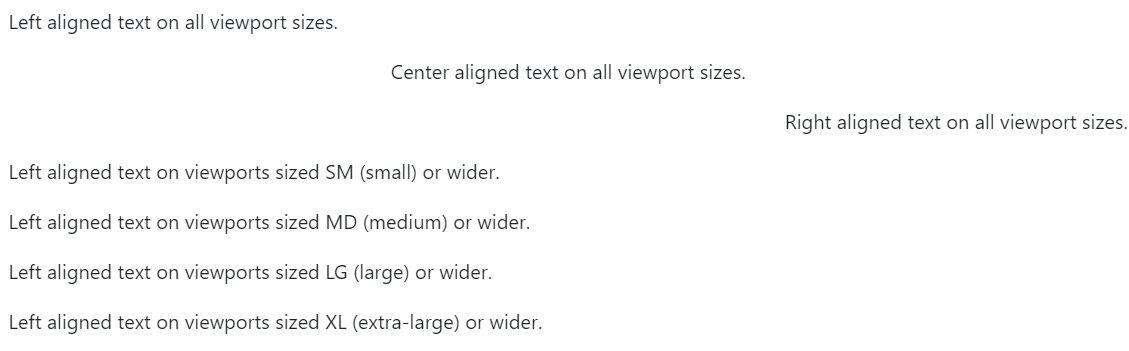
Text Alignment: For the left, right, and center alignment, responsive classes are available that use the same viewport width breakpoints as the grid system.
Example:
Output:👁 Image
Text Transform: We can transform text into components with text capitalization classes.
Example:
Output:
Font Weight/Italics: We can change the weight/boldness of text or italicize text.
Example:
Output:
Example:
Output:👁 Image
We can clear floats with the .clearfix class.
Responsive Floats: We can float an element to the left or to the right depending on screen width, with the responsive float classes (.float-*-left|right - where * is sm (>=576px), md (>=768px), lg (>=992px) or xl (>=1200px)). The sizes for these different categories (small, medium, large, extra large) are fixed.
Example:
Output:👁 Image
Position: There are shorthand utilities for quickly configuring the position of an element. Some quick positioning classes are "position-static", "position-relative", "position-absolute", "position-fixed" and "position-sticky". For example, we can use the .fixed-top class to make any element fixed/stay at the top of the page. Similarly, .fixed-bottom class positions an element at the bottom of the viewport, from edge to edge. Sticky-top would position an element at the top of the viewport, from edge to edge, but only after you scroll past it. The .sticky-top utility uses CSS’s position: sticky, which isn’t fully supported in all browsers. likewise, the sticky bottom would do the same for the bottom face.
Sizing: Bootstrap 4 enables us to easily make an element as wide or as tall (relative to its parent) with its width and height utilities.
Width: Set the width of an element with the w-* classes (.w-25, .w-50, .w-75, .w-100, .mw-100).
Example:
Output:👁 Image
Height: Set the height of an element with the h-* classes (.h-25, .h-50, .h-75, .h-100, .mh-100).
Example:
Output:
Spacing: Bootstrap 4 has a wide range of responsive margin and padding utility classes. They work for all breakpoints (have no breakpoint abbreviation in them): xs (=576px), md (>=768px), lg (>=992px) or xl (>=1200px)): The classes are used in the format: {property}{sides}-{size} for xs (extra small) and {property}{sides}-{breakpoint}-{size} for sm, md, lg, and xl. Where property is one of: m - sets margin p - sets padding Where sides is one of: t - sets margin-top or padding-top b - sets margin-bottom or padding-bottom l - sets margin-left or padding-left r - sets margin-right or padding-right x - sets both padding-left and padding-right or margin-left and margin-right y - sets both padding-top and padding-bottom or margin-top and margin-bottom blank - sets a margin or padding on all 4 sides of the element Where size is one of: 0 - sets margin or padding to 0 1 - sets margin or padding to .25rem (4px if font-size is 16px) 2 - sets margin or padding to .5rem (8px if font-size is 16px) 3 - sets margin or padding to 1rem (16px if font-size is 16px) 4 - sets margin or padding to 1.5rem (24px if font-size is 16px) 5 - sets margin or padding to 3rem (48px if font-size is 16px) auto - sets margin to auto.
Note: margins can also be negative, by adding an "n" in front of size. n1 - sets margin to -.25rem (-4px if font-size is 16px) n2 - sets margin to -.5rem (-8px if font-size is 16px) n3 - sets margin to -1rem (-16px if font-size is 16px) n4 - sets margin to -1.5rem (-24px if font-size is 16px) n5 - sets margin to -3rem (-48px if font-size is 16px).
Example:
Output:
More examples on spacing:
| .m-# / m-*-# | margin on all sides |
| .mt-# / mt-*-# | margin top |
| .mb-# / mb-*-# | margin bottom |
| .ml-# / ml-*-# | margin left |
| .mr-# / mr-*-# | margin right |
| .mx-# / mx-*-# | margin left and right |
| .my-# / my-*-# | margin top and bottom |
| .p-# / p-*-# | padding on all sides |
| .pt-# / pt-*-# | padding top |
| .pb-# / pb-*-# | padding bottom |
| .pl-# / pl-*-# | padding left |
| .pr-# / pr-*-# | padding right |
| .py-# / py-*-# | padding top and bottom |
| .px-# / px-*-# | .px-# / px-*-# |
Vertical Align: Bootstrap 4 uses the align- classes to change the alignment of elements (only works on inline, inline-block, inline-table and table cell elements). We can choose from .align-baseline, .align-top, .align-middle, .align-bottom, .align-text-bottom, and .align-text-top as needed.
For example:
Vertical Align with inline-elements:
Output:
Vertical Align with table-cells:
Output:
Embeds: Bootstrap 4 enables us to create responsive video or slideshow embeds based on the width of the parent by creating an intrinsic ratio that scales on any device. We simply need to add the .embed-responsive-item to any embed elements in a parent element with .embed-responsive and an aspect ratio of our choice.
Example:
Output:
In the code above, replace the tag 'tgbNymZ7vqY' with your desired youtube video or video URL of your choice, in case you want a different video. (or change complete URL for other video hosting/sharing website)
Visibility: We can control the visibility, without modifying the display, of elements with visibility utilities. Simply use the .visible or .invisible classes to control the visibility of elements.
Example:
Output:
Close Icon: We can use the .close class to style a close icon. This is often used for dismissing alerts and modals.
Note: We use the × symbol to create the actual icon (a better-looking "x"). Also, note that it floats right by default.
Example: (It appears blank/white for being closed)
Output:
Screenreaders: We can use the screenreader utility (.sr-only) to hide elements on all devices except screen readers.
Example:
Output:
Blocks: To make an element into a block element, add the .d-block class. We can use any of the d-*-block classes to control when the element should be a block element on specific screen width.
Example:
Output:
Flex: Bootstrap 4 helps us to quickly manage the layout, alignment, and sizing of grid columns, navigation, components, and more with a full suite of responsive flexbox utilities. For more complex implementations, custom CSS may be necessary. We can use .flex-* classes to control the layout with flexbox.
Flex Behaviours: We can apply display utilities to create a flexbox container and transform direct children elements into flex items. Flex containers and items are able to be modified further with additional flex properties.
Examples:
Output:
Likewise, we can use .flex-column to set a vertical direction, or .flex-column-reverse to start the vertical direction from the opposite side.
Example:
Output:
Justify: We can use justify-content utilities on flexbox containers to change the alignment of flex items on the main axis (the x-axis to start, y-axis if flex-direction: column). Choose from the start (browser default), end, center, between, or around.
Examples:
Output:👁 Image
Display: Lastly, we can change the value of the display property with our responsive display utility classes. Bootstrap 4 purposely supports only a subset of all possible values for display. Classes can be combined for various effects as we need. As such, the classes are named using the format: .d-{value} for xs .d-{breakpoint}-{value} for sm, md, lg, and xl.
Where value is one of: