|
VOOZH | about |
|
VOOZH | about |
An HTML editor is a software tool used to create and edit HTML code efficiently, often providing features like syntax highlighting, auto-completion, and error detection.
There are two main types of HTML editors:
There are various free and paid HTML editors available in the market, but in this article, we will be covering some renowned free HTML editors that you can use as a beginner or switch to if you are an experienced developer.
Notepad is a simple text editor that is also used to write HTML code. It is an inbuilt desktop application available in Windows OS.
Steps to Write HTML Code in Text Editor:
Step 1: Open any of the text editors of your choice. Here we are using the Notepad text editor.
👁 HTML editor - open Notepad
Step 2: Create new file: File->New File or Ctrl+N.
👁 create new file
Step 3: Write HTML code in text editor.
👁 write html codeStep 4: Save the file with a suitable name of your choice and a .html extension.
👁 save file
Step 5: Open the saved HTML file in your favorite browser (double-click on the file, or right-click - and choose "Open with").
👁 open in browser
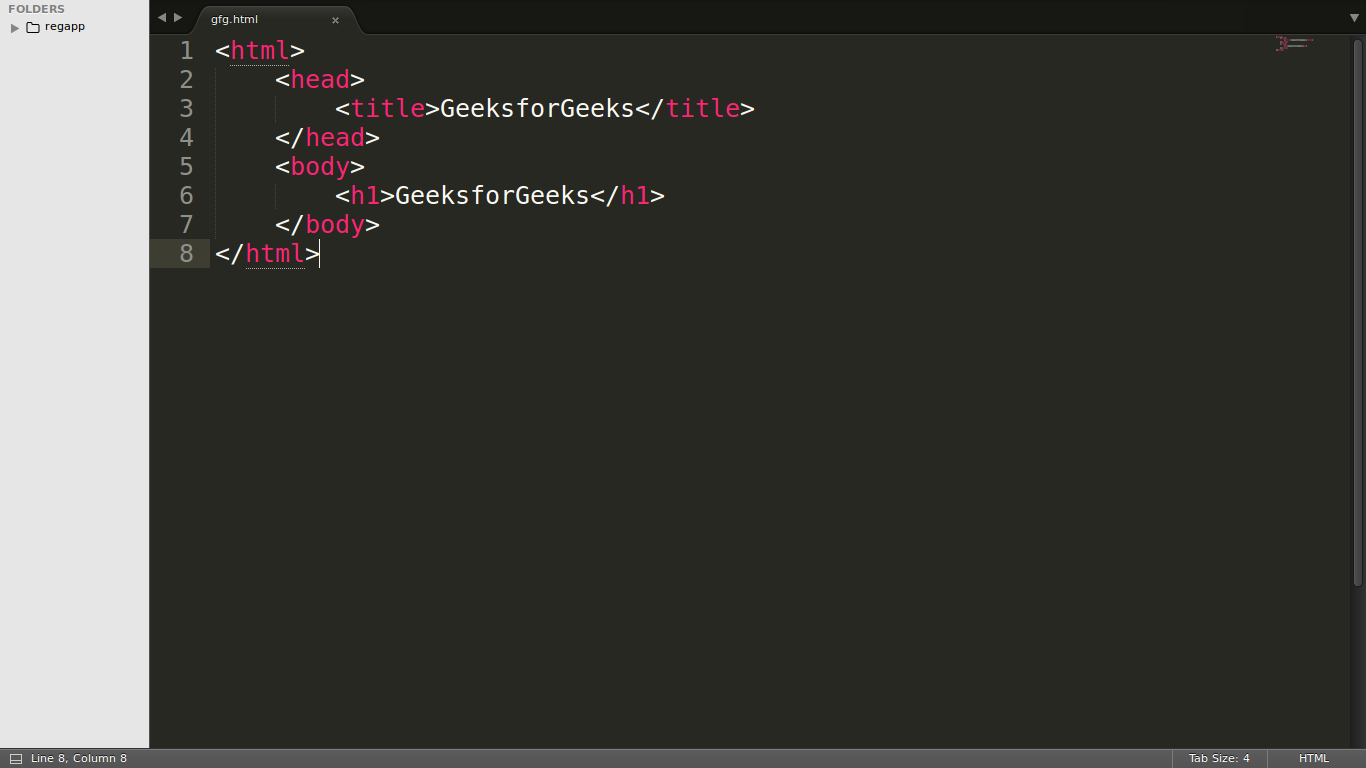
Sublime is a cross-platform code editor tool. It supports all markup languages and is used as an editor for HTML. Similar to the Notepad editor, create a new file and save it with a .html extension to run an HTML file.
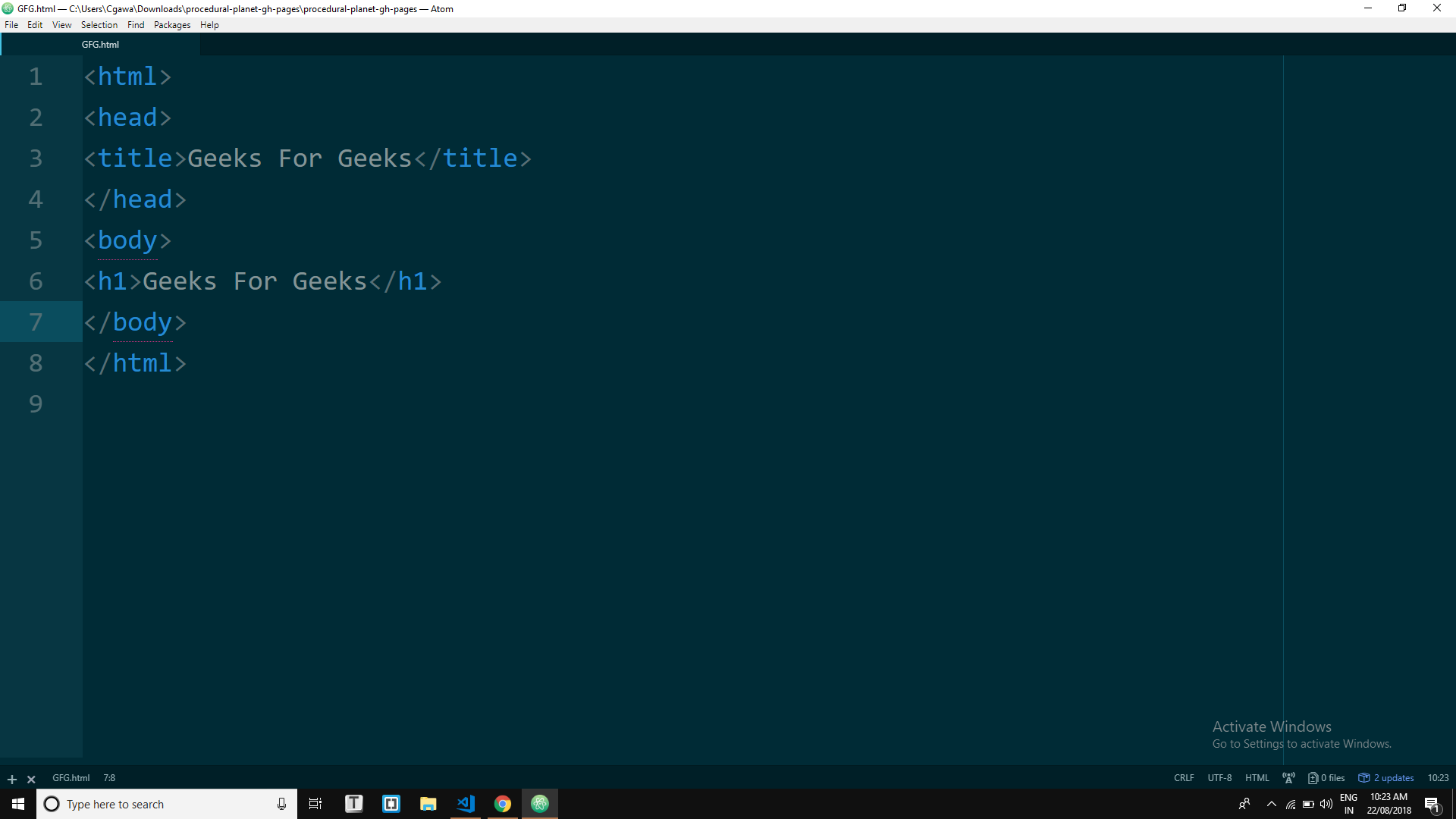
Atom is an open-source code editor tool for MAC, Linux, and Windows. We can use Atom to write and edit HTML code. Similar to the Notepad editor, create a new file and save it with a .html extension to run an HTML file.
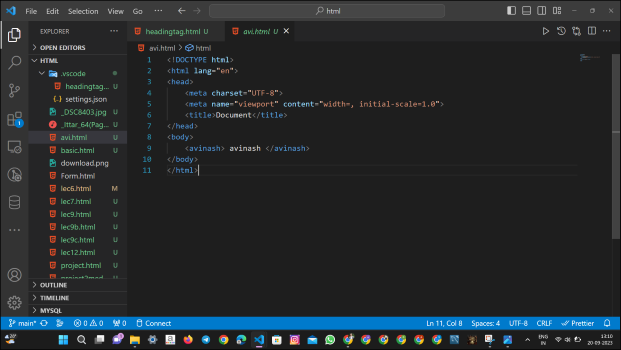
It is one of the most popular code editors of today's generation. Many companies and software developers prefer this code editor.
Step 1: Open the VS code Editor and Install the Live Server. By clicking the extension button simply search live server on the search bar and download. Live server extension helps to run the code and display output.
👁 Step 1: Open the VS code Editor and Install the Live Server
Step 2: Create a new File and save it with the .html extension and right-click the file and select "Open with Live Server".
| Editor | Platform | Key Features | Ideal For | Pros | Cons |
|---|---|---|---|---|---|
| Notepad | Windows | Basic text editing, lightweight | Beginners | Pre-installed, simple to use | No advanced features like syntax highlighting or debugging |
| VS Code | Cross-Platform | Live Server, Extensions, Debugging, Git Integration | Professionals | Highly extensible, supports multiple languages, great debugging tools | Can be resource-heavy for basic tasks |
| Atom | Cross-Platform | Open-source, Collaborative Editing, Customizable UI | Advanced Learners | Flexible and extensible, integrates well with GitHub | Slower performance compared to other editors |
| Sublime Text | Cross-Platform | Fast, Multi-caret Editing, Syntax Highlighting | Developers looking for speed | Lightweight yet powerful, highly customizable | Paid license for full features |