Designing Custom SVG Icons: Elevate Your Web Projects with Unique Graphics
Last Updated : 23 Jul, 2025
Icons play a crucial role in modern web design. Whether used for navigation, UI elements, or branding, icons enhance the user experience and make web interfaces more attractive. One of the best formats for icons in web development is SVG (Scalable Vector Graphics). SVG icons are lightweight, resolution-independent, and fully customizable using CSS and JavaScript, making them an ideal choice for web projects.
We will explore the process of designing custom SVG icons, from tools and techniques to best practices and performance optimization. We'll also provide a complete, step-by-step guide to creating and implementing custom SVG icons into your web project.
SVG Icons are vector-based images defined using XML. Unlike raster images (e.g., PNG, JPEG), SVGs are scalable without losing quality, making them perfect for responsive web design. SVG icons have several key advantages:
Scalability: SVG icons scale infinitely without pixelation, ensuring they look sharp on any device.
Small File Size: SVG files are generally smaller than other image formats, which improves load times and performance.
CSS & JavaScript Friendly: SVGs can be styled and animated with CSS and manipulated with JavaScript, providing enhanced flexibility.
Accessibility: Since SVG icons are XML-based, they are easily readable by screen readers, improving accessibility.
Why Create Custom SVG Icons?
Custom SVG icons offer the advantage of uniqueness and allow you to align the design with your brand’s identity. Many projects rely on generic icon libraries like FontAwesome or Material Icons, but creating custom SVG icons lets you differentiate your web project with a tailored, consistent design style. Custom icons can:
Match your brand guidelines.
Offer precise control over visual elements.
Reduce dependency on third-party libraries, improving performance and decreasing package size.
Tools for Designing Custom SVG Icons
There are several popular tools for designing SVG icons. Here are a few recommended options:
Adobe Illustrator: Industry-standard software for creating vector graphics.
Inkscape: Free, open-source vector graphics editor that supports SVG format.
Figma: A collaborative interface design tool that's excellent for vector-based design.
Sketch: A popular design tool for creating user interfaces and icons, especially in macOS.
SVGOMG: A tool used to optimize and compress SVG files for better performance.
Step-by-Step Guide to Creating Custom SVG Icons
Let’s walk through a practical example of creating a custom SVG icon using Adobe Illustrator and adding it to a web project.
Step 1: Design Your Icon
Open Adobe Illustrator or any other vector tool you prefer.
Create a new document with a canvas size of 100x100 pixels.
Use the Pen Tool or Shape Tool to design your icon. For simplicity, let’s create a star icon.
Once you're satisfied with the design, export the file in SVG format:
Go to File > Export > Export As...
Choose SVG from the format dropdown and click Export.
Step 2: Optimize the SVG
After exporting, it’s a good idea to optimize the SVG code to reduce file size. You can use SVGOMG or similar tools for this purpose.
Open SVGOMG.
Paste your SVG code into the tool and adjust settings like Remove unnecessary metadata and Minify styles.
Copy the optimized SVG code.
Step 3: Embed the SVG into Your Web Project
Here’s how you can add the SVG directly in your HTML as inline code:
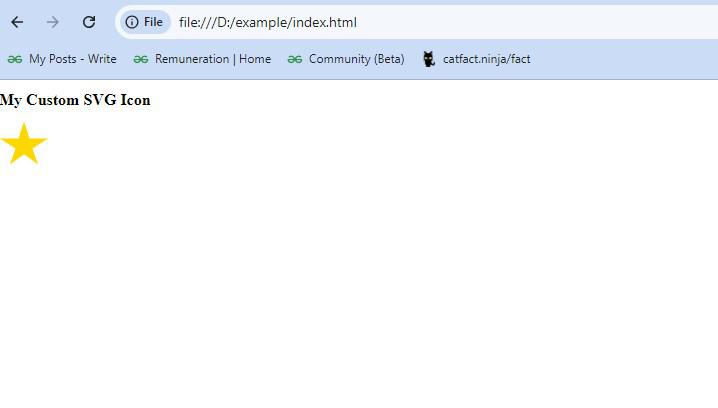
To customize the SVG appearance dynamically, you can use CSS. For example, let’s change the fill color on hover.
Example: This example shows the styling of SVG element.
Output:
Customizing SVG Icons with CSS and JavaScript
SVG icons can be styled directly using CSS, allowing you to change properties like fill, stroke, width, and height. Additionally, you can interact with SVG elements via JavaScript, providing interactivity and dynamic behavior.
Example: Changing Icon Color on Click Using JavaScript
Output:
Optimizing SVG Icons for Performance
To ensure your SVG icons perform optimally, follow these best practices:
Minify SVG Files: Use tools like SVGOMG to remove unnecessary code, white spaces, and metadata.
Limit Complexity: Avoid overly complex SVGs with too many anchor points, as they can slow down rendering.
Use SVG Sprites: Combine multiple icons into a single sprite to reduce HTTP requests.
Best Practices for Managing SVG Icon Libraries
When dealing with multiple custom icons, it's important to maintain an organized workflow:
Icon Naming Conventions: Use consistent and descriptive names (e.g., icon-star.svg, icon-heart.svg) for easy identification.
SVG Sprites: Group your icons into a single SVG sprite file, and use to reference individual icons.
Version Control: Track changes in your SVG library using Git or other version control systems.
Conclusion
Custom SVG icons are an excellent way to personalize your web project and ensure that it stands out visually. By creating custom icons, optimizing them for performance, and following best practices for integration, you can enhance both the aesthetic and functional aspects of your website.
Key Takeaways:
SVG icons offer scalability, performance, and flexibility unmatched by other formats.
Creating custom SVG icons allows full control over design and branding.
Optimize SVGs for performance, and maintain a well-organized library to ensure efficient project management.