|
VOOZH | about |
|
VOOZH | about |
To apply custom styles to your HTML webpage, it's best practice to keep your CSS code in a separate file. In fact, over 90% of modern websitesfollow this approach for better organization and maintainability. Simply create a CSS file (e.g., styles.css) and write your styling rules in it. Then, use the <link> element within the <head> section of your HTML file to connect the CSS and apply the styles effectively.
When it comes to styling an HTML document with CSS, there are three primary methods, each suited for different use cases:
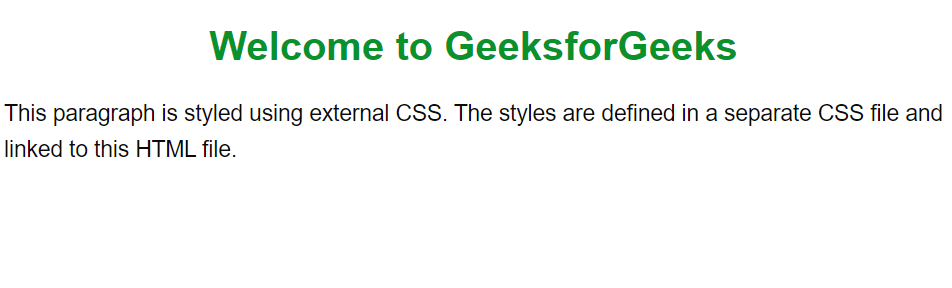
External CSS is a powerful way to style HTML by linking a separate .css file to your webpage. It keeps your code clean, reusable, and easy to manage across multiple pages. With just one link, you can control the entire site’s design from a single stylesheet. This method is ideal for scalability and professional web development.
Syntax
<link rel="stylesheet" href="styles.css">Example 1
Output
Note: While using External CSS you should always double check the file-path in the href - even a small typo can break your entire design. Place the <link> tag before any script tags to ensure styles loads before content renders.
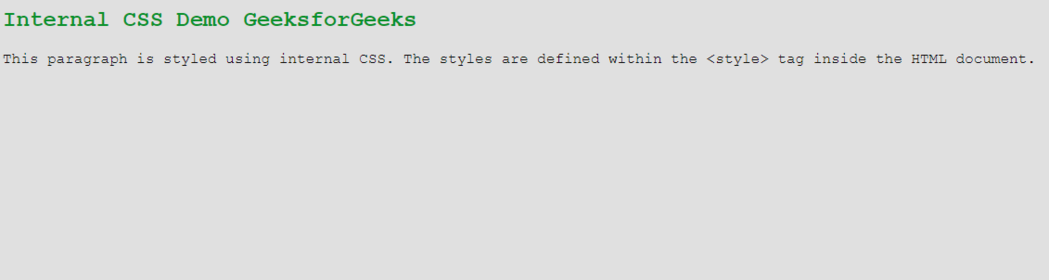
Internal CSS is a method of applying styles directly within an HTML files using the <style> tag , usually located inside the <head> section . It allows you to define styles that apply only to that specific page, making it suitable for single page custom design not reusable across multiple pages.
Syntax
We can use the <style> element within the <head> section to define the internal CSS:
<style>
 /* CSS rules go here */
</style>
Example 2
Output
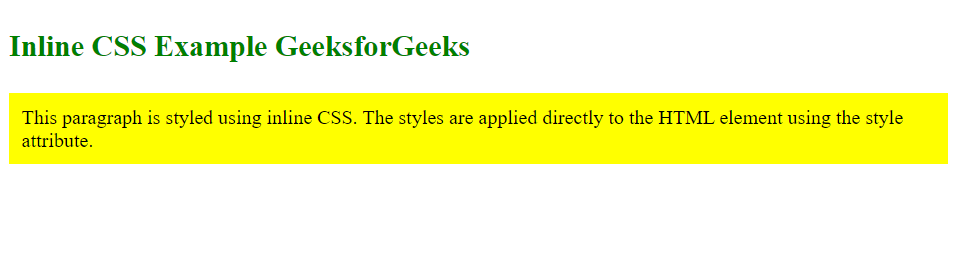
Inline CSS is a styling method where CSS rules are applied directly to individual HTML elements using the style attribute. It is best suited for quick styling changes or when you need to apply unique styles to a single element. However, it’s not ideal for large projects, as it can make the code cluttered and hard to maintain.
Syntax
It can add the style attribute directly to the HTML element:
<element style="property: value;">
 <!-- Content -->
</element>
Example 3
Output