 |
VOOZH | about |
|
VOOZH | about |
Adding a video to a webpage was a real challenge since one had to convert the videos to different formats to make them play in all browsers. Converting videos to different formats can be difficult and time-consuming.
Now, adding a video to a webpage has become as easy as copying and pasting and a very apt solution to add videos to a website is using Youtube. YouTube helps to host a video for a user so that they can be further embedded on web pages.
YouTube displays an id like "BGAk3_2zi8k", whenever a video is saved or played. This ID is further used as a referral for the YouTube video to be embedded in the webpage.
Table of Content
👁 Screen-Shot-2017-12-05-at-43818-PM
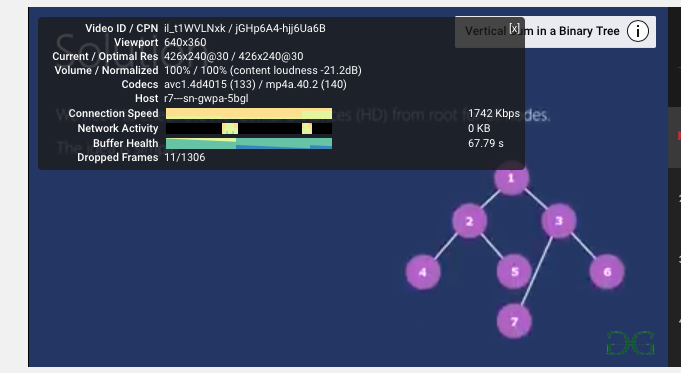
3. The first value in the box is the Video ID.
👁 Screen-Shot-2017-12-05-at-43833-PM
Note: The video id of this video is : il_t1WVLNxk
Output :
👁 ezgifcom-video-to-gif-converter-(2)
Youtube's autoplay feature can be used to automatically play a video when a user visits that page. There are two types of parameters that can be used :
Output :
👁 ezgifcom-video-to-gif-converter-(3)
A playlist of youtube videos can be created using comma character which separates the list of videos to play.
The loop parameter is used to loop the number of playbacks on the videos :
Output:
👁 ezgifcom-video-to-gif-converter-(4)
The Youtube Player offers controls like play, pause, volume etc that can be disabled or enabled using the controls parameter. There are two parameters available that can be used :
Output :
👁 ezgifcom-video-to-gif-converter-(5)
Output :
👁 ezgifcom-video-to-gif-converter-(6)
Output :
👁 ezgifcom-video-to-gif-converter-(7)
Output:
👁 ezgifcom-video-to-gif-converter-(8)
Note: Nowadays, the object and the embed tag are not appreciated, therefore it is recommended to use the iframe tag.


.gif)
.gif)
.gif)
.gif)
.gif)
.gif)
.gif)