In this article, we will build a three-column layout where each column describes a course and includes a "Learn More" button. Using CSS, we’ll arrange the columns side-by-side and will style them accordingly.
If you observe carefully, you can say that the section 2 is divided into three columns. This is also referred to as 3-Column layout in terminology of Web Development.
Steps To Building Setction 2 of Main Content
Step 1: Let's start writing HTML for Section 2
Declare a parent div with a class named row.
Declare three div's inside the parent row div to contain three columns and assign them id's as column1, column2 and column3 respectively.
For Each Column:
Declare a div with class = "column-title". For the title of the column.
Declare a paragraph p element for the description of the content.
Declare an anchor tag <a> to add an external link which will be styled as a button later.
Below is the complete HTML code for the Section 2 of the Main Content
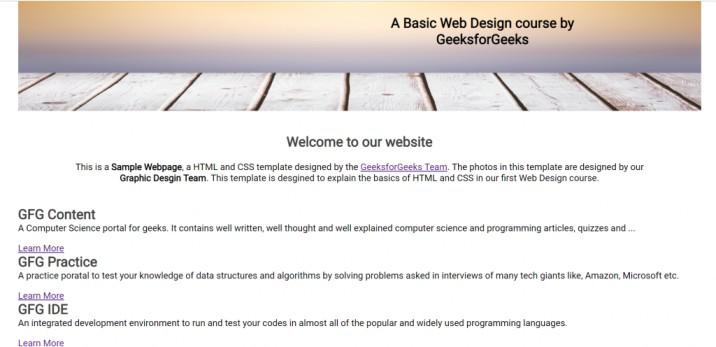
Output: Run the index.html in your browser, you will be able to see something as shown below
This no where looks close to our final Section 2 in the Main Content. We need to add some styles to make it beautiul.
Step 2: Let's start adding styles to it.
Adding basic styles for layout: Firstly, set the overflow to hidden and add all the required margins and paddings. Next is to give the thin 1px border at the top of the section to separate it from the previous section and align all of the text inside it to center.
Aligning Columns In-line: The next step is to align all of the columns in a single line one after the other. To do this, add the below CSS code to your style.css file:
Styling the Title of columns: The next good thing to do is to style the title of the columns. To give them appropriate font-sizes and weights apart from the default values. Add the below CSS code to your style.css file:
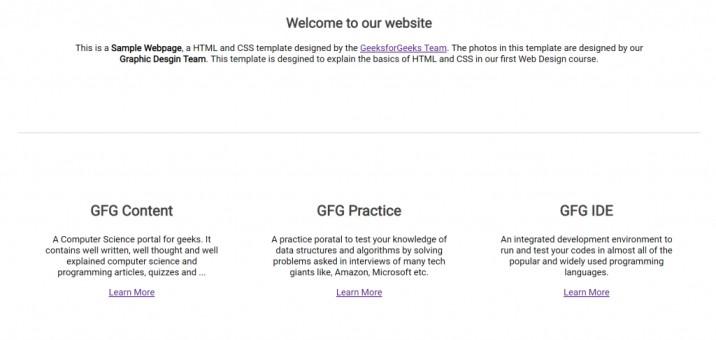
Once you have added the above styles successfully, your Section 2 now will look something as shown below
It looks good now apart from the buttons at the bottom. The buttons are still appearing as simple links. Let's make them look good by adding some CSS.
Step 3: To make the buttons look good, do the following
Remove text-decoration.
Align text to center.
Set the display property to "inline-block".
Set appropriate font-size, color and background color of the button.
Add paddings and margins.
Set the cursor property to pointer so that whenever the user hovers over the button the mouse pointer will change into a nice looking hand representing a pointer.
Use the :hover selector to add styles whenever user hovers over the button.
Below is the complete CSS code for the "button" class which you need to add in your style.css file
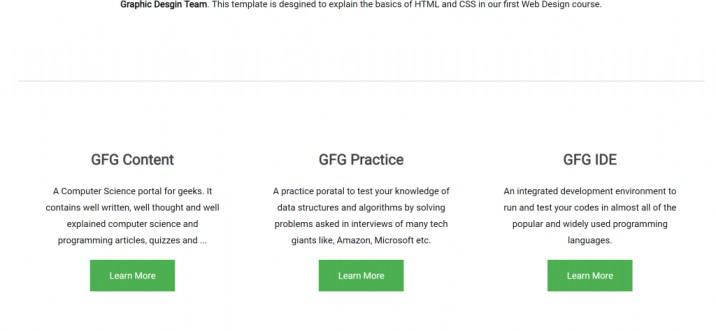
Now, the Section 2 of our website is complete and will look something as shown below