|
VOOZH | about |
|
VOOZH | about |
OpenFeign is an open-source project originally developed by Netflix and later moved to the open-source community. It is a declarative REST client that allows developers to write HTTP clients by simply creating Java interfaces. Spring Cloud integrates OpenFeign, making it very convenient to call REST APIs exposed by microservices or third-party applications.
With Feign, you don’t need to write boilerplate code for REST calls (like using RestTemplate or WebClient). Instead, Spring automatically generates the implementation at runtime.
For Maven:
Add this dependency to the pom.xml file.
<dependency><groupId>org.springframework.cloud</groupId>
<artifactId>spring-cloud-starter-openfeign</artifactId>
</dependency>
For Gradle:
Add the following entries to the build.gradle file.
dependencies {implementation 'org.springframework.cloud:spring-cloud-starter-openfeign'
}
After adding the library annotate the main Application file with this @EnableFeignClients annotation like below
@SpringBootApplication
@EnableFeignClients
public class Application {
public static void main(String[] args) {
SpringApplication.run(Application.class, args);
}
}
Create an Interface and annotate it with @FeignClient and declare your calling methods like below
@FeignClient(name = "giveYourServiceName", url = "provideYourUrlHere", path = "provideYourContextPathHere")
public interface AddressClient {
@GetMapping("/address/{id}")
public ResponseEntity<AddressResponse> getAddressByEmployeeId(@PathVariable("id") int id);
}
Let's understand the whole thing by developing two Spring Boot projects.
In this project, we are going to develop two Microservices
Step 1: Create a New Spring Boot Project
Create a Spring Boot Project for this project choose the following things
Please choose the following dependencies while creating the project.
Generate the project and run it in IntelliJ IDEA by referring to the above article.
Note: We have used the MySQL database in this project.
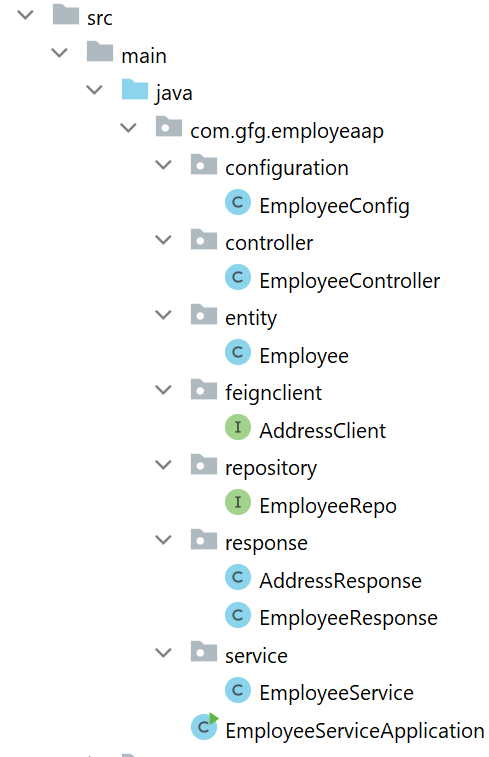
Project Structure:
👁 Feignclient-1pom.xml:
Step 2: Database Setup
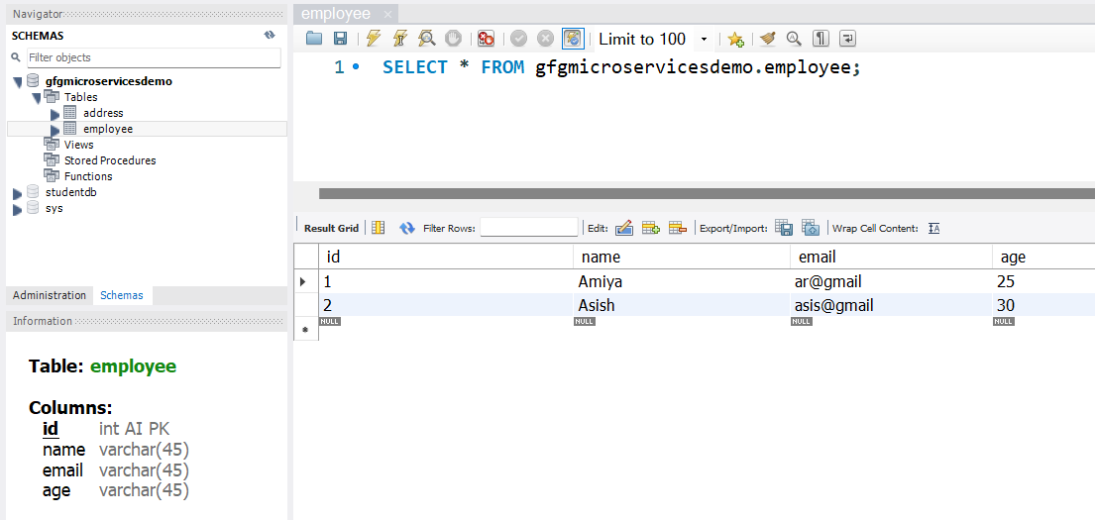
Go to your MySQL Workbench and create a schema named gfgmicroservicesdemo and inside that create a table called employee and put some sample data as shown in the below image. Here we have created 4 columns and put some sample data.
Step 3: application.properties
Now make the following changes in your application.properties file.
Step 4: Create Entity Class
Go to the src > main > java > entity and create a class Employee and put the below code. This is our model class.
Step 5: Create Your Repository Interface
Go to the src > main > java > repository and create an interface EmployeeRepo and put the below code. This is our repository where we write code for all the database-related stuff.
To Know more about JpaRepository -> JpaRepository.
Step 6: Create Response Classes
Go to the employee-service > src > main > java > response and create a class AddressResponse and put the below code.
AddressResponse.java
Go to the src > main > java > response and create a class EmployeeResponse and put the below code.
EmployeeResponse.java
Step 7: Feign Client
Go to the employee-service > src > main > java > feignclient and create an interface AddressClient and put the below code.
Step 8: Modify EmployeeServiceApplication Class
Go to the employee-service > src > main > java > EmployeeServiceApplication and annotate it with @EnableFeignClients annotation. Below is the complete code for EmployeeServiceApplication Class.
Step 9: Create Your Service Class
Now go to the employee-service > src > main > java > service > EmployeeService and modify the EmployeeService class as below. Add the below code inside this class.
Below is the complete code for EmployeeService Class.
Step 10: Create Controller
Go to the src > main > java > controller and create a class EmployeeController and put the below code. Here we are going to create an endpoint "/employees/{id}" to find an employee using id.
Step 11: Create a Configuration Class
Go to the src > main > java > configuration and create a class EmployeeConfig and put the below code.
Step 1: Create a New Spring Boot Project
Create a Spring Boot Project for this project choose the following things
Please choose the following dependencies while creating the project.
Generate the project and run it in IntelliJ IDEA by referring to the above article.
Note: We have used the MySQL database in this project.
Step 2: Database Setup
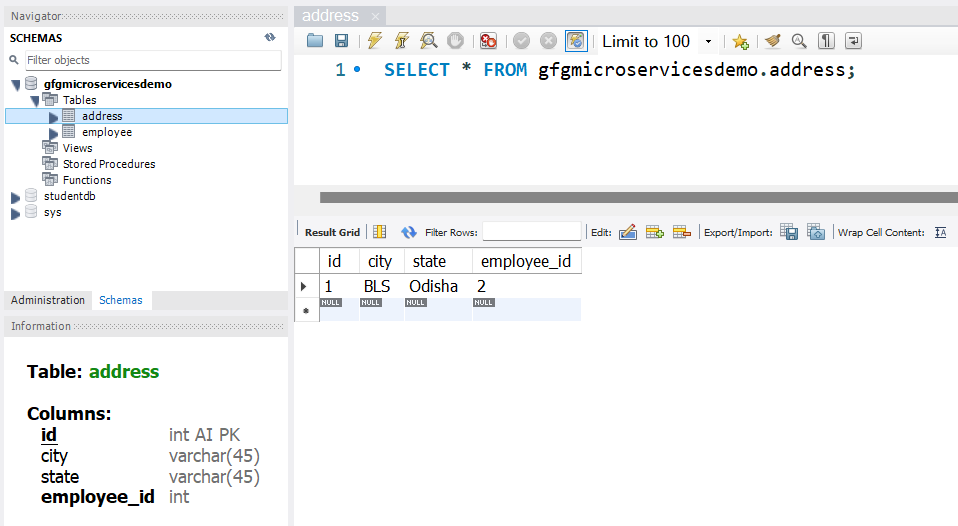
Go to your MySQL Workbench and create a schema named gfgmicroservicesdemo and inside that create a table called address and put some sample data as shown in the below image.
Address Table:
Here we have created 4 columns and put some sample data.
Note: In the Address table, employee_id is a foreign key so create it accordingly. We are going to perform a SQL join operation in our native SQL query. So create tables carefully.
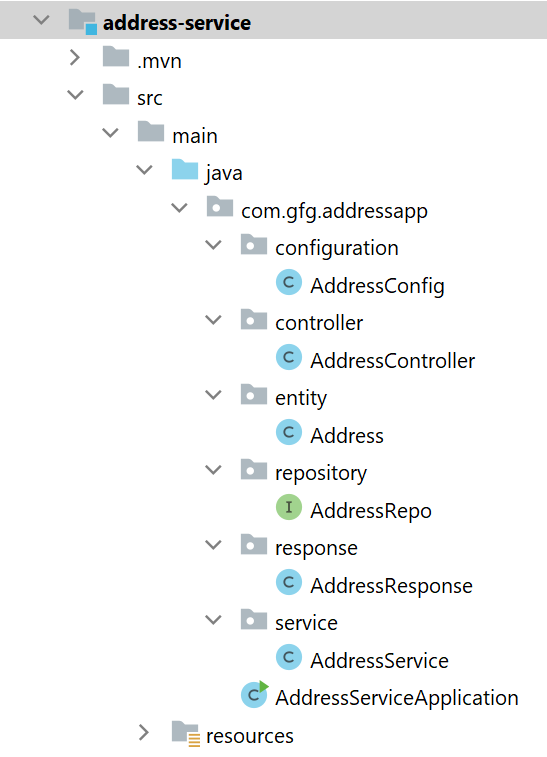
Before moving to IntelliJ IDEA let's have a look at the complete project structure for our Microservices.
pom.xml:
Step 3: application.properties
Now make the following changes in your application.properties file.
Step 4: Create Entity Class
Go to the src > main > java > entity and create a class Address and put the below code. This is our model class.
Step 5: Create Repository Interface
Go to the src > main > java > repository and create an interface AddressRepo and put the below code. This is our repository where we write code for all the database-related stuff.
Note: Please refer to this article to know more about JpaRepository.
Step 6: Create an AddressResponse Class
Go to the src > main > java > response and create a class AddressResponse and put the below code.
Step 7: Create Service Class
Go to the src > main > java > service and create a class AddressService and put the below code. This is our service class where we write our business logic.
Step 8: Create an Address Controller
Go to the src > main > java > controller and create a class AddressController and put the below code. Here we are going to create an endpoint "/address/{employeeId}" to find the address using employee_id. Thats why we have created a foreign key in the Address table and we have performed the SQL join operation in the native query to get our desired result.
Step 9: Create a Configuration Class
Go to the src > main > java > configuration and create a class AddressConfig and put the below code.
Note: To know more about Configuration and Bean Annotation->
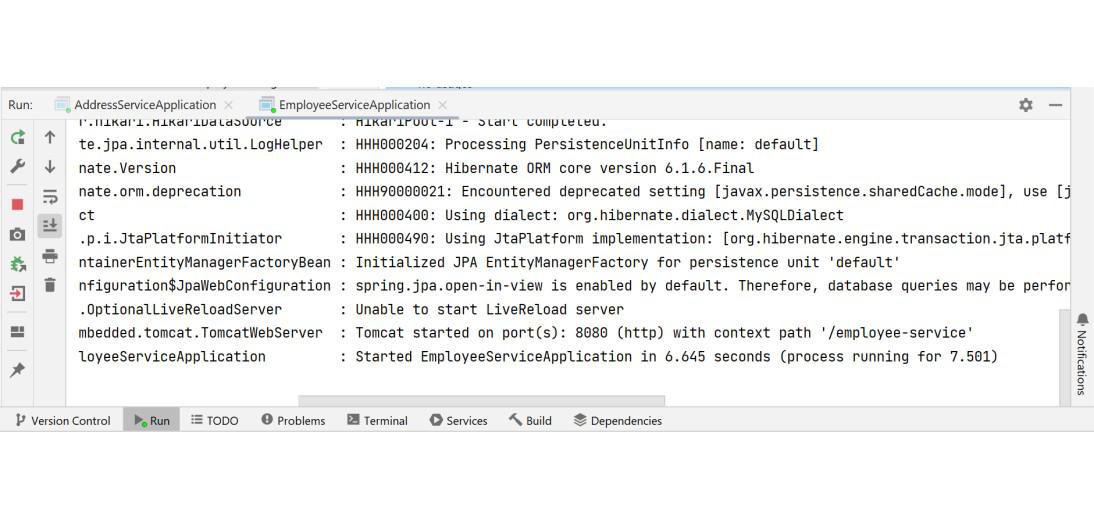
Now run your both Address and Employee Microservices. If everything goes well then you may see the following screen in your console. Please refer to the below image.
👁 microservice-communication-2
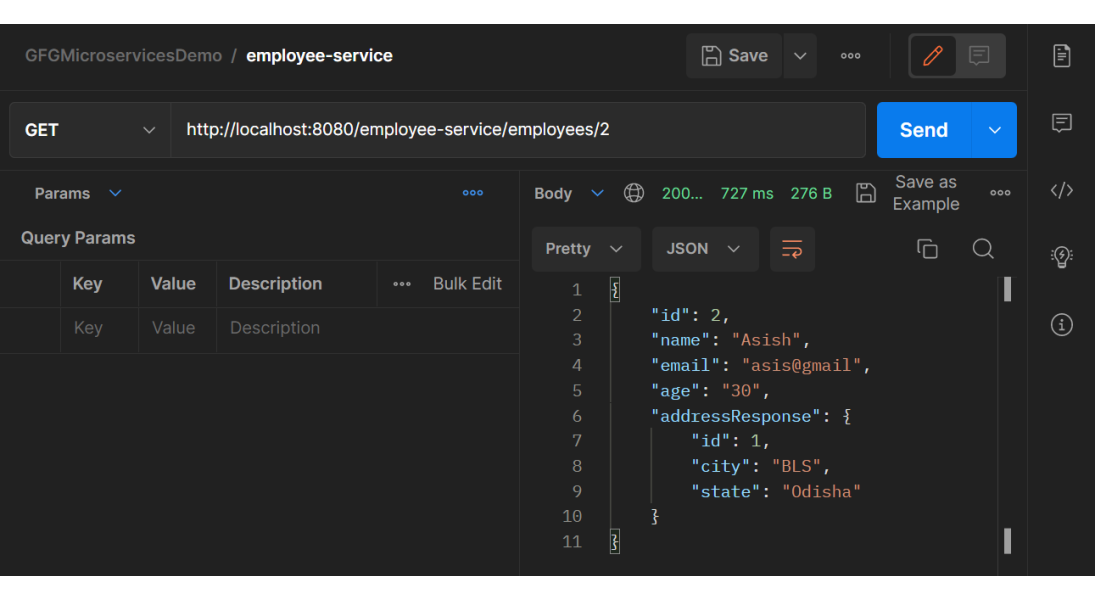
Now open Postman and hit the following URL
GET: http://localhost:8080/employee-service/employees/2
And you can see the following response
{
"id": 2,
"name": "Asish",
"email": "asis@gmail",
"age": "30",
"addressResponse": {
"id": 1,
"city": "BLS",
"state": "Odisha"
}
}
Please refer to the below image.
👁 microservice-communication-3
With this setup, employee-service fetches employee details and calls address-service using Feign Client to get address details.