|
VOOZH | about |
|
VOOZH | about |
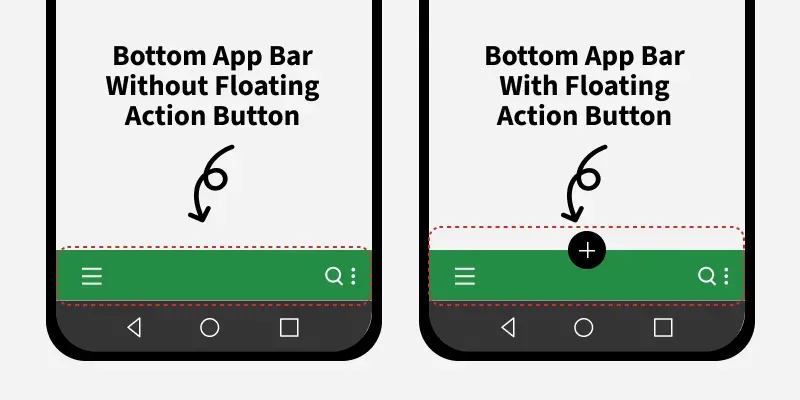
A Bottom App Bar is a UI element typically located at the bottom of a mobile screen. It works like a container for navigation buttons, action icons, and sometimes floating action buttons (FABs). Unlike a top app bar, the bottom placement makes it easier to reach, especially on larger screens. In this article we will explore the Bottom App Bar, its benefits, best practices, and implementation.
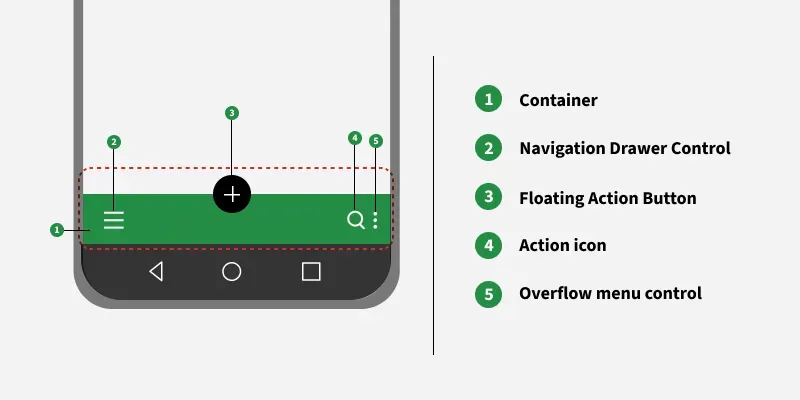
The bottom app bar provides easy access to the navigation drawer and up to four primary actions of the current activity including the Floating Action Button. By including this component in the application provides a huge response to the User Experience because, the user shouldn't have to stretch their fingers to touch the primary actions on the top of the screen whereas by including this, the user can easily click on primary actions and access the navigation drawer.
In the below anatomy taking the example of an basic application, one can see the primary action here is search and we can add other icon along with the search icon.
To create a new project in Android Studio please refer to How to Create/Start a New Project in Android Studio.
Include google material design components dependency in the build.gradle.kts file. After adding the dependencies don’t forget to click on the “Sync Now” button present at the top right corner. Note that the Navigation Rail is introduced in the latest release of the material design components version that is 1.4.0 and above.
implementation ("com.google.android.material:material:1.12.0")Note that while syncing your project you need to be connected to the network and make sure that you are adding the dependency to the app-level Gradle file as shown below.
Creating a separate menu for Bottom App Bar so that we can make what items should appear on the bar and what items should appear under the Overflow menu control. To implement the sample menu invoke the following in the bottom_app_bar_menu.xml file under the menus folder.
bottom_app_bar_menu.xml:
The main layout of this sample contains one floating action button which is anchored to Bottom App Bar, which in turn both the views should be under the CoordinatorLayout otherwise error will occur. And the size of the Floating Action Button should be auto. To implement the same invoke the following code inside the activity_main.xml file.
activity_main.xml:
In the MainActivity.kt file there is a need to handle the buttons and the hamburger icon to perform the appropriate actions. Upon clicking the hamburger icon Navigation Drawer needs to be shown. To know how to implement Navigation Drawer refer to Navigation Drawer in Android, upon clicking the search icon the search screen should appear, etc. To implement the same invoke the following code inside the MainActivity file.
MainActivity File:
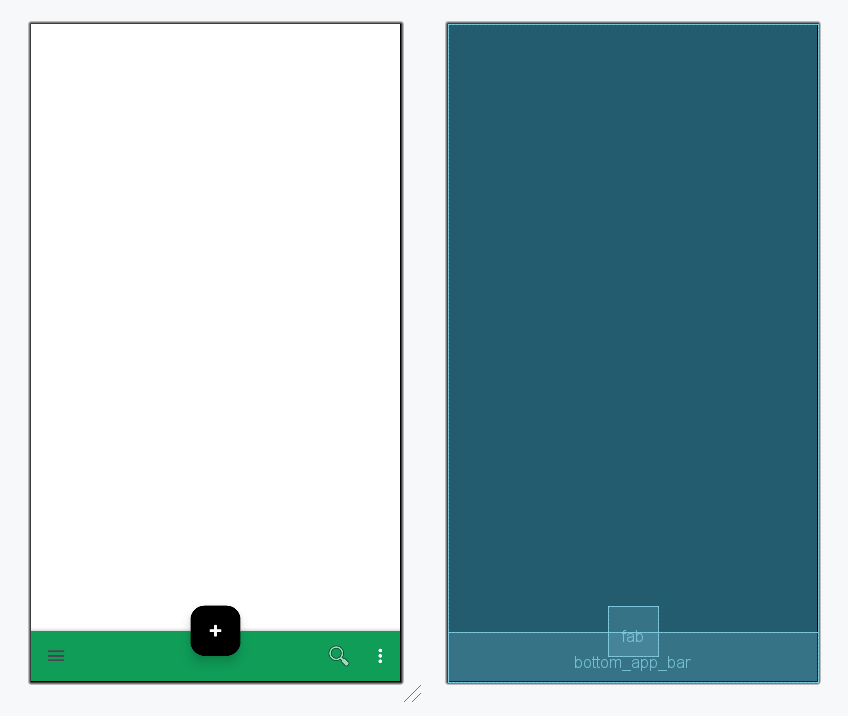
Output: