|
VOOZH | about |
|
VOOZH | about |
Dropping a pin in Google Maps is an essential feature that allows you to mark specific locations or drop multiple pins on Google Maps for navigation, sharing, or saving for future reference. Imagine needing to meet a friend at a remote location or save the exact spot of a scenic view during your travels—dropping a pin ensures you never lose track of it. Whether you're using Android, iPhone, or Desktop, this feature makes it easy to navigate, save, and share precise locations. This guide will walk you through how to drop a pin on Google Maps step-by-step for all devices, helping you make the most of this useful feature.
👁 Drop a Pin in Google Maps Apps
Table of Content
Dropping a pin in Google Maps on your Android device is simple and helps mark a specific location for easy reference or sharing. Here's how you can do it quickly:
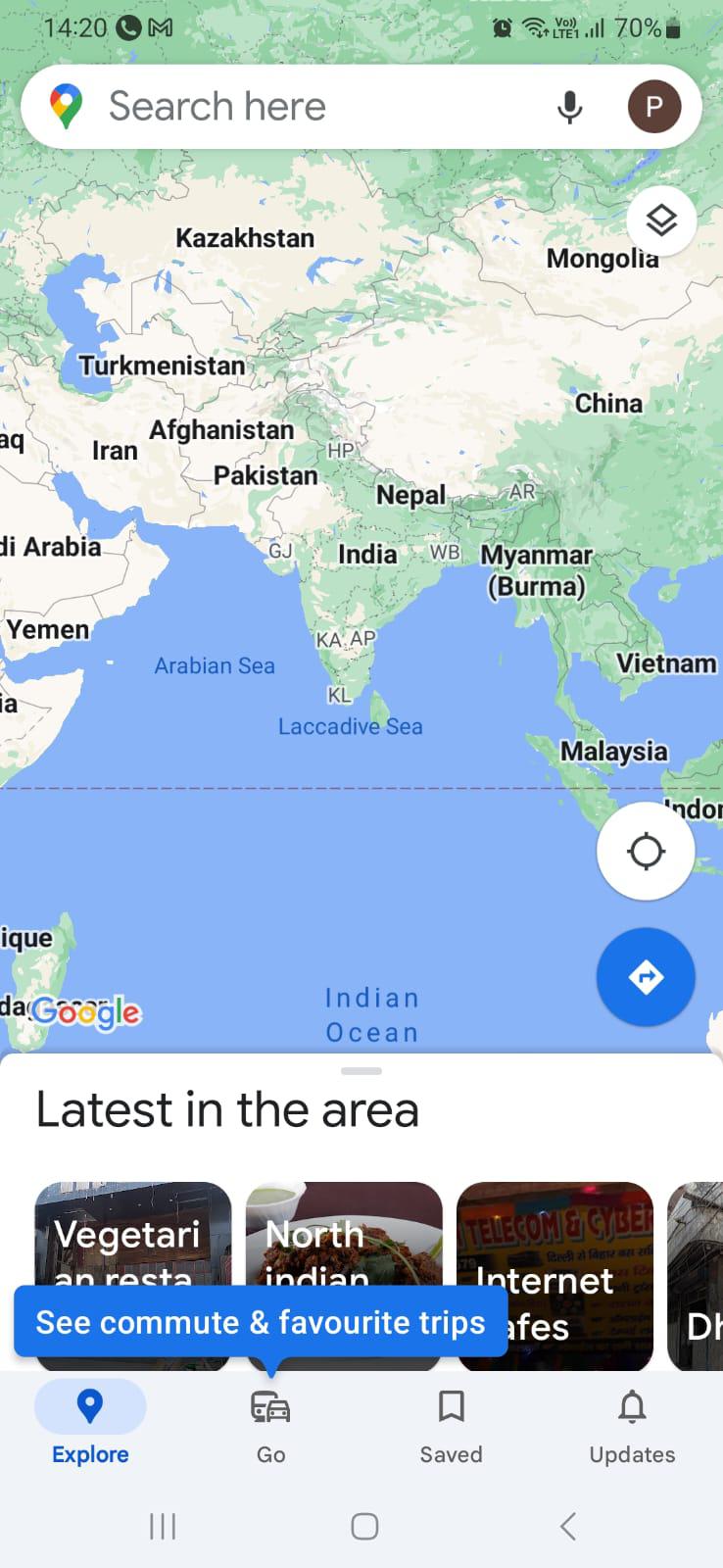
Launch the Google Maps app on your android device.
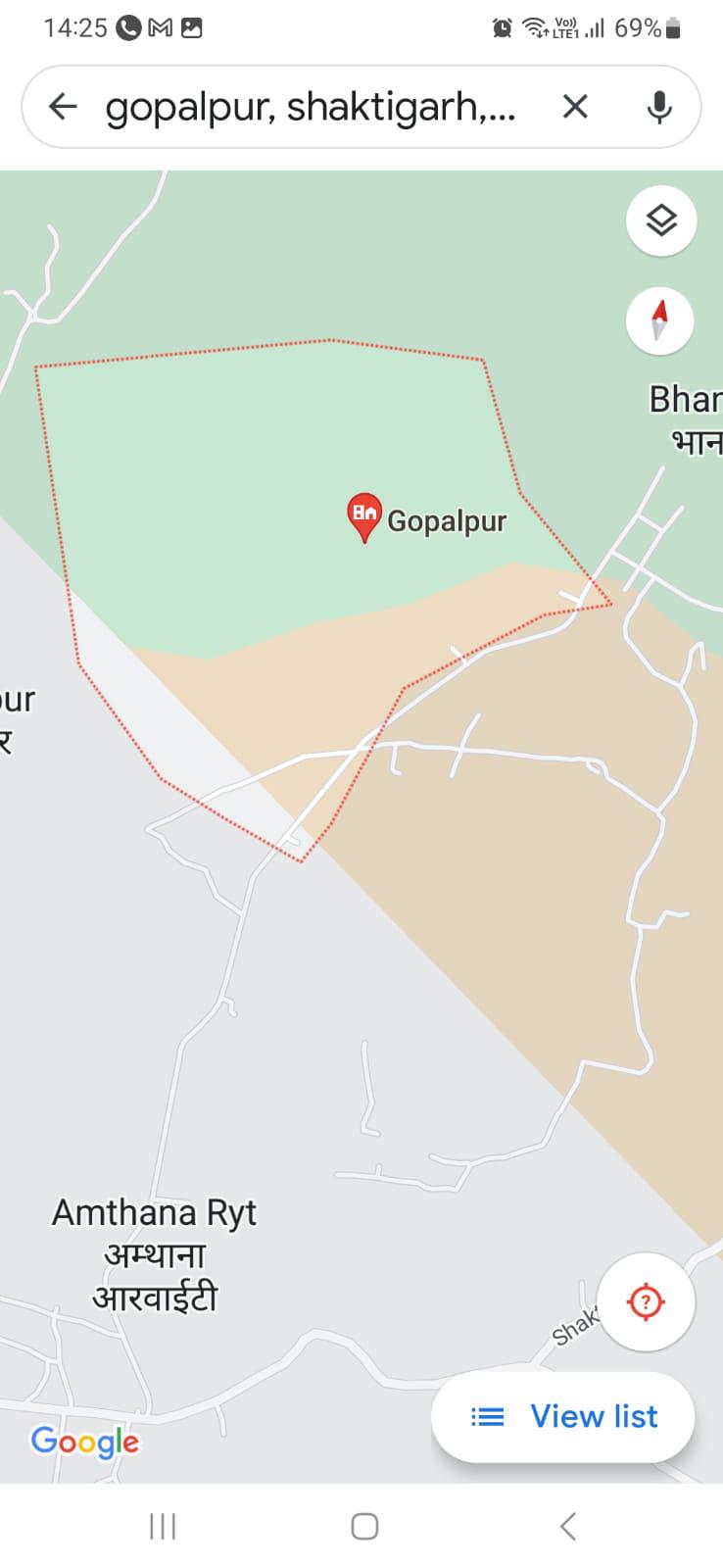
Explore the vicinity surrounding your primary pin location. Input the general city or postal code corresponding to the area where you intend to place the pin.
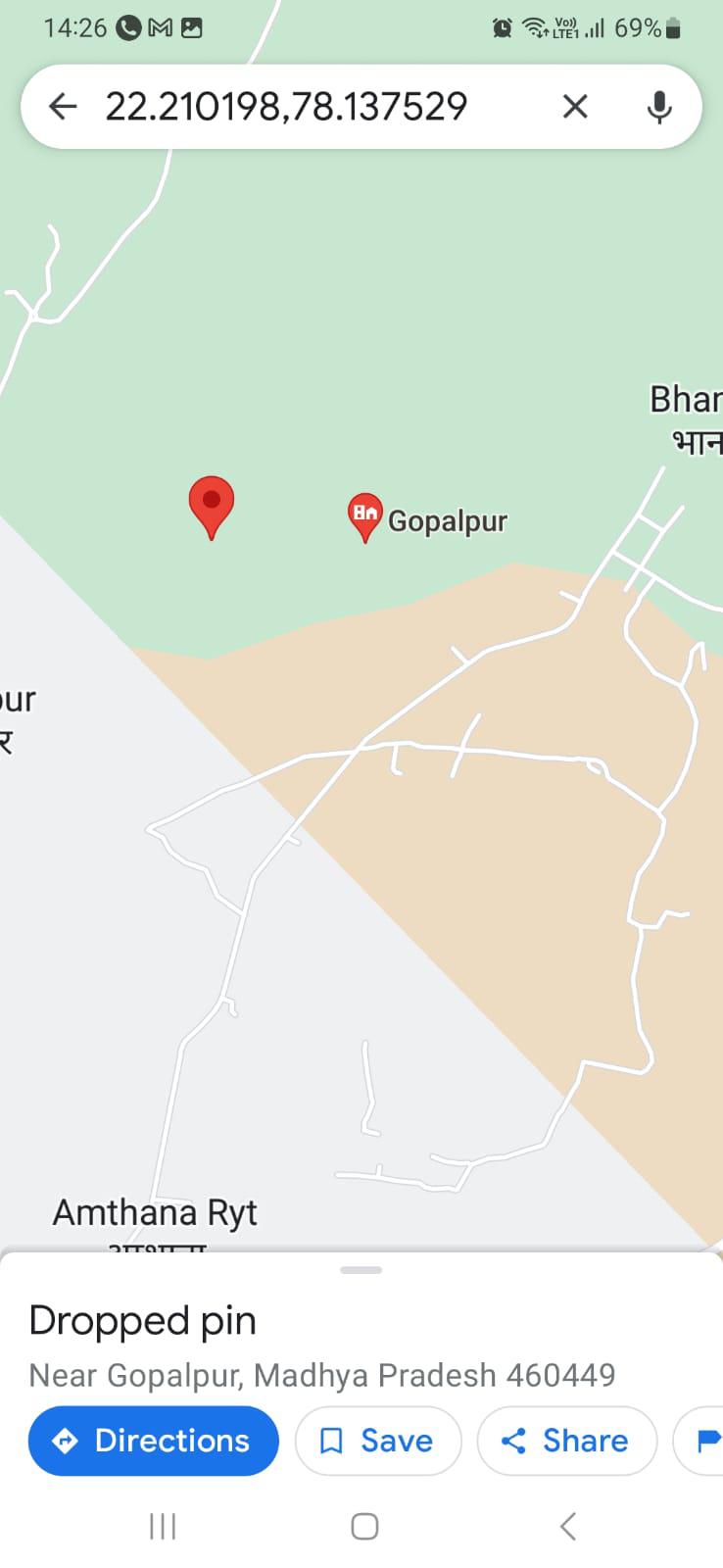
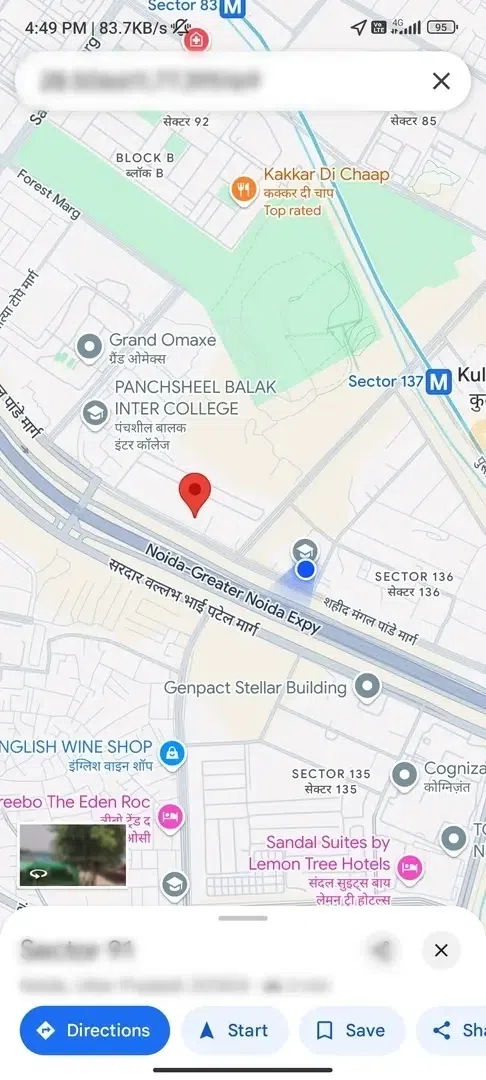
Once you've identified the region or area on google maps, refine your search to pinpoint the precise locality. Now long tap on the exact spot to drop a pin.
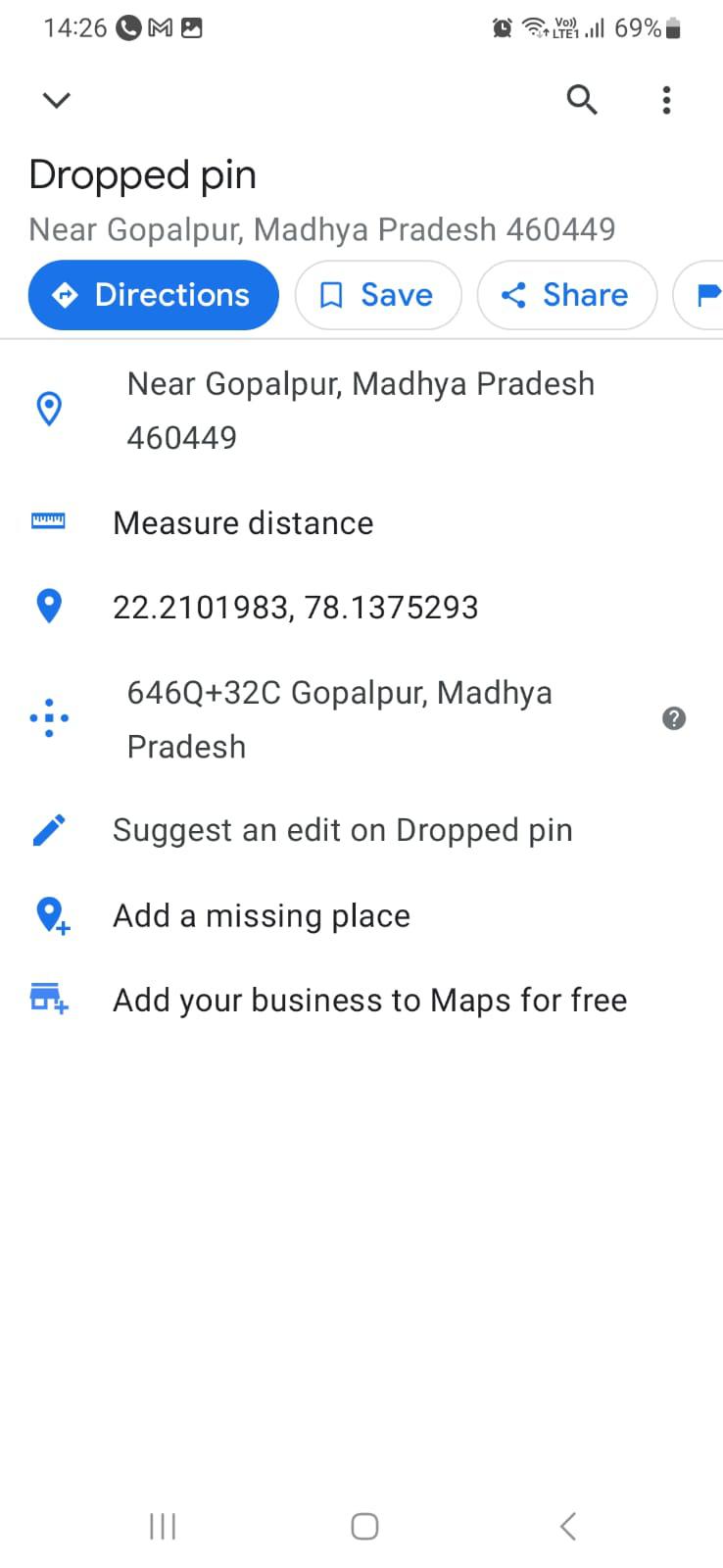
After dropping a pin, you can edit and save it in Google Maps. Click on the "save" option and type the name by which you want to save the dropped pin. In this step, you can also share the pinned location with anyone by tapping the share button.
Note: Editing Pin lets you do cool things like giving it a name, writing notes, or adding descriptions to explain what it's all about. It's like adding labels to your pins so you remember why you put them there!
Dropping a pin on Google Maps on iPhone is quick and useful for finding and sharing exact locations. Here’s how to pin drop on Google Maps using your iPhone:
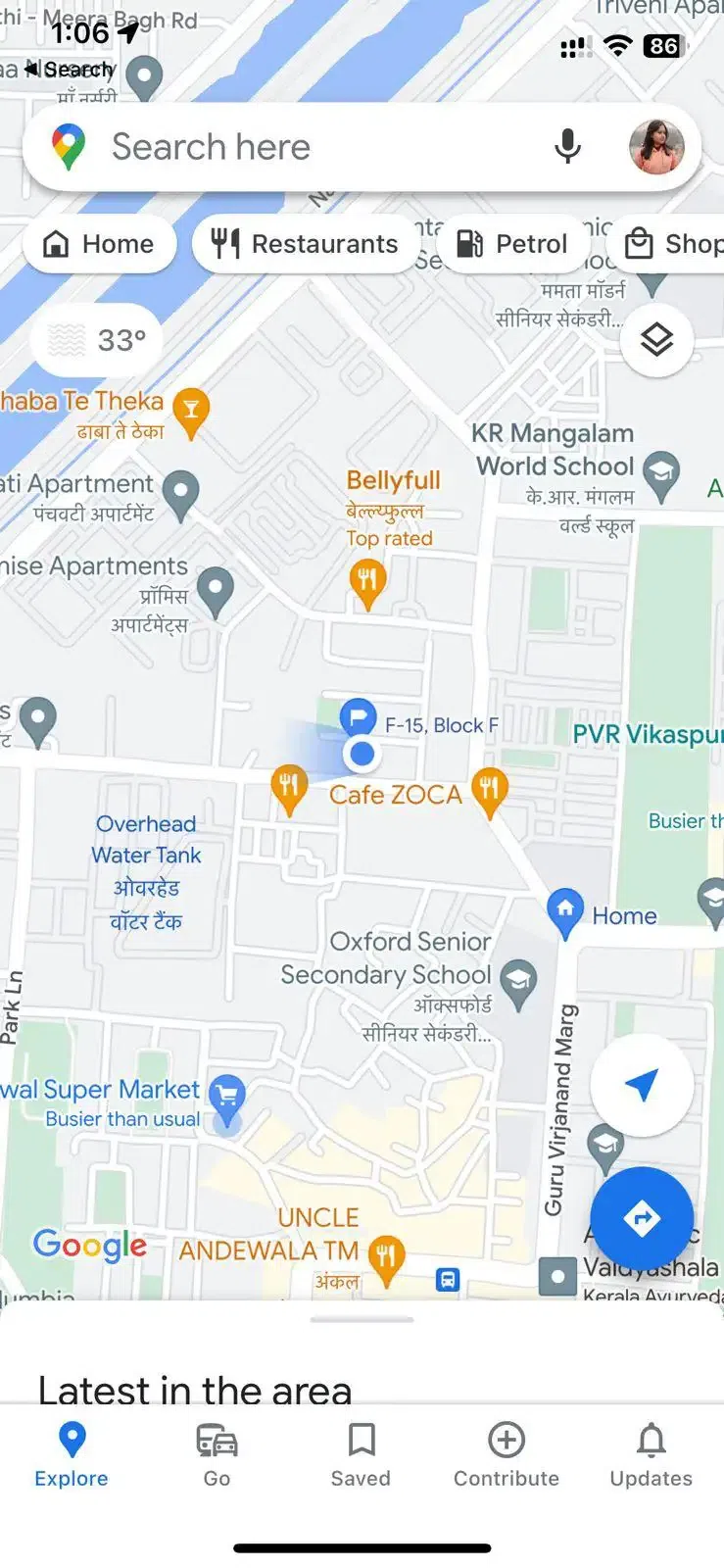
Open the Google Maps application on your iPhone and search the location or scroll around the location where you want to drop a pin.
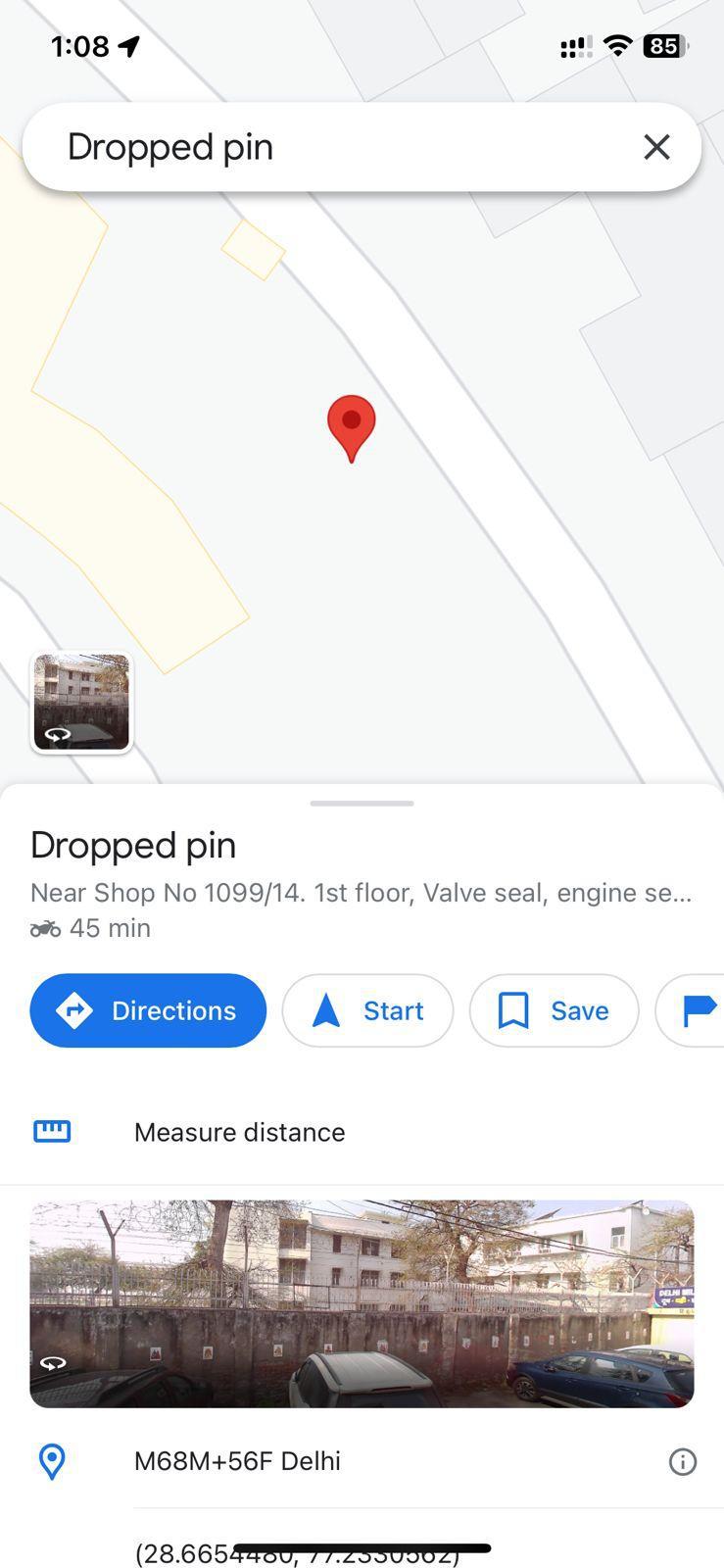
When you have located the location or spot where you want to drop a pin, tap or long-press to place a pin at the spot. This action will make a red pin to appear on Google Maps.
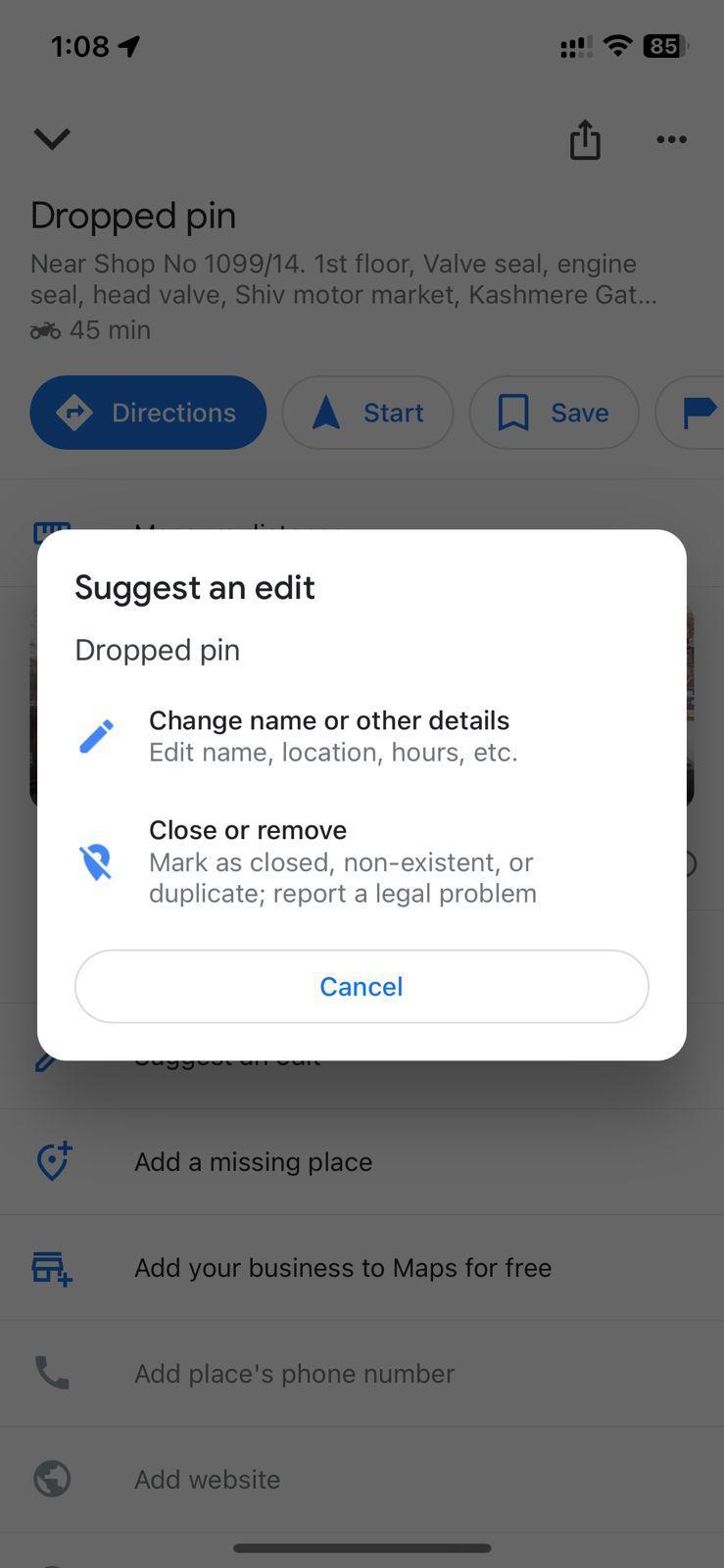
Once the pin has been placed, you can tap it to uncover customization choices. Labels, notes, or descriptions can be added to the pin, offering additional context.
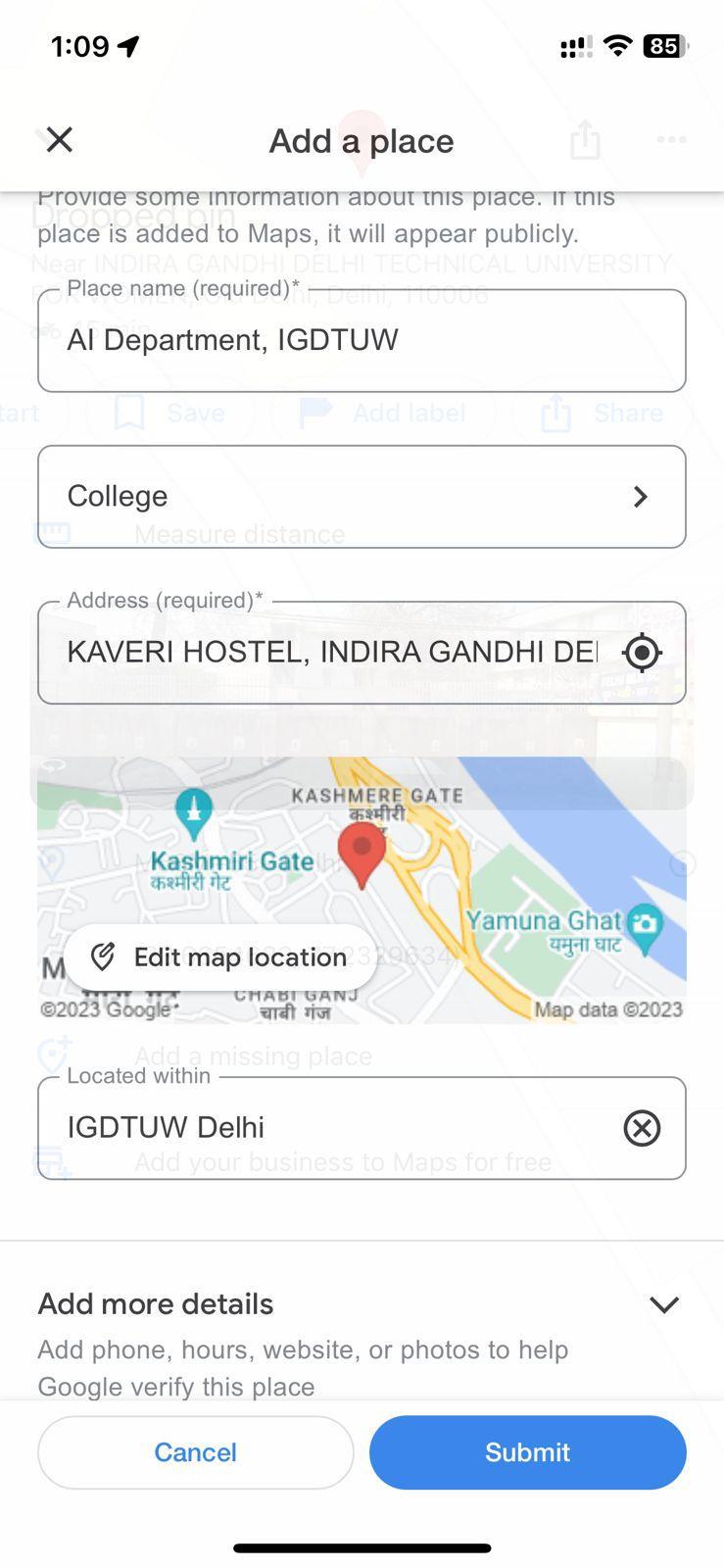
Once you have added all the information to a dropped pin, tap "submit" to save the pin on your Google Maps.
Dropping a pin on Google Maps using your desktop or iOS is a simple way to mark a specific location and share it with others. Whether you want to remember a place, get directions, or send it to friends, follow these steps:
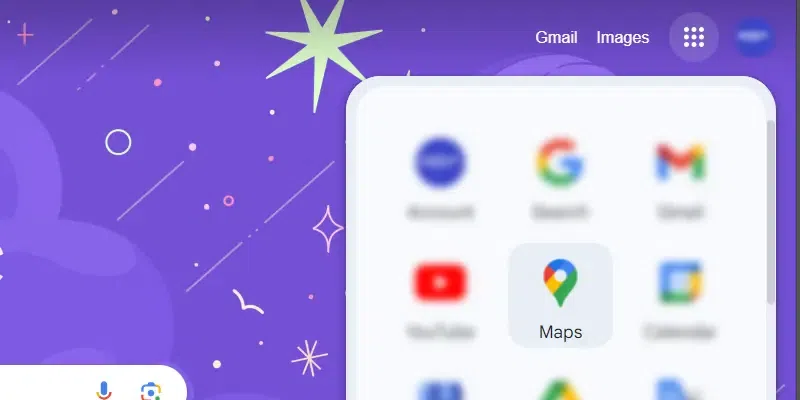
Head to the Google Maps homepage on your web browser.
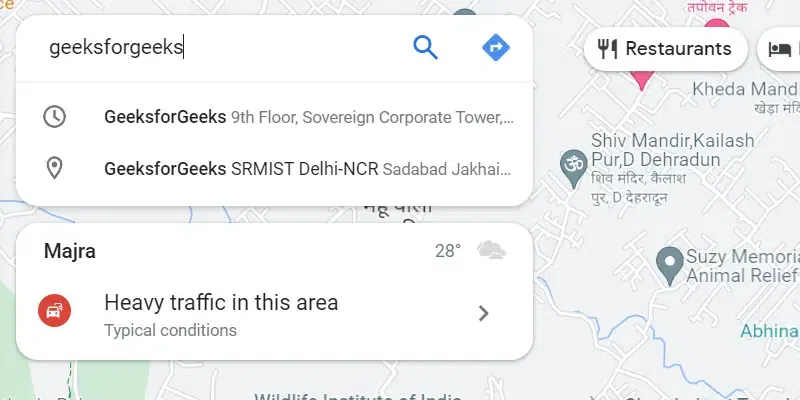
👁 Drop a Pin in Google Maps AppsNow use the search bar to type the nearby address or scroll the map around the near by location to find the spot.
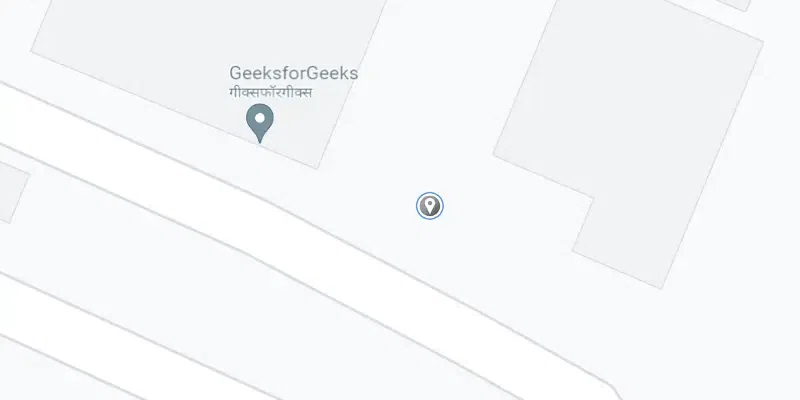
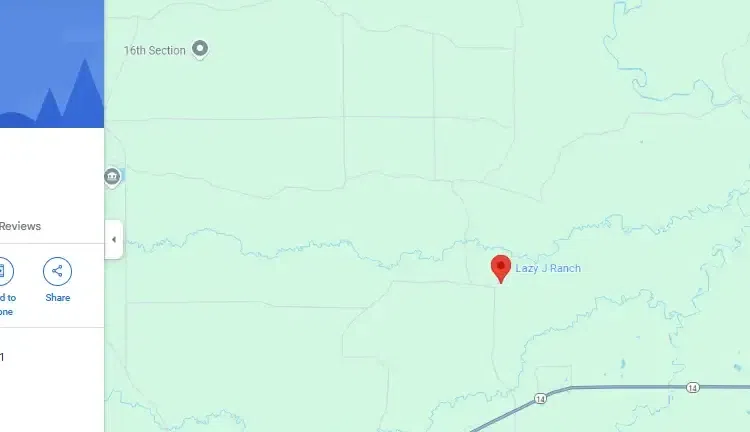
👁 Drop a Pin in Google Maps AppsClick on the desired location where you intend to drop the pin. If there's an existing marker in that spot, you might need to zoom in or click slightly beside it. Now a small gray pin will appear and an information box at the bottom right corner of the screen.
👁 Drop a Pin in Google Maps AppsTo drop multiple pins on Google Maps using your Android or iPhone, you can mark and save locations for easy access and sharing. Here’s how to do it simply and quickly.
Start by opening Google Maps on your mobile device.
You can drop a pin by either searching for a specific location or pressing and holding on a part of the map where you want to drop a pin.
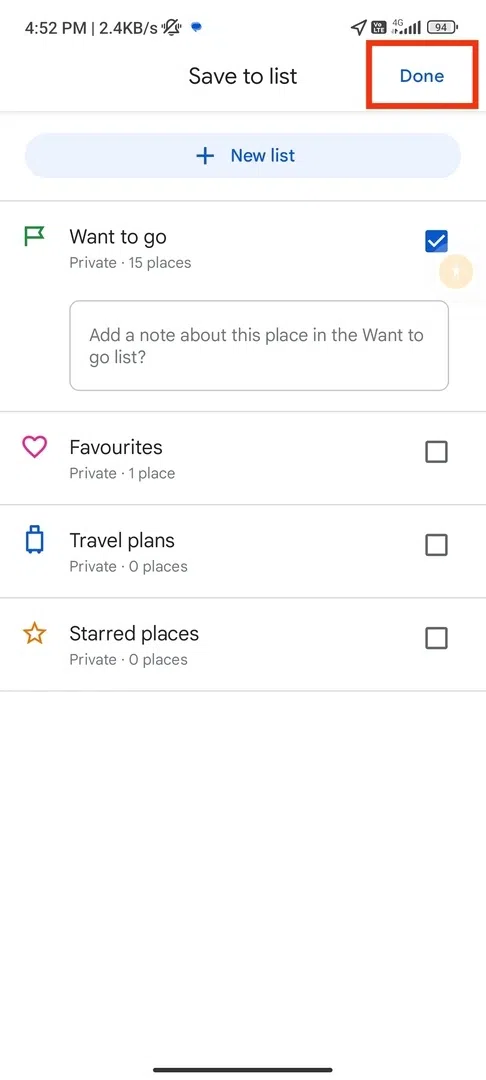
Once the pin is dropped, tap on the pin and select "Save" or "Label" to keep it on your map. Choose an existing list or create a new one to save the location.
Continue to search or long-press on other locations where you want to drop more pins. Save each accordingly.
To drop multiple pins on Google Maps using a desktop, you can mark different locations by saving them or creating custom maps with Google My Maps. While you can’t place multiple pins all at once directly, you can easily save multiple spots and organize them for future use or sharing. Here’s a simple way to manage multiple locations on your desktop.
Visit the Google Maps website on your browser.
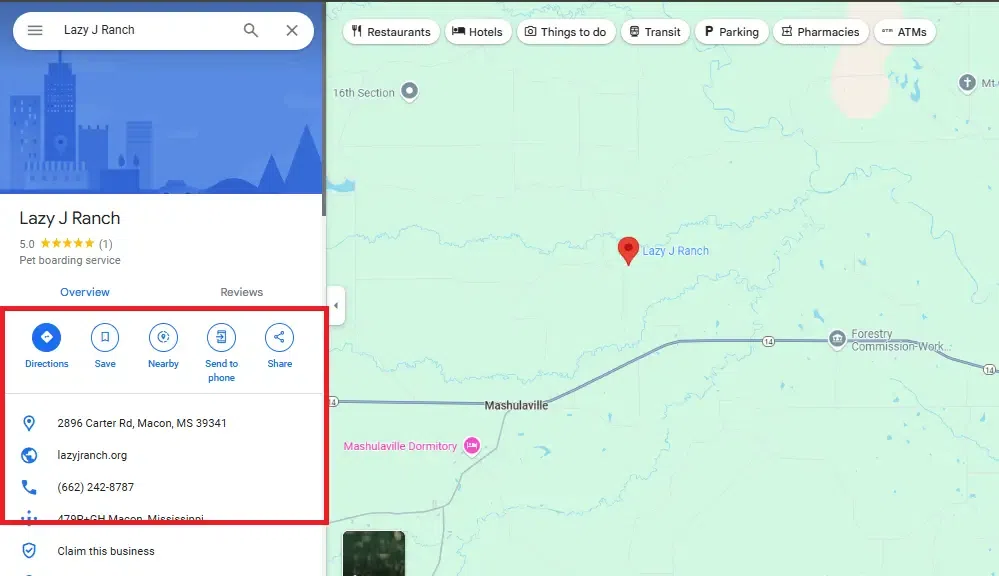
Click on any location on the map to drop a pin. A small box will appear at the bottom of the screen with the location details.
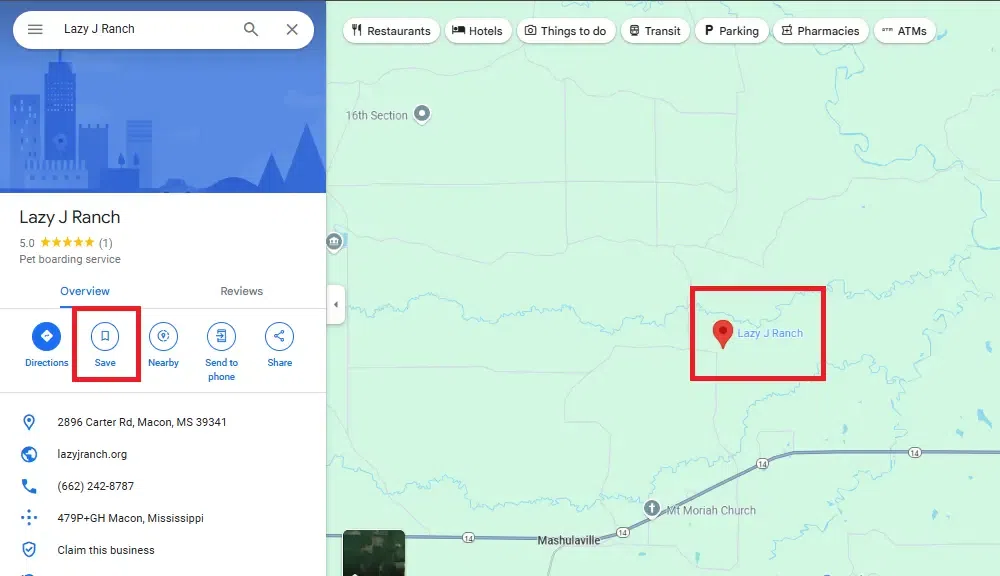
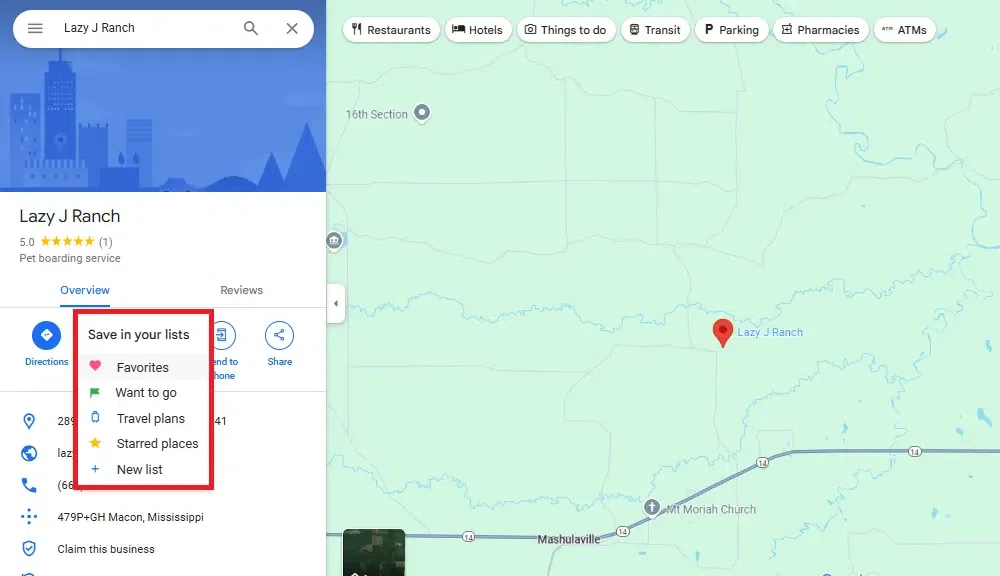
Click on the coordinates in the small box at the bottom, or click the "Save" button, then select where you want to save this pin. You can add it to "Your places," "Starred places," or a new list.
Repeat the process by clicking on different locations on the map and saving them as needed.
To send a pin from Google Maps, follow these steps:
Open Google Maps on your device (Android, iPhone, or Desktop).
On mobile: Tap and hold the location you want to drop a pin on the map. On desktop: Click on the location on the map where you want to drop the pin.
A panel will appear at the bottom of the screen or on the left-hand side with location details.
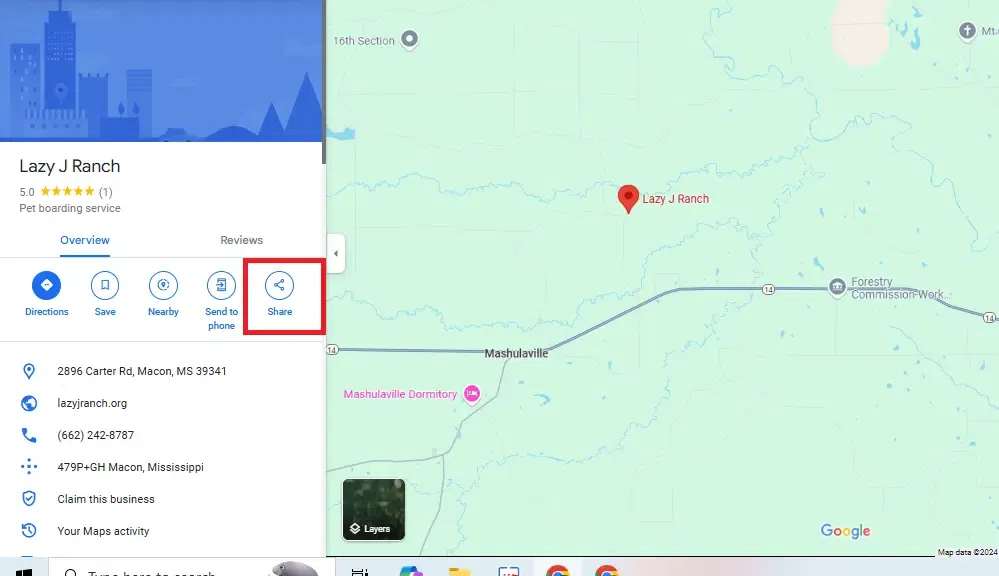
On mobile, you may see a "Share" icon (it usually looks like three dots connected by lines or says "Share"). Tap it. On desktop, click the "Share" option that appears in the location’s details.
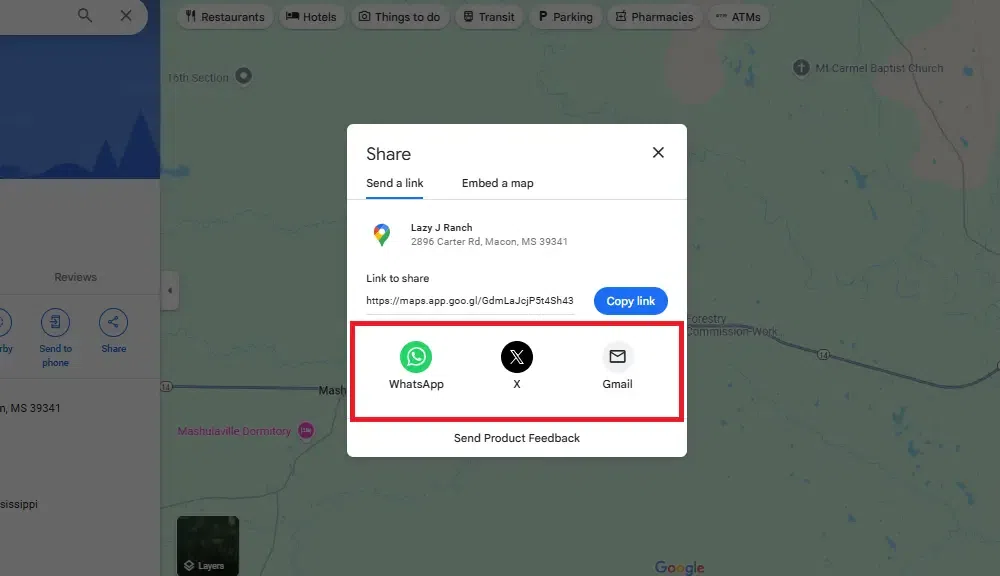
On mobile, you can share the pin via text message, email, social media apps, or copy the link. On desktop, you’ll get a link to copy or options to share it via social media and other platforms.
Choose your preferred method (text, email, etc.) and send the pin location link to your contact.
If you need to manage multiple pins effectively, consider using Google My Maps:
Access Google My Maps from your Google account.
Click "Create a New Map" and give it a name.
Add Pins: Use the marker tool to drop pins across different locations on your custom map.
Customize: Add descriptions, change pin colors, and organize them into layers for better management.
Dropping a pin in Google Maps is a simple yet powerful tool that can improve how you save, share, and find locations. Whether you're using a phone or computer, understanding how to drop and share a pin opens up possibilities for precise navigation and easy sharing of important spots. Make the most of this feature to enhance your travel, meetups, and daily life. With just a few taps or clicks, you’re always one step closer to your next destination!