|
VOOZH | about |
|
VOOZH | about |
Saving a route on Google Maps is an incredibly useful feature for frequent travelers, daily commuters, and adventurers alike. By saving routes, you can access them quickly, plan your trips more efficiently, and avoid repeatedly entering the same information. This feature not only helps in planning regular commutes but also in organizing complex travel itineraries, ensuring you have a seamless and hassle-free navigation experience.
Here, we will learn the steps to save a route on Google Maps, making your travel planning more efficient and convenient.
Table of Content
Saving a route on Google Maps is essential for convenience and efficiency, as it allows quick access to frequently traveled paths without re-entering details. It also enables offline access to routes, making navigation seamless even without an internet connection. Additionally, saved routes can be shared easily with others, aiding in coordinated travel plans or meetings. This feature is particularly beneficial for daily commuters, travelers, and anyone needing reliable, repeatable navigation.
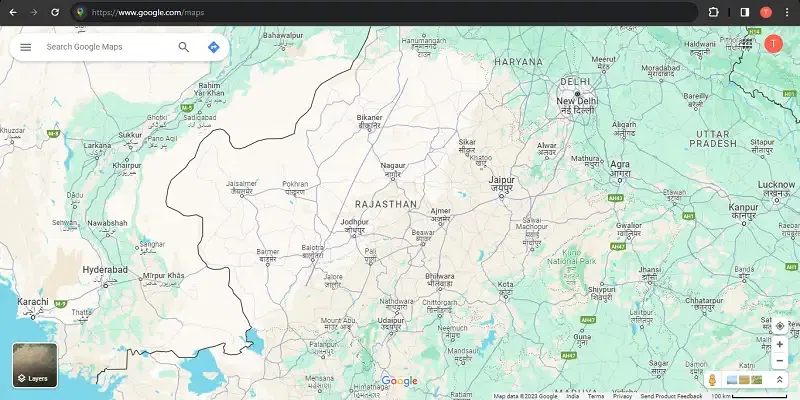
On your web browser go to the Google Maps website.
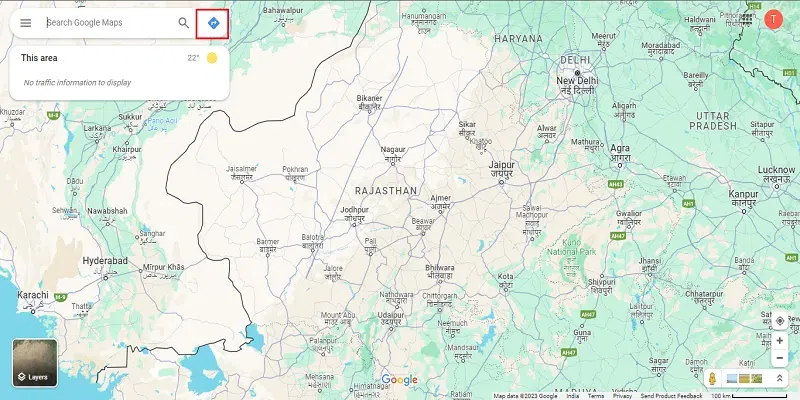
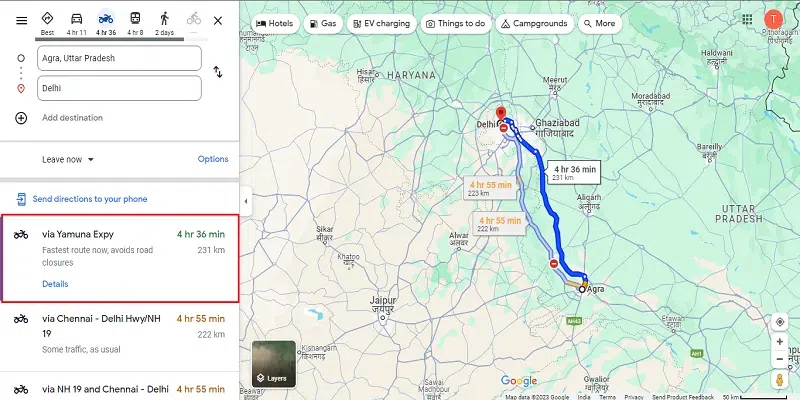
Click on the direction button and enter your starting point and destination in the search bar. Google Maps will generate the suggested route based on your preferences, including driving, walking, cycling, or public transportation.
After generating the route, you'll see various route options available, each with different estimated times and distance. Select the route that suits your preferences by clicking on it.
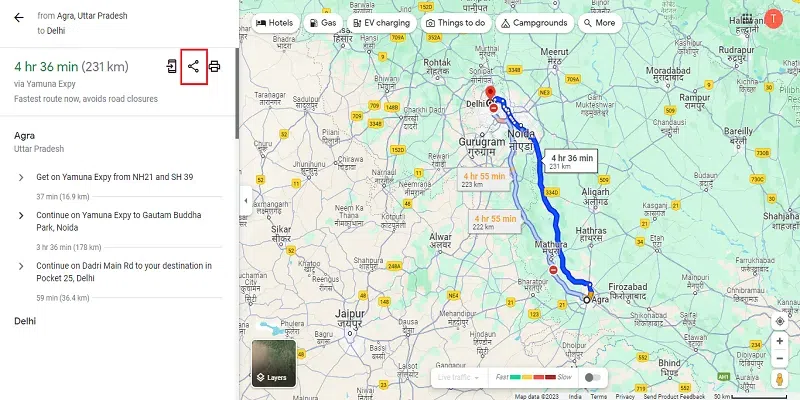
After finalizing your route, share your route to save it for later use. Alternatively, you can send this route to your phone for future use.
On your Android or iOS device and open the Google Maps app.
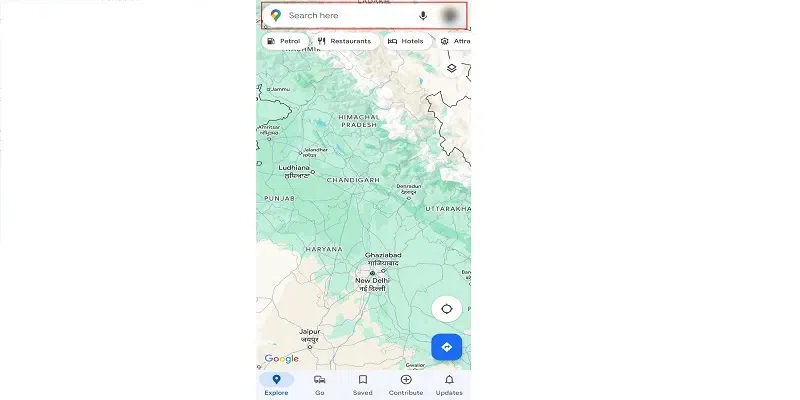
Use the search bar at the top of the screen to enter your desired destination or click on map at a place you want to go.
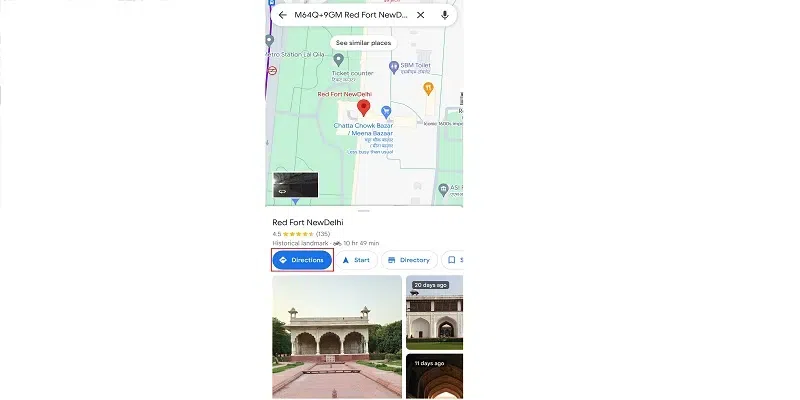
After entering your destination click on direction button. It's represented by a blue arrow or a "Directions" icon. Now choose your starting location.
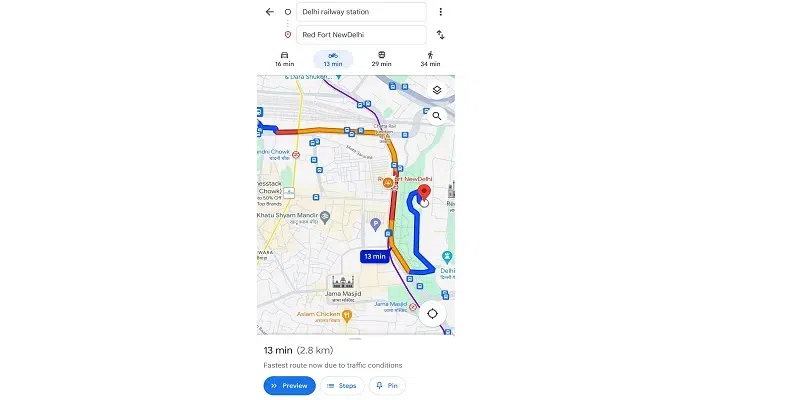
Google Maps will show various route options to reach your destination. Select any according to your choice.
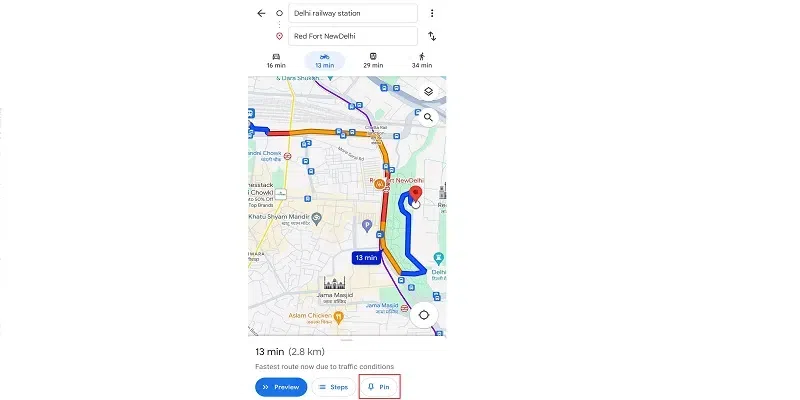
After finalizing your route, click on PIN button available on bottom of screen.
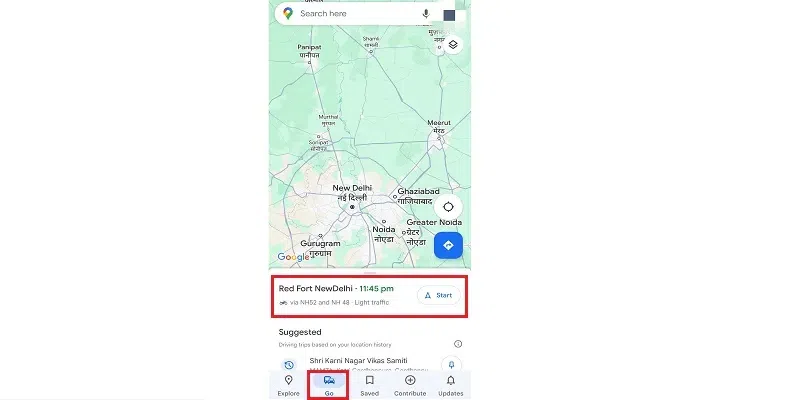
For access your saved routes click on "GO button" on bottom of Home Screen of Google Maps. There you will find all the routes saved by you. For using that route tap on that route and it will start navigation.
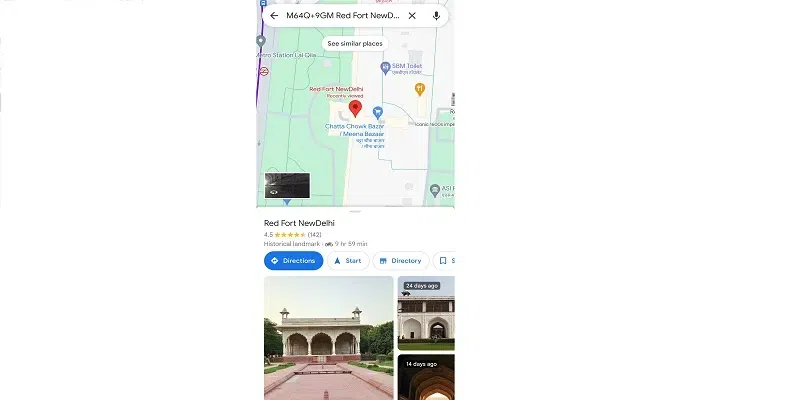
Launch the Google Maps app on your Android device. Type in the address or search for the location/route you want to save.
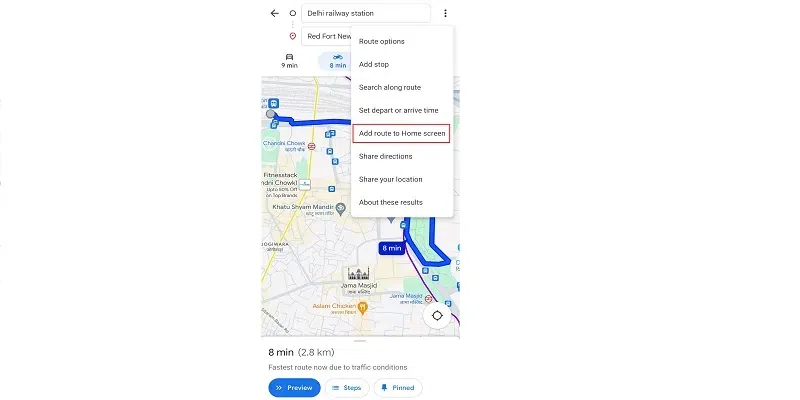
After searching your Location, click on Direction button and select the route in which you want to travel.
Click on three dots on the top right corner and select Add to Home Screen.
Note: This feature is only available only on Android devices, not for iOS users.
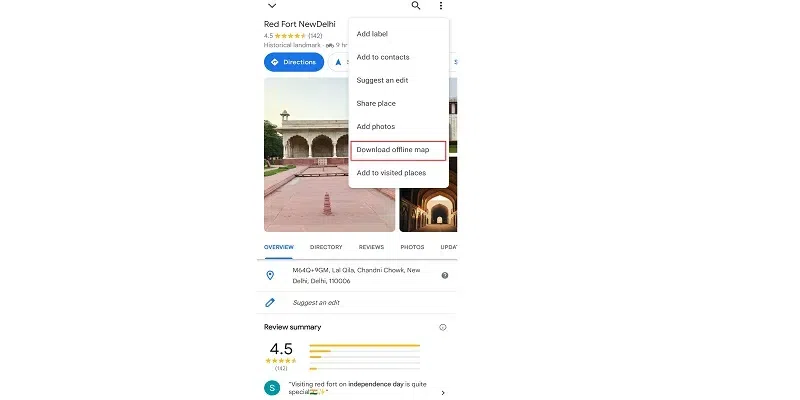
Launch the Google Maps app (when connected to internet), and search for a location or specific area you want to download into the search bar.
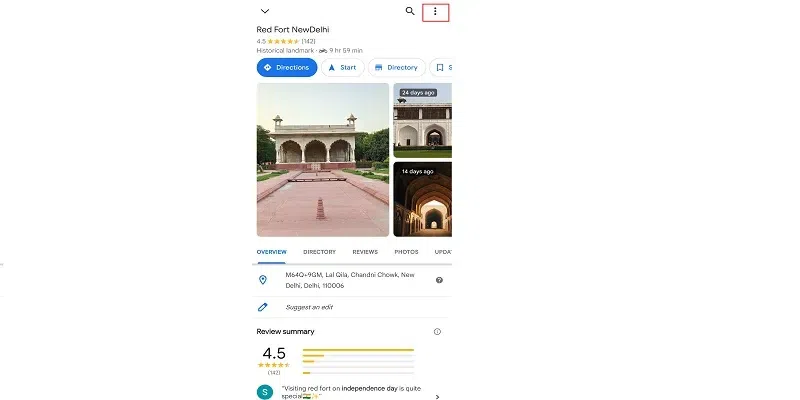
After Searching your location, swipe up the location information slide and click on three dots on top right corner.
You will find various options there, select "Download offline map".
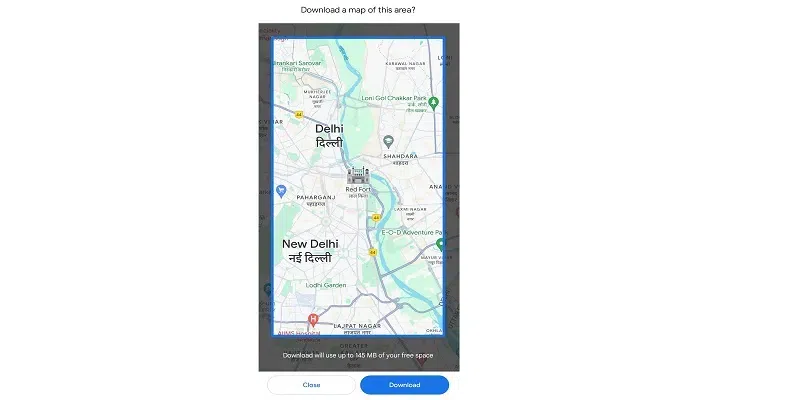
Select the map area and click Download.
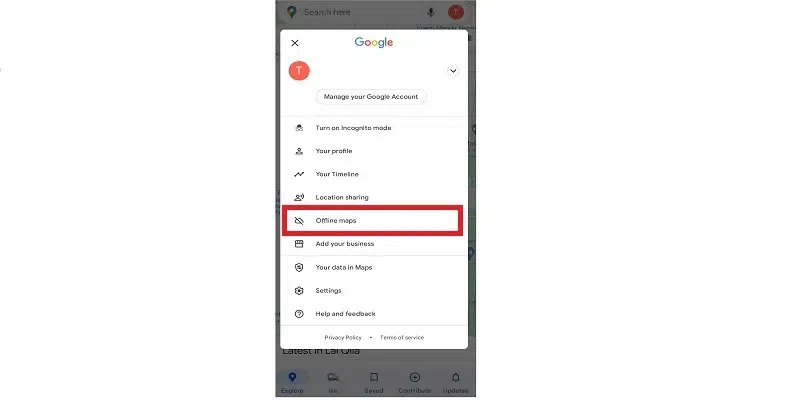
When offline, open the Google Maps app. Go to your Profile icon, click on it and select the option of offline maps among given options.
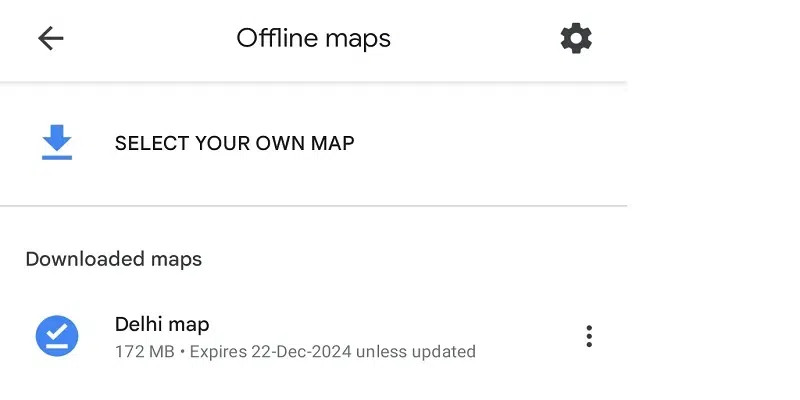
There you will see the list of all the offline available maps saved by you.
Things to Remember
- Internet Connection: Ensure you have a stable internet connection when planning and customizing your routes.
- Syncing Across Devices: Saved routes and locations may be accessible on multiple devices.
- Accuracy of Saved Routes: Double-check the accuracy of the saved routes and locations to ensure they are correctly saved.
- Driving and Public transport routes: When saving routes, know that you can only save driving and public transport routes.
Saving routes on Google Maps, whether on an Android device or a laptop/PC, provides a easy way to plan trips and access directions directly. Saving routes on Google Maps enhances your travel efficiency, ensuring you can easily access and share your planned routes providing a convenient and reliable way to manage your journeys. These step-by-step guides empower users to store preferred routes, enhancing travel planning and navigation experiences.