|
VOOZH | about |
|
VOOZH | about |
Keeping track of revisions in collaborative projects can be challenging without proper organization. Google Docs offers a helpful version control feature that allows you to name versions of your document for better identification. Assigning clear and descriptive names to versions makes it easier to locate specific drafts, whether you're collaborating with a team or managing personal edits.
This guide will walk you through how to name versions in Google Docs and share best practices for maintaining organized and efficient document revisions.
Naming versions in Google Docs helps with organizing Google Docs revisions and makes it easier to navigate the document version history. Follow these steps to rename a version history in google docs:
Open the Google Docs document you want to name a version for.
Click on the File menu at the top left corner, hover over Version history, and select See version history.
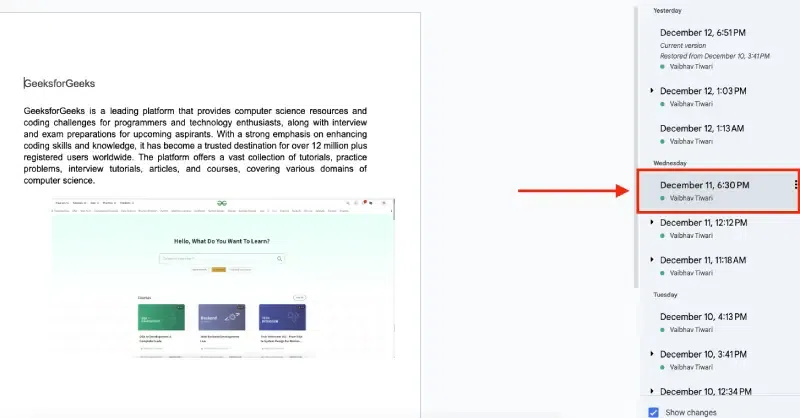
In the version history panel, you will see a list of past versions with timestamps. Scroll to the version you want to name.
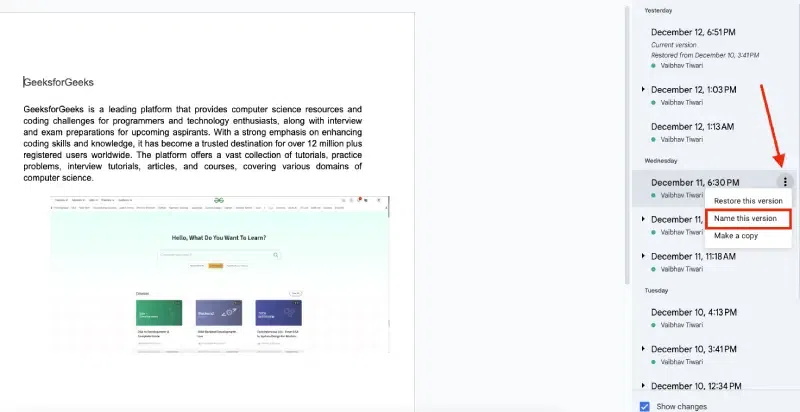
Next to the version you wish to name, click on the three vertical dots (more options) to the right of the version’s timestamp. From the drop-down menu, click on Name this version.
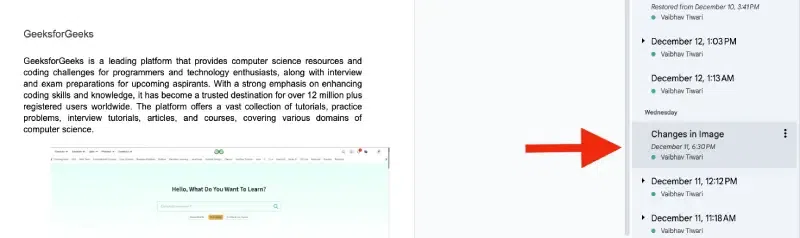
A pop-up will appear allowing you to enter a name for the version. Choose a name that clearly describes the content or milestone of that version (e.g., "Final Draft", "Section 2 Complete", or "Reviewed by Team").
After typing the name, click Save to apply the name to the version.
Efficient version naming ensures clarity and streamlines collaboration, especially in shared documents. Here are some advanced tips to enhance your document management process:
Assign names to versions marking major updates, such as:
This ensures important stages are easy to locate during audits or reviews.
Include dates in version names when working with long-term or iterative projects. For example:
This provides a clear timeline of progress and helps resolve disputes about edits.
If multiple collaborators are naming versions, agree on a shared structure. For instance:
By naming versions in Google Docs, you can effectively organize your edits and make navigating through your document’s history much simpler. Implementing clear and consistent naming practices ensures that both you and your collaborators can easily find specific drafts when needed. Take advantage of the Google Docs version control feature to manage revisions with greater precision and confidence.
Related Articles: