
Ansible is a free and opensource automation tool that allows system administrators to configure and control hundreds of nodes from a central server without the need of installing any agents on the nodes.
It relies on the SSH protocol to communicate with the remote nodes. Compared to other management tools such as Puppet and Chef, Ansible comes out as the favorite due to its ease of use, and installation.
In this tutorial, you will learn how to install and configure the Ansible automation tool on RHEL/CentOS 8 Linux distribution.
IMPORTANT: For CentOS 8, ansible was traditionally distributed via EPEL repository, but there’s no official package yet, but it is being worked on. Therefore, we are using standard PIP (the Python package manager) to install Ansible on CentOS 8.
On RHEL 8, enable the official Red Hat repository, for the corresponding Ansible version that you want to install as shown in this article. DO NOT USE PIP ON RHEL 8!.
Step 1: Installing Python3
Usually, RHEL 8 and CentOS 8 will come with Python3 already installed by default. However, If for whatever reason Python3 is not installed, install it using the following dnf commands. Make sure you must log in as normal user with Sudo privileges.
# su - ravisaive
$ sudo dnf update
$ sudo dnf install python3
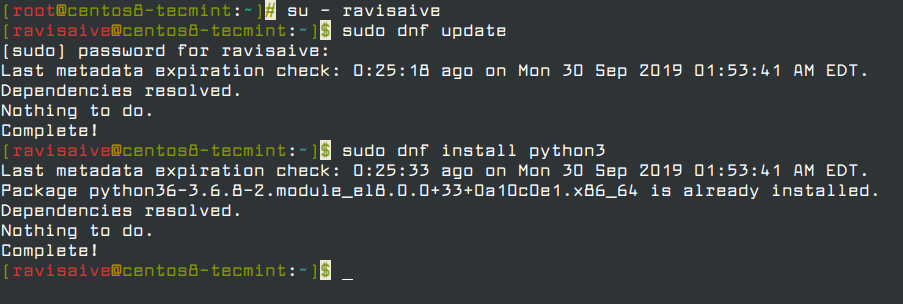
To verify that indeed you have python3 installed, run the command.
$ python3 -V

Step 2: Installing PIP – The Python Package Installer
Pip is a Python’s package manager, which is also comes preinstalled, but again, in case Pip is missing on your system, install it using the command.
$ sudo dnf install python3-pip

Step 3: Installing the Ansible Automation Tool
With all the prerequisites met, install ansible by running the command on CentOS 8.
# pip3 install ansible --user
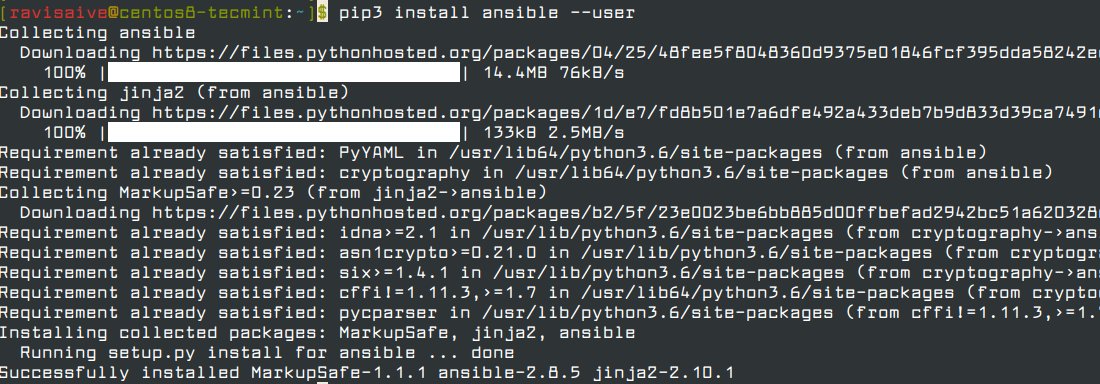
On RHEL 8, enable the Ansible Engine repository to install corresponding Ansible version as shown,
# subscription-manager repos --enable ansible-2.8-for-rhel-8-x86_64-rpms
# dnf -y install ansible
To check the version of Ansible, run.
# ansible --version

Perfect! As you can see, the version of Ansible installed is Ansible 2.8.5.
Step 4: Testing the Ansible Automation Tool
To test ansible, first ensure that ssh is up and running.
$ sudo systemctl status sshd
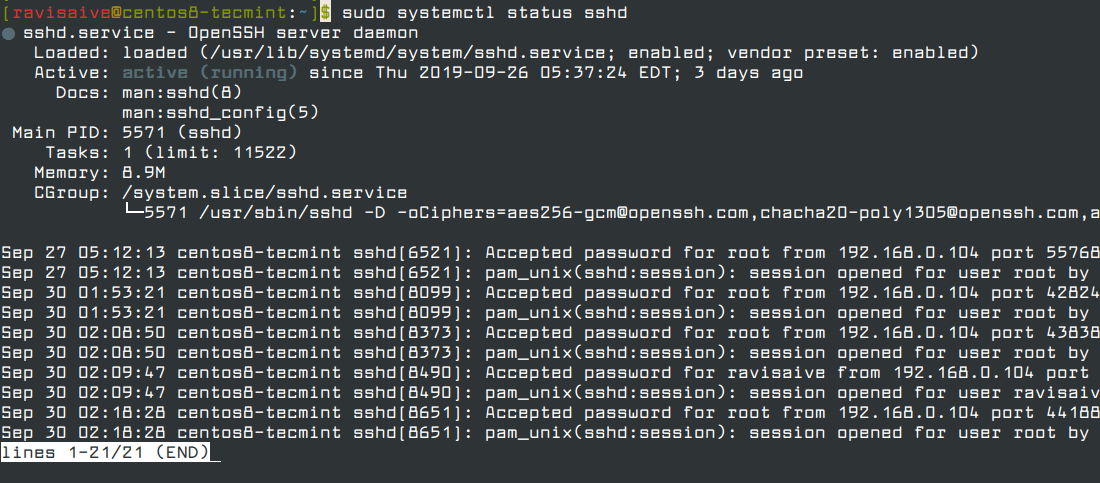
Next, we need to create the hosts file in the /etc/ansible directory to define host machines.
$ sudo mkdir /etc/ansible
$ cd /etc/ansible
$ sudo touch hosts
The hosts the file will be the inventory where you will have all your remote nodes.
Now open hosts file with your favorite editor and define the remote node as shown.
[web]
192.168.0.104
Next, generate SSH keys from which we will copy the public key to the remote node.
$ ssh-keygen
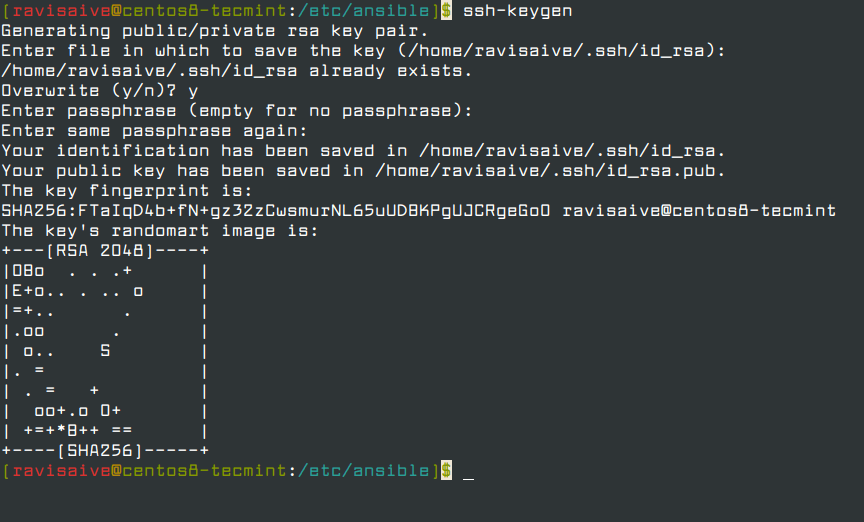
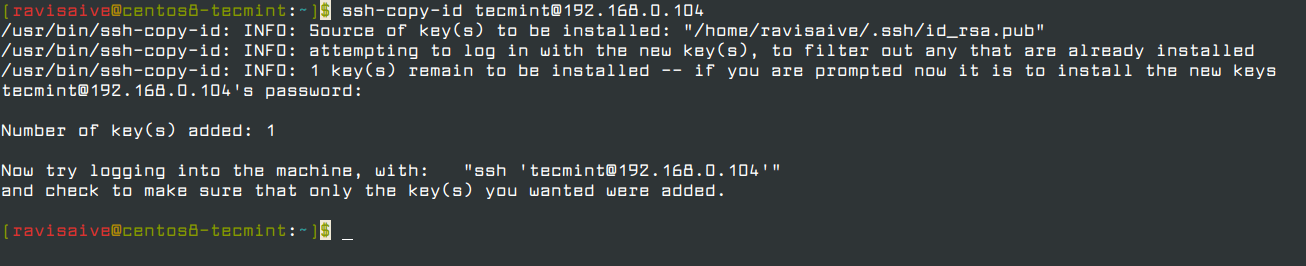
To copy the generated SSH key to the remote node run the command.
$ ssh-copy-id [email protected]
Now use Ansible to ping the remote node as shown.
$ ansible -i /etc/ansible/hosts web -m ping
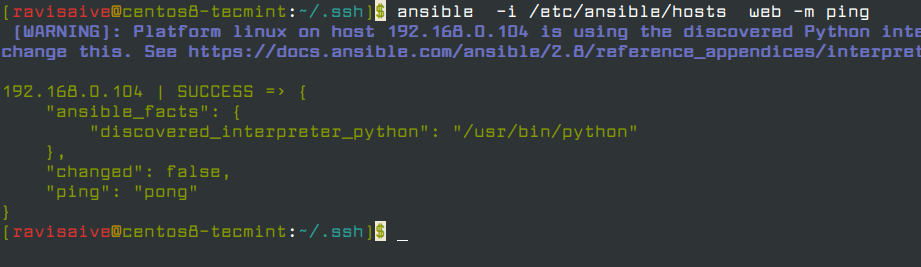
We have managed to successfully install and test Ansible on RHEL/CentOS 8 Linux distribution. If you have any questions, do share with us in the comments section below.
If this article helped you solve a problem, consider buying a coffee. It helps keep TecMint free, supports the authors, and keeps the project going.





Got Something to Say? Join the Discussion... Cancel reply