VOOZH about

URL: https://www.tecmint.com/reset-forgotten-root-password-in-rhel-centos-and-fedora/

⇱ How to Recover a Forgotten root Password in Linux


Skip to content

This article will guide you through simple steps to reset forgotten root password in RHEL-based Linux distributions such as Fedora, CentOS Stream, Rocky and Alma Linux.

Resetting the forgotten root user password generally requires a few easy instructions that will guide you to reset the root password and you will thereafter be able to log in using the new password.

TecMint Weekly Newsletter
Get the Learn Linux 7 Days Crash Course free when you join 34,000+ Linux professionals reading every Thursday.
Check your email for a magic link to get started.
Something went wrong. Please try again.

How to Reset Forgotten Root Password

First, restart your system, and at the boot grub menu choose the kernel (mostly the first option) you wish to boot into and press the key 'e' on your keyboard.
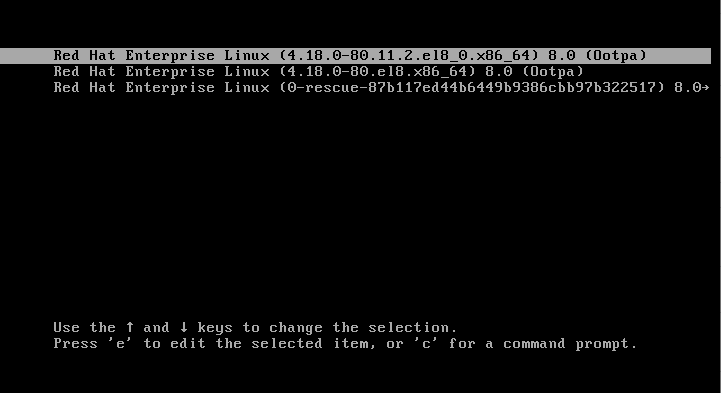
👁 RHEL 8 Boot Menu
RHEL 8 Boot Menu

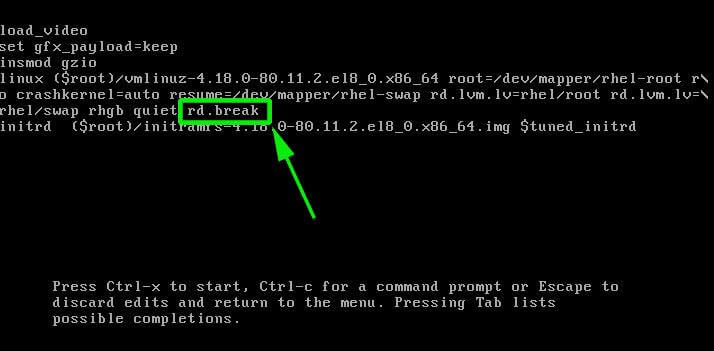
On the next screen, you will see the following kernel boot parameters, here find the line that starts with kernel= and add the parameter rd.break at the end as shown and press Ctrl + x keys.
👁 Append Kernel Parameter
Append Kernel Parameter

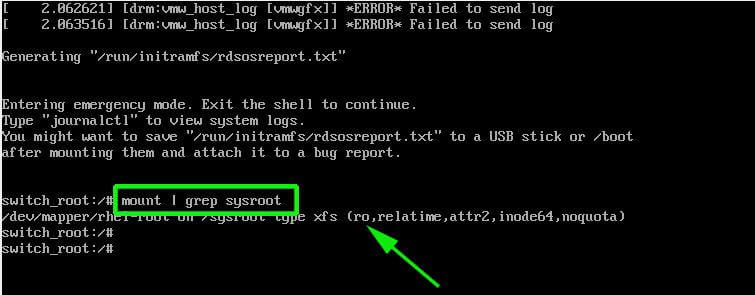
On the next screen, you will land into emergency mode, here press Enter key to get into the shell prompt. Now, make sure to confirm that you remount the sysroot directory with read and write permissions. By default, it is mounted with read-only mode indicated as ro.

# mount | grep sysroot
👁 Confirm Sysroot Directory Permissions
Confirm Sysroot Directory Permissions

Now remount the sysroot directory with read and write permissions and confirm the permissions again. Note that this time, the permissions have changed from ro (read-only) to rw (read and write) as shown.

# mount -o remount,rw /sysroot/
# mount | grep sysroot

👁 Mount Sysroot Directory
Mount Sysroot Directory

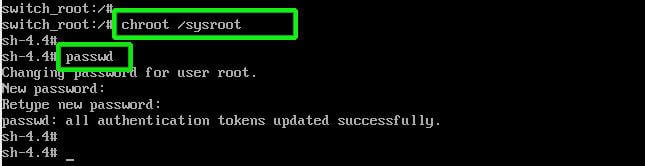
Next, mount the root file system in read and write mode using the following command.

# chroot /sysroot

Next, use the passwd command to reset the root password with the new password and confirm it.

# passwd
👁 Reset Root Password
Reset Root Password

At this point, you have successfully reset your root user password. The only remaining part is to relabel all of the files with the accurate SELinux contexts.

# touch /.autorelabel

👁 Enable SELinux Relable
Enable SELinux Relable

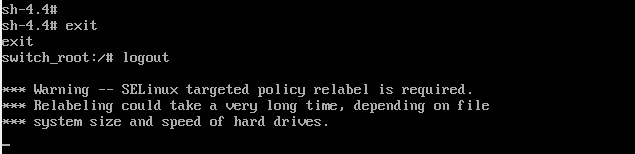
Finally, type exit and then log out to start the SELinux relabelling process.
👁 SELinux Relabelling Process
SELinux Relabelling Process

This generally takes a few minutes and once done, the system will reboot and prompt you to log in as the root user with the new password.
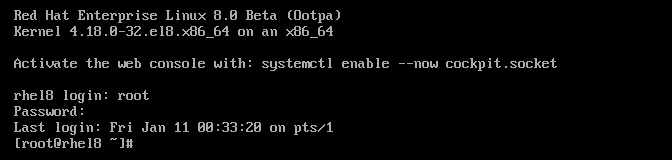
👁 RHEL 8 Login
RHEL 8 Login
Conclusion

In conclusion, resetting a forgotten root password in RedHat-based Linux distributions is a relatively simple process that involves accessing the system during boot, modifying kernel parameters, and using specific commands to reset the password.

If this article helped, share it with someone on your team.
TecMint Weekly Newsletter
Get the Learn Linux 7 Days Crash Course free when you join 34,000+ Linux professionals reading every Thursday.
Check your email for a magic link to get started.
Something went wrong. Please try again.
TecMint has been free for 14 years. Help keep it that way.
Google AI Overviews and tools like ChatGPT have cut into search traffic for independent tech sites like TecMint. Running this site costs over $2,000 every month for hosting, infrastructure, and paying authors to keep the content accurate and tested.

If this article helped you solve a problem, consider buying a coffee. It helps keep TecMint free, supports the authors, and keeps the project going.

☕ Buy Me a Coffee
Ravi Saive
I'm Ravi Saive, an award-winning entrepreneur and founder of several successful 5-figure online businesses, including TecMint.com, GeeksMint.com, UbuntuMint.com, and the premium learning hub Pro.Tecmint.com.

Each tutorial at TecMint is created by a team of experienced Linux system administrators so that it meets our high-quality standards.

64 Comments

Leave a Reply
  1. Hi, I’m taking an intro to Linux class and I was that dummy who forgot his password to get into the linux shell today. I read here that the SElinux context can be accurately implemented with # touch /.autorelabel is there a reason why it would be something else?

    Reply
  2. Hi All, I am new to Linux. I tried to break my root password with above method. but when i interupt the grub, and type a, nothing comes up. After sometime it just loads the default OS version, but when i give e instead of a, and use different sets of commands, I am able to change the root password. Can some one tell what am i missing in the above method. I am using centos 7 in my VM.

    Reply
  3. Same here as @ravi. It’s giving me “give the root password for maintenance.“. Version 2.6.32-358.0.1.el6.i686

    Reply
    • Thanks for sharing, let me try the same instructions on my CentOS 6, will get back to you with solution.

      Reply
  4. It is giving the massage that give the root password for maintenance.

    i am not able to attach the screenshot

    Reply
    • @Ravi,

      Which version of Linux distribution are you using? mostly it wouldn’t ask for password in maintenance mode, either you doing wrong, follow the instructions carefully..

      Reply
  5. When I do this it goes and ask root password for mantinance

    Reply
    • @Ravi,

      Could you share the screenshot? let me check it.

      Reply
  6. Yes i have tried this option it works perfect

    Reply
  7. I followed the same, I had a problem. First, I have two Red Hat Linux servers. Second, I was able to recover the password for the one with OS 5.1.x. I was not able to do it on the Red Hat Enterprise Linux 6.4, it’s an appliance with nGeniusOne from Netscout Systems.

    In this box, I was able to boot to the GNUB, but when I type “a” to modify the kernel. Nothing pops up. It keeps showing the OS until I hit “Enter” and it boots to complete. Only one item as there was no previous updates. Can anyone help out?

    Reply
  8. That was awesome, I followed the same and was able to reset my CentOS password which had stayed blocked for close to a week

    Reply
  9. Wow!!, thats awesome, I was able to reset my REDHAT 5.5 password by following your tutorial. I am soo happy. Thank you very much and keep it up.

    Reply
  10. Exllcellent write up helped me out grately thank you

    Reply
  11. I was locked out of centos 6.6 as I had lost my password details by following your easy step recovery procedure I was able to create another password. Thankyou for this very useful information.

    Reply
  12. Accidentaly i changed the owner root to oroot in the password file at /etc/passwd.
    When u tired to logon the system said that root doesn’t exist. How can i change back user oroot to root in the passwd file?

    Thanks

    Reply
  13. More details on this

    Per Oracle instructions to implement Huge Pages I made the following updates and re-booted:
    /etc/security/limits.conf
    * soft memlock 45298482
    * hard memlock 45298482
    /etc/sysctl.conf
    vm.nr_hugepages = 9219 # calculated with Oracle script

    After reboot, the system is operation, but root login authenticates then fails. We can login as oracle. When try to su, get: can not open session.

    I have booted from disk and went in rescue mode to back out the changes. The changes were backed out, but still cannot login as root.

    Reply
    • @rajesh,
      Seems strange problem, sorry I really don’t have any idea…give me some time to find out solution for you..

      Reply
  14. Hi Ravi,

    I am getting a strange issue. I am not able to login to root using a desired password on SSH / Linux terminal

    The screen gets refreshes and again comes to login prompt . on the other hand i have another user as oracle and through that user I am able to login

    What could be the issue? please suggest the solution. I am using RHEL 5.8

    Reply
  15. How to reset forgotten root password without booting……………..

    Reply
    • @rajinikanth,
      Not possible, you have boot into sinle user mode to set forgotten root password.

      Reply
  16. It is not necessary to execute all of above steps. After pressing Escape and then ‘a’ (append)

    it is sufficient to type 1 after …_DM with one space , like : rd_NO_DM 1

    and then press Enter

    you are root now and can type passwd ….. enjoy !!!!

    Reply
  17. thanks for your help this article help me alot

    Reply
  18. I want to change username rajesh, instead of giving root help me out:)

    Reply
    • I didn’t get you, what you trying to say, can you elaborate more clearly.

      Reply
  19. It is very simple but very useful & thanks a lot:)
    Regards
    Rajesh

    Reply
  20. very helpful information. thanx!

    Reply
  21. Sir,

    How to go single user mode in fedora 20.. and set root passwd Kindly post sir

    Reply
    • Same instructions are used for Fedora 20. Just follow the instructions carefully, you will get single user mode and thereon change or set root password.

      Reply
      • Hi Ravi,

        Its a nice procedure to reset the password.But I have some qus I have my local server and some application is installed.some services are starting with different user and some of the service is starting only through root.If I reset the passwd is it any chances of lossing data?As I can’t login root so I can’t able to take backups.

        Reply
        • No, you will not loose any data, because you are just resetting root password, other than this nothing else…and your services won’t affect too.

          Reply
  22. sir it didnt do anything when i Press ‘a’ on step 2 please reply on this thanks

    Reply
    • After pressing ‘a’ key what you see? can you share the screenshot?

      Reply
  23. nice article…Its working..

    Reply
  24. Superb help …cheers.. :D

    Reply
  25. Hi,
    I follow up to step-4. As per described here. But in step-5 after giving user command as “passwd” its not asking for new password. Can you help me on this.

    Reply
    • Did you ever resolve this?
      I am trying to learn Red Hat and am trying this on a test machine and although I know I am in Single User Mode “1 S” I type passwd and just come back to a command prompt (No error and no questions regarding a new password”
      I know I can just reload the OS and I do know the correct password, just trying to understand why this might be happening.

      Reply
  26. i can`t chang the root password. can u help me any one

    Reply
    • It is not working

      Reply
  27. Will you lose data when resetting the password ?

    Reply
  28. Will this password reset also corrupt my data? Using Centos 6.4 distro.

    Reply
    • No, your data won’t be corrupted or lost.

      Reply
  29. That was so simple yet helpful, thank you very much! :)

    Reply
  30. thanks, sharing for good information ..

    Reply
  31. hi im having problem recovering my server root password even after booting to single mode

    Reply
    • What kind of problem? The article clearly stated how to recover forgotten root password.

      Reply
  32. RAVI!!!

    Thanks, this is the best help i can find in the internet.
    Best regards from Brasil!

    Reply
  33. Hi

    I tried the same but entered into GUI of Fedora…pl Suggest

    Reply
    • Use “init 3” command to enter into command prompt.

      Reply
  34. how can i see the other username and password after root pass change ?

    Reply
    • In /etc/password and /etc/shadow file.

      Reply
      • Hi ravi , thank you for all useful tutorial …one question , if I can access to the server with different user can I recover the root password ? I have big problem with ssh root login and I am trying to find solution

        Thx

        Reply
        • No you can’t! normal user don’t have rights to recover root password. The only way is using single user mode as described in the article.

          Reply
  35. are you supposed to remove the 1 to enter single user mode when you are done resetting the root password?

    Reply
  36. thanks for this useful info

    Reply

Got Something to Say? Join the Discussion... Cancel reply

Free Course
Get a free Linux course before you go.
Subscribe to TecMint Weekly and get the Learn Linux 7 Days Crash Course free. Read by 34,000+ Linux professionals every Thursday.
Check your email for a magic link to get started.