
CentOS 7 stopped getting updates on June 30, 2024, which means it doesn’t get security updates or bug fixes from Red Hat anymore. New options like Rocky Linux have come up to help users who use CentOS and need ongoing support.
Moving from one type of Linux to another needs careful planning and doing things step by step. First, you have to switch from CentOS 7 to Rocky Linux 8, and then move from Rocky Linux 8 to Rocky Linux 9 using tools like the Leapp framework and ELevate project to make this process easier.
This guide will help you migrate from CentOS 7 to Rocky Linux 9 by giving you clear, easy-to-follow steps.
Prerequisites
The prerequisites for migrating CentOS 7 to Rocky Linux 9 include:
- A system running CentOS 7.
- Administrator access.
- An internet connection.
Upgrade CentOS 7 to Rocky Linux 8
The next parts of this article will show you how to migrate from CentOS 7 to Rocky Linux 8 using the ELevate project and the Leapp framework.
These two projects can help you move your system from one RHEL-based operating system to another.
Step 1: Backup CentOS 7 Data
Before starting the migration process, it is important to back up all your important files, which ensures that in case of any issues during the migration, you can restore your data without any loss.
If you want to backup specific files or directories, you can use the tar command with the -cvzf options to create a compressed archive file.
sudo tar -cvzf /backup/home_user1_backup.tar.gz /home/user1
To back up the entire system, you can use the tar command with the --exclude option to exclude certain directories (e.g., /proc, /sys, /dev, etc.) and then create a compressed archive file.
sudo tar -cvzf /backup/full_system_backup.tar.gz --exclude=/proc --exclude=/sys --exclude=/dev --exclude=/backup /
Alternatively, you can use the rsync command to synchronize files and directories between two locations, either locally or over a network.
sudo rsync -av --delete /source_directory /backup
If your CentOS 7 system hosts MySQL or MariaDB databases, you can use the mysqldump command to backup databases to SQL files.
mysqldump -u username -p dbname > dbname_backup.sql
Step 2: Install ELevate and Leapp Packages
To install the elevate-release package from the repository for the latest version, you can use the following command:
sudo yum install -y http://repo.almalinux.org/elevate/elevate-release-latest-el$(rpm --eval %rhel).noarch.rpm
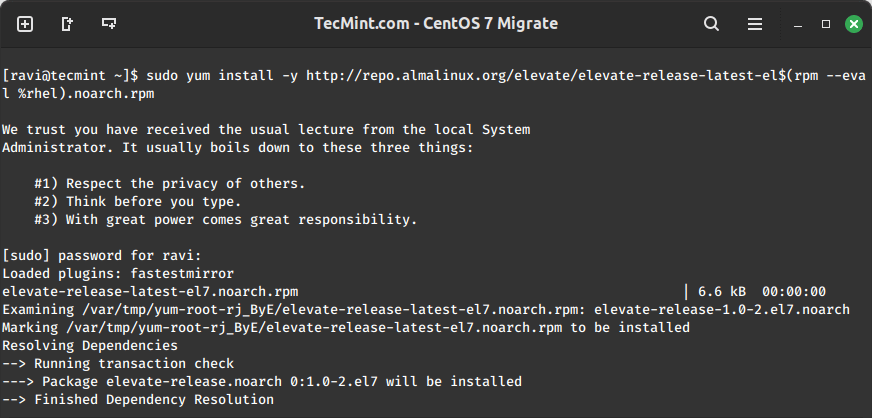
Next, install the Leapp upgrade tool that is used for system upgrades and migrations and leapp-data-rocky which contains data files specific to the Rocky Linux distribution.
sudo yum install -y leapp-upgrade leapp-data-rocky
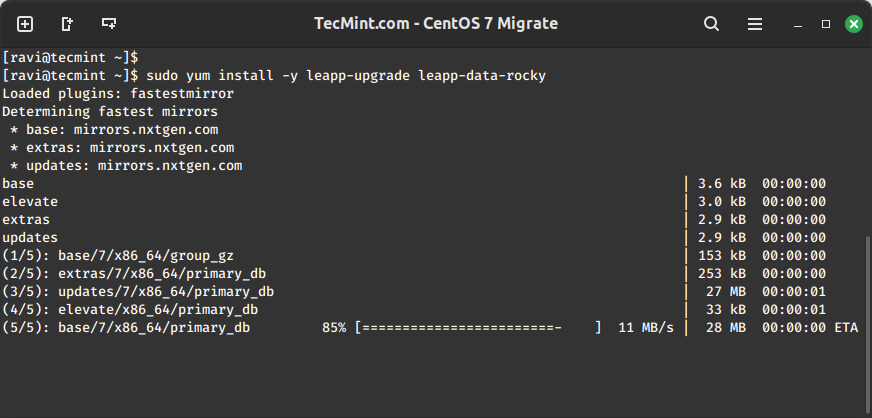
Step 3: Run Pre-Upgrade Checks
Now run the following command to initiate the pre-upgrade process, where Leapp prepares the system for an upgrade by identifying potential issues, checking compatibility, performing necessary pre-upgrade tasks, and generating a pre-upgrade report.
sudo leapp preupgrade
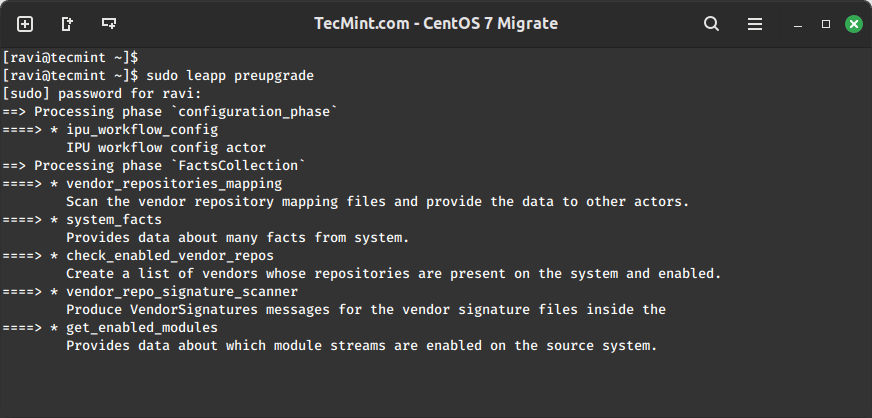
The pre-upgrade process can take some time to complete. Once it’s done, the Leapp tool will create files in the /var/log/leapp/ directory that contain important files and information about any potential issues that may come up during the upgrade, and how to fix them.
sudo ls -l /var/log/leapp/
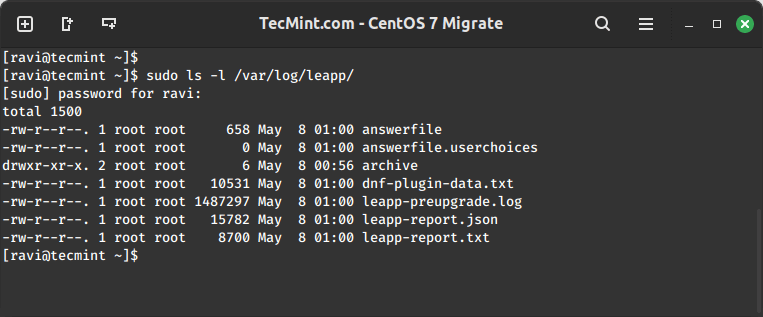
Here are the key files you should look at:
- answerfile – This file has questions that need a yes or no answer to continue the upgrade.
- leapp-report.txt – This file lists all the issues and solutions to fix before or after the upgrade.
- leapp-preupgrade.log – This file shows the full log and detailed information from the pre-upgrade process.
Before upgrading your system, check the first two files and take care of any necessary steps to fix the following common issues when moving from CentOS 7.
1. Removing the pata_acpi kernel module:
sudo rmmod pata_acpi
2. Updating the /etc/ssh/sshd_config config file to permit root login:
echo PermitRootLogin yes | sudo tee -a /etc/ssh/sshd_config
3. Disable the pam_pkcs11 module in the PAM configuration to make the upgrade process uninterrupted.
sudo leapp answer --section remove_pam_pkcs11_module_check.confirm=True
After fixing all common issues, re-run the pre-upgrade command to confirm everything is fixed:
sudo leapp preupgrade
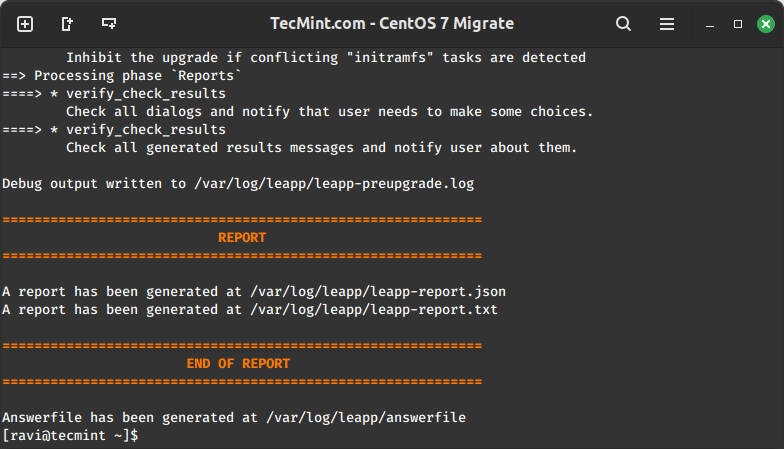
The upgrade is ready when the “Upgrade Inhibited” message is no longer shown.
Step 4: Perform Upgrade
Finally, run the upgrade command, which will start the upgrade procedure, which includes tasks such as downloading necessary packages, applying system configuration changes, and updating the system to the target version.
sudo leapp upgrade
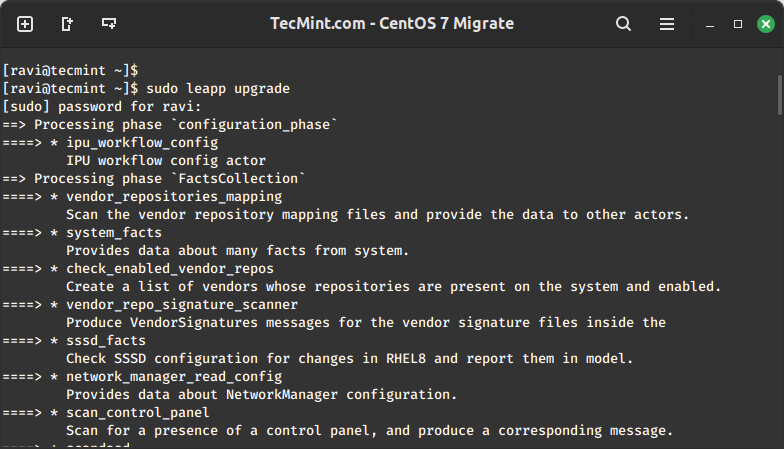
Wait until the upgrade finishes. If it doesn’t work, go back to the step before and fix any problems that were missed during the pre-upgrade check.
After the upgrade process finishes without any problems, restart the computer.
reboot
Once you reboot, you will see an entry called ELevate-Upgrade-Initramfs in the GRUB menu.
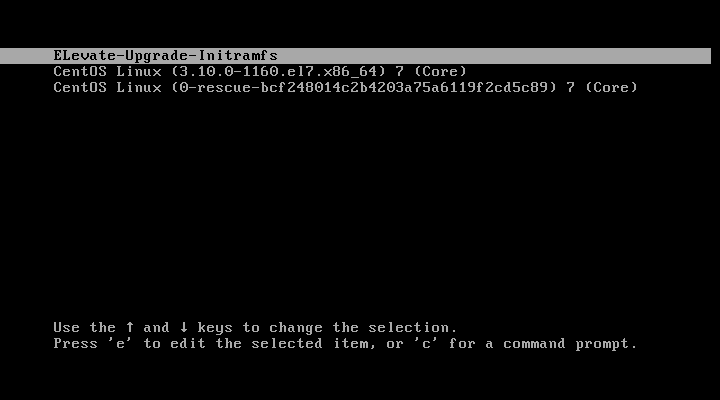
After waiting for five seconds, the system will automatically start the upgrade process.
After the upgrades, the system will restart two more times. Once the restarts are done, you’ll see a Rocky Linux 8 option in the GRUB menu, which means the upgrade from CentOS 7 to Rocky Linux 8 was successful.
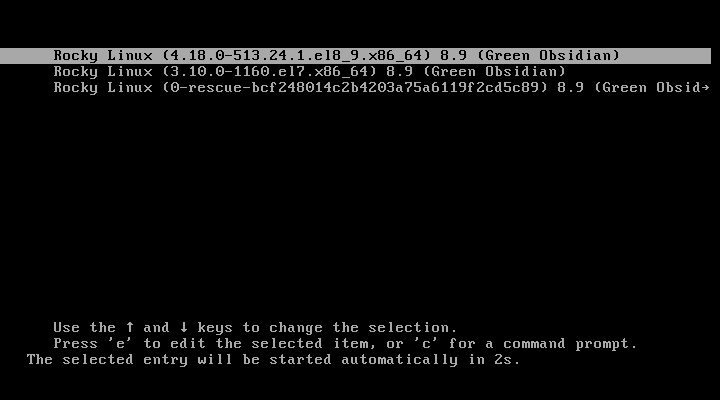
Now log in as the root user and verify the release.
cat /etc/redhat-release

Rocky Linux release 8.9 (Green Obsidian)
Step 5: Post-Upgrade Steps
After migrating to Rocky Linux 8, you need to clean all packages left from the previous CentOS version.
$ sudo rpm -qa | grep el7
$ sudo rpm -qa | grep elevate
$ sudo rpm -qa | grep leapp
$ sudo rpm -qa | grep el7 | xargs sudo rpm -e
$ sudo rm -fr /root/tmp_leapp_py3
$ sudo dnf clean all
Upgrade Rocky Linux 8 to Rocky Linux 9
To upgrade from Rocky Linux 8 to Rocky Linux 9, you need to use the same ELevate repository and the Leapp framework.
Step 1: Install ELevate and Leapp Packages
First, install the elevate-release package which offers the latest version of the package for the specific version of the operating system installed on the system.
sudo yum install -y http://repo.almalinux.org/elevate/elevate-release-latest-el$(rpm --eval %rhel).noarch.rpm
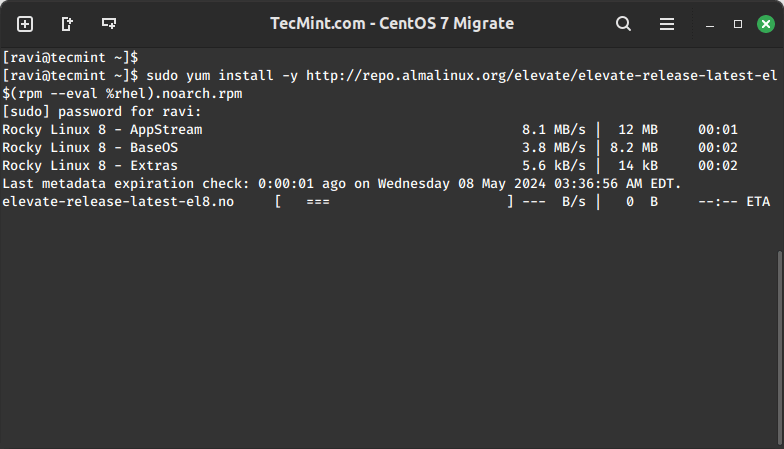
Next, run the following command to set exclusion rules, allowing yum to install or update all packages without any exclusions.
sudo yum config-manager --save --setopt exclude=''
Next, install leapp-upgrade and leapp-data-rocky packages that provide functionalities to facilitate the upgrade process from one version of an operating system to another.
sudo yum install -y leapp-upgrade leapp-data-rocky
Step 2: Run Pre-Upgrade Checks
Now run the following command to initiate the pre-upgrade process, where Leapp prepares the system for an upgrade by identifying potential issues, checking compatibility, performing necessary pre-upgrade tasks, and generating a pre-upgrade report.
sudo leapp preupgrade
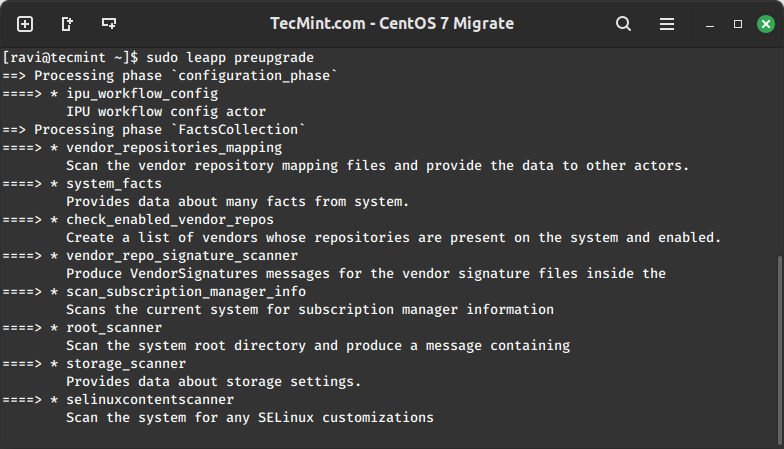
The pre-upgrade process creates similar files as before, but with different suggested solutions. Look at the answerfile to find all the suggested steps and fix them as shown.
1. Adjusting the settings of the firewalld.
sudo sed -i "s/^AllowZoneDrifting=.*/AllowZoneDrifting=no/" /etc/firewalld/firewalld.conf
2. Delete the network setup file for a type of network device that isn’t supported.
sudo rm /etc/sysconfig/network-scripts/ifcfg-[device_name]
3. Skipping the VDO device check requirement in the answer file.
sudo leapp answer --section check_vdo.no_vdo_devices=True
After fixing all common issues, re-run the pre-upgrade command to confirm everything is fixed.
sudo leapp preupgrade
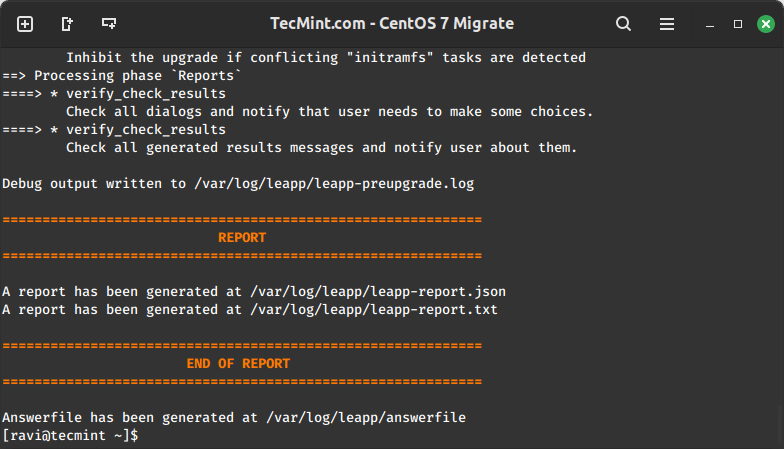
The upgrade is ready when the “Upgrade Inhibited” message is no longer shown.
Step 3: Perform Upgrade
Finally, run the upgrade command, which will start the upgrade procedure, which includes tasks such as downloading necessary packages, applying system configuration changes, and updating the system to the target version.
sudo leapp upgrade
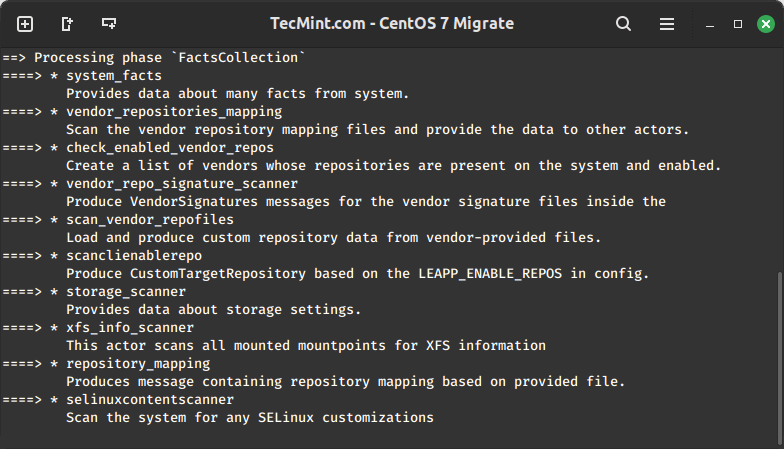
Wait for the upgrade to finish. If it doesn’t work, see if the report shows any troublesome packages. Often, the make-devel and rocky-logos packages cause problems during the upgrade.
sudo dnf remove rocky-logos make-devel
Run the upgrade again after removing the problematic packages.
sudo leapp upgrade
After the upgrade process finishes without any problems, restart the computer.
reboot
Once you reboot, you will see an entry called ELevate-Upgrade-Initramfs in the GRUB menu.
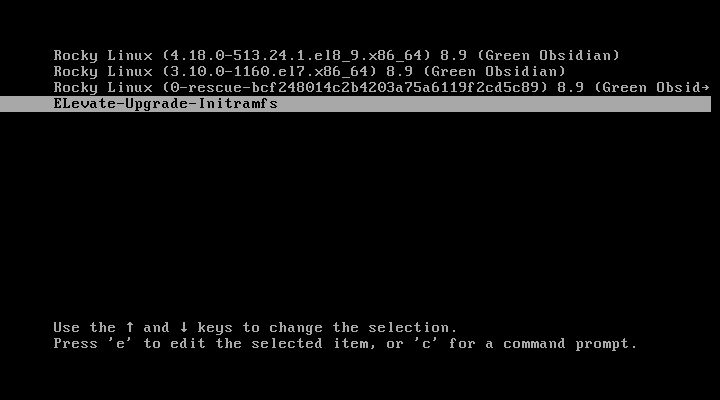
After waiting for five seconds, the system will automatically start the upgrade process.
After the upgrades, the system will restart two more times. Once the restarts are done, you’ll see a Rocky Linux 9 option in the GRUB menu, which means the upgrade from Rocky Linux 8 to Rocky Linux 9 was successful.
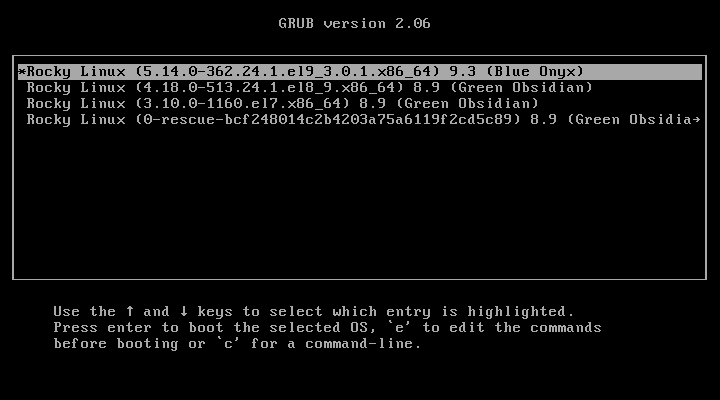
After booting your computer, log in and see how the migration went. Make sure you’re using the right operating system. Check logs and any leftover packages from the old OS version. You might want to remove or update them yourself.
cat /etc/redhat-release
cat /etc/os-release
rpm -qa | grep el8
cat /var/log/leapp/leapp-report.txt
cat /var/log/leapp/leapp-upgrade.log
After following the steps in this guide, you’ve now upgraded from CentOS 7 to Rocky Linux 9. Explore more about CentOS alternatives and why Rocky Linux stands out as one of the top choices.
If this article helped you solve a problem, consider buying a coffee. It helps keep TecMint free, supports the authors, and keeps the project going.



Got Something to Say? Join the Discussion... Cancel reply