
tar is a widely used command-line-based utility for combining a bunch of files and/or directories into one archive file, commonly known as a tarball for backup or distribution purposes. The tar command is used to create, maintain, modify, or extract tar archives.
[ You might also like: 5 Best Command Line Archive Tools for Linux ]
Note that tar does not compress archive files by default, but, it can compress the resulting archive using (or filter it through) well-known data compression programs such as gzip, bzip2, or xz if you supply the -z, -j, or -J flags.
Installing tar in CentOS, RHEL, and Fedora
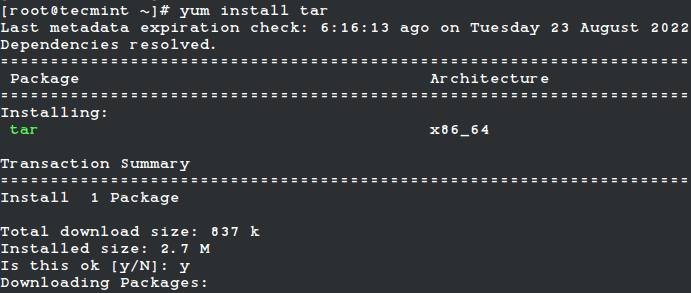
The tar package comes pre-installed in most if not all RHEL-based distributions by default. But if it is not installed on your system, run the following command to install it.
# yum install tar
OR
# dnf install tar
If you are on another Linux distribution, you can install it as shown.
$ sudo apt install tar [On Debian, Ubuntu and Mint]
$ sudo emerge -a app-arch/tar [On Gentoo Linux]
$ sudo apk add tar [On Alpine Linux]
$ sudo pacman -S tar [On Arch Linux]
$ sudo zypper install tar [On OpenSUSE]
Once you have tar installed on your system, you can use it as follows. This example shows how to create an uncompressed archive file of a directory called test_app within the working directory.
# tar -cvf test_app.tar test_app/
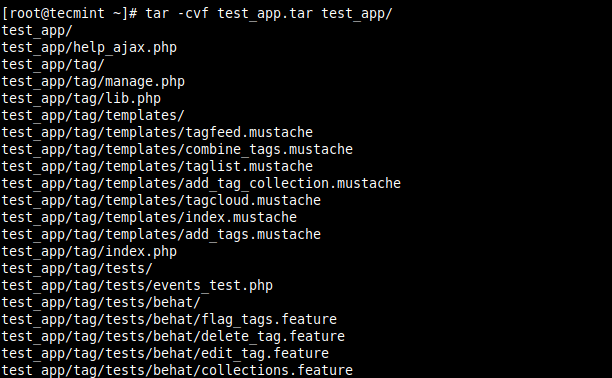
In the above command, the tar flags used are -c which creates a new .tar archive file, -v enables verbose mode to show the .tar file creation progress, and -f which specifies the file name type of the archive file (test_app.tar in this case).
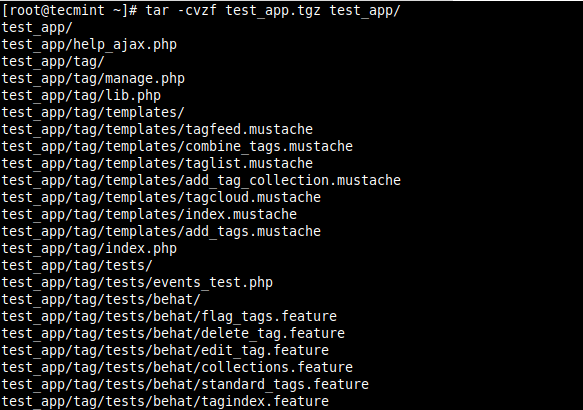
To compress the resulting archive file using gzip or bzip2, supply the -z or -j flag as follows. Note that a compressed tarball can also end with the .tgz extension.
# tar -cvzf test_app.tar.gz test_app/
OR
# tar -cvzf test_app.tgz test_app/
OR
# tar -cvjf test_app.tar.bz2 test_app/
To list the contents of a tarball (archived file), use the -t flag as follows.
# tar -ztf test_app.tar.gz
OR
# tar -ztvf test_app.tar.gz		#shows more details

To extract (or untar) an archive file, use the -x switch as shown.
# tar -xvf test_app.tar
OR
# tar -xvf test_app.tar.gz
For more usage examples, see our following articles:
- 21 Tar Command Examples in Linux
- How to Split Large ‘tar’ Archive into Multiple Files of Certain Size
- How to Compress Files Faster with Pigz Tool in Linux
- How to Compress and Decompress a .bz2 File in Linux
- 10 7zip (File Archive) Command Examples in Linux
That’s all for now! In this article, we have shown how to install tar in CentOS, RHEL & Fedora and also showed some basic tar usage commands. If you have any queries, share them with us via the feedback form below.
If this article helped you solve a problem, consider buying a coffee. It helps keep TecMint free, supports the authors, and keeps the project going.





Got Something to Say? Join the Discussion... Cancel reply