
When you purchase a pre-built NAS, especially in the lower to mid-range models, the RAM capacity is usually compromised to save costs and make the product look affordable sitting on the shelves. And like a lot of users, I didn’t worry about RAM’s size back then and placed all my attention on the number of drive bays, the amount of storage, and what NAS hard drives I was gonna invest in. Storage is the entire point of a NAS, right? Well, not entirely.
Sure, a NAS is primarily a storage unit, but it’s not the dumb kind, like the portable hard drives of the olden days. In addition to being a place for storing your data, network storage also doubles up as a media player, surveillance station, email server, Docker station, and much, much more. And all that requires as much horsepower as your PCs do. It’s fair to assume at first that drives are the reason if your NAS starts to feel slow, but there can be several other — more pressing — reasons that could use an upgrade. And in my case, it turned out to be RAM.
I thought drives were the key
That was an expensive lesson
During my early days with a NAS, I came across lots of chatter around drive speeds, cache acceleration, and RAID configurations, so that’s naturally where my attention went. I expected upgrading the drives, either with an all-SSD setup or going hybrid, would make the NAS feel faster and more responsive. But unfortunately, nothing changed in day-to-day use. Transfers did feel noticeably quicker, though file browsing, dashboard load times, and app open times remained unchanged.
That was the moment when I realized what a big — and expensive — mistake I had made. Using SSDs as your primary storage may sound fancy, but it doesn’t offer equal benefits for all kinds of use cases. That’s when I started looking for the things I had missed early on, and I thought of tinkering with RAM.

6 NAS upgrades I didn’t think I needed until I installed them
Once the storage part is sorted, here’s what comes next
Found the sweet spot
A swift RAM upgrade that changed the game
My NAS originally shipped with just 4GB of RAM. That amount is good enough for basic stuff, especially for someone like me who works from home with a not-so-demanding workload. I personally use it for device backups, media streaming, storing my media library, and keeping my files synced across devices. But I realized that my experiments with Docker containers and virtual machines would bottleneck the RAM, so I decided to double it. I used the spare RAM slot to add another 4GB stick, and the changes I noticed went beyond what I expected.
I assumed that after the RAM upgrade, I’d be able to open more apps simultaneously. That happened too, but there was more. The DSM interface on my Synology NAS felt more alive: clicks had instant results, and I saw that darned progress spinner for fewer seconds than before. I noticed that file indexing and thumbnail generation, which used to drag on in the background, finished faster; even Plex started to load faster. These changes were subtle, but they were everywhere — it truly felt like a system upgrade.

7 reasons why drive speed doesn't matter for NAS
Other factors impact NAS performance more than drive speed
The hidden bottleneck
Drive speed rarely matters much
Only after this experiment did I realize that it was the RAM that was proving to be a major performance bottleneck. It not only limited how many apps and tasks I could run in the foreground but also how much the system could juggle in the background, too, and that’s where all the difference lies. Every background process, from metadata scans to system caching and backup tasks, was competing for the same limited pool of memory.
When it’s running at capacity, the NAS often swaps to drive space, which is much slower. Even if the drives are fast, you’d still be waiting for memory bottlenecks that can only be solved by adding more real memory. That’s when those micro delays disappeared, helping me realize that the difference is less about raw transfer speed and more about actual system fluidity.
Drive upgrades, on the other hand, feel more tangible since you get to see the physical difference between a spinning hard drive and a solid-state drive, which promises bigger numbers on the box. But in practice, the difference is visible only when you are working with large files directly off your NAS or running multi-user workloads — drive speed doesn’t shape your daily experience as much as you think.
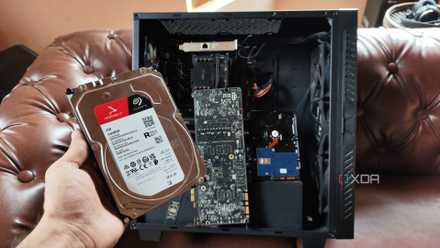
5 of the best upgrades I’ve made to my custom NAS server
Endless upgradability is my favorite aspect of owning a self-assembled NAS
Small upgrades, massive effect
It will change your perception of the NAS
Most home users, myself included, spend more time on the web UI of the NAS or its apps to stream or sync files rather than saturating the network with heavy transfers back-to-back. The latter kind of workload is found mostly in business settings, where a large team is accessing different files as the NAS struggles to keep up. For my needs, I’d benefit more from general system responsiveness and caching, both of which depend on RAM almost exclusively instead of drive speed.
Contrary to what I believed before this experiment, it was the decision to add more RAM that brought about the most visible performance jump my NAS ever had. It’s the kind of upgrade that doesn’t look impressive on paper but transforms the experience in small, constant ways, which you notice even more when you go back to a system that lacks that finesse.
If I were building a NAS today, I’d still care about storage and system reliability, but this time, RAM would be quite a bit higher on my priority list. This close play with my NAS has taught me the exact ways RAM adds to the experience, and that it isn’t something to be considered trivial.
TerraMaster F4-424 Max
- CPU
- Intel Core i5-1235U
- Memory
- 8GB DDR5 non-ECC SODIMM (up to 64GB)
- Drive Bays
- 4 HDD bays + 2 NVMe SSD slots
- Ports
- 2x USB Type-A (10Gbps), 1x USB Type-C (10Gbps), 1x HDMI 2.0, 2x 10GbE RJ45
The TerraMaster F4-424 Max is a premium hybrid NAS enclosure that combines a solid Intel Core i5-1235U processor with ultra-fast 10GbE ports and ample storage capacity. It also supports up to 64GB RAM and is as amazing for home lab workloads as it is for storing your precious data,