
You probably remember how snappy your PC felt when you first built it (or bought it). No matter how many programs you launched simultaneously, its multitasking capabilities seemed to be limitless. Over time, however, for seemingly no obvious reason, your PC slowed down. The drop in performance wasn't drastic, but it was noticeable enough for you to be sure that things have changed. If this is you, it's time to come face-to-face with some common mistakes that can silently slow your PC down. You might not even realize you're doing something wrong, but your actions might be killing your system's performance, preventing it from reaching its potential.

5 silent performance killers secretly slowing down your PC
You might not even be aware of these basic mistakes
Sticking with the BIOS defaults
Optimizing it takes a few seconds
Using default BIOS/UEFI settings is a different kind of mistake, since it doesn't take weeks or months for its impact to show up. It simply puts an artificial cap on your PC's maximum performance. Spending a few minutes in the BIOS can unlock your PC's true potential, but if you install the OS, boot to the desktop, and forget about the BIOS, this mistake can come back to bite you in various ways. Firstly, forgetting about XMP/EXPO in your RAM settings defaults your memory speed to the JEDEC standard, meaning you're not even using your RAM at the speed you bought it for.
Secondly, the default fan curves in the BIOS aren't optimal, especially if you want the lowest possible thermals without excessive noise. Setting custom fan curves allows you to tailor the behavior of your PC to your liking. Lastly, settings like Precision Boost Overdrive (PBO) and Multicore Enhancement (MCE) on AMD and Intel motherboards, respectively, should be enabled so that your CPU can intelligently boost performance when needed. You should even disable the onboard devices you aren't using, such as integrated graphics, SATA controllers, or HD audio controllers, depending on your hardware. This can save you some amount of system resources.
The BIOS/UEFI defaults are set this way to ensure maximum stability on a wide range of hardware. It's up to you to make a bunch of quick changes to properly set up your new PC. Otherwise, you're using a handicapped PC in ignorance for months or years before a comment on an online post makes you realize your mistake.

Your PC's hardware might not age badly, but the default settings can
Don't let the aging defaults rain on your parade
Ignoring regular maintenance
Do so at your own peril
While it might seem that your PC doesn't need much intervention to ensure optimal performance, a lot of things might be unoptimized underneath. Physically, your machine can get pretty dusty in a matter of weeks, not even months. Unless you clean your PC regularly, it can accumulate stubborn dust deposits that can easily hamper your system's cooling capabilities. Clogged fans and heatsinks can lead to overheating components as your PC struggles to get enough air intake. As a result, thermal throttling can tank performance when your system is under load. Ignoring an overheating PC for extended periods can even cut your components' lifespan significantly.
Switching gears from hardware to software, your OS, BIOS, and drivers need to stay updated to avoid performance, stability, and security issues. While Windows updates might be automatic on your system, you need to update your BIOS/UEFI and system drivers manually. Neither of them needs frequent updates, but if you haven't checked for a BIOS update in a year, it might be time to do so. For drivers, it's best to update your GPU drivers regularly, and every other driver only when you run into a performance or stability issue, such as Bluetooth audio or network problems.

7 ways you can irreparably break your PC
It's not easy, but if you're determined (or careless) enough, these mistakes will easily break your PC beyond repair
Filling your SSD to the brim
Leave some breathing room
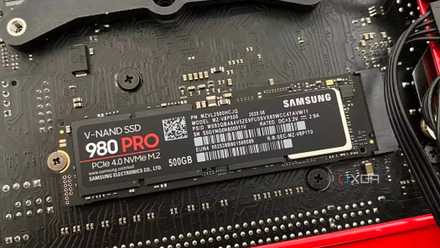
It might not feel intuitive, but your SSD performance can slow down if it runs out of sufficient free space. The way NAND flash works on an SSD is by erasing partially filled cells after moving their data elsewhere, and overwriting them with newly available data. This "garbage collection" process can slow down if your SSD controller struggles to find empty cells easily. With a nearly full drive and fewer empty cells to write data to, the SSD needs to perform many more "read-modify-erase" cycles to free up enough cells for the incoming data. This not only leads to a drop in performance, but also write amplification, bringing your drive closer to its end of life faster than necessary.
This is why you'll hear people recommending leaving 10-20% free space on your SSD. Doing so ensures garbage collection can do its job during idle times, avoiding system slowdown during drive writes. If your SSD has a DRAM cache, it will have an easier time with garbage collection, leveraging the dedicated cache to stay on top of filled and empty cells, and extend the drive's lifespan.
Here's why your old SSD feels slower than it used to be
Your SSD performance can drop with time, but you can do something about it
Using aggressive "performance boosters"
Stop before they ruin your PC
It can be tempting to use every possible software you see that claims to "optimize" your PC to speed it up. However, you should know that almost all such performance boosters and optimizers are unnecessary at best and harmful at worst. Windows is intelligent enough to maintain the registry, delete unnecessary files, and release RAM when needed. It doesn't need support from third-party programs that are often little more than adware. You'll just waste time "scanning" your PC with such useless programs, when instead you can do everything they do yourself, using built-in Windows tools.
What's worse is that these programs can actually harm your PC through aggressive registry modification, file deletion, and "performance optimization." If you use these tools without too much thought and accept every single recommendation they give you, you'll soon run into a compromised PC that starts throwing random errors during routine workloads. Besides, any performance benefit these programs manage to provide will only be noticeable on low-end PCs with a lack of system resources. You simply do not need them on a relatively modern machine.

Most "performance" software makes your PC worse, not faster
Nothing beats good judgment
Running too many background apps
Keep an eye on Task Manager
Even if your PC has tons of RAM and a modern multicore processor, enough background programs can end up hammering your system resources with needless requests. The impact might not be debilitating, but freeing up even a small amount of system resources is welcome, especially by eliminating programs that you don't really need. For instance, you can use Defender on Windows instead of third-party antivirus programs. Most of them are a drag on your PC without adding much value over what Defender already does. Next, it's the first-party bloatware bundled with your motherboard and peripherals that mostly amount to nothing. You can do everything they claim to do yourself or with lighter alternatives. Lastly, heavy wallpaper and RGB software like Wallpaper Engine and SignalRGB can consume a lot of system resources, slowing down your PC for other tasks. You can tweak them to reduce system usage or replace them entirely.

5 popular programs that are destroying your PC's performance
Stop ignoring the silent performance killers on your PC
Using Sleep mode for long periods of time
Give your PC a proper sleep occasionally
I'm a big fan of Sleep mode on Windows, but I know I should turn my PC off once in a while. Putting your PC to sleep every day for weeks or months at a stretch can cause system sluggishness, leaving you wondering what went wrong. Sleep mode is convenient, but it can lead to memory leaks over time as your system doesn't get the opportunity to release system resources properly. You might even run into driver conflicts if you're especially unlucky. And some Windows updates that require a restart might not install properly, leading to unexplained problems. Shutting your PC once in 10–15 days is a decent cadence to adhere to. A full power cycle allows your PC to release system resources and avoid driver conflicts. It isn't as inconvenient as you might think, since most browsers restore all your open tabs from your storage, and the rest of your background programs can be enabled to launch on startup.

10 practices to avoid to keep your PC running like new
The do-nots for keeping your Windows machine fresh
Ensure you're not killing your PC's performance unknowingly
Once you're aware of the bad PC habits that you might be guilty of, it's easy to course-correct. Being regular with PC maintenance tasks, eliminating resource-heavy and unnecessary programs, and keeping your storage reasonably empty can go a long way in keeping your PC running like new. These tasks aren't even hard — they can be inculcated easily into your PC lifestyle. New PC builders might find themselves guilty of a lot more mistakes than experienced users, but that's just par for the course.