
If your home network feels sluggish or subpar despite having a relatively high-speed plan, jumping to an even faster plan might not be the solution. Your Wi-Fi experience isn't tied to a single metric; it's a product of several factors. The maximum bandwidth is just one part of the story. The range of your router, interference caused by internal and external devices, and the hardware capabilities of your devices also play their part.
That said, even if these things aren't creating roadblocks, your Wi-Fi can feel lacking, and that's where airtime issues enter the picture. Unless you've optimized your router's QoS settings, your airtime fairness configuration is probably not where it needs to be. This can create a situation where older and slower devices can essentially jam the network for faster ones, artificially ruining your Wi-Fi performance. Fixing your router settings doesn't take time, but it can restore your Wi-Fi performance to where it should have been all along.

4 router settings most people never change that actually fix slow Wi-Fi
Don't blame your router or internet plan before checking your router's settings
Wi-Fi performance depends on more than just speed and range
It matters which devices you're sharing your airwaves with
Your Gigabit internet plan probably delivers 800–900 Mbps of bandwidth consistently, but that alone doesn't guarantee a snappy connection. Having an interference-free pathway from the router to your devices is also necessary. If you're using a Wi-Fi 6 router, you're limited to the 2.4GHz and 5GHz bands — no 6GHz band for high-speed, low-congestion airwaves. You might think you've taken care of both speed and range, but network latency can still arise out of other underlying problems. The smart devices across your home, ceaselessly broadcasting data, quietly make every other device on the same band wait in line.

Optimal Wi-Fi router and antenna position
Trivia challenge
Think you know where to put your router? Test your knowledge of Wi-Fi placement, signals, and antenna tricks.
Where in your home is the best place to position a Wi-Fi router for maximum coverage?
If your router has two external antennas, what is the recommended orientation for the best mix of horizontal and vertical coverage?
Which common household appliance is most notorious for interfering with 2.4 GHz Wi-Fi signals?
Which building material causes the greatest reduction in Wi-Fi signal strength when a router signal must pass through it?
Why should you avoid placing a Wi-Fi router directly on the floor?
What is the primary advantage of placing a mesh Wi-Fi node in a hallway or open transitional space rather than inside a room?
Which of the following is the best practice to reduce co-channel interference between your router and your neighbors' Wi-Fi networks on the 2.4 GHz band?
What does a high-gain directional antenna on a router do compared to a standard omnidirectional antenna?
Your Score
Thanks for playing!
These slower devices are often limited to older Wi-Fi standards, and can't leverage the modern features of your router. They create an unseen bottleneck that ruins the experience on high-priority devices, such as smartphones, PCs, laptops, and TVs. While your IoT devices hog the 2.4 GHz airwaves, everything connected to the same band suffers from latency, even though speed tests show nothing wrong. You can put everything on the 5GHz band to avoid interference entirely, but even that doesn't always end well. Unless you have a third band on your network, the best way to fix the problem is to check your router's settings.
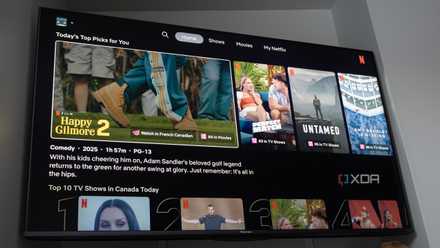
Your smart TV may be holding your entire Wi-Fi hostage
Make your Wi-Fi great again by removing your smart TV from it
You've probably never checked Airtime Fairness settings on your router
Better late than never
Hidden within your router's QoS settings is the Airtime Fairness section, which essentially determines the priority level assigned to different devices or traffic types on the network. The setting might be named something else, but most routers allow you to assign a custom priority to your high-bandwidth devices. The defaults usually give every device an equal opportunity to send data over the network, which naturally drags everything down to the speed of the slowest device connected to your Wi-Fi. Your Wi-Fi 4 and Wi-Fi 5 smart devices need to be slotted down on the priority scale if you want your high-speed devices to enjoy the throughput that you paid for. Most routers have the option to choose a manual priority list for various devices on the network, while others also support "Adaptive QoS," which dynamically ensures that the devices that need the best performance are prioritized on the network.
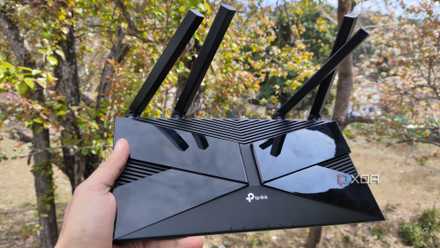
5 router settings most people never touch that fixed my network problems
Lesser-known fixes for well-known problems
You might have to spend money if nothing else works
That's, unfortunately, the permanent fix
Although optimized airtime fairness settings should improve your Wi-Fi performance considerably, you might still struggle in cases where you simply have too many devices on the network. With enough devices vying for your router's attention, it can become impossible to avoid congestion entirely. The best way to get rid of it is to remove as many devices as you can from the 2.4GHz band, moving them to another, low-powered protocol like Zigbee. Alternatively, you can upgrade to a Wi-Fi 6E or Wi-Fi 7 router to access the 6GHz band for faster and nearly congestion-free performance. Either way, you'll have to spend money on your Wi-Fi network.
To delay your investment, you could use network segmentation by creating multiple 2.4GHz SSIDs, so that each one has fewer devices. These virtual networks can mitigate the whole issue until you finalize a permanent fix for the network. If your ISP is ready to upgrade your router, that might be the cheapest route to take.
TP-Link AXE5400 Tri-Band Router (Wi-Fi 6E)
If you want a great Wi-Fi 6e router but don't want to spend a whole lot of money, check out this one from TP-Link.

I thought my Wi-Fi problems were interference, but it turns out it was airtime
An abject lesson in the perils of overcrowding any access point
Hidden culprits are often your Wi-Fi's undoing
Airtime issues are common in most home Wi-Fi networks, where people never touch their router's settings after the ISP sets everything up. Your router's settings can resolve many of the most annoying Wi-Fi problems on your home network. It's just a matter of choosing the right channel and width, disabling band steering, and updating the firmware, among others.