VOOZH about

URL: https://www.analyticsvidhya.com/blog/2022/03/image-segmentation-using-opencv/

⇱ Image Segmentation using OpenCV - Analytics Vidhya


India's Most Futuristic AI Conference Is Back – Bigger, Sharper, Bolder

  • d
  • :
  • h
  • :
  • m
  • :
  • s

Reading list

Image Segmentation using OpenCV

Aman Preet Last Updated : 16 Oct, 2024
5 min read

This article was published as a part of the Data Science Blogathon.

Overview

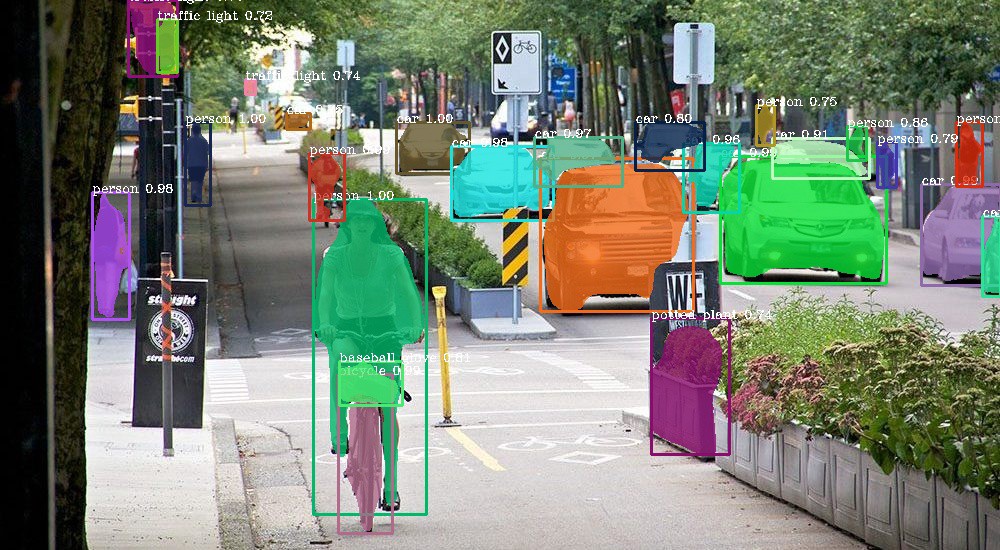
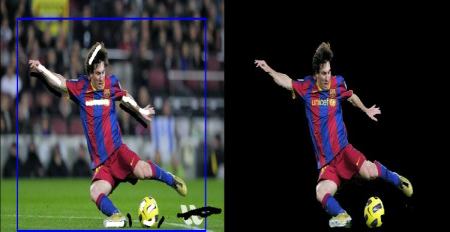
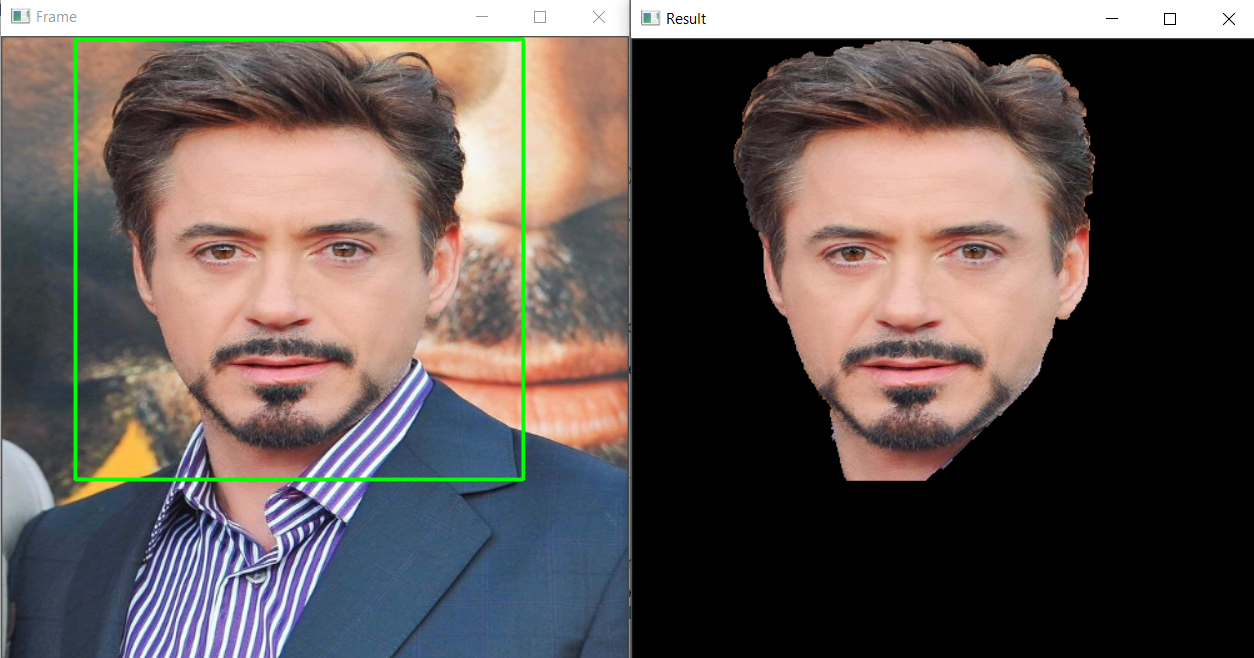
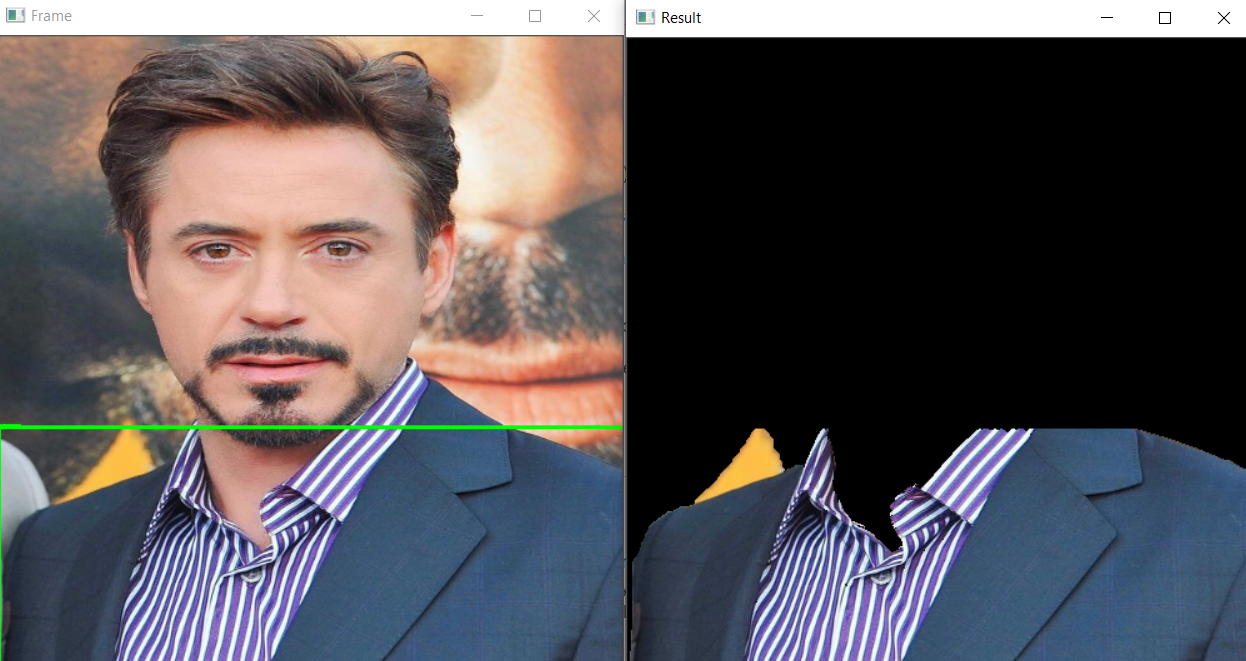
In this article, we will be working to develop an application that will help in the image-segmentation. It is very easy to use this application, on the first window with mouse drag we will select a part of the picture, and then on the other window, we will be able to see that part of the image only i.e. image segmentation.

Application of Image Segmentation

  1. Machine Vision: It is the technology that is based on image-based inspection and analysis which can be achieved by segmenting different individuals.
  2. Traffic control system: This can be helpful when the traffic police can segment the different vehicles.
  3. Video surveillance: For security purposes also we can use the application of image segmentation.

So, let’s get started!

Steps Involved in Image Segmentation

  1. Import the libraries
  2. Reading the sample image on which we will be performing all the operations.
  3. Creating the function that will draw the bounding box.
  4. Explaining the GrabCut algorithm.
  5. The main function is to run the complete process all at once.
  6. Key takeaways from this article.
  7. Conclusion

Importing Library for Image Segmentation

Firstly we will import all the libraries.

  1. cv2: For performing computer vision and image processing operations.
  2. NumPy: To perform some mathematical operations (if required).
  3. matplotlib: To show the images/figure as we are working on the Jupyter notebook.

Let’s look at the Image

Python Code:

Function to Draw the Real-Time Bounding Box on the Image

The following function will draw the bounding box in real-time on the image. First, let’s check what kind of parameters it has.

  • click: This parameter will hold which kind of button will be clicked.
  • x: This parameter will hold the X value of the cursor.
  • y: This parameter will hold the Y value of the cursor.
  • Then there are some default parameters.
def draw_bounding_box(click, x, y, flag_param, parameters):
 global x_pt, y_pt, drawing, top_left_point, bottom_right_point, original_image 
 
 if click == cv2.EVENT_LBUTTONDOWN:
 drawing = True
 x_pt, y_pt = x, y 

 elif click == cv2.EVENT_MOUSEMOVE:
 if drawing:
 top_left_point, bottom_right_point = (x_pt,y_pt), (x,y)
 image[y_pt:y, x_pt:x] = 255 - original_image[y_pt:y, x_pt:x]
 cv2.rectangle(image, top_left_point, bottom_right_point, (0,255,0), 2)
 
 elif click == cv2.EVENT_LBUTTONUP:
 drawing = False
 top_left_point, bottom_right_point = (x_pt,y_pt), (x,y)
 image[y_pt:y, x_pt:x] = 255 - image[y_pt:y, x_pt:x]
 cv2.rectangle(image, top_left_point, bottom_right_point, (0,255,0), 2)
 bounding_box = (x_pt, y_pt, x-x_pt, y-y_pt)
 
 grabcut_algorithm(original_image, bounding_box)

Code-breakdown:

  1. Before writing the main code we will be declaring some global variables which one can see in the code.
  2. Then with the help of the IF condition, we will be detecting whether the left button is clicked or not, and if it encounters the same event it will parse the True value to the flag variable and initialize the global x and y variables with the parameter values.
  3. As we know, while making the bounding box we need to drag the mouse as well to cover the distance between the source and the destination for that reason we will be detecting the movement of the mouse. Hence, we will be initializing the top-left and bottom-right points (source and destination) and then we will use the cv2.rectangle function to draw the bounding box.
  4. So, we have implemented the button-down and button movement functionality now we need to complete the functionality of the button-down as well. First of all the flag variable should be re-initialized to False because now there would be no need to draw the rectangle but the other variables will still hold the values (updated one) and after that, we will make the rectangle.
  5. At the last, we will call the Grab algorithm function β€“ which we will discuss later.

Grab Cut Algorithm

Image Source: OpenCV documentation

What is the Grabcut algorithm in OpenCV?

A few things may get clear with the name itself i.e. The user will be grabbing the particular part of the image and cut it down by making the bounding box around that part this is not the only thing that the Grabcut algorithm performs there is also some technicalities behind this, This algorithm keeps the note of colour attribution of that object by using the Gaussian model.

This function will take only 2 parameters:

  • original_image: The image on which we want to imply the image segmentation.
  • bounding_box: This is the same variable that we had at the end of draw_bounding_box the function which was holding the values of top-left and bottom-right.
def grabcut_algorithm(original_image, bounding_box):
 
 segment = np.zeros(original_image.shape[:2],np.uint8)
 
 x,y,width,height = bounding_box
 segment[y:y+height, x:x+width] = 1

 background_mdl = np.zeros((1,65), np.float64)
 foreground_mdl = np.zeros((1,65), np.float64)
 
 cv2.grabCut(original_image, segment, bounding_box, background_mdl, foreground_mdl, 5,
 cv2.GC_INIT_WITH_RECT)

 new_mask = np.where((segment==2)|(segment==0),0,1).astype('uint8')

 original_image = original_image*new_mask[:,:,np.newaxis]

 cv2.imshow('Result', original_image)

Code-breakdown:

  1. The very first step will be to give some valid values to the segmentation variable i.e. providing the attributes of the image.
  2. Now. we will extract the values that will be needed while making the bounding box and when we will be having those values then it can be easily passed on to cut the ROI.
  3. Then we are declaring two more variables (background model and foreground model) that will be responsible for the look of the masked part when the rectangle will be created.
  4. Finally, we will be using the Grabcut function using cv.grabCut to perform our main work and it will take all the valid parameters like the main image, segmented variable, both foreground, and background model and GC_INIT_WITH_RECT this is very important to notice as this means we are going with the rectangle segmentation and not the masking segmentation.
  5. Now we will pluck out the new mask and store it in the variable and then will apply the above mask to the original image only.
  6. At the last, we will display the image when the function is called.

Main Function

if __name__=='__main__':
 drawing = False
 top_left_point, bottom_right_point = (-1,-1), (-1,-1)

 original_image = cv2.imread("robert.jpg")
 original_image = cv2.resize( original_image ,(500,500))
 image = original_image.copy()
 cv2.namedWindow('Frame')
 cv2.setMouseCallback('Frame', draw_bounding_box)

 while True:
 cv2.imshow('Frame', image)
 c = cv2.waitKey(1)
 if c == 27:
 break

 cv2.destroyAllWindows()

Output:

πŸ‘ Main function | Image Segmentation
πŸ‘ Output

Code-Breakdown

This is the part of the code that will be executed first (name == β€˜mainβ€˜)

  1. First, we will initialize the flag variable to False just so that there is no garbage value in it and the same for the top left and bottom right variables.
  2. Then we will read the image (cv2.imread()) on which we will apply all the segmentation techniques and resize the image using cv2.resize() function.
  3. For naming the window we have used cv2.namedWindow() function.
  4. Then for calling the draw_bounding_box the function we will use is the Callback function it will help to call the function only when the button is clicked.
  5. Then inside the infinite loop we will see the application along with that we are also giving the exit point i.e. window will be destroyed when esc the key is pressed and the application will be closed.

Conclusion

  • Firstly we learned about how to draw the bounding box on pour detected object which is very important in any kind of detection process.
  • Then we learned about the new algorithm that extracts the Region of Interest for us i.e. Grab cut algorithm.
  • We also learned how the Gaussian Blur technique helps in building the basic blocks of the grab cut algorithm.

Endnotes

Here’s the repo link to this article. Hope you liked my article on Image Segmentation using OpenCV. If you have any opinions or questions, then comment below.

Read the latest articles on the AV blog.

Login to continue reading and enjoy expert-curated content.

Free Courses

Ensemble Learning and Ensemble Learning Techniques

Learn ensemble learning, its techniques, and how it works in this course!

Bagging and Boosting ML Algorithms

Explore Bagging and Boosting to understand advanced ML algorithms.

Nano Course: Dreambooth-Stable Diffusion for Custom Images

Learn to create custom images with Dreambooth Stable Diffusion technology

Naive Bayes from Scratch

Master NaΓ―ve Bayes for ML: Build classifiers, analyze data, and apply Bayes.

Dimensionality Reduction for Machine Learning

Master key dimensionality reduction techniques for ML success!

Responses From Readers

Flagship Programs

GenAI Pinnacle Program| GenAI Pinnacle Plus Program| AI/ML BlackBelt Program| Agentic AI Pioneer Program

Free Courses

Generative AI| DeepSeek| OpenAI Agent SDK| LLM Applications using Prompt Engineering| DeepSeek from Scratch| Stability.AI| SSM & MAMBA| RAG Systems using LlamaIndex| Building LLMs for Code| Python| Microsoft Excel| Machine Learning| Deep Learning| Mastering Multimodal RAG| Introduction to Transformer Model| Bagging & Boosting| Loan Prediction| Time Series Forecasting| Tableau| Business Analytics| Vibe Coding in Windsurf| Model Deployment using FastAPI| Building Data Analyst AI Agent| Getting started with OpenAI o3-mini| Introduction to Transformers and Attention Mechanisms

Popular Categories

AI Agents| Generative AI| Prompt Engineering| Generative AI Application| News| Technical Guides| AI Tools| Interview Preparation| Research Papers| Success Stories| Quiz| Use Cases| Listicles

Generative AI Tools and Techniques

GANs| VAEs| Transformers| StyleGAN| Pix2Pix| Autoencoders| GPT| BERT| Word2Vec| LSTM| Attention Mechanisms| Diffusion Models| LLMs| SLMs| Encoder Decoder Models| Prompt Engineering| LangChain| LlamaIndex| RAG| Fine-tuning| LangChain AI Agent| Multimodal Models| RNNs| DCGAN| ProGAN| Text-to-Image Models| DDPM| Document Question Answering| Imagen| T5 (Text-to-Text Transfer Transformer)| Seq2seq Models| WaveNet| Attention Is All You Need (Transformer Architecture) | WindSurf| Cursor

Popular GenAI Models

Llama 4| Llama 3.1| GPT 4.5| GPT 4.1| GPT 4o| o3-mini| Sora| DeepSeek R1| DeepSeek V3| Janus Pro| Veo 2| Gemini 2.5 Pro| Gemini 2.0| Gemma 3| Claude Sonnet 3.7| Claude 3.5 Sonnet| Phi 4| Phi 3.5| Mistral Small 3.1| Mistral NeMo| Mistral-7b| Bedrock| Vertex AI| Qwen QwQ 32B| Qwen 2| Qwen 2.5 VL| Qwen Chat| Grok 3

AI Development Frameworks

n8n| LangChain| Agent SDK| A2A by Google| SmolAgents| LangGraph| CrewAI| Agno| LangFlow| AutoGen| LlamaIndex| Swarm| AutoGPT

Data Science Tools and Techniques

Python| R| SQL| Jupyter Notebooks| TensorFlow| Scikit-learn| PyTorch| Tableau| Apache Spark| Matplotlib| Seaborn| Pandas| Hadoop| Docker| Git| Keras| Apache Kafka| AWS| NLP| Random Forest| Computer Vision| Data Visualization| Data Exploration| Big Data| Common Machine Learning Algorithms| Machine Learning| Google Data Science Agent
πŸ‘ Av Logo White

Continue your learning for FREE

Forgot your password?
πŸ‘ Av Logo White

Enter OTP sent to

Edit

Wrong OTP.

Enter the OTP

Resend OTP

Resend OTP in 45s

πŸ‘ Popup Banner
πŸ‘ AI Popup Banner