 |
VOOZH | about |
|
VOOZH | about |
Building a simple web app using Express and Angular is a great way to understand the fundamentals of full-stack development. Express, a minimalist web framework for Node.js, handles the backend, while Angular, a powerful front-end framework, provides the structure for the client-side application.
In this article, we'll see the process of creating a basic web app that connects an Express backend with an Angular frontend.
Before diving into the tutorial, make sure you have the following tools installed:
First, we will create a new project directory and initialize it as an npm package. Open your terminal and navigate to the location where you want to create your project. Run the following command to create a new directory:
mkdir my-appyou can replace my-app with the name of your choice. Next, navigate to the new directory using:
cd my-app& initialize it as an npm package by running the following command:
npm init -yThis will create a package.json file in the root of your project, which will contain all the necessary information about your project and its dependencies.
Next, we will install angular and express for our project. Run the following command to install Angular and Express:
npm install @angular/cli expressWe will use the Angular CLI (Command Line Interface) to create the Angular client. Run the following command to generate a new Angular project:
ng new client Now, we will create the Express server. Create a new file called "server.js" at the root of your project. In this file, we will set up our Express server. First, we will update the Express server to handle requests from the Angular client. In the "server.js" file, add the following code to handle CORS (Cross-Origin Resource Sharing) and to allow the Angular client to make requests to the Express server:
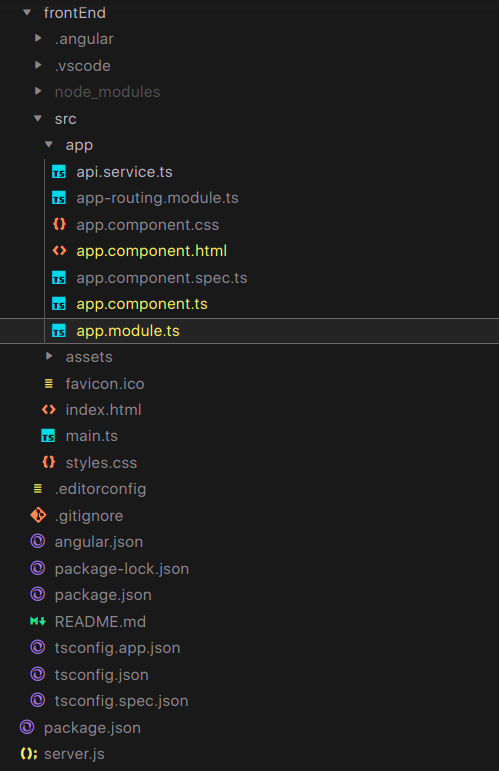
Next, we will update the Angular client to make requests to the Express server. In the "src/app" directory, create a new file called "api.service.ts". In this file, we will create a service that will handle the requests to the Express server.
Here, we created a service that has a single method, "getMessage()", which makes a GET request to the Express server's '/api/message' route. You will also require to import the HttpClient Module into your app.module.ts file, add the following code to import it:
Finally, we will use the service in an Angular component to display the message from the Express server. In the "src/app" directory, open the "app.component.ts" file.
Open the "src/app/app.component.html" file and add the following code to display the message from the server.
This will display the message from the Express server on the Angular template.
Now that we have integrated the Angular front-end with the Express back-end, we can start the development server. To start the Angular development server, navigate into the "client" directory and run the following command:
ng serveThis will start the development server and make your Angular client available at "http://localhost:4200/".
To start the Express server, open a new terminal window and navigate to the root of your project. Run the following command:
node server.jsWith this, you have successfully created an example application that integrates the Angular front-end with the Express back-end. The Angular client makes a GET request to the Express server, which returns a JSON object containing a message. The message is then displayed on the Angular template.
Output: The following output will be displayed by the Angular and Express servers:
Express:
Angular:

.gif)
.gif)