Gemini AI, a cutting-edge AI platform developed by Google DeepMind, offers users access to powerful natural language processing (NLP) tools natural language processing (NLP), machine learning (ML), and more. Whether you’re wrapping up a project or stepping away from your session, logging out is essential to ensure your account’s security.
In this article, we’ll walk you through the simple process of logging out of Gemini AI, explain why it’s important, and provide solutions to common issues you might encounter.
Why Logging Out Is Important?
Before diving into the steps, let’s first understand why logging out is crucial:
Security: When you log out, you help protect your personal and professional data from unauthorized access.
Session Management: Logging out ensures that unused sessions are properly closed, freeing up resources and preventing potential conflicts.
Account Privacy: If you’re using a shared or public device, logging out prevents others from accessing your account.
Step-by-Step Guide to Logging Out of Gemini AI
The process for logging out may vary slightly depending on how you’re accessing Gemini AI. Here’s a guide for different platforms.
1. Logging Out via Web Browser
If you're accessing Gemini AI through a web browser, follow these steps:
Step 1: Locate Your Account Profile
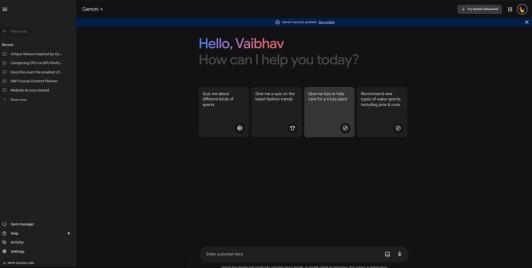
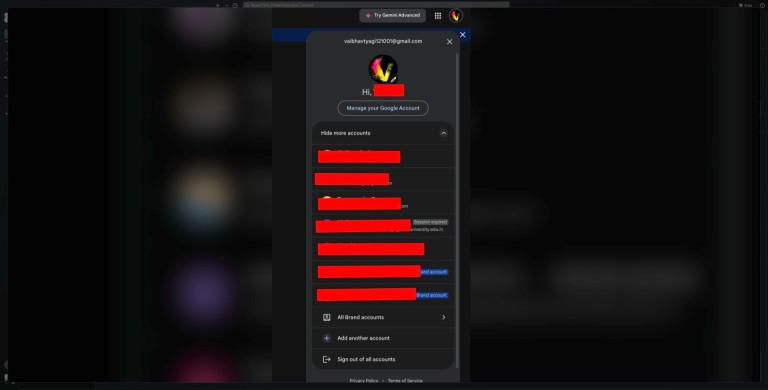
In the upper-right corner of the Gemini AI dashboard, you’ll see your account profile icon (usually your avatar or initials).
Some browsers or services may ask for confirmation. If you see a popup asking you to confirm, click “Yes” or “Log Out” to finalize the process.
2. Logging Out from Mobile Devices
Accessing Gemini AI from a mobile browser or app follows a similar process:
Step 1: Open the Side Menu
In most mobile apps or mobile-friendly websites, there’s a side menu (often represented by three horizontal lines or a “hamburger” icon). Tap it to access account options.
Step 2: Navigate to Account Settings
Within the menu, look for your account name or profile picture. Tap it to bring up options related to your account, including the Log Out button.
Step 3: Tap “Log Out”
Once you find the Log Out button, tap it to end your session.
3. Logging Out of Gemini AI via API
If you’re using Gemini AI through an API or integrated service, you’ll need to ensure you manually terminate your session or API key. This typically involves:
Revoking API Keys: Go to your API management dashboard and revoke any active API keys.
Ending Sessions: Use the session management tool in your dashboard to manually log out from active integrations.
Troubleshooting Common Logout Issues
1. Stuck or Unresponsive Logout
Solution: If the logout button isn’t responding, try refreshing the page or clearing your browser’s cache and cookies. If the issue persists, log out using an incognito or private browsing window.
2. Logged Out Automatically
Solution: Gemini AI may log you out automatically after a period of inactivity to protect your session. Simply log back in if needed.
3. Multiple Devices or Sessions
Solution: To ensure all active sessions are closed, use Gemini AI’s account settings to view and log out of multiple devices at once.
Conclusion
Logging out of Gemini AI is a simple but essential task that keeps your data secure, maintains session integrity, and protects your privacy. Whether you’re working from a web browser, mobile device, or API, following these easy steps ensures that you can log out safely. If you encounter any issues, troubleshooting tips like refreshing the page or managing multiple sessions will help resolve most problems. Stay secure and manage your sessions wisely!