n8n an open-source workflow automation platform, enables users to visually create workflows with a node-based interface. Unlike typical no-code tools, it supports developers with JavaScript, API calls and self-hosting. With over 200 integrations like Google Sheets, Slack, GitHub, etc.
It offers cloud-based and self-hosted options, providing businesses flexibility in workflow management.
How to Use n8n
To use n8n we have two options:
We can use their web interface on the website which requires an account and a paid subscription.
Since it is open source, we can run it locally or host ourselves. This is free to use and gives access to almost all of the features.
Local Setup of n8n
1. Download and install Node.js from the official website.
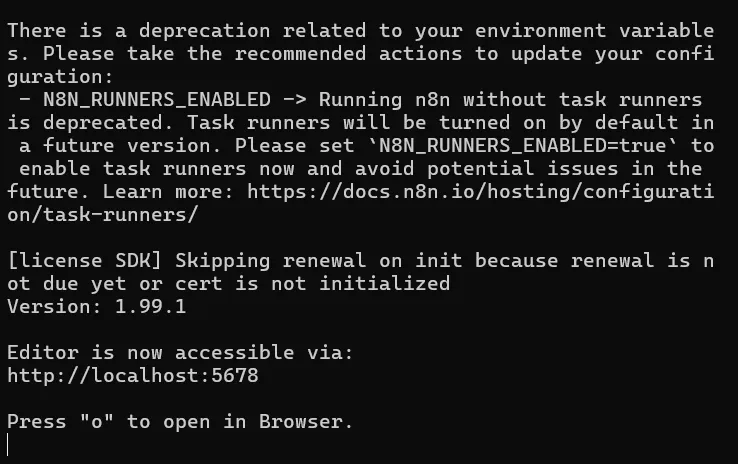
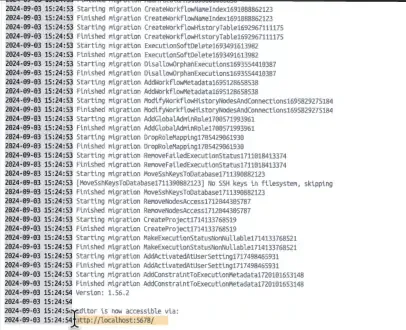
2. Open a terminal and run the command npx n8n. After running the command it will show:
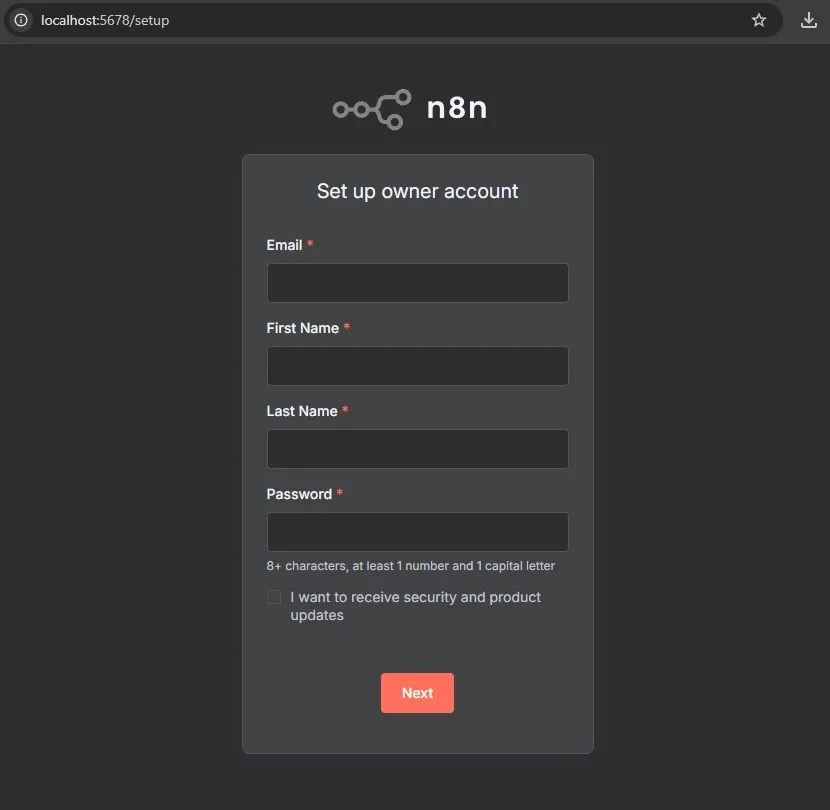
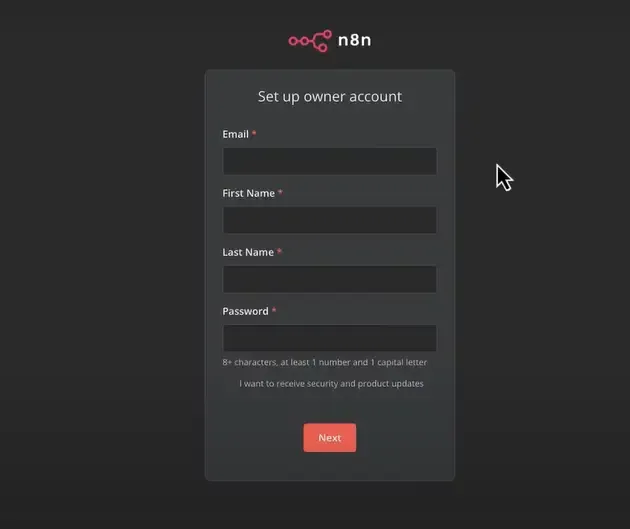
3. To open the interface, either press "o" on the keyboard or open the localhost URL shown in the terminal i.e http://localhost:5678 (can be different for different users). If the installation is done correctly then the interface on the browser will look similar to the one presented below.
4. The user can enter their credentials and then use the features of n8n on their local systems.
Self-Hosting n8n with Docker Desktop
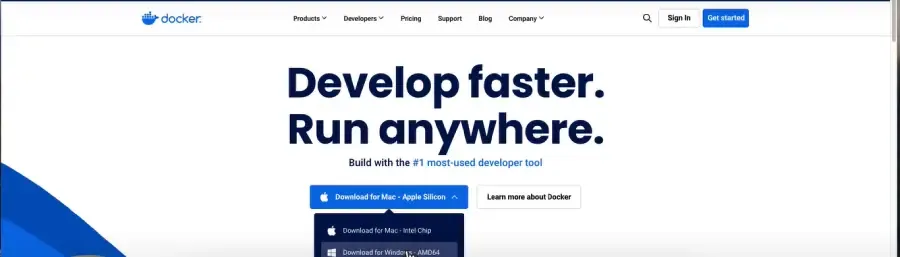
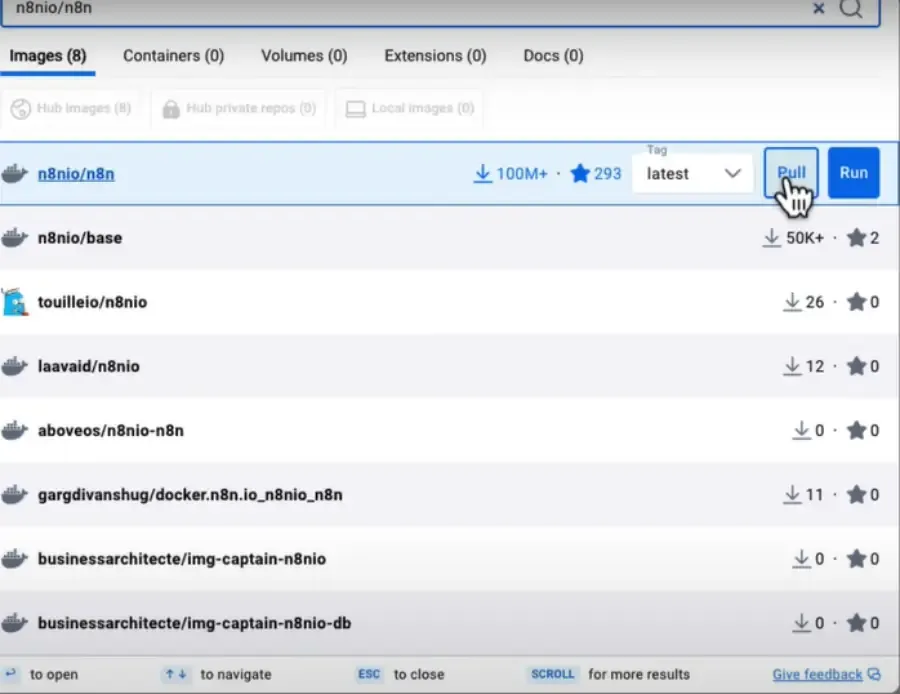
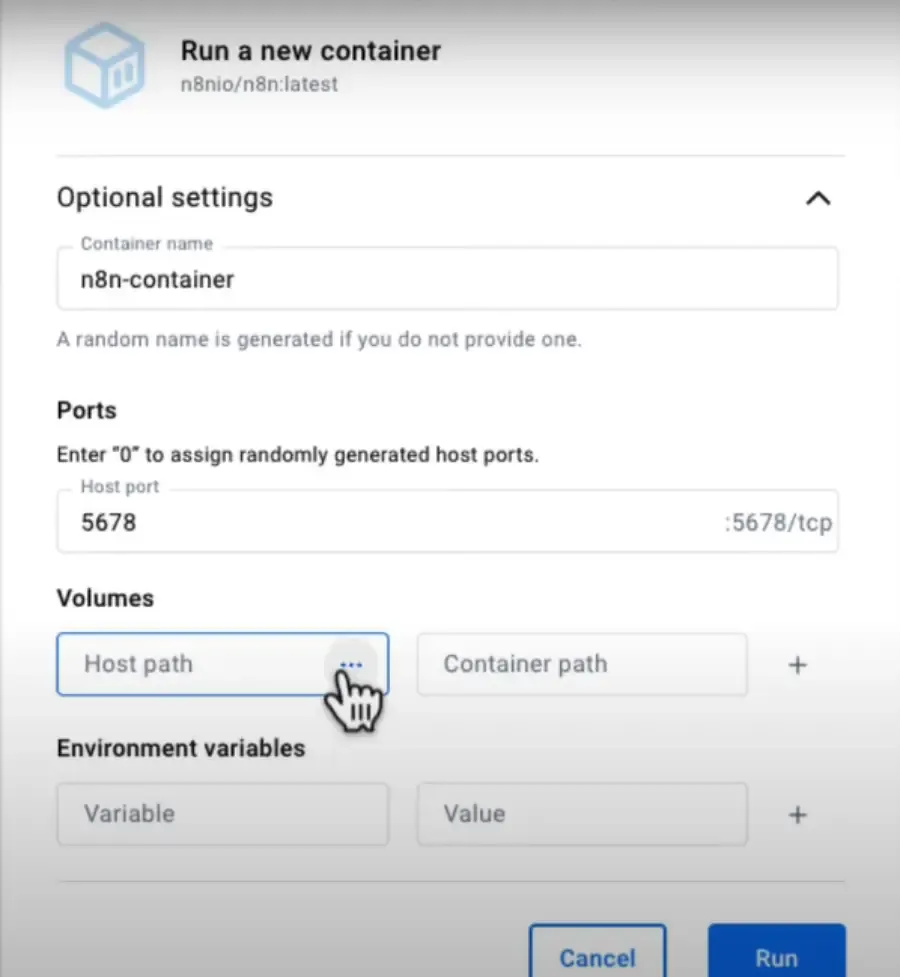
An alternative to the Node.js method, self-hosting n8n with Docker Desktop offers a user-friendly, no-code solution for running n8n locally. Docker, a platform that packages applications and their dependencies into containers, simplifies setup by eliminating manual configuration. This method is ideal for beginners or those avoiding terminal commands while still providing the privacy, control and scalability benefits of self-hosting highlighted in the Key Features section.
Why Use Docker for n8n
Simplicity: Docker bundles n8n’s dependencies (e.g., libraries, tools) into a single container, streamlining setup.
Portability: Containers run consistently across local machines or cloud providers.
Isolation: n8n operates independently, avoiding conflicts with other applications.
Scalability: Easily deploy multiple containers for complex workflows or increased workloads.
Prerequisites
A computer with Windows, macOS or Linux.
An internet connection to download Docker Desktop and the n8n image.
Optional: Existing n8n cloud workflows for migration.
Port Conflict: If http://localhost:5678 fails, change the host port (e.g., to 5679) in Docker Desktop.
Docker Issues: Ensure Docker Desktop is running and you have sufficient disk space.
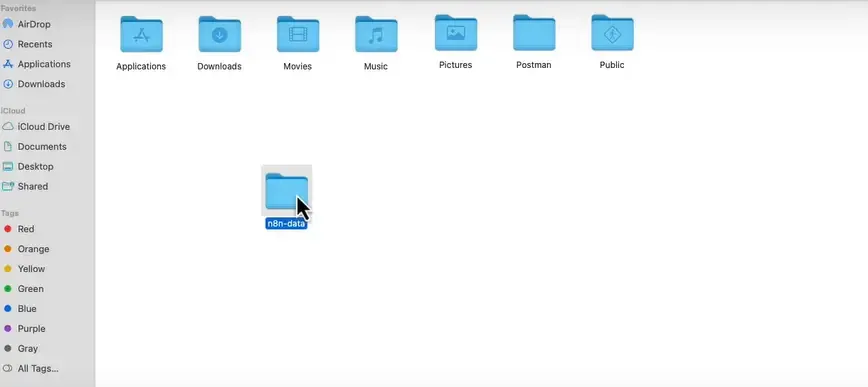
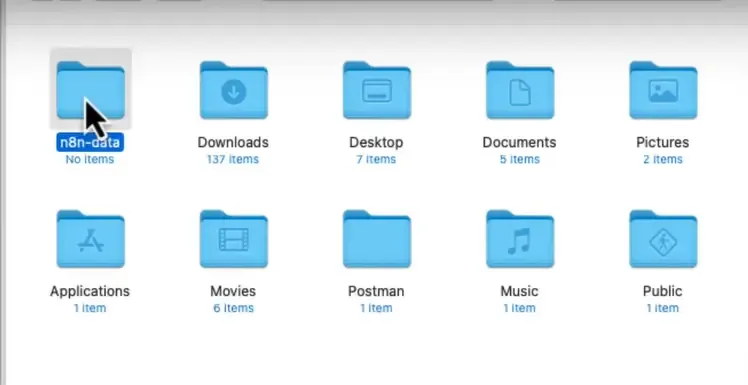
Data Loss: Verify the n8n-data folder is mapped to /home/node/.n8n.
This method empowers you to leverage n8n’s full potential locally, supporting AI automation, data syncing and more, as described in the use cases section.
Workflow
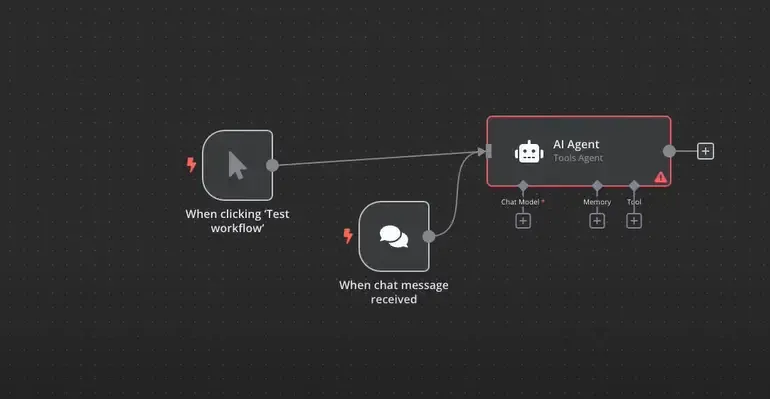
n8n works by enabling users to create workflows that consist of a series of nodes. These nodes are connected in a sequence to define the flow of the automation. Lets understand the steps with examples:
Trigger: A workflow starts with a trigger such as a new email in Gmail or a new entry in a Google Sheet.
Action: Based on the trigger the workflow can perform one or more actions like sending a Slack message, posting to a Twitter account or storing data in a database.
Conditions: We can include conditional logic in our workflow such as "if this condition is true, do that; otherwise else do something else".
Output: Finally, the workflow can generate an output such as sending an email or storing data.
Technical Use Cases
1. AI Workflow Automation: Integrates AI tools like OpenAI's GPT-4o or Whisper to:
Generate meeting summaries for Slack or Notion.
Analyze sales data for dashboard reports.
Build NLP pipelines for data-driven actions.
2. Data Synchronization: Ensures real-time data syncing:
Syncs customer records across PostgreSQL, Google Sheets and Airtable.
Automates backups and ETL pipelines for analytics dashboards like Looker.
3. AI Agent Creation: Builds AI agents to:
Monitor emails and take actions based on context.
Use decision nodes for lead scoring, messaging or issue escalation.
Create autonomous workflows with APIs and logic.
4. Sales and CRM Automation: Automates lead management:
Captures leads from forms.
Enriches data with Clearbit or Apollo.
Assigns leads and triggers emails or Slack alerts.
5. Customer Support Automation: Streamlines support: