Creating a project in Unity is the first step toward building games, simulations or interactive applications. Unity provides a simple interface through its Hub, allowing developers to set up and manage projects efficiently.
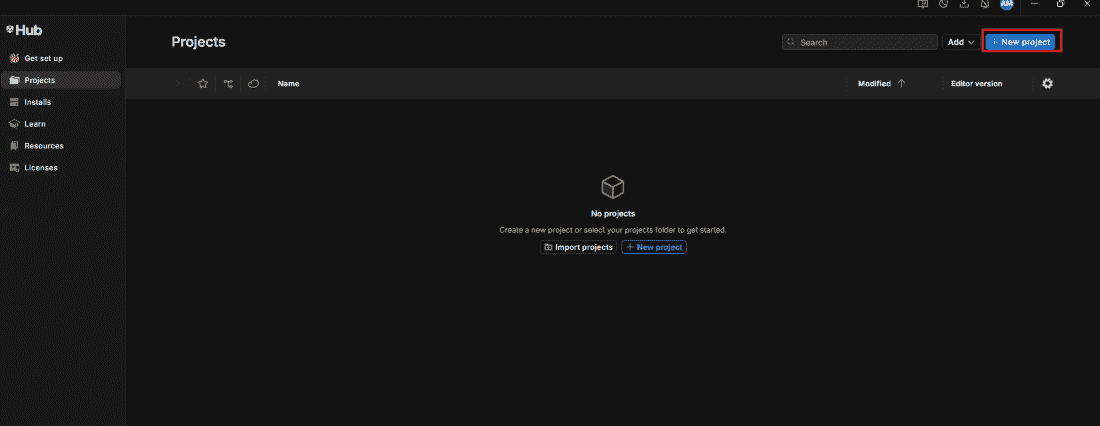
Creating a New Project Open Unity Hub and click the New Project button.
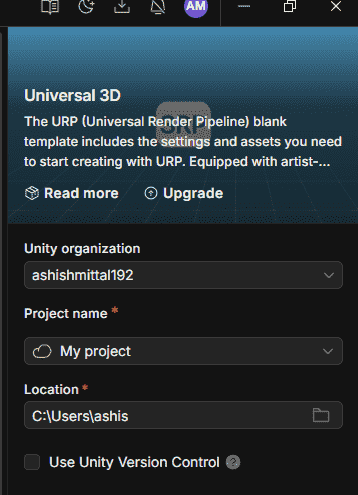
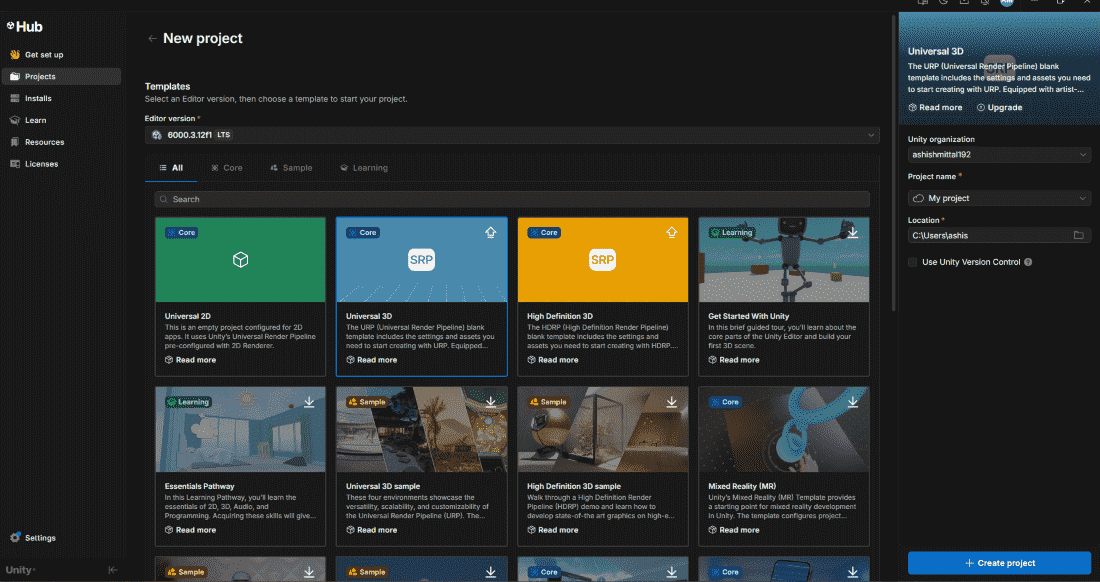
👁 Creating-New-Project-in-Unity Click New Project button Project Name: Use a meaningful name without spaces or special characters. Location: Choose where to save project files on your computer. 👁 Project-creation-window Project creation window Template: Select based on your game type. 👁 Project-Templates Project Templates 2D Core: Best for sprite-based games, platformers, and top-down RPGs 3D Core: Best for standard 3D games with realistic graphics URP (2D/3D): Best for performance-optimized projects for mobile and cross-platform HDRP: Best for high-fidelity 3D games for PC and consoles VR/AR: Best for virtual or augmented reality experiences Mobile: Best for touch-optimized projects for Android/iOS Beginner tip: Start with 3D Core or 2D Core. URP adds complexity for first-timers.
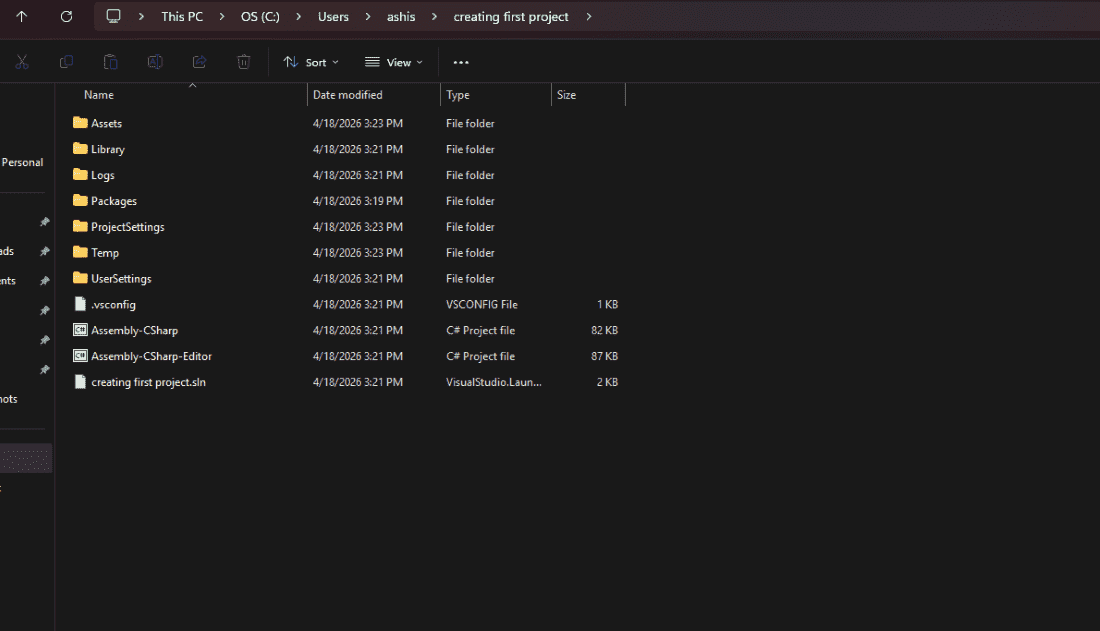
Project Folder Structure After clicking Create, Unity generates this folder structure:
👁 Project-Folder-Structure Project Folder Structure Assets/: Contains all project assets such as scenes, scripts, models, textures, and audio files (Editable by User: Yes) Library/: Stores Unity’s internal cache and imported asset data for performance optimization (Editable by User: No) Packages/: Includes installed packages and project dependencies (Editable by User: No) ProjectSettings/: Holds project-wide settings like build configuration and player settings (Editable by User: Yes) UserSettings/: Stores user-specific editor preferences and local settings (Editable by User: No) Note : Only Assets/ and ProjectSettings/ need to be tracked. Library/ can be regenerated.
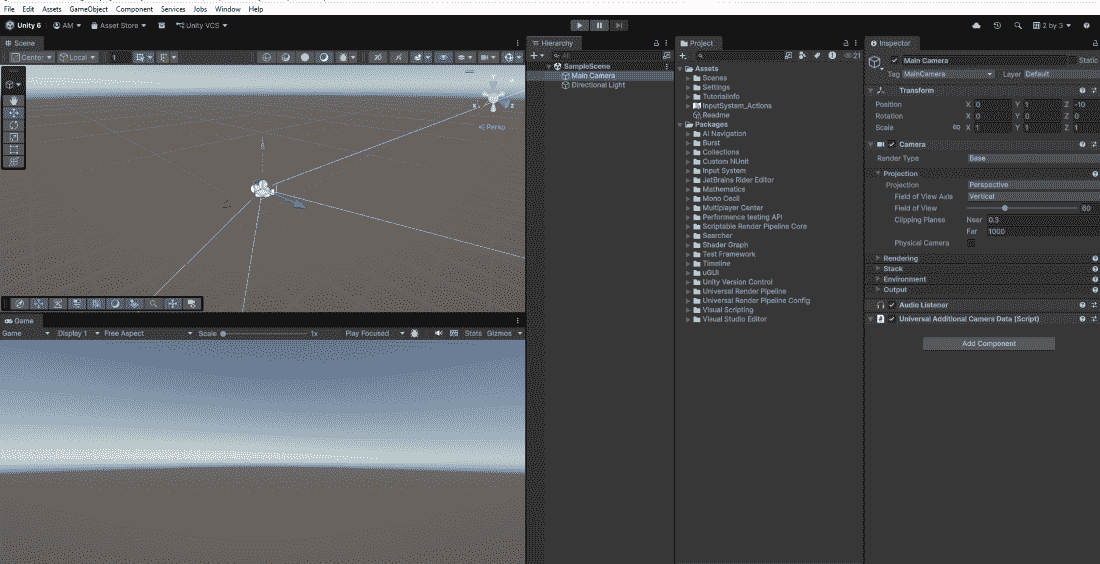
Default Objects in a New Scene A new 3D scene contains:
👁 Default-Objects Default Objects Main Camera: Renders what the player sees. Directional Light: Provides illumination and shadows. A new 2D scene contains only the Main Camera (2D lighting works differently).
Saving Your Project Unity does not auto-save by default.
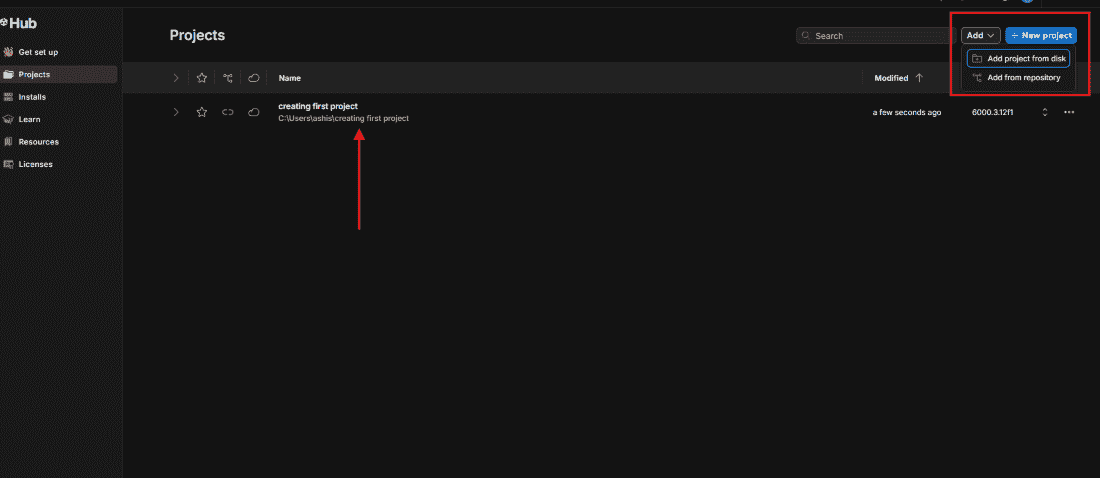
Save Scene: Ctrl + S (Windows) / Cmd + S (Mac). Save Project: Project settings save automatically, scenes must be saved manually. Opening Existing Projects From Unity Hub's Projects tab:
👁 Opening-Existing-Projects Opening Existing Projects Recent projects appear in the list Click any project to open it Use Add button to locate projects moved to a different folder Common Issues Project won't open: Check if the correct Unity Editor version is installed Missing templates: Re-run the Unity Hub installer Long first load: This is normal, subsequent loads will be faster