|
VOOZH | about |
|
VOOZH | about |
Bugs are inevitable in game development. Debugging is finding and fixing these errors. Unity provides several tools to help you track down issues like from simple console logs to visual debugging in the Scene view.
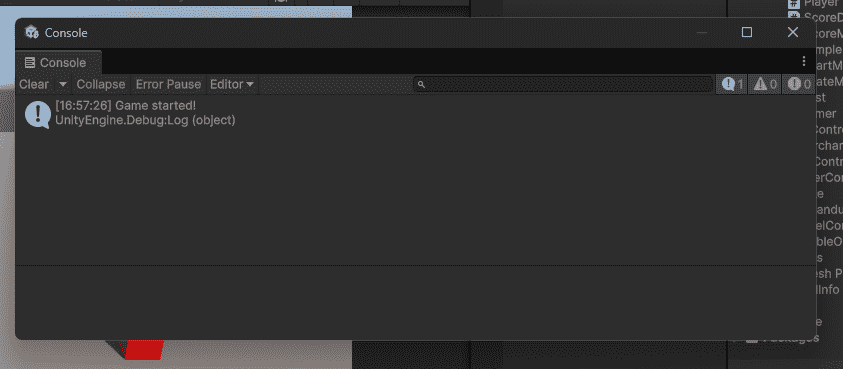
The simplest and most used debugging tool. Print messages to the Console to see what your code is doing. Example:
Output:
Click on any log message in the Console. Unity opens the script at that exact line. Use Debug.Log() for info, Debug.LogWarning() for potential problems, and Debug.LogError() for actual errors.
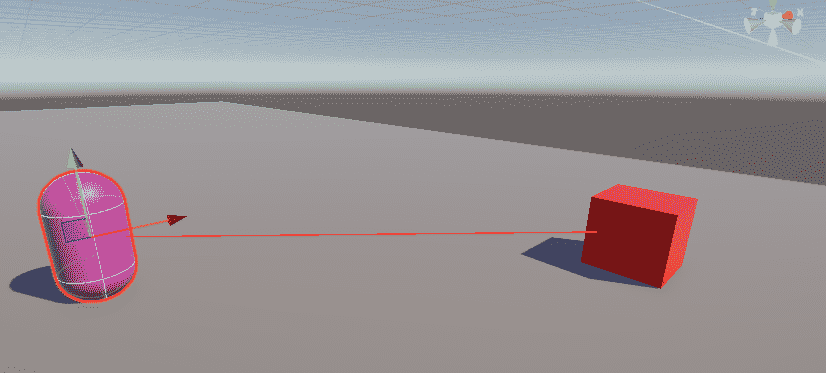
Sometimes numbers aren't enough. Draw lines in Scene view to see what your code is doing. Example:
Output:
These lines appear only in the Scene view (not Game view). Perfect for checking if raycasts are firing correctly, seeing enemy vision range, or visualizing patrol paths.
The most powerful debugging tool. Pause your game at a specific line of code and inspect everything.
How to use:
When paused, you can:
Pause the game automatically when a specific condition happens. Example:
After the game pauses, you can inspect any GameObject in the Scene view. Useful for catching rare bugs that are hard to reproduce.