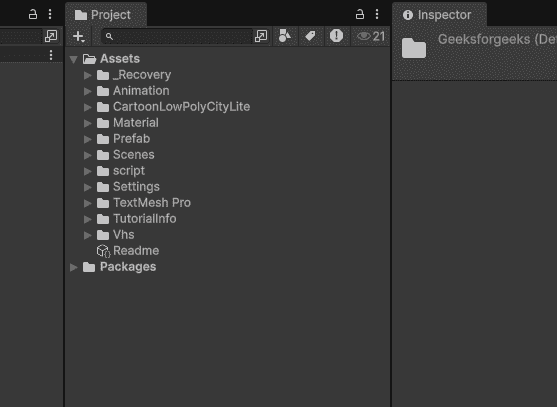
Assets are the building blocks of your game like 3D models, textures, sounds, fonts and more. Instead of creating everything from scratch, you can import ready-made assets into Unity. Assets are any files used in your game. They can be:
3D Models : Characters, weapons, environments (.fbx, .obj). Textures/Images : Skins, icons, backgrounds (.png, .jpg). Audio : Sound effects, background music (.mp3, .wav). Fonts : Custom text styles (.ttf, .otf). Animations : Character movements (.fbx, .anim). Prefabs : Ready-to-use GameObjects. 👁 Assests-In-Unity Assests In Unity Method 1: Importing from Your Computer Drag and Drop (Easiest):
Open File Explorer (Windows) or Finder (Mac) Locate your asset file (image, model, sound) Drag it directly into Unity's Project window Unity automatically imports and converts it Using Import Button:
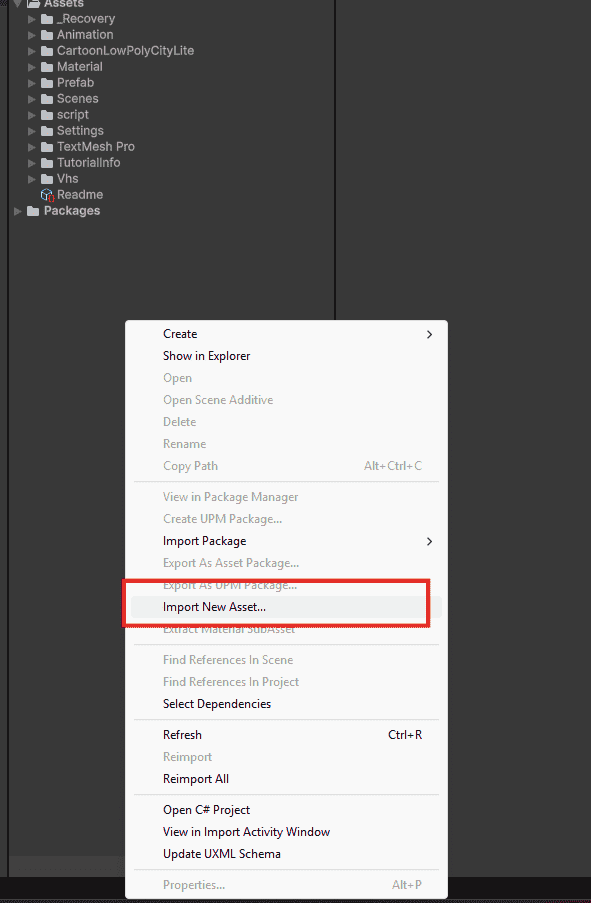
Right-click in Project window Click Import New Asset Browse and select your file Click Import 👁 Import-Assets-In-Unity Import Assets In Unity Where Do Imported Assets Go? When you drag files into Unity, they appear in your Project window. But physically, they are stored in your project's Assets folder on your computer.
Unity does not copy files – it references them Moving or deleting files outside Unity breaks references Always manage assets inside Unity Editor Supported File Types Images : .png , .jpg , .tga , .psd , .tiff 3D Models : Supported formats: .fbx , .obj , .dae , .3ds , .blend Audio : Supported formats: .mp3 , .wav , .ogg , .aiff Fonts : Supported formats: .ttf , .otf Video : Supported formats: .mp4 , .mov , .avi , .webm Method 2: Importing from Asset Store Asset Store has thousands of free and paid assets.
Step 1: Open - Window - Asset Store
Step 2 : Find an asset:
Search for what you need (example: "Low Poly Tree") Click on asset to view details Step 3 : Download and Import:
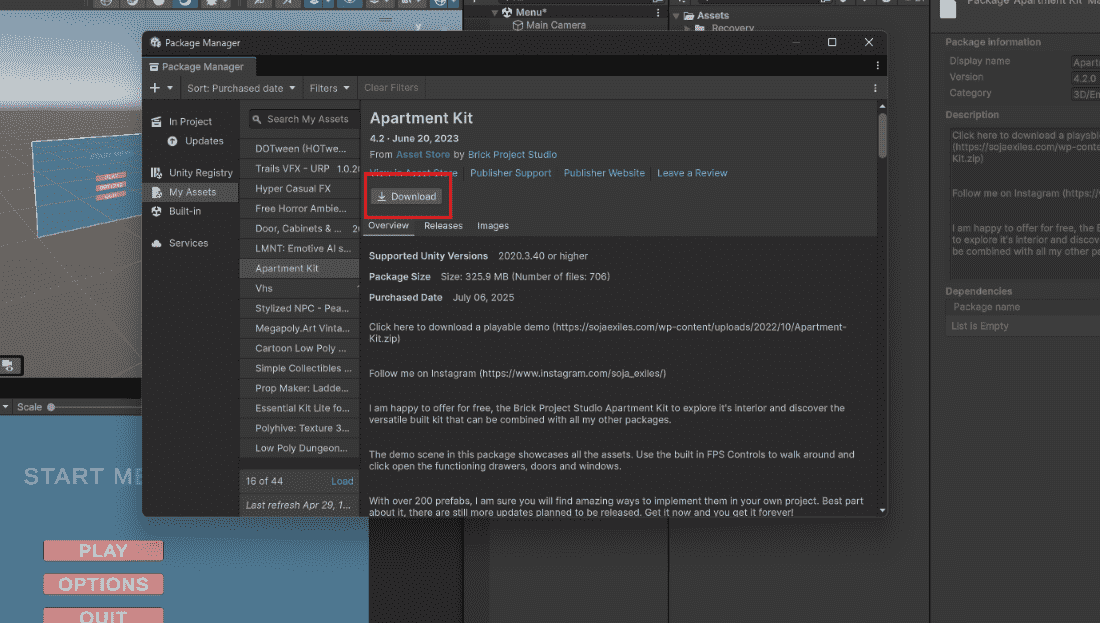
Click Download (or Buy if paid) After download, click Import Select which files to import Click Import 👁 Assest-Store-In-Unity Assest Store In Unity Method 3: Importing Packages (.unitypackage) Sometimes you receive assets as a .unitypackage file. To import:
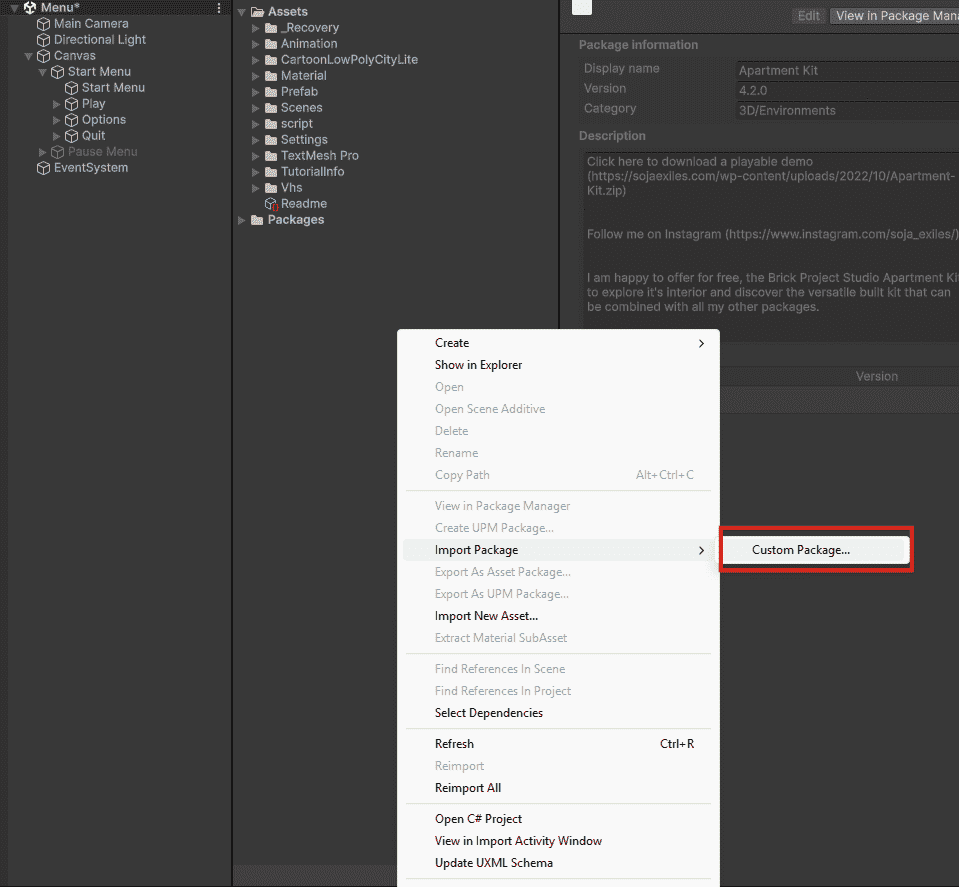
Double-click the .unitypackage file Or go to Assets - Import Package - Custom Package Select the file Choose what to import Click Import 👁 Import-Custom-Package-In-Unity Import Custom Package In Unity Common Import Issues and Fixes Image looks blurry set Filter Mode to Point (no filter) or Bilinear. Model is too small/big adjust Scale Factor in Import Settings. Texture has weird colors change Compression to RGB 32-bit. Script errors after import check if the package requires a specific Unity version.