Lighting determines how objects are illuminated in your scene. Unity calculates how light bounces off surfaces based on their color and material properties.
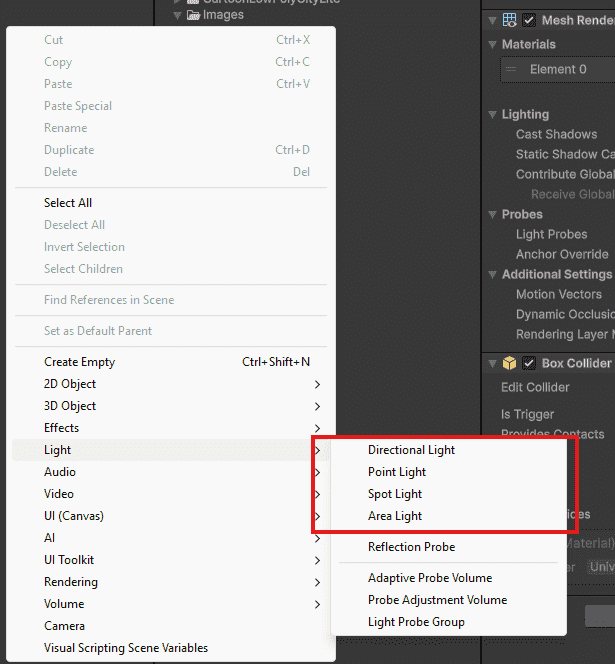
Right-click in Hierarchy -> Light Select the type: Directional, Point, Spot or Area 👁 Lighting-In-Unity Lighting In Unity Types of Lights Unity has four types of lights. Each serves a different purpose.
Directional Light Used for large-scale lighting like sun or moon. Light travels in a single direction (parallel rays). Best for outdoor scenes. Point Light Emits light in all directions from a single point. Similar to a bulb or torch. Best for small, local light sources. Spot Light Emits light in a cone shape. Direction and angle can be controlled. Used for flashlights, headlights, or stage lights. Area Light Emits light from a surface (rectangle or disc). Produces soft and realistic lighting. Works only in baked lighting (not real-time). 👁 Types-of-Lights-In-Unity Types of Lights In Unity Real-time vs Baked Lighting Real-time Lighting Lighting is calculated every frame during runtime. Supports dynamic changes (moving lights, objects, shadows). More performance-heavy. Best for: Moving objects, Player-held lights (flashlight, torch), Day-night cycles. Baked Lighting Lighting is precomputed and stored in textures (lightmaps). Does not change during gameplay. Very performance-efficient. Best for : Static objects (buildings, walls, terrain), Indoor environments, Optimized scenes. How to Create Lighting in Unity Select the objects you want to bake. Enable “Static” in the Inspector. Go to Window -> Rendering -> Lighting. Click “Generate Lighting”. Light Properties Type : Defines the light type - Options: Directional, Point, Spot, Area. Color : Controls the color of the light - Affects the mood and appearance of the scene. Intensity : Controls brightness of the light - 0 = off, 1 = normal, 2+ = very bright. Range : Defines how far the light reaches - Applicable to Point and Spot lights only. Spot Angle : Controls the width of the light cone - Used only with Spot lights. Shadows : Determines shadow type - Options: Hard, Soft, or None. Quick Setup for Different Scenes Outdoor (Day): Directional Light Color: Slightly warm (255, 245, 235) Intensity: 1.2 Shadows: Soft Outdoor (Night): Directional Light Color: Dark blue (80, 100, 150) Intensity: 0.3 Add Point Lights near lamps Indoor (Room): Spot Lights pointing down from ceiling Or Point Lights inside lamp models Intensity: 1 Range: 10 Common Lighting Issues Object is completely black Cause : No light is reaching the object. Fix : Add a light source or increase light intensity. Shadows look jagged Cause : Shadow resolution is too low. Fix : Go to Edit - Project Settings - Quality and increase Shadow Resolution. Scene looks flat Cause : Only one light is used. Fix : Add fill lights from different angles (sides/back). Lights don’t affect object Cause : Material is using an Unlit shader. Fix : Use Standard (or Lit) shader instead of Unlit.