|
VOOZH | about |
|
VOOZH | about |
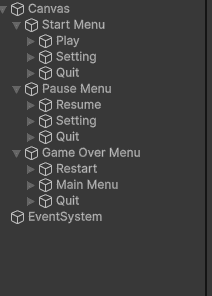
Menus are the bridge between the player and your game. A start menu welcomes the player, a pause menu gives control during gameplay and a game over menu provides closure. This article covers creating all three.
Menus are UI screens that appear at different times during gameplay.
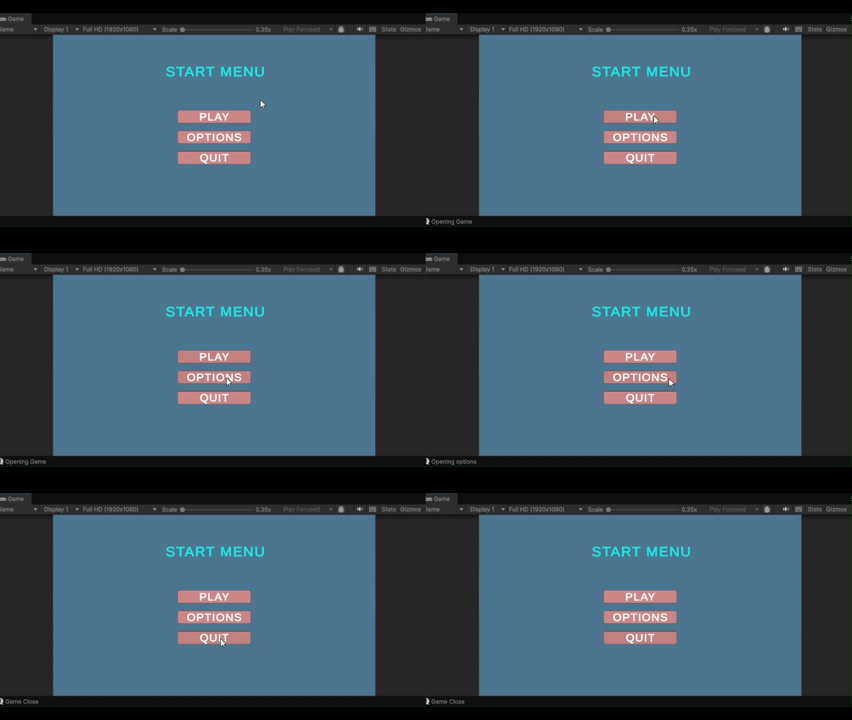
This script handles buttons on the main menu screen.
Output:
SceneManager.LoadScene() loads the game scene. Application.Quit() closes the game (works only in built game, not in Editor).
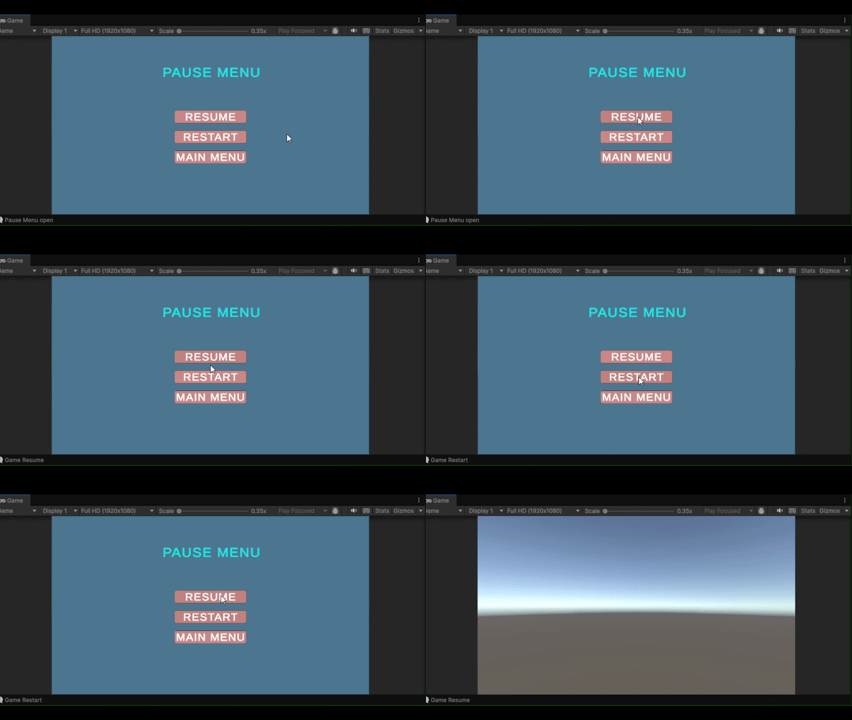
Pause menu appears when player presses Escape during gameplay.
Output:
Press Escape to toggle pause. Cursor.lockState controls mouse visibility – useful for first-person games where cursor should be hidden.
Game over screen appears when player dies. It shows final score and options to replay.
Call ShowGameOver() from your player's health script when health reaches zero. The final score displays before restart options.