VOOZH about

URL: https://www.geeksforgeeks.org/c-sharp/monobehaviour-in-unity/

⇱ MonoBehaviour In Unity - GeeksforGeeks


  • Courses
  • Tutorials
  • Interview Prep

MonoBehaviour In Unity

Last Updated : 4 May, 2026

Unity MonoBehaviour is the base class from which every Unity script is derived, allowing developers to create interactive behaviors for game objects.  When your script inherits from it, Unity can automatically call certain methods (like Start() and Update()) at the right times during gameplay. Example:

  • Every script attached to a GameObject must inherit from MonoBehaviour
  • Without it, Unity would not know when to execute your code
  • MonoBehaviour gives your script a lifecycle – code that runs at specific moments

Use of MonoBehaviour

When you inherit from MonoBehaviour, your script gains access to:

  • Event methods: Start(), Update(), Awake(), etc. (called automatically by Unity)
  • Component methods: GetComponent(), GetComponentsInChildren()
  • GameObject methods: Instantiate(), Destroy(), SetActive()
  • Coroutine support: StartCoroutine(), StopCoroutine()
  • Invoke methods: Invoke(), InvokeRepeating(), CancelInvoke()

When You Don't Need MonoBehaviour

Not every C# class in Unity needs to inherit from MonoBehaviour.

Use MonoBehaviour when:

  • Script needs to be attached to a GameObject
  • Need Unity event methods (Start, Update, OnCollisionEnter)
  • Need to use GetComponent or other Component-related methods
  • Need coroutines

Use plain C# class when:

  • Data storage only (no Unity-specific functionality)
  • Helper or utility functions
  • Manager classes that don't need to be attached
  • Better performance (no Unity overhead)

Example:

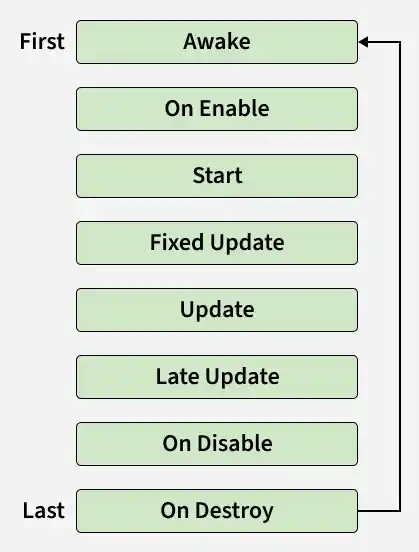
MonoBehaviour Lifecycle (Event Methods)

Unity automatically calls these methods in a specific order:

Initialization phase

  • Awake(): Called when script instance loads (even if disabled)
  • OnEnable(): Called when object becomes enabled
  • Start(): Called before first Update (only if enabled)

Update phase (runs every frame)

  • FixedUpdate(): Fixed time interval (for physics)
  • Update(): Every frame (for input, movement)
  • LateUpdate(): After all Update calls (for camera)

Pause/Disable phase

  • OnDisable(): Called when object becomes disabled
  • OnPause(): Called when game pauses

Cleanup phase

  • OnDestroy(): Called when object is destroyed
👁 MonoBehaviour-Lifecycle-In-Unity
MonoBehaviour Lifecycle In Unity

MonoBehaviour and GameObjects

Every MonoBehaviour script is attached to a GameObject. The script can access its GameObject and Transform directly.

  • gameObject: Reference to the GameObject this script is attached to
  • transform: Shortcut to gameObject.transform
  • this: Reference to the script component itself

Getting Other Components

MonoBehaviour provides easy ways to access other components on the same GameObject:

Enabling and Disabling Scripts

You can enable or disable a MonoBehaviour script without affecting other components.

Difference between disabling GameObject vs Script:

  • gameObject.SetActive(false): Update stops, Renderer hides, Collider stops working
  • enabled = false: Update stops, Renderer visible, Collider still works

Common MonoBehaviour Mistakes

  • Forgetting MonoBehaviour prevents scripts from attaching to GameObjects.
  • Using new with MonoBehaviour is incorrect; use Instantiate() instead.
  • Heavy code in Update() hurts performance since it runs every frame.
  • Missing using UnityEngine causes MonoBehaviour to not be recognized.
  • Accessing components in Awake() too early can fail; use Start() if needed.
Comment
Article Tags:
Article Tags:

Explore