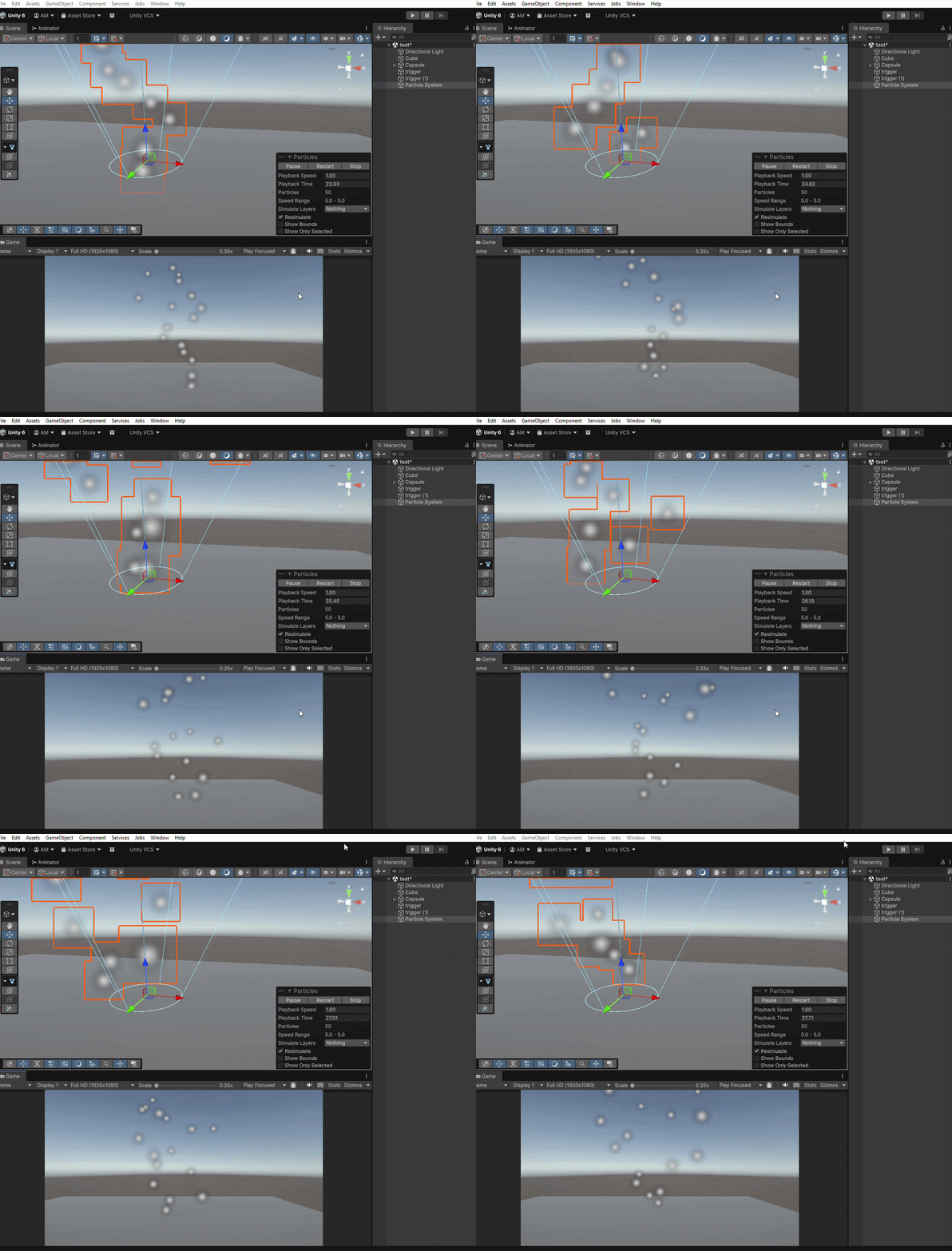
A Particle System is a component that spawns and controls many small objects called particles. Each particle has its own position, velocity, color, size and lifetime.
Creating a Particle System Right-click in Hierarchy -> Effects -> Particle System. A small cloud of white dots appears in Scene view. Press Play to see particles moving. 👁 Creating-Particle-System-In-Unity Creating Particle System In Unity Particle System Inspector Select the Particle System GameObject. The Inspector has many modules (collapsible sections):
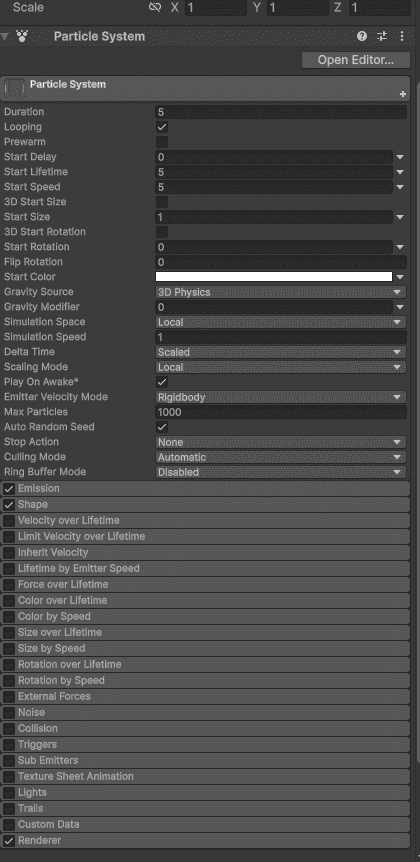
Main: Controls duration, looping, start speed, start size, and max particles. Emission : Controls how many particles spawn per second. Shape : Defines the spawn area shape (cone, sphere, box, etc.). Color over Lifetime : Controls how particle color changes as it ages. Size over Lifetime : Controls how particle size changes over time. Renderer : Determines which material or texture the particle uses. 👁 Particle-System-Inspector-In-Unity Particle System Inspector In Unity Example 1: Dust Particles (Simple) Create a simple dust effect for a character landing.
Step 1 : Create Particle System (Hierarchy - Effects - Particle System).
Step 2 : In Main module:
Duration = 0.5 (plays for half second). Looping = Unchecked (plays once). Start Speed = 2. Start Size = 0.3. Max Particles = 20. Step 3 : In Emission module:
Rate over Time = 0 (disable). Click "+" to add a Burst. Burst Time = 0. Count = 20. Step 4 : In Shape module:
Shape = Hemisphere. Radius = 0.5. Step 5 : In Color over Lifetime module:
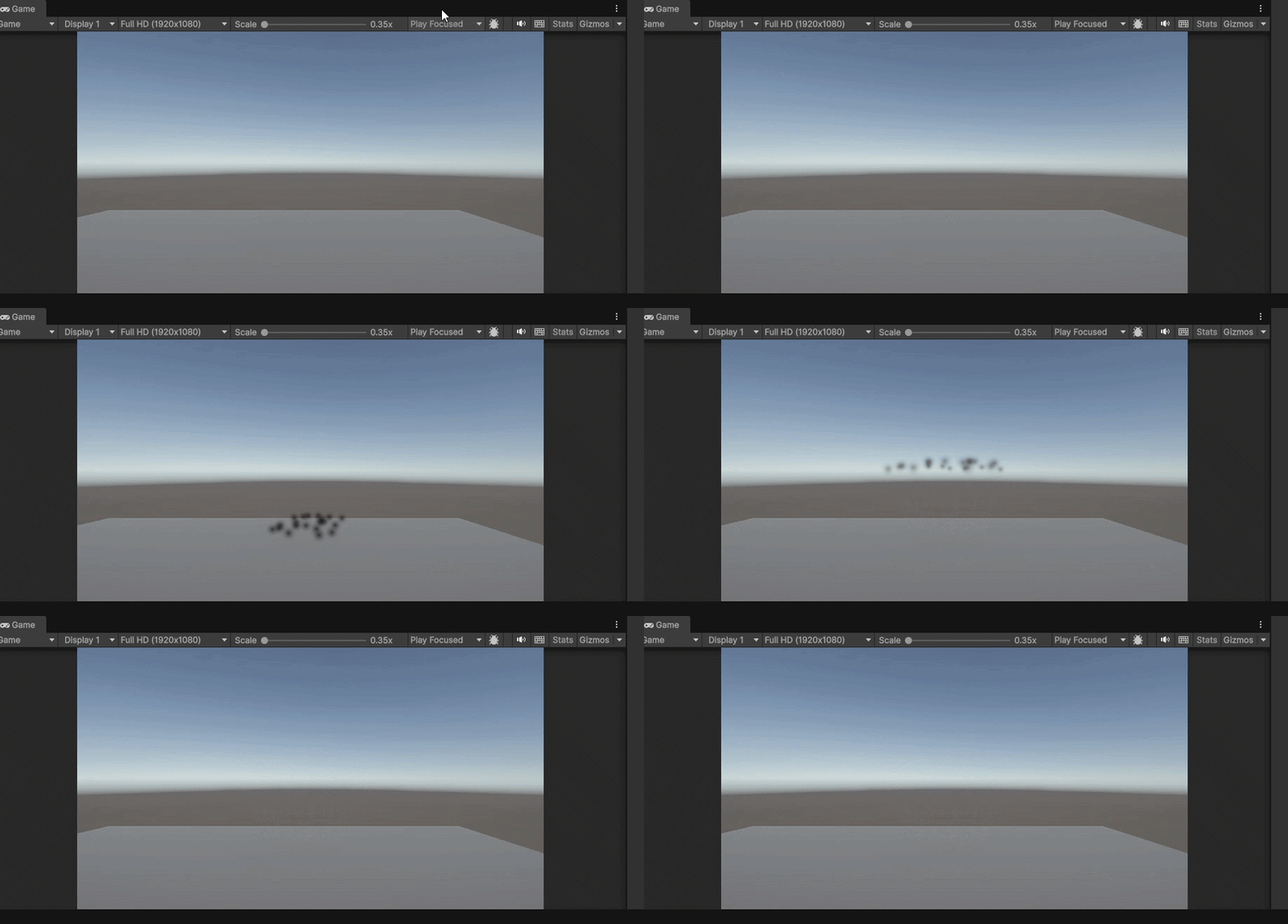
Check the box. Click gradient bar. Set color from brown to transparent. 👁 Dust-Particles-In-Unity Dust Particle In Unity Playing Particle from Script To play the dust effect when character lands:
Important Particle Settings Setting Location Effect Looping Main Effect repeats (fire, rain) or plays once (explosion) Start Lifetime Main Defines how long each particle lives (in seconds) Start Speed Main Sets the initial speed of particles Rate over Time Emission Controls number of particles spawned per second Burst Emission Spawns particles instantly in a burst Gravity Modifier Main Applies gravity to particles (negative = upward motion)
Changing Particle Texture By default, particles are white dots. Use any image as particle.
Import a PNG texture (star, smoke, leaf) Select Particle System - Renderer module Drag texture into "Material" slot Common Use Cases Fire Cone shape emission Colors: orange - red fade Moves upward (rising effect) Smoke Sphere shape emission Particles grow larger over time Gradually fade out Rain Box shape emission High speed downward movement Small particle size