VOOZH about

URL: https://www.geeksforgeeks.org/c-sharp/player-movement-in-unity/

⇱ Player Movement In Unity - GeeksforGeeks


  • Courses
  • Tutorials
  • Interview Prep

Player Movement In Unity

Last Updated : 4 May, 2026

Player movement is the core mechanic of most games. It allows the player to control a character or object using keyboard, mouse, or touch input. Unity provides multiple ways to handle movement, each suited for different game types.

Movement Methods in Unity

Method 1: Transform.Translate

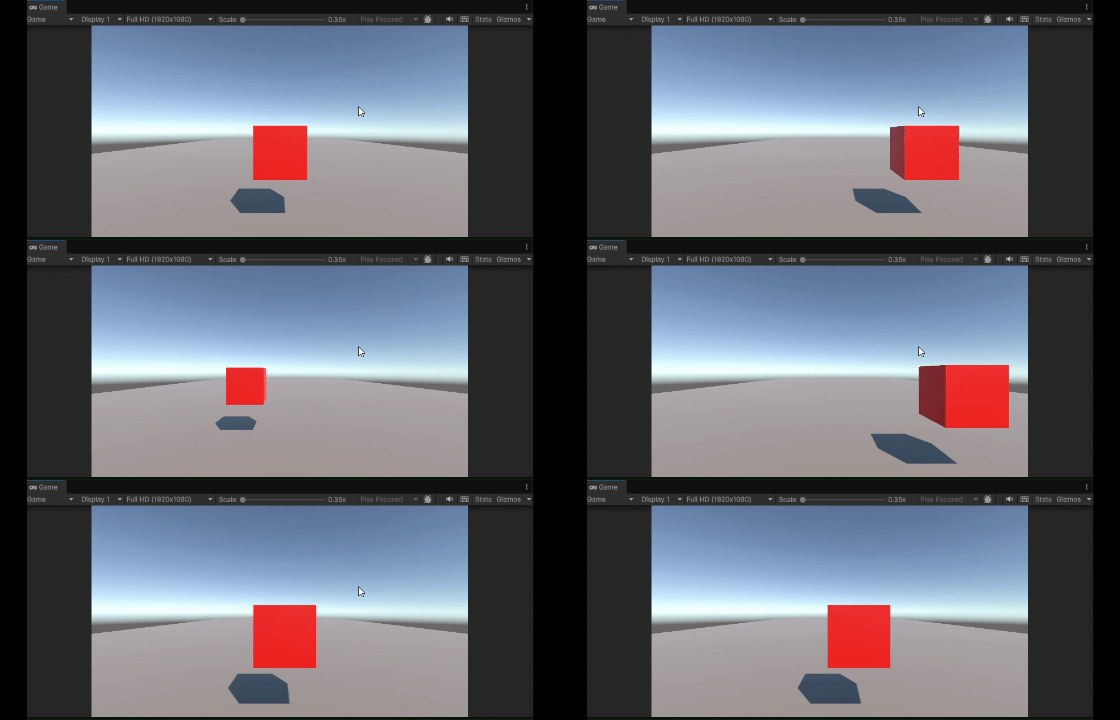
This method directly changes the object's position every frame. It does not use physics, so collisions won't work automatically.

Example:

Output:

👁 using-translate-movement
Transform.Translate
  • No Rigidbody required
  • Use Time.deltaTime for frame-rate independent movement
  • Best for 2D games and projectiles

Method 2: Rigidbody.velocity

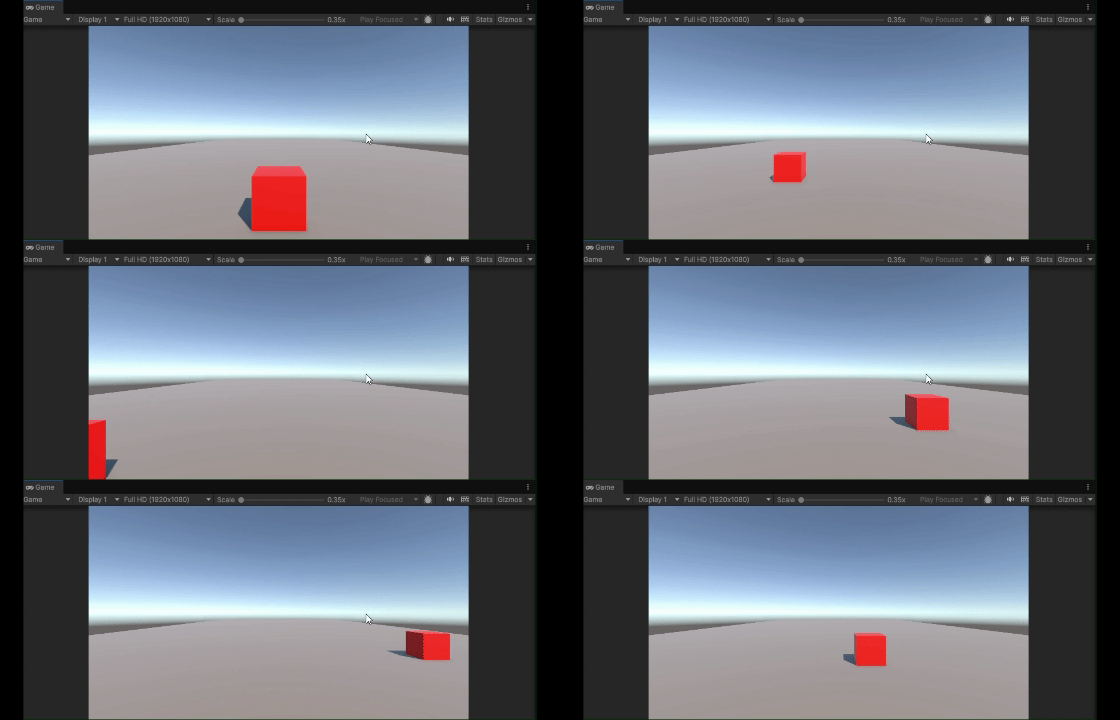
This method uses Unity's physics system. The object will collide with walls and respond to other physics objects.

Example:

Output:

👁 using-rigidbody-movement
Rigidbody.Velocity
  • Requires Rigidbody component
  • Use FixedUpdate() instead of Update()
  • Objects will stop when hitting walls

2D Movement

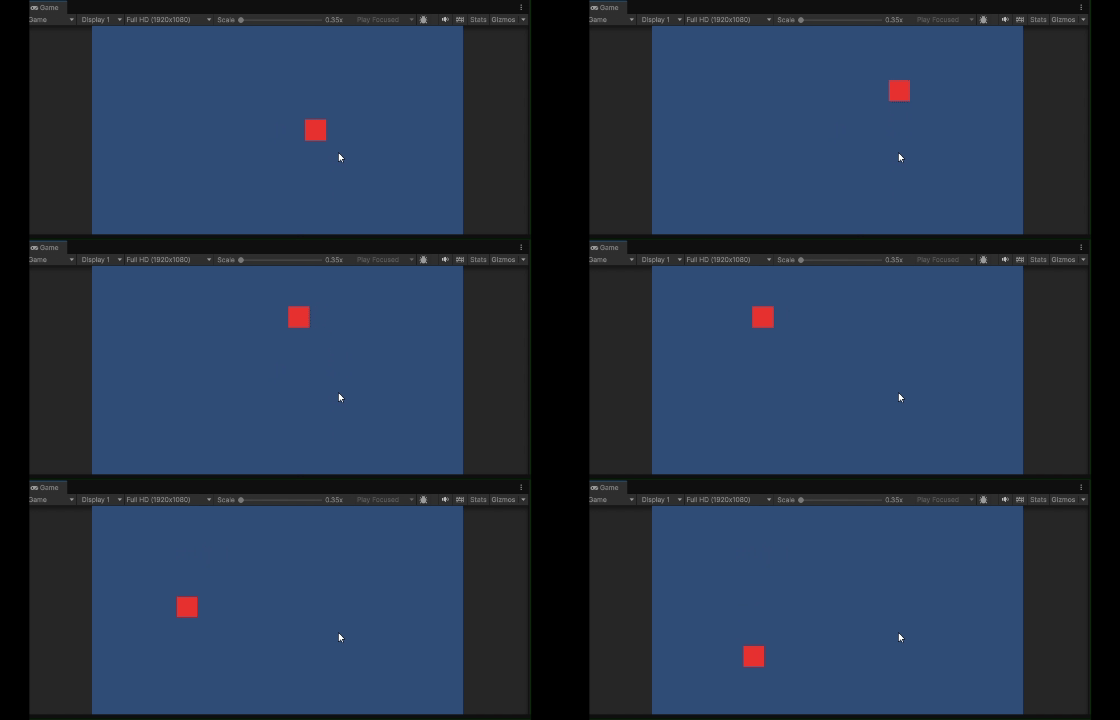
For 2D games, replace Rigidbody with Rigidbody2D:

Example:

Output:

👁 2d-movement
2D Movement

Input Axes

  • "Horizontal": Returns -1 (left/A), 0 (idle), 1 (right/D)
  • "Vertical": Returns -1 (down/S), 0 (idle), 1 (up/W)

Key Points to Remember

  • Transform.Translate + Update: Simple movement, no physics
  • Rigidbody.velocity + FixedUpdate: Physics movement, instant response
  • Rigidbody.AddForce + FixedUpdate: Physics movement, gradual acceleration
  • Always use Time.deltaTime with Translate movement
  • Always use FixedUpdate when working with Rigidbody
Comment
Article Tags:
Article Tags:

Explore