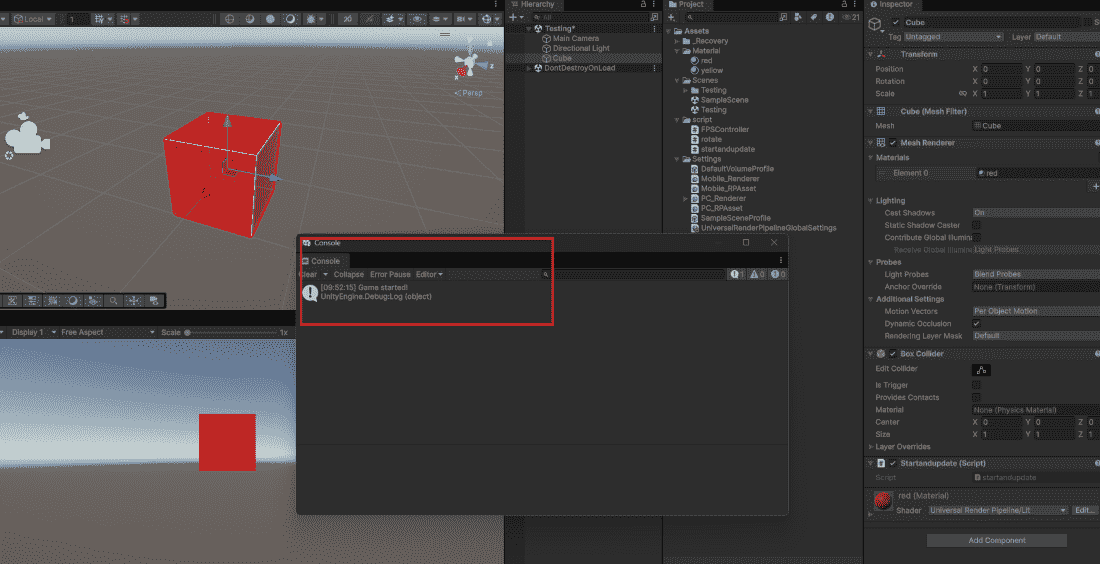
Among all the event methods that MonoBehaviour provides, Start() and Update() are the most commonly used. Almost every Unity script you write will include one or both of these methods. Understanding when and how to use them is essential for writing effective game code.
Understanding the Start() Method The Start() method runs once, before the first frame of the game, but only if the script is enabled.
Example :
Runs automatically – you never call it manually Only runs if the script component is enabled Perfect for one-time setup and initialization 👁 Start-Method-In-Unity Start Method In Unity Use Cases Use Start() for any code that needs to run once before the game begins:
Initializing variables (health, score, ammo) Finding and caching references to other GameObjects or components Setting up initial game state Loading saved data Playing an introduction sound or animation Difference Between Awake() and Start() Both run once, but at different times:
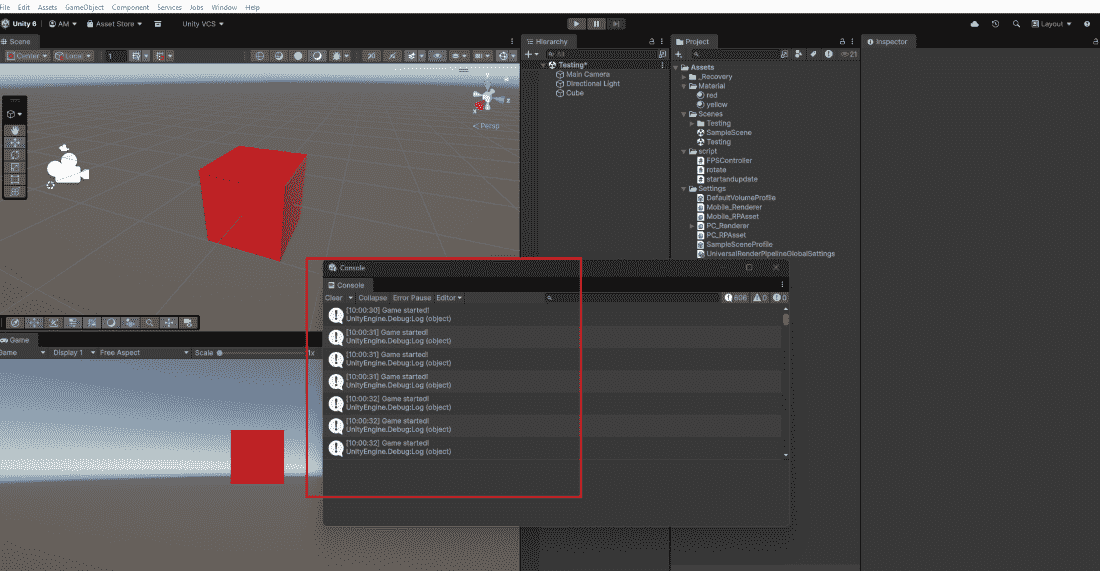
Awake(): Runs as soon as script instance loads, even if script is disabled. Use for self-initialization. Start(): Runs before first Update frame, only if script is enabled. Use for cross-script setup. Understanding the Update() Method The Update() method runs once per frame. This means it can run 30, 60, or even 144 times per second depending on the player's frame rate.
Runs automatically every frame Frame rate dependent (runs more often on faster computers) Perfect for continuous actions like input, movement, and checks 👁 Update-Method-In-Unity Update Method In Unity Use Cases Use Update() for any code that needs to run continuously:
Reading player input (keyboard, mouse, touch) Moving non-physics objects Checking win/loss conditions Updating timers and cooldowns Playing idle animations Following or tracking targets Operations to Avoid in Update() Since Update() runs every frame, heavy operations can kill performance:
Heavy calculations (use once and store the result) Finding objects with GameObject.Find() (use Start() instead) Loading assets or data (use Start() or async methods) Complex pathfinding calculations (use coroutines or timers) Debug logging every frame (use condition checks) Comparison of Update, FixedUpdate and LateUpdate Unity provides three update methods for different purposes:
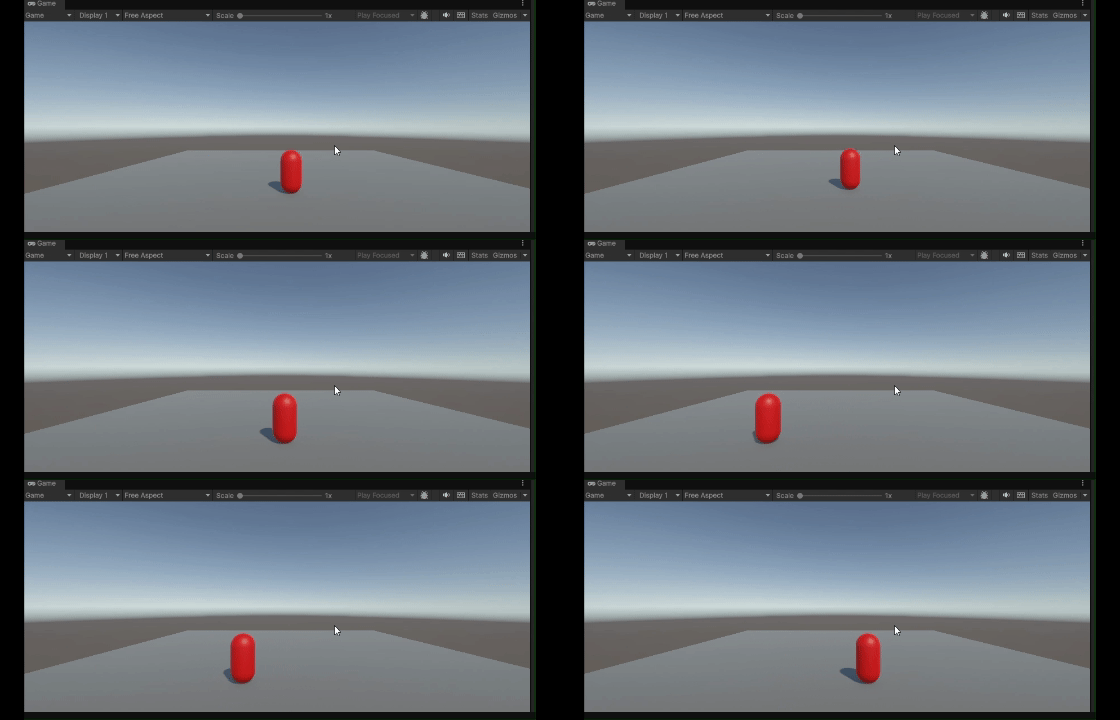
Update(): Every frame. Use for input, non-physics movement, timers. FixedUpdate(): Fixed time interval (default 0.02 seconds). Use for Rigidbody physics movement. LateUpdate(): After every Update completes. Use for camera follow, effects. Combining Start() and Update() in Practice Most scripts combine both methods effectively:
Example :