VOOZH about

URL: https://www.geeksforgeeks.org/c-sharp/trigger-events-in-unity/

⇱ Trigger Events In Unity - GeeksforGeeks


  • Courses
  • Tutorials
  • Interview Prep

Trigger Events In Unity

Last Updated : 4 May, 2026

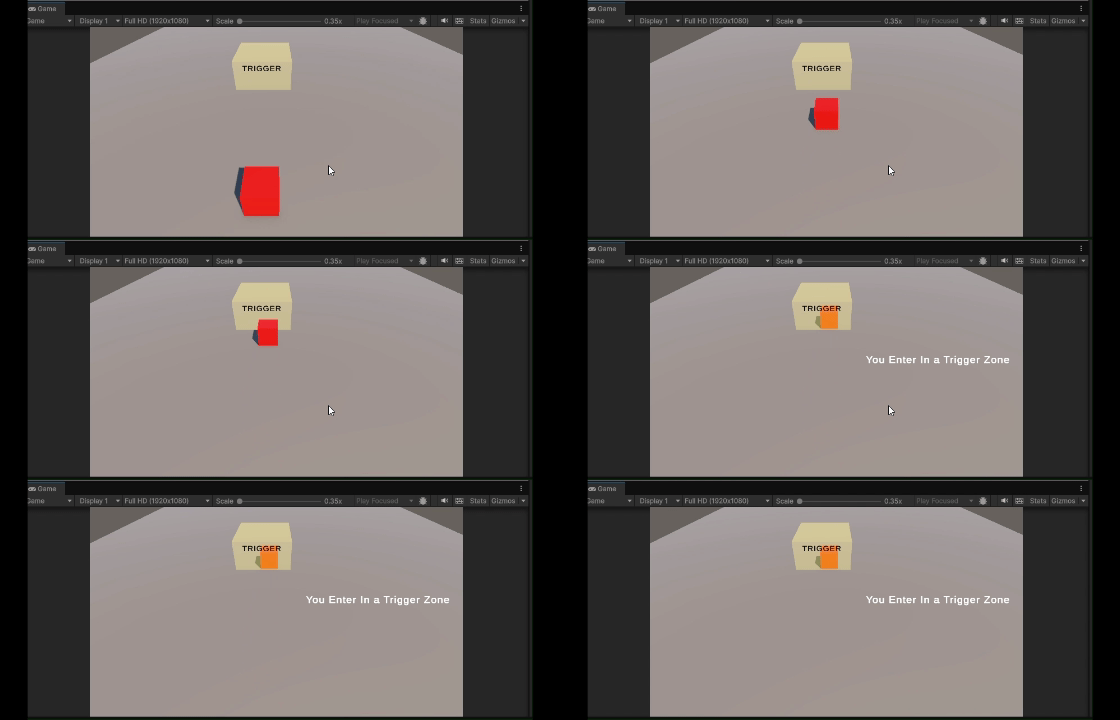
Trigger events are Unity's way of telling you when an object enters, stays inside, or exits a trigger zone. The objects pass right through each other with no bouncing, no stopping, no physics reaction.

  • Requires Collider marked as Is Trigger
  • Objects don't physically block each other
  • Perfect for pickups, zones and area detection
👁 Trigger-Events-In-Unity
Trigger Events In Unity

Trigger Event Methods

Unity provides three trigger events that you can use in your scripts. Example:

  • OnTriggerEnter: Most commonly used (collecting, activating, damaging)
  • OnTriggerStay: Use for continuous effects (poison zone, healing area)
  • OnTriggerExit: Use for leaving detection (exit message, disable effect)

Collider Parameter

It gives you access to the object that entered. Example:

  • other.gameObject: The GameObject that entered the trigger
  • other.tag / other.CompareTag(): Check what type of object
  • other.GetComponent<T>(): Access components on the entering object

Setting Up a Trigger

To create a trigger zone:

  1. Create a GameObject (Cube, Sphere, or empty)
  2. Add a Collider component
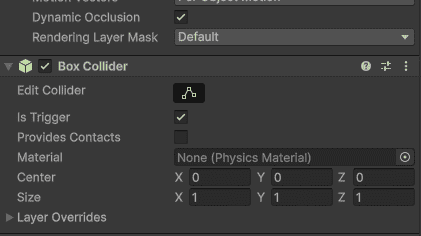
  3. Check the Is Trigger checkbox in Inspector
  4. Adjust size and position of the collider
  5. (Optional) Disable Mesh Renderer to make it invisible
👁 Box-Collider-In-Unity
Trigger is check In Box Collider

Requirements for Trigger Events

For OnTriggerEnter/Stay/Exit to work:

  • At least one object must have a Collider marked as Is Trigger
  • The entering object needs a Collider (can be any type)
  • Rigidbody is optional (unlike collision events)

This makes triggers more flexible than collisions:

  • Trigger can detect objects with or without Rigidbody
  • Trigger itself doesn't need Rigidbody at all

Practical Examples

Example 1: Coin Collection

Example 2: Checkpoint Activation

Example 3: Door that opens when player approaches

When to Use Which between Trigger and Collision

Use Triggers when:

  • Objects should pass through each other
  • Collecting items (coins, power-ups)
  • Area detection (checkpoints, quest zones)
  • Damage zones where player walks through
  • Dialogue activation when entering an area

Use Collisions when:

  • Objects should physically block each other
  • Walls, floors, obstacles
  • Pushable objects
  • Platform ground detection

When both can be used together:

  • Same object can have both a solid Collision and a separate Trigger zone
  • Example: Enemy has solid body (Collision) + detection radius (Trigger)

Layer Settings with Triggers

Use layers to control which objects trigger your zones:

  1. Assign different layers to objects (Player, Enemy, Projectile)
  2. Edit - Project Settings - Physics
  3. Set Layer Collision Matrix

Example use cases:

  • Trigger only detects Player, ignores Enemies
  • Bullet trigger hits Enemies but passes through Allies
  • Different triggers for different object types

Performance Considerations

  • Keep trigger code fast – OnTriggerStay runs every frame
  • Use CompareTag() instead of comparing tag strings directly
  • Avoid GameObject.Find() inside trigger methods (cache references instead)
  • For many triggers, use layers to filter unnecessary objects early

Common Mistakes

  • Using OnCollisionEnter when Is Trigger is checked – Won't work, use OnTriggerEnter
  • Forgetting to enable Is Trigger – OnTrigger methods won't fire
  • Expecting physical blocking with triggers – Triggers don't block movement
  • Heavy code in OnTriggerStay – Runs every frame, keep it lightweight
  • Not disabling trigger when object is destroyed – Can cause null reference errors
Comment
Article Tags:
Article Tags:

Explore