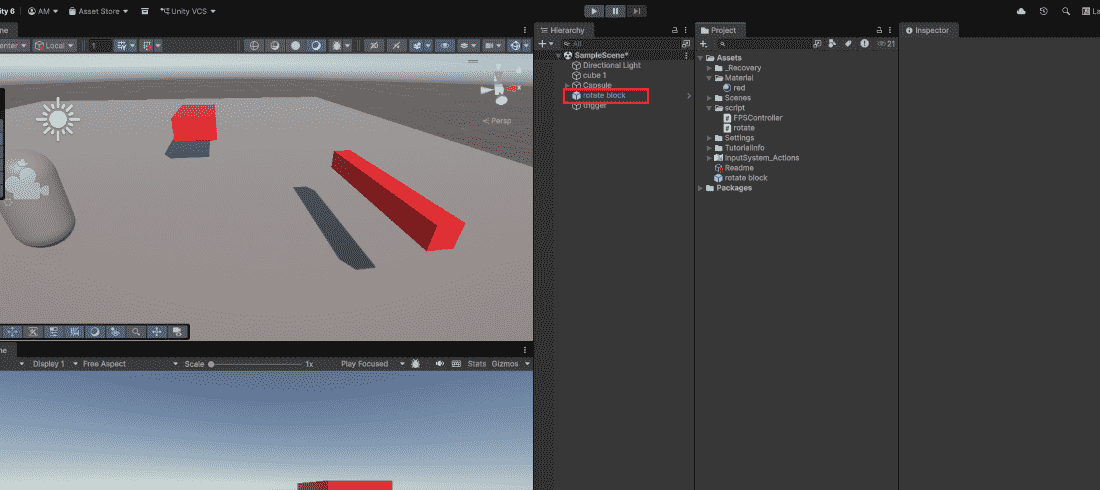
A Prefab (short for Prefabricated) is a reusable asset that stores a GameObject complete with all its components, properties, and child objects.
Think of it as a blueprint or template for creating copies of a GameObject. Changes made to the Prefab automatically apply to all instances (if you choose). Prefabs appear blue in the Hierarchy window (regular GameObjects are black). 👁 Prefab-In-unity Prefab In Unity Use of Prefabs Reusability : Create once, use many times across multiple scenes. Consistency : All instances remain identical unless you override properties. Efficiency : Change one Prefab and all instances update automatically. Dynamic spawning : Instantiate (create) Prefabs during gameplay for enemies, bullets, power-ups. Creating a Prefab There are two ways to create a Prefab:
Method 1: Drag and Drop Create a GameObject in the scene. Example : a Cube with a Rigidbody and red material. Drag it from the Hierarchy into the Project window. The GameObject turns blue, indicating it is now a Prefab instance. Method 2: Create Empty Prefab First Right-click in Project window - Create - Prefab. Name your Prefab. Drag a GameObject from Hierarchy onto this empty Prefab. Prefab Asset vs Prefab Instance Prefab Asset Prefab Instance Stored in the Project window (like any asset) Placed in scenes (like any GameObject) Acts as the master blueprint A copy of the blueprint Changes affect all instances Changes can be unique per instance Blue icon in the Project window Blue name in the Hierarchy
Types of Prefabs Unity has three types of Prefabs:
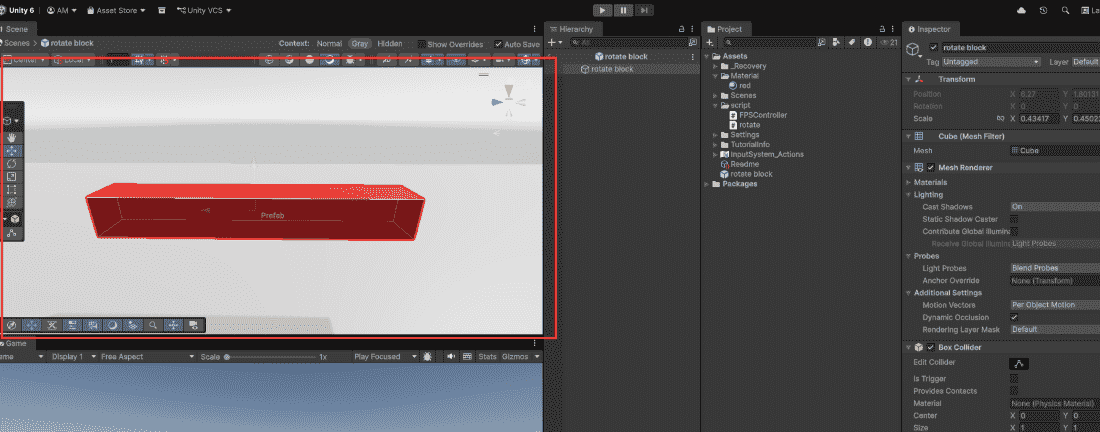
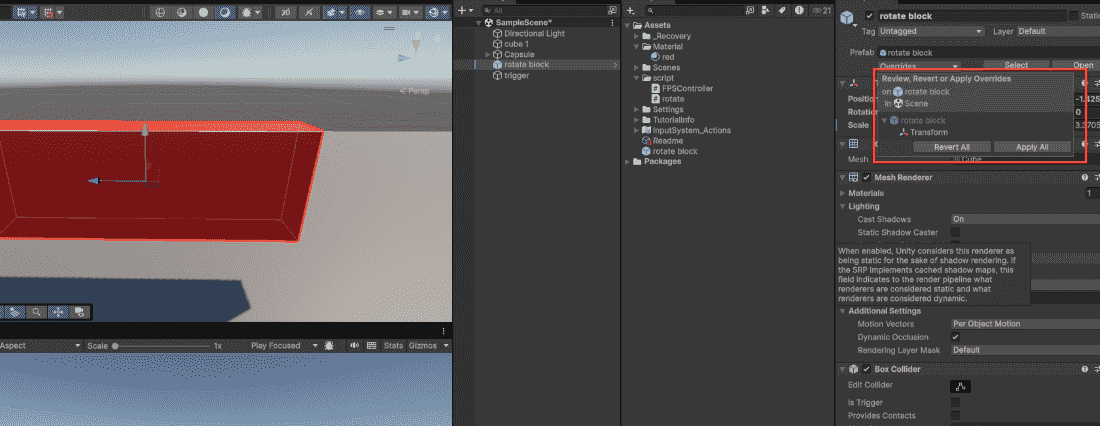
1. Regular Prefab A simple standalone Prefab. No connection to other Prefabs. Best for simple objects like bullets or pickups. 2. Nested Prefab A Prefab that contains another Prefab inside it. Example: A Car Prefab contains Wheel Prefabs. Changes to Wheel update all cars using that wheel. 3. Variant Prefab A Prefab based on another Prefab. Inherits all properties but can override specific ones. Example: Enemy (base) - Boss Enemy (variant with more health). Modifying Prefabs Method 1: Edit the Prefab Asset directly Double-click a Prefab in Project window. Unity opens Prefab Mode (isolated view). Make changes – they apply to all instances. Click "Save" or close the Prefab tab. 👁 Prefab-Mode Prefab Mode Method 2: Edit an instance and apply changes Select a Prefab instance in the scene. Make changes in the Inspector. Click Overrides dropdown (appears when changes are made). Click Apply All to save changes to the Prefab Asset. 👁 Revert-All-In-Prefab Revert All In Prefab Overriding Prefab Properties Sometimes you want one instance to be slightly different from others:
Change a property on a Prefab instance – the value turns blue bold. This means the instance has an override. Overrides don't affect the original Prefab or other instances. To revert an override: Right-click the overridden property - Revert. Or use Overrides dropdown - Revert All. Unpacking Prefabs If you want to break the connection between an instance and its Prefab Asset:
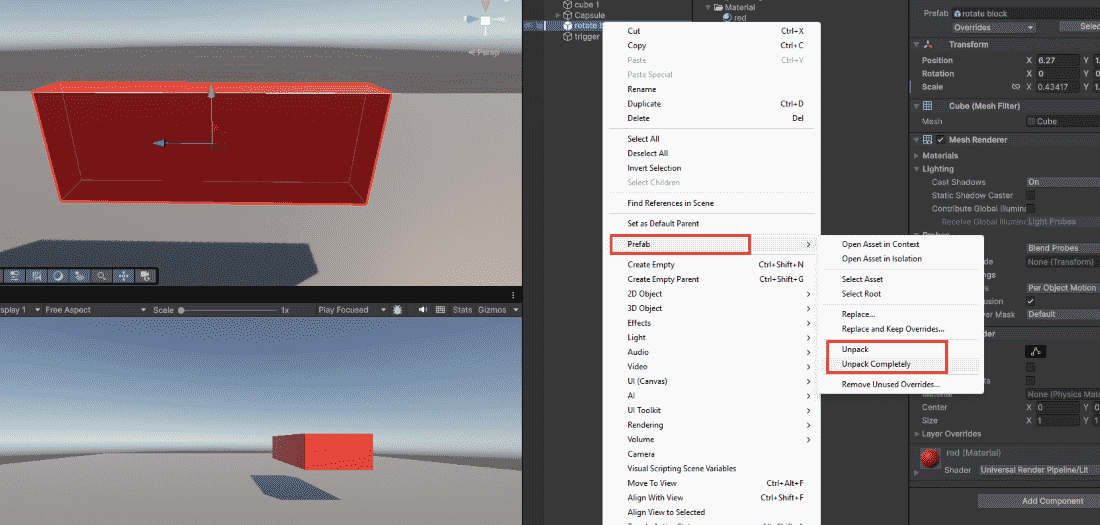
Unpack : Breaks the link; instance becomes a regular GameObject. Unpack Completely: Also unpacks all nested Prefabs inside. How to unpack: Right-click on a Prefab instance in Hierarchy. Select Prefab - Unpack (or Unpack Completely). 👁 Unpacking-a-Prefab Unpacking a Prefab Instantiating Prefabs in Scripts This is how you spawn objects during gameplay (enemies, bullets, power-ups):
Instantiate() is the method used to create copies of a Prefab during gameplay. The first parameter is the Prefab to spawn. The second is the position in world space. The third is the rotation (use Quaternion.identity for no rotation). The spawned object appears in the scene and behaves exactly like the Prefab blueprint.
Common Use Cases for Prefabs Enemies: Spawn multiple enemies throughout a level Bullets and projectiles: Create new bullets every time player shoots Pickups: Health packs, ammo, coins Environment pieces: Trees, rocks, buildings (modular level design) UI elements: Buttons, panels, popup messages Particle effects: Explosions, fire, smoke (spawn when needed) Common Mistakes Modifying an instance only affects that object; use Prefab Mode or apply changes to update all. Changes not applied to the prefab are lost when the instance is deleted. Creating prefabs late won’t link existing objects automatically. Deep prefab nesting becomes difficult to manage.