VOOZH about

URL: https://www.geeksforgeeks.org/c-sharp/unity-transform-position-rotation-scale/

⇱ Unity Transform (Position, Rotation, Scale) - GeeksforGeeks


  • Courses
  • Tutorials
  • Interview Prep

Unity Transform (Position, Rotation, Scale)

Last Updated : 4 May, 2026

Every GameObject in Unity has a Transform component. It is the only component that cannot be removed because it defines where the object is, how it is oriented, and how big it is in the game world.

What is Transform?

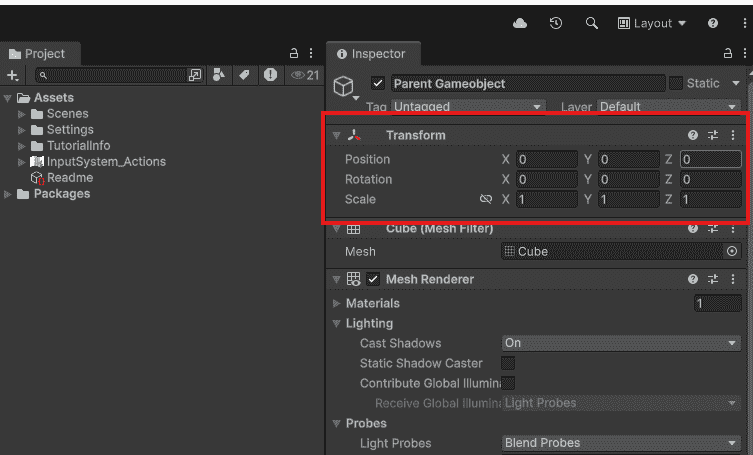
The Transform component stores three fundamental properties of a GameObject:

  • Position: Where the object is located in 3D space (example: 5 units right, 2 units up)
  • Rotation: Which direction the object is facing (example: 90 degrees to the right)
  • Scale: How big or small the object is (example: twice the original size)
👁 Transform-component-in-unity
Transform component in unity

Position

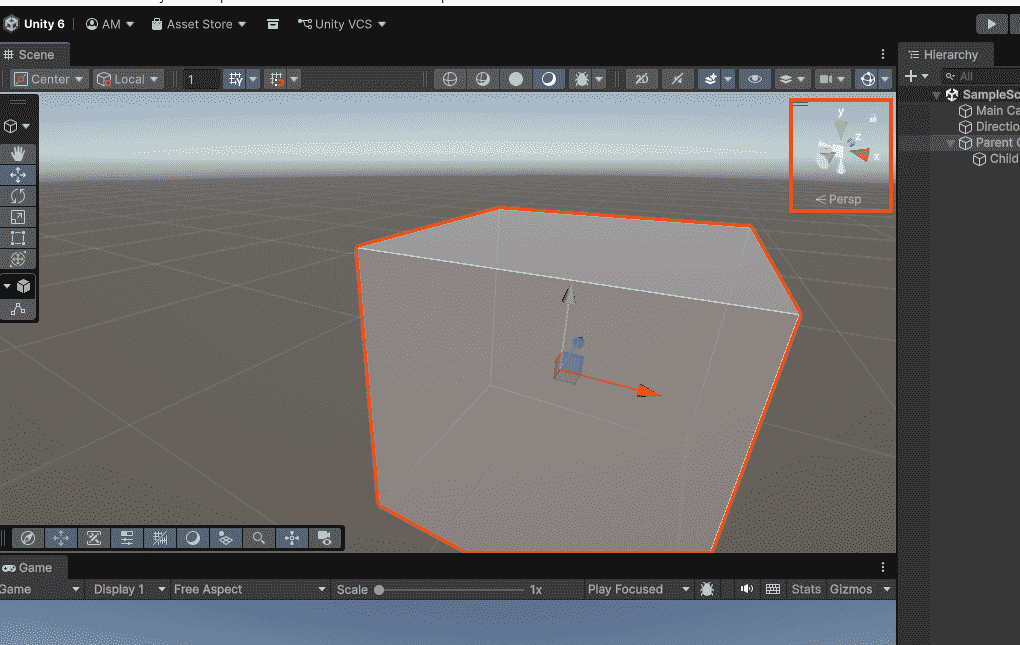
Unity uses a 3D coordinate system with three axes:

  • X-axis: Left (-) to Right (+)
  • Y-axis: Down (-) to Up (+)
  • Z-axis: Back (-) to Forward (+)
👁 position-3d-gizmo
3D coordinate system

Note: For 2D games X is horizontal, Y is vertical, Z is ignored (keep at 0).

Common position values:

  • (0, 0, 0): The origin, center of the game world
  • (5, 0, 0): 5 units to the right
  • (-3, 2, 0): 3 units left, 2 units up
  • (0, 0, 10) : 10 units forward

Rotation

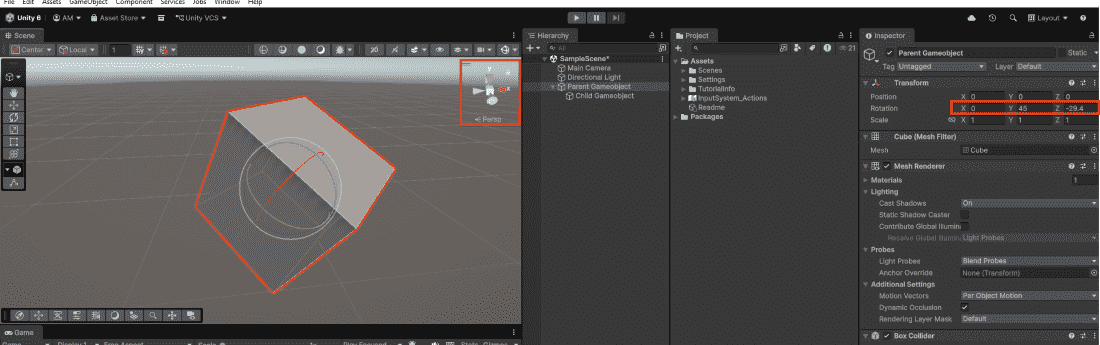
Rotation is measured in degrees (not radians). Each axis can be rotated independently:

  • X Rotation: Tilt up or down (pitch)
  • Y Rotation: Turn left or right (yaw)
  • Z Rotation: Roll sideways (roll)
👁 rotation-in-unity
Rotation In Unity

Common rotation values:

  • (0, 0, 0): Default orientation
  • (0, 90, 0): Turned 90 degrees to the right
  • (0, 180, 0): Facing the opposite direction
  • (45, 0, 0): Tilted forward 45 degrees

Note: Rotations can exceed 360° or go negative. (0, 720, 0) means two full spins, visually same as (0, 0, 0).

Scale

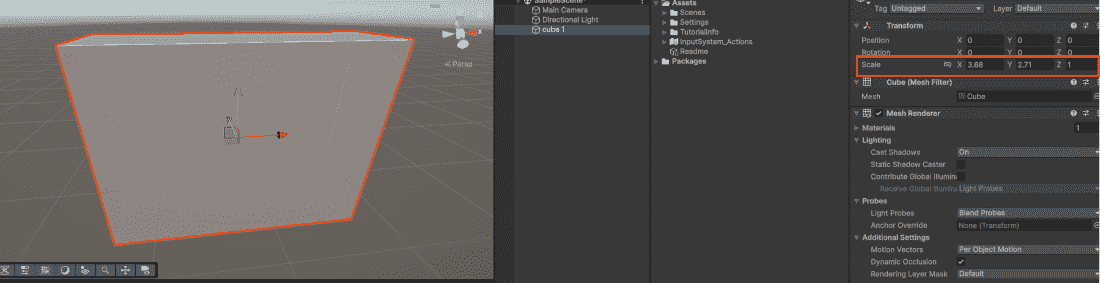
Scale determines the size of a GameObject relative to its original size:

  • Scale (1, 1, 1): Original size
  • Scale (2, 2, 2): Twice as large in all directions
  • Scale (0.5, 0.5, 0.5): Half the original size
👁 Scale-in-unity-
Scale In Unity

Scale variations and their effects:

  • (2, 1, 1): Stretched wide horizontally
  • (1, 3, 1): Stretched tall vertically
  • (1, 1, 0.5): Flattened along depth
  • (-1, 1, 1): Flipped horizontally (mirrored)

Note: Negative scale can cause issues with lighting and collision. Use with caution.

Moving Objects in the Scene View

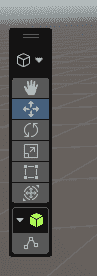
Unity provides five tools for transforming objects visually:

  • Move (Hand) – Q: Pan the camera view
  • Move Tool – W: Move objects (changes Position)
  • Rotate Tool – E: Rotate objects (changes Rotation)
  • Scale Tool – R: Resize objects (changes Scale)
  • Rect Tool – T: Move/scale 2D UI elements
👁 Transform-component-tools-in-unity
Transform component tools in unity

Manipulating Transform from Scripts

Here are the most common ways to work with Transform in C#:

The transform variable is always available in any Unity script and refers to the Transform component of the GameObject the script is attached to. Vector3 is used for position, rotation angles and scale values. For rotation, Quaternion.Euler() converts simple degree angles into Unity's internal rotation format.

World Space vs Local Space

Understanding the difference between these two is crucial:

  • World Space: Absolute position in the game world. Use when moving an object to a fixed location like (0, 0, 0).
  • Local Space: Position relative to the parent. Use when attaching a hat to a character's head.

Example:

World space places the object at an absolute coordinate in the game world. Local space places the object relative to its parent's position – if the parent moves, the child moves with it. For objects without a parent, local space and world space behave the same.

Common Mistakes

  • Using degrees directly in transform.rotation: Rotation uses Quaternions, not Vector3. Use Quaternion.Euler() instead.
  • Modifying transform.position.x directly: Position is a struct, assign a whole new Vector3 instead.
Comment
Article Tags:
Article Tags:

Explore