|
VOOZH | about |
|
VOOZH | about |
System Restore is a Windows feature that saves your system settings at a specific point in time, allowing you to revert your PC back to a previous stable state if something goes wrong. It restores configuration settings not personal files making it useful for fixing crashes, errors, or unstable system behavior. In this guide, you’ll learn how to create a System Restore point in Windows 10.
Step 1: Open the start menu by pressing the [Win] key or clicking the bottom left section of the desktop.
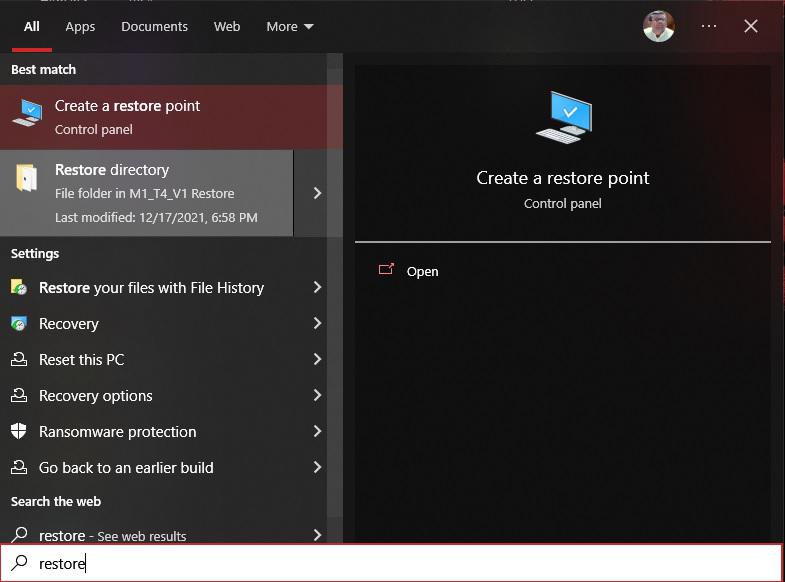
Step 2: Type "restore" in the search box:
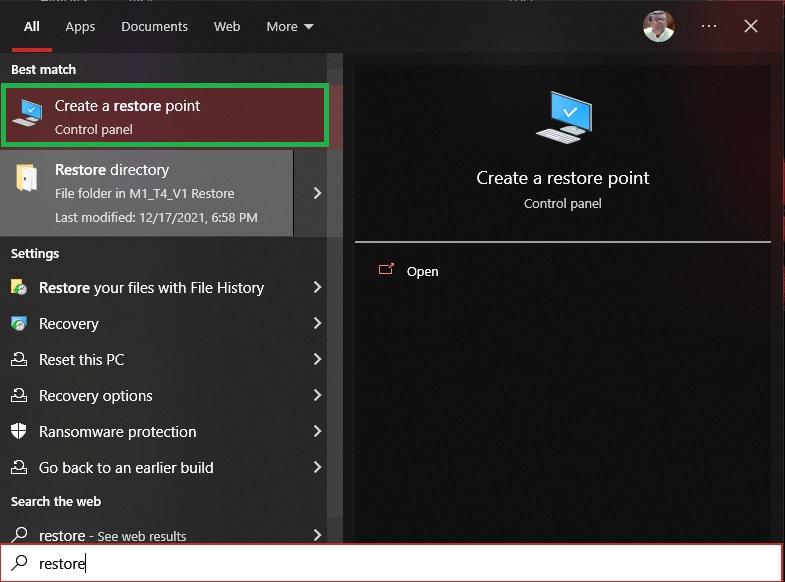
Step 3: Select the Create a Restore Point option from the menu come after following the previous step.
Step 4: A new window would have appeared looking similar to this:
Step 5: Now select the drive for which you are wanting to create a restore point, and then click on Create
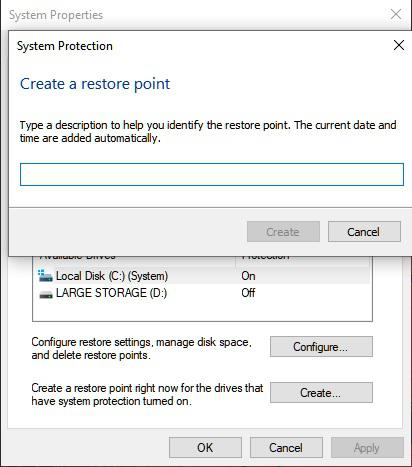
Step 6: A new dialog box would have appeared, seeking the name you are wanting to give to that restore point
Step 7: Enter the name of the restore point (I have named it as the date this was performed) and Press the Create button.
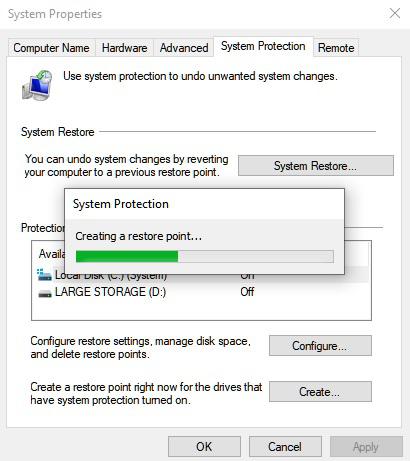
Step 8: The process of Restore Point creation has now begun.
After the process has completed the user would be informed using the following message
Many users find System Protection OFF by default.
You can add: