|
VOOZH | about |
|
VOOZH | about |
Tailwind CSS simplifies web design with its utility-first approach. Creating websites that look good is important in web development. Tailwind CSS is a tool that helps make this easier. One important thing to learn is how to put space between elements.
Below are the approaches to Add Horizontal & Vertical Space Between Elements in Tailwind CSS:
Table of Content
We can add horizontal and vertical spacing between elements using Margin Classes in CSS. Margin utility classes in Tailwind CSS allow you to add space around an element. They provide options for adding margin on all sides or specific sides. and replace {size} with a numeric value to specify the desired margin size in the syntax.
<div class="m-{size}"></div>Example: Illustration of Adding Space Using Margin Utility Classes.
Output:
👁 Screenshot-2024-03-28-104938
We use padding utility classes in Tailwind CSS to make space inside elements. These classes let us choose where to add padding, either all around or just on certain sides. and Replace {size} with a numeric value to specify the desired padding size in the syntax.
<div class="p-{size}"></div>Example: Illustration of Adding Spaces using Padding Utility Classes.
Output:
👁 Screenshot-2024-03-28-105337
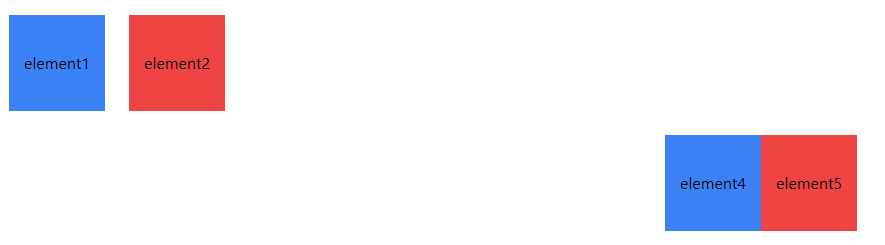
We use flexbox utility classes in Tailwind CSS to easily arrange elements with precise spacing. With flexbox properties, we can control both horizontal and vertical spacing between elements effectively.
<div class="flex justify-{value} items-{value}"></div>Example: Illustration of Adding Space Using Flexbox Utility Classes.
Output: