|
VOOZH | about |
|
VOOZH | about |
Tailwind CSS is a popular CSS framework that simplifies the process of designing user interfaces with its utility-first approach. Vite is a build tool that provides a fast development experience for modern web projects. Together, they make front-end development efficient and enjoyable.
In this article, we will walk through the steps to set up Tailwind CSS with a Vite.js application. Before you start, ensure that you have Node.js and npm installed. If not, refer to the installation guides for Node.js on Windows/Linux.
Follow the below steps to set up a tailwind CSS with the Vite.js application:
Step 2: Install npm necessary files
npm init -yStep 3: Installing tailwind CSS along with vite.js
npm install -D tailwindcss postcss autoprefixer viteStep 4: Create Tailwind config file
npx tailwindcss init -ppostcss.config.js
tailwind.config.js
Step 5: Adding Tailwind directives
@tailwind base;
@tailwind components;
@tailwind utilities;
Step 6: Updates in package.json
"scripts": {
"test": "echo \"Error: no test specified\" && exit 1"
},
2. Change the above lines of code with the lines below and don't forget to add a comma at the end.
"scripts": {
"start": "vite"
},
Step 7: Configure template paths
We need to update the content in the tailwind.config.js file so that it will apply tailwind-CSS in all the files.
Line to update
content: ["*"],
After updating the tailwind.config.js file:
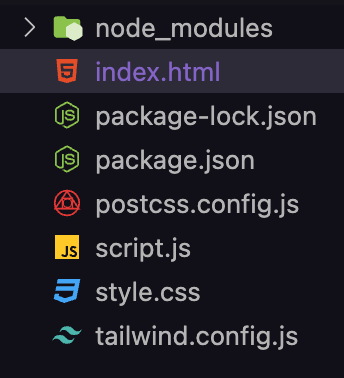
Step 8: Check project structure
Check the project structure and all the necessary files.
Step 9: Run the application
To run the application use the command npm run start into the terminal.
npm run startThe above line of code will generate a localhost server, & follow the server link to open the application on the web browser.
Step 10: Test Tailwind CSS with an example
Now that we have successfully set up the tailwind-CSS and understand how to run the application, now, we will test with a simple example.
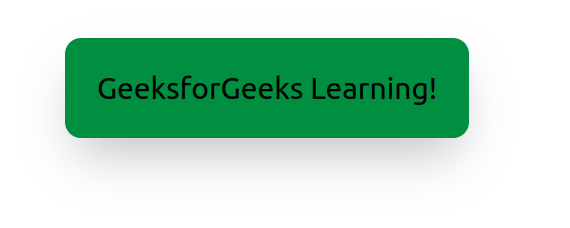
Example: This example illustrates the successful execution of code after setup Tailwind-CSS with Vite application.
Output: To run the application use npm run start into the terminal.
Setting up Tailwind CSS with Vite provides a streamlined development experience, allowing you to focus on creating beautiful, responsive designs. By following the steps outlined in this guide, you can quickly set up and start using Tailwind CSS with Vite, ensuring your web applications are built efficiently and effectively.