|
VOOZH | about |
|
VOOZH | about |
The EXPOSE instruction exposes a particular port with a specified protocol inside a Docker Container. In the simplest terms, the EXPOSE instruction tells Docker to get all the information required during the runtime from a specified port. These ports can be either TCP or UDP, but it's TCP by default. It is also important to understand that the EXPOSE instruction only acts as an information platform (like Documentation) between the creator of the Docker image and the individual running the Container. Some points to be noted are:
EXPOSE directive.-p or --publish option.The syntax to EXPOSE the ports by specifying a protocol is:
EXPOSE <port>/<protocol>
In this article, we are going to discuss some practical examples of how to use EXPOSE instruction in your Dockerfile and overriding it using the publish flag while starting a Docker Container.
Docker "expose" port is a way to specify which ports within a Docker container should be accessible to other containers or the host system. It does not actually publish the ports to the host system or make them accessible outside the container. Instead, it serves as a documentation mechanism to indicate which ports are intended to be used for communication between Docker containers.
Follow the below steps to implement the EXPOSE instruction in a docker container:
Exposing Ports in Dockerfile: Ports can be exposed within a Dockerfile using the EXPOSE instruction. This instruction informs Docker that the container listens on the specified network ports at runtime. However, it does not actually publish the port
Let's create a Dockerfile with two EXPOSE Instructions, one with TCP protocol and the other with UDP protocol.
Example:
FROM ubuntu:latest
EXPOSE 80/tcp
EXPOSE 80/udpTo build the Docker Image using the above Dockerfile, you can use the Docker Build command.
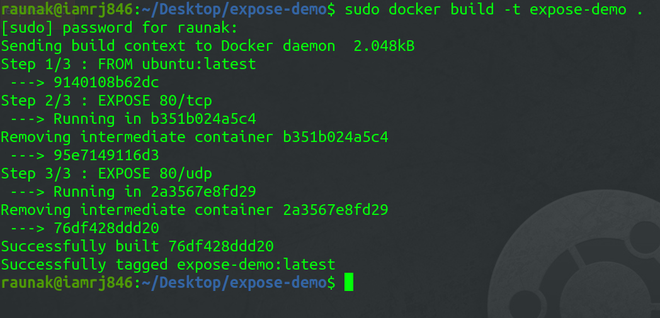
sudo docker build -t expose-demo
👁 Building ImageTo run the Docker Container, you can use the Docker run command.
sudo docker run -it expose-demo bash
👁 Running DockerTo verify the ports exposed, you can use the Docker inspect command.
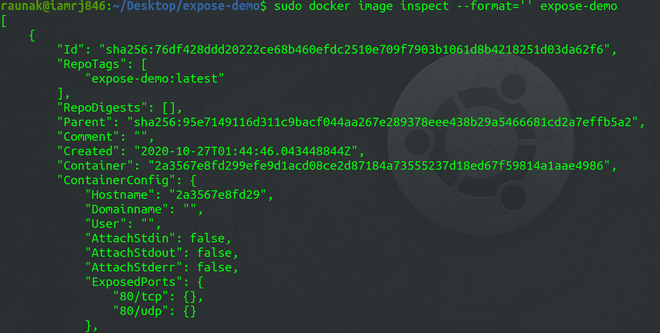
sudo docker image inspect --format='' expose-demo
👁 Port VerificationIn the above screenshot, you can see the ExposedPorts object contains two exposed ports that we have specified in the Dockerfile.
To publish all the exposed ports, you can use the -p flag.
sudo docker run -P -d expose-demo
👁 Using EXPOSE InstructionYou can just the list containers to check the published ports using the following command. But make sure that the Container is running.
sudo docker start <container-id>
sudo docker container ls
👁 Published PortsTo expose multiple ports in a Dockerfile, you can use the EXPOSE instruction followed by the port numbers and their corresponding protocols. Here's an example:
FROM ubuntu:latest
EXPOSE 80/tcp
EXPOSE 80/udp
This Dockerfile starts with the ubuntu:latest base image. It then exposes two ports, 80/tcp and 80/udp, using the EXPOSE instruction.
EXPOSE 80/tcp: This instruction exposes port 80 on the container for TCP traffic.EXPOSE 80/udp: This instruction exposes port 80 on the container for UDP traffic.