|
VOOZH | about |
|
VOOZH | about |
Docker originally was used with straightforward, individual commands for each task. Over time, as more features were added, this approach became harder to manage. To make the interface clearer and more structured, Docker introduced an object‑based command system, grouping commands by the type of resource they control.
This is the most fundamental command. It creates a new container from a specified image and then starts it. If the image is not found locally, Docker will automatically try to pull it first.
$ docker container run <image_name>
To give name of container
$ docker container run --name <container_name> <image_name>This command allows you to pull any image which is present in the official registry of docker, Docker hub. By default, it pulls the latest image, but you can also mention the version of the image.
$ docker pull <image_name>This command (by default) shows us a list of all the running containers. We can use various flags with it.
$ docker ps [options..]This command allows you to stop a container if it has crashed or you want to switch to another one.
$ docker container stop <container_ID>Suppose you want to start the stopped container again, you can do it with the help of this command.
$ docker container start <container_ID>Removes one or more stopped containers. You cannot remove a container that is still running; you must stop it first. You can use the docker stop <container_name or ID> command to stop the container. Some important flags:
$ docker rm {options} <container_name or ID>👁 docker remove an imageTo delete the image in docker. You can delete the images which are useless from the docker local storage so you can free up the space
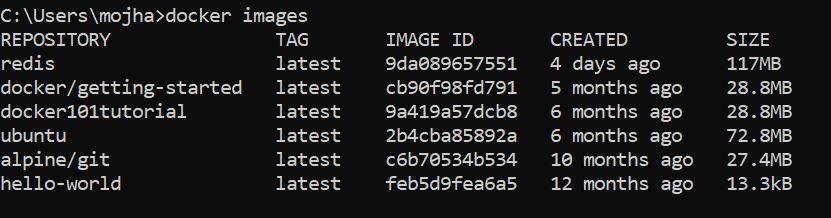
docker rmi <image ID/ image name>Lists all the pulled images which are present in our system.
$ docker images👁 docker images metadataThis command allows us to run new commands in a running container. This command only works until the container is running, after the container restarts, this command does not restart. Some important flags:
$ docker exec {options}👁 ubuntu containerIn order to access the docker container from the outside world, we have to map the port on our host( Our laptop for example), to the port on the container. This is where port mapping comes into play.
$ docker run -d -p <port_on_host>
<port_on_container> Container_name
👁 port 8080 on the host is mapped to containerSo these were the 9 most basic docker commands that every beginner must know. Containerization is a very vast topic but you can start from the very basic commands and by practicing them daily you can master them.
The Docker login command will help you to authenticate with the Docker hub by which you can push and pull your images.
docker login It will ask you to enter the username and password after that you will authenticate with DockerHub and you can perform the tasks.
Once you build your own customized image by using Dockerfile you need to store the image in the remote registry which is DockerHub for that you need to push your image by using the following command.
To know more about How to Push a Container Image to a Docker Repository: Push a Container Image to a Docker Repository
docker push <Image name/Image ID> The docker build command is used to build the docker images with the help of Dockerfile.
docker build -t image_name:tag .In the place of image_name use the name of the image you build with and give the tag number and . "dot" represents the current directory.
This is a powerful command that removes all unused Docker objects in one go. By default, it removes:
docker system prune
You can stop and start the docker containers where you can do the maintenance for containers. To stop and start specific containers you can use the following commands.
docker stop container_name_or_idInstead of stopping a single container. You can stop multiple containers at a time by using the following commands.
docker stop container1 container2 container3While running the containers in Docker you may face some errors and containers fails to start. You can restart the containers to resolve the containers by using the following commands.
docker restart container_name_or_idDocker containers will run into some errors in real time to debug the container's errors you can use the following commands.
docker inspect container_name_or_idDisplays the running processes inside a container. It's like running the top command on Linux, but targeted at a specific container.
docker container top <container_id_or_name>
After running the containers by using the current image you can make the updates to the containers by interacting with the containers from that containers you can create an image by using the following commands.
docker commit container_name_or_id new_image_name:tag