|
VOOZH | about |
|
VOOZH | about |
Docker is a software platform for creating isolated virtualized environments for building, deploying, and testing applications with ease. In this tutorial, we will learn how to host public repositories on docker hub which is a hosted repository service provided by Docker for finding and sharing container images. Just like GitHub allows the hosting of code of our application, DockerHub allows the hosting of Images of our applications.
In order to run these applications, we first need to create an image of the current application state. An image can be sometimes referred to as a snapshot of our project. Images are read-only in nature and consist of file that contains the source code, libraries, dependencies, tools, and other files needed for an application to run. A Docker image is a read-only template that contains a set of instructions for creating a container which can run on the Docker platform.
A Docker registry is a service that stores and manages Docker images. A Docker registry could be hosted by a third party, as a public or private registry. Some examples of Docker registries are as follows:
For all of the images that your Docker containers may require, DockerHub serves as a sizable storage area. There are two kinds: private and public.
Here's a simple approach to choosing the right container registry:
A Docker repository is a collection of different Docker images with the same name, that have different tags. Tags basically are identifiers of the image within a repository. In this tutorial, we will use Docker Hub to host our repositories, which is free for public use.
Step 1: Creating An Account On Docker Hub. Go to DockerHub and create a new account or log in to your existing account.
Step 2: Creating A Repository (optional)
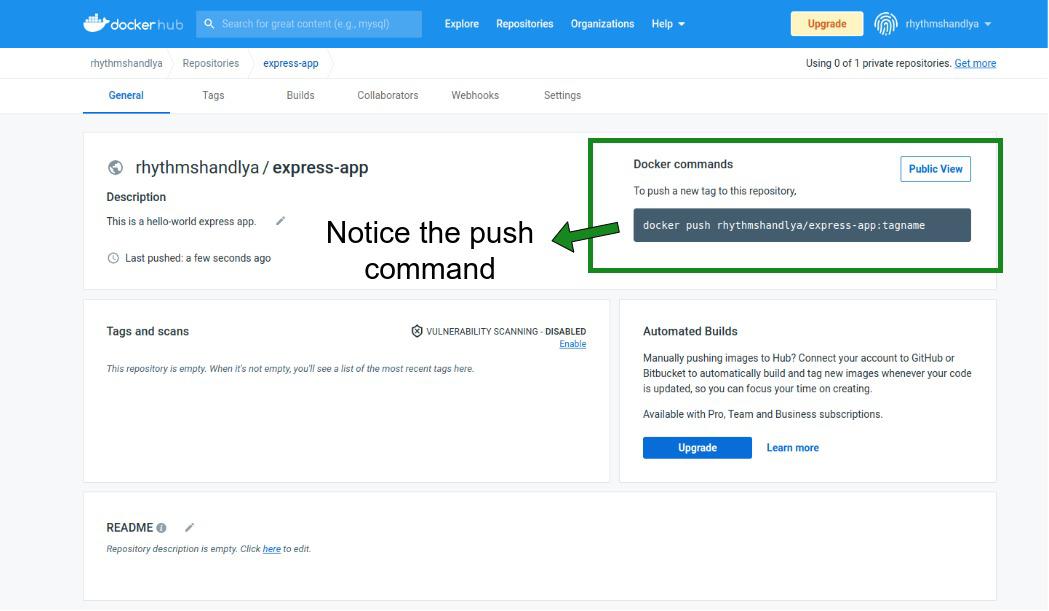
On the docker hub, you can create a repository by clicking on create repository button. Give the repository a name and description and make sure it is marked as public. This step is not necessary when you are hosting a public repository. It is used while hosting a private one.
Repository Name image widget.
Step 3: Build a Docker Image
Now we will generate a basic express application and create an Image out of it.
$ mkdir express-app && cd express-app
$ npx express-generator -e
Now, create a Dockerfile for the application and copy the content as shown below:
$ touch DockerfileFROM node:16
# Create app directory
WORKDIR /usr/src/app
# Install app dependencies
# A wildcard is used to ensure both package.json
# AND package-lock.json are copied
# where available (npm@5+)
COPY package*.json ./
RUN npm install
# If you are building your code for production
# RUN npm ci --only=production
# Bundle app source
COPY . .
EXPOSE 3000
CMD [ "npm", "start" ]
You can now build this Dockerfile with the docker build command.
$ docker build -t rhythmshandlya/express-app .One thing to notice is as did not specify the tag name, it will be given the : latest tag.
Step 4: Run This Image Locally.
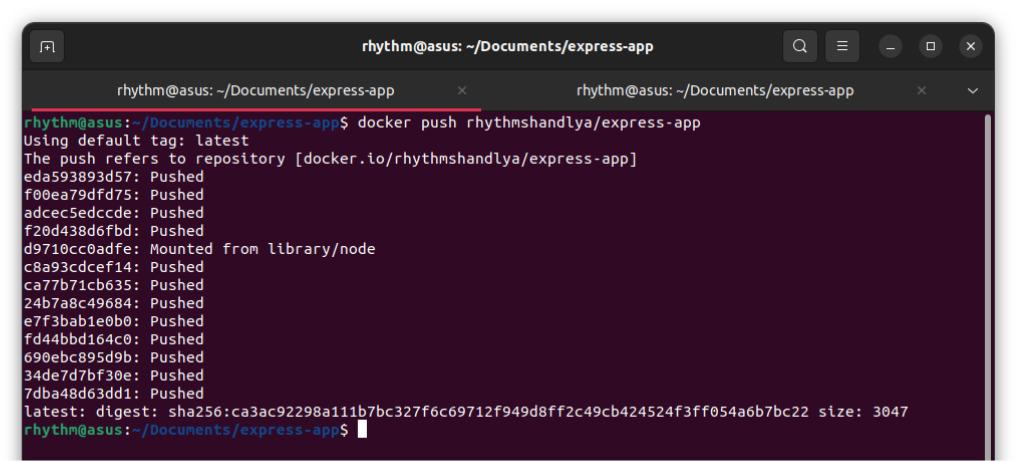
$ docker run -p 3000:3000 rhythmshandlya/express-appStep 5: Push Image to docker hub. To push a local Image to the docker hub we will need to log in to the docker hub with our terminal.
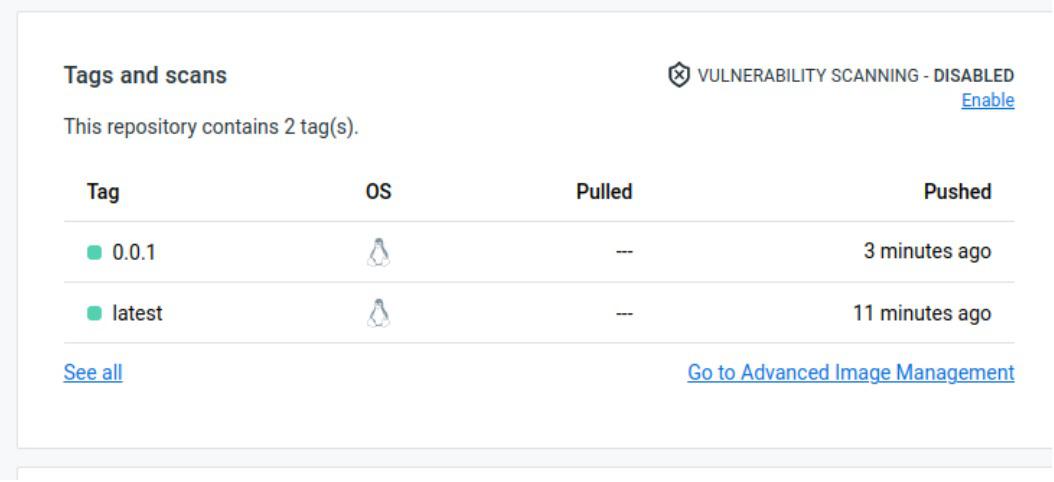
$ docker login$ docker push rhythmshandlya/express-appStep 6: Playing With Tags. We can make changes to this application and give it a version tag of 0.0.1
$ docker build -t rhythmshandlya/express-app:0.0.1 .
$ docker push rhythmshandlya/express-app:0.0.1
Output:
Now that we have hosted our image in public anyone can pull and run them on their machines.
$ docker pull rhythmshandlya/express-app:latest
OR
$ docker push rhythmshandlya/express-app:0.0.1
Millions of Docker images are hosted on the biggest public container registry, Docker Hub. It provides automatic builds, image vulnerability scanning, interaction with Bitbucket and GitHub, and both public and private repositories. Official repositories with validated images for security and best practices are also made available by Docker Hub.
AWS offers a completely managed container registry service called Amazon ECR. The seamless integration of Amazon ECS and Amazon EKS with other AWS services facilitates the deployment of containerized applications on AWS with ease. ECR provides features like lifecycle policies for image management, image scanning with Amazon ECR Public Vulnerability Insights, and encryption at rest.
Google Kubernetes Engine (GKE) and additional Google Cloud Platform (GCP) services are integrated with Google Cloud's managed container registry service, GCR. Features provided by GCR include vulnerability scanning using Container Analysis, access control with IAM roles, and connection with Google Cloud Build for automated builds.
Azure Kubernetes Service (AKS) and further Azure services are integrated with Microsoft's managed container registry service, ACR. High availability geo-replication, role-based access control (RBAC) with Azure Active Directory, and image signing with Docker Content Trust are just a few of the capabilities that ACR provides.
Harbor is an open-source container registry project that includes enterprise-grade capabilities such as role-based access control, image replication, vulnerability screening, and policy-based image preservation. Harbor can be deployed on-premises or in the cloud and interfaces with Kubernetes, Docker, and other container technologies.
Because GitLab's integrated container registry and CI/CD pipelines are tightly coupled, developers can create, test, and launch containerized applications right from GitLab. It has built-in container scanning, access control with project permissions, and picture versioning, among other things.
Docker images are supported by JFrog Artifactory, an all-purpose artifact repository manager that also works with other package formats including Maven, npm, and NuGet. Features like replication, access control, metadata management, and sophisticated search capabilities are offered by Artifactory.